
You’re standing outside your door, juggling groceries while your Yale smart lock’s keypad stays stubbornly dark. Maybe your phone battery died before you could use the app, or your fingerprint keeps getting rejected in the rain. Don’t panic—Yale smart locks have four foolproof opening methods built for exactly this scenario. Whether you’re facing low batteries, app glitches, or slippery fingers, this guide delivers the exact steps to regain entry. You’ll learn how to bypass common failures in under 60 seconds and keep your lock functioning smoothly for years.
Why Your Yale Smart Lock Won’t Unlock & How to Fix It Now
PIN Code Entry Works Even With Low Batteries
Wake the keypad with a light tap—no need to press hard. Enter your full PIN slowly and wait two seconds instead of hunting for a confirmation button. When successful, a green LED flashes with a two-tone beep while the deadbolt retracts automatically. If the keypad responds sluggishly or skips digits, replace all four AA alkaline batteries immediately. Yale locks operate down to 4.8V (20% power), but weak batteries cause unresponsive keypads. Never mix old and new batteries—that strains the motor and triggers false lockouts.
Why Your PIN Entry Fails and the 60-Second Fix
Red LED flashing rapidly? You’ve hit the security lockout after five incorrect PIN attempts. Wait 60 seconds—no button mashing—while the system resets. During this timeout, your master PIN (set during installation) still works. If buttons feel sticky or unresponsive:
– Clean with a microfiber cloth dampened with soapy water (never alcohol or solvents)
– Ensure fingers are dry; moisture disrupts capacitive keypads
– Check for debris under physical buttons—use a toothpick to gently clear gaps
Pro Tip: Test every user PIN monthly. If one code fails, reset it via the master PIN menu to avoid being locked out by forgotten codes.
Mobile App Unlock Works From Anywhere With These Settings
Bluetooth unlocking (10-30 ft range) requires active location permissions and Bluetooth enabled on your phone. Open the Yale Access or Yale Home app and tap Unlock—the deadbolt releases in 2-5 seconds. For remote access via Wi-Fi, confirm your Yale Connect Bridge shows a solid blue LED, then unlock from anywhere in 5-10 seconds.
App Won’t Connect? Do This Before Calling Support
Bluetooth fails? Toggle airplane mode for 10 seconds to force a fresh connection. If the app freezes:
1. Force-close the Yale app completely
2. Delete the lock from your phone’s Bluetooth settings
3. Re-pair the lock through the app’s “Add Device” menu
Critical: Yale only connects to 2.4GHz Wi-Fi networks—5GHz bands block remote access. If your bridge blinks red, unplug it for 10 seconds to reboot.
Pro Tip: Carry a spare phone with the Yale app pre-logged in. It bypasses Bluetooth pairing delays during emergencies.
Fingerprint Access Fails in Rain? Here’s the Reliable Fix

Models like the Assure Lock SL and Assure Lock 2 authenticate in under one second when conditions are ideal. Place your registered finger flat on the sensor for half a second—no swiping. A green flash plus single beep means success. Red flashes indicate misalignment; try a slightly different finger angle.
Boost Fingerprint Success Rate to 99%
Register each finger three ways: tip, center, and side. Clean the sensor weekly with a dry cloth—oil or moisture from gardening ruins accuracy. Re-register prints when hands are dry and at room temperature (cold below -22°F slows response). Yale stores 25–100 prints depending on model, but prioritize quality over quantity: delete unused prints monthly via the app’s “Biometrics” menu.
Pro Tip: Add backup fingers for rainy days. Wet skin reduces accuracy by 40%, but a thumbprint taped in plastic wrap works in emergencies.
Physical Key Override Works During Power Outages
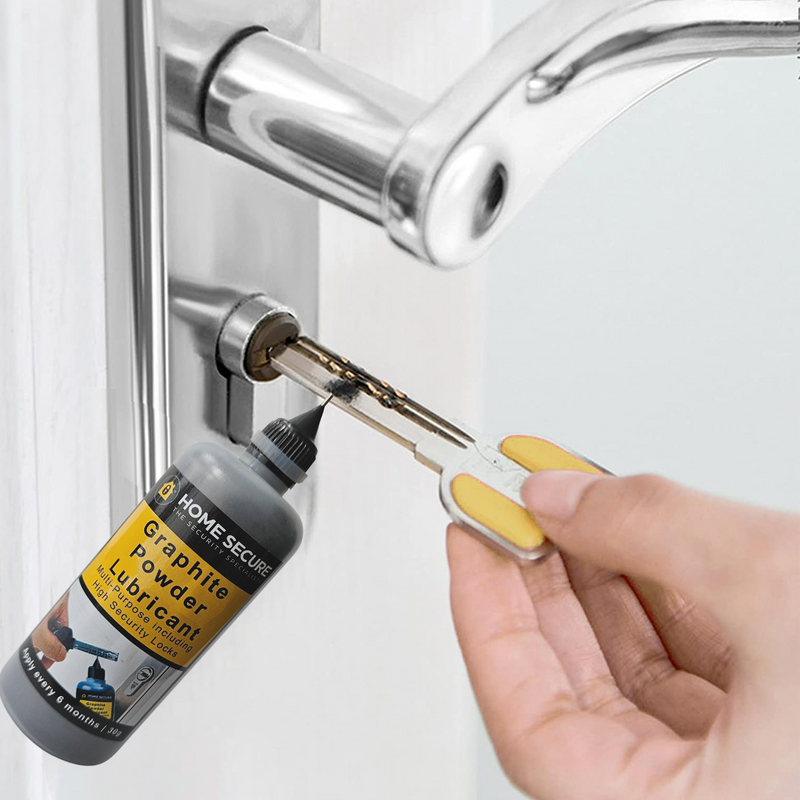
Every Yale smart lock includes a mechanical key cylinder. Insert the supplied key fully, then turn 90–180 degrees clockwise (standard doors) or counterclockwise (left-handed installations). The deadbolt retracts without batteries—this is your nuclear option during blackouts. Always return the key to vertical before removal to avoid breaking the cylinder.
Why Your Key Won’t Turn and How to Prevent Damage
Dirt in the cylinder causes grinding resistance. Apply graphite powder (never oil—it attracts debris) annually. If the key sticks mid-turn:
1. Wiggle gently while applying steady pressure
2. Back out completely before retrying
3. If still jammed, use the 9V jump-start method below
Warning: Forcing the key can shear internal pins—replace the cylinder if resistance persists after cleaning.
Emergency 9V Jump-Start When Batteries Die

Revive Your Yale Lock in 20 Seconds With a 9V Battery
Locate the two silver contact pins under the lock’s “chin.” Hold a fresh 9V battery against both pins while simultaneously entering your PIN or tapping Unlock in the app. The lock powers just long enough to grant entry—replace all four AAs immediately after. This works even at 0% battery since Yale’s emergency circuit bypasses the main system.
Why the 9V Method Fails (And the One Fix That Works)
If the lock doesn’t respond:
– Battery polarity is reversed—flip the 9V battery 180 degrees
– Corroded contacts—wipe pins with a vinegar-dampened cotton swab
– Drained beyond revival—switch to physical key override
Pro Tip: Tape a 9V battery to your doorframe with duct tape. It’s invisible but life-saving during blackouts.
Fix Forgotten PINs or Glitched Apps in Under 3 Minutes
Master PIN Rescue When Users Forget Codes
Enter your master PIN (created during setup), press the gear icon on the keypad, and select “User Codes.” View, edit, or reset any user PIN instantly. The master PIN bypasses security lockouts—even during the 60-second timeout after failed attempts.
App Recovery Loop That Actually Works
If the Yale app crashes repeatedly:
1. Force-close the app
2. Toggle Bluetooth off/on
3. Clear app cache (Android: Settings > Apps > Yale > Storage)
4. If unresolved, uninstall/reinstall—the app syncs your account cloud data automatically
Critical: Never reset the lock to factory settings—that erases all PINs and fingerprints. Always exhaust app recovery steps first.
Prevent Future Lockouts With Yale’s 60-Second Monthly Checklist
Battery Replacement Protocol That Avoids Midnight Failures
Swap all four AA alkalines every 8–12 months—set a calendar reminder for daylight saving time changes. Test every access method immediately after replacement. Yale’s low-battery warning (flashing red LED) triggers at 20% power, but replace batteries at 30% to avoid surprises.
Your Essential Monthly Lock Health Scan
- Test each PIN code—start with the master code
- Unlock via app—verify both Bluetooth and Wi-Fi
- Scan all fingerprints—re-register any failing prints
- Turn the physical key—ensure smooth operation
- Check access logs—delete unrecognized entries
Pro Tip: Lubricate the keyhole with graphite powder after battery changes. Tighten mounting screws if the keypad wobbles—loose locks strain the 8 kgf-cm motor.
Next Steps for Hassle-Free Yale Smart Lock Access
Practice your backup method weekly—your muscle memory during panic depends on it. If your lock ever feels sluggish, replace batteries immediately; 95% of “broken” Yale locks just need fresh power. For persistent issues, consult Yale’s access logs to pinpoint failures—like a Bluetooth dropout at 2:17 AM from the backyard. Remember: the physical key is your ultimate failsafe, but regular maintenance turns your smart lock into the most reliable entry point you own. Keep this guide bookmarked, and you’ll never face another locked-out crisis.



