
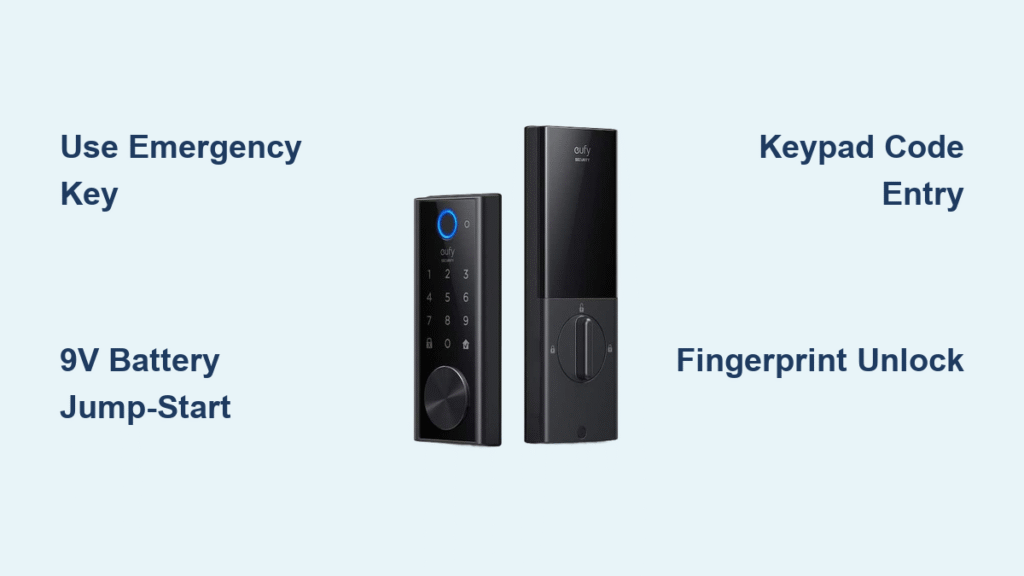
You’re standing at your front door, groceries in hand, only to find your Eufy smart lock unresponsive. Maybe your phone died mid-unlock, the keypad froze during rain, or you’re facing complete battery failure. This critical moment separates prepared owners from those stuck outside – and knowing exactly how to open Eufy smart lock systems when electronics fail is non-negotiable for modern homeowners. With proper technique, you’ll bypass frustration in under 30 seconds whether you’re dealing with network outages, dead batteries, or unresponsive scanners. This guide covers every verified access method from daily convenience features to life-saving emergency overrides.
Unlock Eufy Smart Lock Remotely with the Security App (Even from Work)
When your smartphone has connectivity, the Eufy Security app delivers instant access without physical contact. This method works whether you’re across town or checking on a package delivery.
How to Unlock via App in 4 Steps When Internet Works
Open the Eufy Security app, select your specific lock model from the device list, and tap the prominent unlock icon. Confirm the action when prompted, then listen for the distinct double-beep from your lock within 1-2 seconds. Immediately rotate the handle clockwise – the auto-lock feature engages after 5 seconds if untouched. Critical tip: Enable location-based auto-unlock in settings so your door opens when you approach home, eliminating fumbling for your phone with full hands.
Bypass Internet Outage: Bluetooth Unlocking Within 30 Feet
During Wi-Fi failures, Bluetooth becomes your lifeline. Stand within arm’s reach of your door (30 feet maximum), ensure Bluetooth is active on your phone, and reopen the Eufy app. The interface automatically switches to local control mode, shown by a Bluetooth icon replacing the Wi-Fi symbol. Tap unlock as usual – the lock responds in under 3 seconds without internet. Pro move: Add the Eufy widget to your phone’s home screen for one-tap access without launching the full app during emergencies.
Keypad Code Entry: Fix Unresponsive Eufy Lock Keypads in Seconds
Your keypad remains functional during total network failure, making it the most reliable daily access method when properly maintained. Unresponsive keypads usually stem from simple environmental factors rather than hardware failure.
Correct Code Entry Sequence for Eufy Locks (With Beep Confirmation)
Wake the backlit keypad by pressing any key, then enter your 4-8 digit code within 30 seconds. Press the lock/unlock button immediately after your final digit – hesitation causes failure. Three ascending beeps confirm success; if you hear two short beeps, re-enter the code. Rotate the handle clockwise within 5 seconds before auto-lock re-engages. Warning: Never force the handle if no confirmation sounds – incorrect codes trigger security lockouts.
Manage Multiple User Codes for Family Members
Eufy locks support up to 100 unique access codes with customizable permissions. Permanent codes for residents, time-limited codes for cleaners (e.g., 9 AM-2 PM Tues/Thurs), and one-time guest codes prevent unauthorized access. Create these through the app’s “User Management” section. Troubleshooting: If a specific code fails, reprogram it immediately – moisture exposure can corrupt individual codes while others work perfectly.
Fingerprint Scanner: Register and Troubleshoot Eufy Touch ID Access
The fingerprint sensor operates independently of network connectivity, making it ideal for quick entry during internet outages. Proper registration and maintenance prevent common recognition failures.
Perfect Finger Placement for 0.3-Second Recognition
Place your registered fingertip flat against the sensor with moderate pressure – no sliding. Hold still until the green LED illuminates (takes 0.3 seconds). Immediately rotate the handle; the lock auto-locks after 5 seconds if unused. Expert technique: Register the same finger multiple times at different angles (front, left, right) in dry, room-temperature conditions for 98% recognition reliability.
Fix “Fingerprint Not Recognized” Errors Immediately
When the red LED flashes after scanning:
– Wipe the sensor with a dry microfiber cloth to remove oils
– Ensure your finger is completely dry (moisture is the #1 failure cause)
– Try an alternate registered finger while cleaning the sensor
– Re-register fingerprints during optimal conditions (70°F, low humidity)
Never use: Alcohol wipes or compressed air – these damage the sensor coating.
Emergency Key Access: Open Eufy Lock When Batteries Die (Hidden Slot)
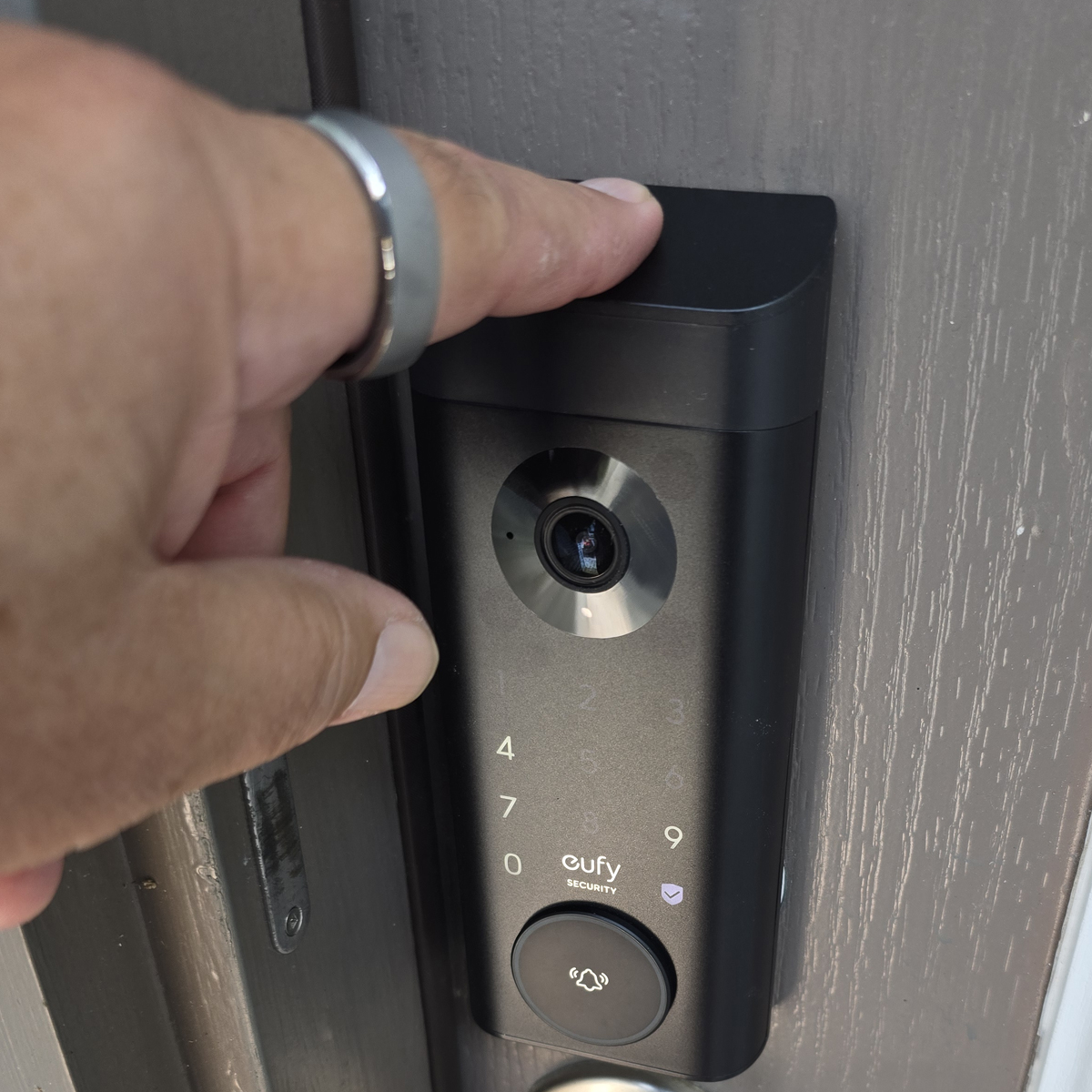
Physical keys function during total electronic failure, including dead batteries. The hidden key slot preserves your lock’s sleek design while providing critical mechanical access.
Locate and Use the Physical Key Slot in 10 Seconds
Find the discreet keyhole beneath the exterior assembly – it’s often covered by a rubber flap. Insert your Eufy-provided key fully, then turn clockwise with firm, steady pressure until resistance stops. Maintain turning pressure while rotating the handle clockwise to disengage the bolt. Critical insight: Keys sometimes stick due to weather exposure; apply graphite powder (not WD-40) to the cylinder quarterly.
Jump-Start a Dead Eufy Lock with 9V Battery Terminals
When batteries deplete completely:
1. Locate the two metal emergency terminals at the lock’s base
2. Press a standard 9V alkaline battery’s contacts to these terminals
3. Hold for 3-5 seconds until you hear a confirmation beep
4. Immediately unlock via keypad, app, or fingerprint
Urgent action: Replace all 4 AA batteries immediately after entry – emergency power only lasts 30 seconds.
Fix Unresponsive Eufy Lock: Electronic Troubleshooting Flowchart
When electronic methods fail simultaneously, systematic troubleshooting prevents panic. Most issues resolve in under 2 minutes with these verified steps.
Red LED Flashing 10 Times? Battery Replacement Guide
Ten rapid red flashes indicate critical battery depletion. Remove the interior cover using the included tool, replace all 4 AA batteries (Duracell/Energizer recommended), and test operation. Never mix old/new batteries – this causes voltage instability and erratic behavior. Settings remain intact during replacement; no reprogramming is needed.
Reset Eufy Lock After Keypad or App Malfunctions

For persistent unresponsiveness:
1. Remove batteries for 30 seconds
2. Reinsert batteries while holding the programming button
3. Wait for three beeps confirming reset
4. Reconnect to the app if needed
Note: This clears temporary glitches without deleting user codes or fingerprints.
Avoid 5-Minute Lockouts: How Eufy Failed Attempt Security Works
After 5 incorrect keypad entries, Eufy locks activate security lockout mode. Understanding this feature prevents wasted effort during emergencies.
Bypass Keypad Lockout Without Waiting
During the 5-minute lockout period:
– Use your physical emergency key (works regardless of lockout status)
– Employ fingerprint access if registered
– Activate Bluetooth mode for app unlocking
Never attempt: More keypad entries – this resets the lockout timer.
Check Real-Time Access Logs to Identify Unauthorized Entries
Every access method generates timestamped logs:
– Keypad codes show which specific code was used
– Fingerprint entries identify registered users
– Physical key use logs as “manual override”
Review these in the app’s “Activity History” to detect suspicious attempts.
Prevent Power Failures: Eufy Battery Maintenance Checklist
Battery issues cause 90% of Eufy lock emergencies. Proactive maintenance eliminates most failures.
Monthly Battery Replacement Protocol (No Reprogramming Needed)
Check battery levels monthly via the app. Replace all 4 AA batteries when below 20% – partial depletion causes intermittent failures. During replacement:
1. Test all access methods before reattaching the interior cover
2. Verify auto-lock timing matches your settings
3. Confirm app connectivity after reinstallation
Critical fact: Settings remain intact during battery changes; only complete power loss for >24 hours requires reprogramming.
Best AA Batteries for Eufy Locks: Duracell vs. Energizer
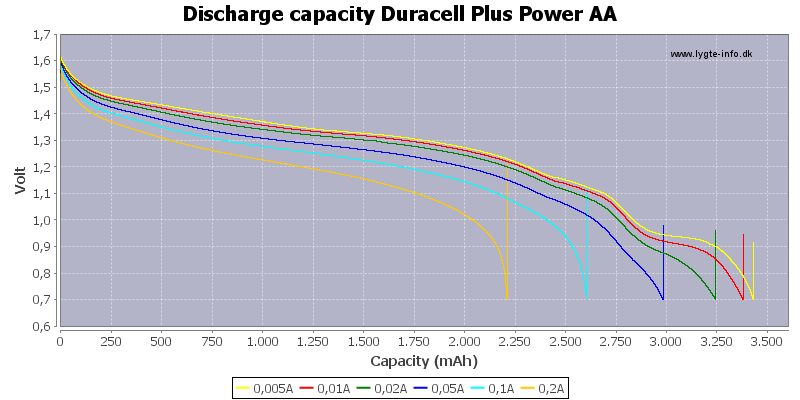
Alkaline batteries outperform lithium in Eufy locks. Duracell Quantum and Energizer Max deliver consistent voltage for 8-10 months under normal use. Avoid: Rechargeable NiMH batteries – their lower voltage (1.2V vs 1.5V) triggers premature low-battery warnings.
Emergency Scenarios: Open Eufy Lock When Phone Is Lost or Dead
Complete device failure requires immediate action. These methods work when your primary access tools disappear.
Lost Phone? Use Keypad or Fingerprint as Backup
Without your phone:
1. Enter your master keypad code (always program one)
2. Use fingerprint access if enabled
3. Retrieve your physical key from a secure neighbor’s location
Never store keys: Under mats or in obvious hiding spots – use a tamper-proof lockbox instead.
Complete System Failure: When to Call Eufy Support
If all methods fail:
1. Attempt 9V jump-start (step-by-step in Section 4)
2. Verify key cylinder isn’t frozen (common below 32°F)
3. Contact Eufy support at +1 (800) 988-7973 with proof of purchase
Warranty note: 12-month coverage includes mechanical failures – have your serial number ready.
Don’t wait for an emergency to verify your Eufy lock’s backup methods. Test all seven access techniques monthly: app, Bluetooth, keypad, fingerprint, physical key, 9V jump-start, and manual interior release. Keep spare keys with trusted neighbors and maintain fresh batteries using the monthly checklist. With these proven methods mastered, you’ll transform potential lockout disasters into 10-second inconveniences – ensuring your Eufy smart lock delivers both cutting-edge convenience and absolute reliability when it matters most.



