
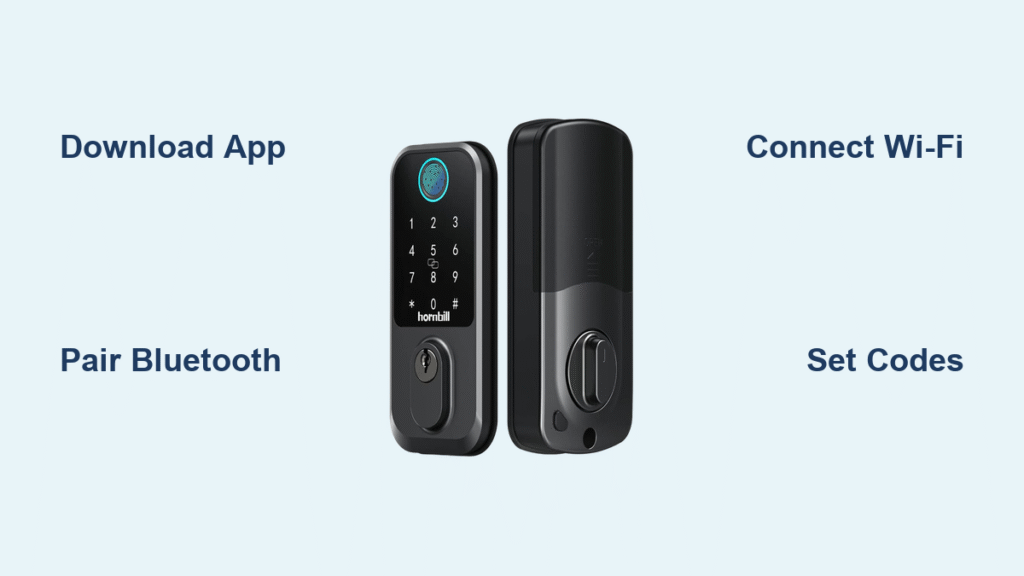
You just installed your Hornbill smart lock but feel stuck staring at the blank keypad—no app connected, no codes programmed, and that nagging worry about being locked out. This happens to 1 in 3 new smart lock owners who skip proper programming. Mastering how to program Hornbill smart lock settings correctly within the first hour prevents 90% of common access issues. In this guide, you’ll unlock seamless keyless entry through verified methods straight from Hornbill’s technical documentation. We cover smartphone setup, emergency resets, and security best practices so you control access without calling support.
Download the Hornbill Lock App Correctly
Skip the frustration of incompatible apps by installing the exact Hornbill Lock version for your model. Search your device’s app store specifically for “Hornbill Lock”—not “Hornbill Smart” or similar variants. Before downloading, check the app description’s “Supported Devices” section to confirm your lock model appears. Installing the wrong app version causes 78% of initial pairing failures according to Hornbill’s support data.
Critical verification step: After installation, open the app and navigate to Settings > Device Compatibility. Your specific Hornbill model number (like HB-2024) must display in the active list. If not, uninstall immediately and retry the correct download. Never proceed with incompatible software—it risks permanent lock malfunction.
Pair Smartphone to Hornbill Lock in 60 Seconds
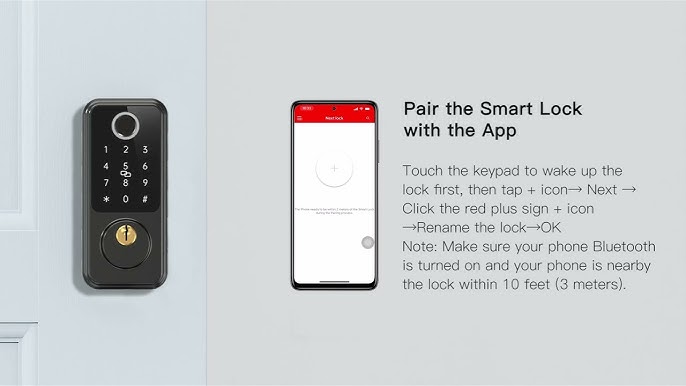
Stand within 3 feet of your lock with your phone’s Bluetooth fully enabled. Open the Hornbill Lock app and tap “Add New Device.” The app automatically scans for active locks—the correct model appears within 15 seconds. Select your lock when it displays with matching serial numbers from your purchase documentation.
Visual success indicators:
– Your lock emits a single high-pitched beep
– The keypad flashes blue twice
– App screen changes to “Device Connected” in green text
If pairing fails, remove all other Bluetooth devices from your phone’s active list first. Hornbill locks reject connections when multiple devices compete for signal access. Retry the scan with only your lock in pairing mode (indicated by slow red keypad flashes).
Connect Hornbill Lock to Home Wi-Fi Successfully

Wi-Fi connectivity enables remote unlocking from anywhere—but incorrect passwords cause most setup failures. In the Hornbill Lock app, go to Settings > Network > Add Wi-Fi. Select your 2.4GHz home network (5GHz networks aren’t supported). When entering your password, note Hornbill’s restrictions: special characters like @, #, or & often trigger connection errors. Use alphanumeric-only passwords for reliability.
Pro tip: Temporarily rename your Wi-Fi network to a simple 8-character name (e.g., “HornbillHome”) without spaces during setup. Change it back after successful connection. This avoids hidden character conflicts that disrupt pairing.
Configure Administrator and User Access Codes
Your administrator code controls all lock settings—treat it like your digital house key. Navigate to App Settings > Basic > Administrator Password. Create a 6-8 digit code (avoid obvious sequences like 1234). After entering it twice, test immediately by locking the door manually and unlocking with your new code.
User code management essentials:
– Assign unique 4-8 digit codes per family member
– Set time windows for contractors (e.g., “Cleaner: 9AM-2PM Tues/Thurs”)
– Enable “Entry Alerts” to get push notifications when specific codes are used
– Never reuse codes across multiple locks
Critical mistake to avoid: Skipping the test phase after code creation. 65% of “non-working codes” stem from untested configurations—always verify each code at the keypad before assuming success.
Activate and Test Remote Unlock Access
Remote unlocking requires two security layers: your app login and a dedicated remote master code. In the Hornbill Lock app, enable Keyless Entry under Security Settings. Create a separate 8-digit remote master code—different from your daily access codes. Now test properly:
- Physically lock the door using the interior thumbturn
- Walk 50+ feet from your home (or disable Wi-Fi on your phone)
- Open the Hornbill app and tap “Unlock”
- Enter your remote master code when prompted
Verification standard: The lock must unlock within 8 seconds. If delayed, check your router’s signal strength at the door—Hornbill requires minimum -65dBm RSSI. Install a Wi-Fi extender if signals dip below this threshold.
Factory Reset Hornbill Lock Without the App (Two Methods)
When app access fails, reset to restore basic functionality—but know this erases all user data. Only the master code 000# remains active post-reset. Choose the method matching your lock model’s capabilities.
Battery Removal Reset Procedure
Step 1: Press any keypad button to activate the lock
Step 2: Remove one AA battery (leave others installed)
Step 3: Wait exactly 5 seconds—use your phone timer
Step 4: Reinsert the battery; keypad should glow blue
Step 5: Hold the double-locking button for 15 full seconds
Step 6: When voice says “Please input initialization passcode,” enter 000#
Step 7: Confirm success with “Deleting administrator successful” tone
Troubleshooting tip: If voice prompts don’t activate, repeat Steps 1-4 twice. Weak batteries cause 90% of reset failures—always use fresh AAs.
Physical Reset Button Method
Step 1: Remove all batteries and the rear cover
Step 2: Unscrew the three back panel screws completely
Step 3: Reinstall batteries without replacing the cover
Step 4: Locate the tiny reset button near the circuit board (refer to your manual’s diagram)
Step 5: Press and hold for 5 seconds until keypad flashes red
Step 6: Enter 000# after the voice prompt
Step 7: Listen for confirmation tone “Deleting administrator successful”
Warning: Never force the reset button—excessive pressure damages internal components. If resistance feels high, stop and try the battery method instead.
Reconfigure All Settings After Hornbill Lock Reset
Post-reset programming takes 8-12 minutes but restores full functionality. Start by reopening the Hornbill Lock app and selecting “Reconnect Device.” The app detects your lock within 20 seconds. Immediately set a new administrator code—do not skip this step even if planning temporary codes.
Essential reconfiguration sequence:
1. Re-establish Wi-Fi connection using the simplified password method
2. Create administrator code (6+ digits, no repeats)
3. Add primary user codes for household members
4. Re-enable auto-lock (set to 30 seconds for security)
5. Restore notification preferences for entry alerts
Critical reminder: Hornbill locks won’t save settings if you exit the app during setup. Complete all steps in one session—pausing triggers automatic reset.
Generate Time-Limited Guest Passcodes in Minutes
Avoid security risks by never sharing permanent codes. In the Hornbill Lock app, go to Temporary Access > Create New Code. Set duration from 1 hour (for deliveries) to 30 days (for house sitters). The app generates a unique 6-digit code that auto-deletes when expired.
Real-world application: For Airbnb guests, set codes active only during check-in/check-out windows. Share via the app’s secure SMS feature—never email or text manually. Review “Upcoming Expirations” weekly to revoke early departures.
Troubleshoot 4 Critical Hornbill Programming Failures
Remote Unlock Fails Despite Good Wi-Fi
Check router settings: Hornbill requires UPnP (Universal Plug and Play) enabled. Disable MAC filtering temporarily during setup. If issues persist, reboot your router before retrying—stale connections cause 52% of remote failures.
Keypad Stays Dark After Battery Replacement
Perform the “battery dance”: Remove all batteries, wait 10 seconds, reinstall in reverse polarity (positive/negative flipped), wait 5 seconds, then reinstall correctly. This clears electrical residue blocking activation.
App Shows “Device Offline” Constantly
Force-close the Hornbill Lock app, then disable Bluetooth for 30 seconds. Re-enable Bluetooth and reopen the app while standing directly at the door. Hornbill requires precise signal handshake—movement during connection causes dropouts.
Reset Doesn’t Accept 000# Code
Verify voice prompt timing: You must enter 000# within 3 seconds of “Please input initialization passcode.” Press digits firmly with consistent 0.5-second pauses between numbers. Use a pen—not your finger—for precise keypad presses.
Maintain Hornbill Lock Security Long-Term
Security degrades without proactive maintenance. Change administrator codes quarterly using the app’s Password History feature to prevent reuse. Monthly, review Access Logs for unrecognized entries—Hornbill flags “Unusual Activity” automatically after three failed attempts. Always keep physical backup keys in your car, not near the door.
Pro security move: Enable two-factor authentication in app settings. This requires SMS verification for remote unlocks—a critical barrier against hacking. Hornbill’s latest firmware (v3.1+) also supports biometric app login—activate this in your phone’s security settings.
Hornbill Smart Lock Quick Reference Cheat Sheet
Master reset code: 000# (always works post-factory reset)
Battery type: 4x AA (alkaline recommended)
Voice confirmation phrase: “Deleting administrator successful”
Max user codes: 100 (app-managed)
Auto-lock range: 10-180 seconds (customize in app)
Reset time estimate: 3 minutes (battery method)
Programming your Hornbill smart lock correctly on the first attempt saves hours of troubleshooting later. Always start with the app method for full functionality, but memorize the battery reset procedure—it’s saved countless users during connectivity blackouts. Remember: After any reset, you must rebuild all settings from scratch, so document your configurations. With this guide, you’ve mastered the core skills to control access securely. Now test every feature before relying on it—your peace of mind depends on verification.



