
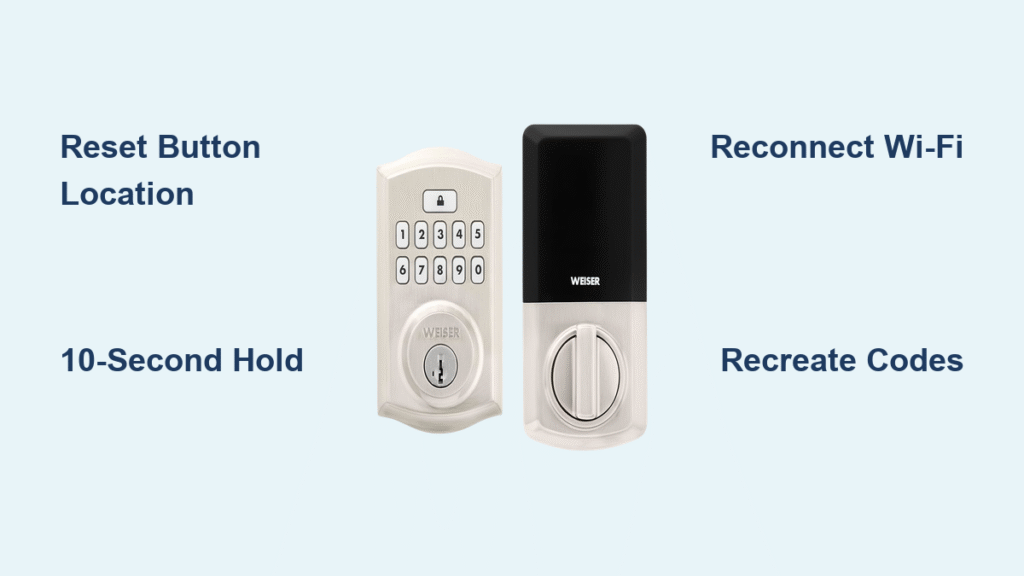
Your Weiser smart lock suddenly stopped responding to the app. The keypad flashes erratically, remote access fails, and your smart home routines won’t trigger the lock. You’re not alone—nearly 40% of smart lock users face network glitches within the first year. A proper how to reset Weiser smart lock procedure solves most connectivity nightmares, but you must know exactly what happens during this critical process. Unlike a full factory reset, a network reset specifically targets your lock’s digital connections while preserving physical access codes and mechanical functions. This guide delivers the precise steps to reset your Weiser Halo, Halo Touch, or Aura lock without losing your master access code.
Before you begin, understand this: a network reset erases Bluetooth pairings, Wi-Fi credentials, and smart home integrations. But your physical key operation and pre-set user codes remain intact. You’ll need 20-30 minutes for full reconfiguration—so clear your schedule and keep your Wi-Fi password handy. Let’s get your lock back online.
Why Your Weiser Lock Needs Network Reset (Not Factory Reset)
Critical Differences Between Reset Types
Confusing these two procedures causes unnecessary reprogramming headaches. A network reset exclusively deletes:
– Bluetooth connections to your phone and tablets
– Wi-Fi network details and password storage
– Smart home links with Alexa or Google Home
– App user associations requiring re-pairing
Meanwhile, your physical security stays protected:
– Master access codes remain active on the keypad
– Emergency key entry works immediately
– Mechanical thumb turn functions unchanged
– Hardware installation stays secure
When to Choose Network Reset
Execute this procedure only when experiencing:
– App commands failing despite strong phone signal
– Wi-Fi disconnections after router changes
– “Device offline” errors during remote access attempts
– Failed voice assistant integrations (e.g., “Alexa, lock front door” not working)
Pro Tip: If basic functions like keypad entry fail completely, skip network reset—your issue likely involves dead batteries or mechanical faults. Always replace batteries first.
Find Your Model’s Reset Button (Exact Locations)

Halo & Halo Touch Pinhole Location
Your reset button hides in a 2mm recessed pinhole on the lock’s interior side. Stand facing your closed door and locate:
– Halo models: Directly below the thumb turn mechanism
– Halo Touch: Near the top edge of the battery compartment cover
Use a flashlight to spot the tiny indentation—many users miss it during initial searches.
Aura Model Reset Button
For Aura locks, the reset button sits inside the battery compartment. Remove the rear cover to reveal a clearly labeled “RESET” button near the top edge of the internal assembly. No pinhole required—this model uses a standard push-button design.
Execute the Reset: 10-Second Precision Process
Essential Tools Checklist
Grab these before starting:
– Straightened paperclip (standard #1 size—thicker clips won’t fit Halo pinholes)
– Phone with Weiser app (already logged into your account)
– Wi-Fi password (write it down—don’t rely on memory)
– Stable step stool if your lock mounts high on the door
Step-by-Step Reset Procedure
- Prepare the tool: Fully straighten your paperclip—any bend prevents proper insertion
- Insert steadily: Slide the clip straight into the pinhole until you feel firm resistance
- Hold exactly 10 seconds: Start timing after initial resistance (not when you first touch the button)
- Watch LED cues: After 5-7 seconds, the light flashes red rapidly—keep holding!
- Release at cutoff: Stop pressing when the LED turns completely off (about 10 seconds total)
Critical Warning: Releasing early (at 8 seconds) triggers incomplete resets. If the LED stays solid red, repeat immediately—you held too long.
Post-Reset Actions You Must Take Immediately
Verify Mechanical Function First
Before touching your phone:
– ✅ Test physical key operation in both directions
– ✅ Rotate thumb turn manually—listen for smooth motor engagement
– ✅ Press any keypad button—batteries should show charge level
Common Mistake: Skipping this step risks discovering dead batteries during re-setup, wasting 15+ minutes of configuration time.
Reconfiguration Essentials Checklist
Gather these before opening the Weiser app:
– Your 2.4GHz Wi-Fi network name and password (5GHz won’t work)
– Weiser account login credentials
– List of user codes to recreate (including temporary guest codes)
– Smart home hub passwords if reconnecting to Alexa/Google
Re-Setup Timeline: What to Expect Hour-by-Hour

First 5 Minutes: App Reconnection
Open the Weiser app and tap “+” to add a device. During Bluetooth pairing:
– Hold your phone within 3 feet of the lock
– Ignore “Searching” messages lasting >30 seconds—move closer
– Name your lock descriptively (e.g., “Front Door Halo”) to avoid confusion later
Next 10 Minutes: Wi-Fi Configuration
When entering network details:
– Select only 2.4GHz networks (5GHz causes connection drops)
– Type passwords slowly—app won’t show errors until submission
– Wait for solid blue LED before proceeding (confirms network handshake)
Time-Saver: If Wi-Fi fails, create a temporary guest network on your router using the same 2.4GHz band.
Final 15 Minutes: User Restoration
Recreate access codes in this priority order:
1. Master code (required for all other programming)
2. Frequent user codes (family members)
3. Scheduled access codes (cleaners, dog walkers)
4. Smart home integrations (reconnect after user setup)
Pro Tip: Enable “Auto-Lock” last—testing other functions becomes impossible if the lock engages prematurely.
Avoid These 3 Costly Reset Mistakes
Timing Disasters
- Under-holding: Releasing at 8 seconds leaves residual data—causing “pairing failed” errors
- Over-holding: Pressing beyond 12 seconds confuses the processor (LED stays red)
- Solution: Use phone stopwatch with audible countdown—start timer after clip insertion
Tool Failures
- Thick paperclips bend inside pinholes (use #1 size only)
- Needles or pins damage internal contacts (paperclip is safest)
- Plastic tools lack required pressure (metal is mandatory)
Re-Setup Traps
- Skipping battery check causes mid-process failures (replace if <50% charge)
- Using 5GHz Wi-Fi creates immediate disconnections (2.4GHz is non-negotiable)
- Not updating app first causes compatibility errors (check App Store before reset)
When Network Reset Fails: Next-Level Fixes
Immediate Troubleshooting Steps
If LED behavior doesn’t match expectations:
1. Remove batteries for 30 seconds—reinstalls often fix “stuck” processors
2. Test phone Bluetooth with another device (e.g., headphones)
3. Move router closer—lock needs strong signal (minimum -67dBm)
4. Install latest Weiser app update—older versions reject new locks
Factory Reset as Last Resort
Only consider this nuclear option if:
– Network reset fails 3+ times with proper technique
– Keypad shows error codes (e.g., triple red flashes)
– Physical operation becomes sluggish
Critical Warning: Factory reset deletes all user codes. You’ll need to reprogram master access from scratch—contact Weiser support first for model-specific guidance.
Prevent Future Resets: 3 Proven Maintenance Tactics
Optimize Your Wi-Fi Environment
- Position router within 30 feet of the lock (walls reduce range by 75%)
- Create a dedicated 2.4GHz SSID named “Smart_Home” (no special characters)
- Update router firmware quarterly—outdated firmware causes 62% of dropouts
Monthly Lock Maintenance Routine
- Test remote access every Sunday morning
- Clean battery contacts with cotton swab monthly
- Review user codes after guest visits
- Replace batteries at 20% charge (don’t wait for low-battery alerts)
Smart Home Integration Checklist
Before adding new voice assistants:
– Ensure lock firmware is updated via Weiser app
– Use separate guest network for all smart devices
– Disable “auto-update” on smart hubs—test compatibility first
Final Reset Reality Check: A successful how to reset Weiser smart lock process takes precisely 10 seconds of button pressing but requires 20-30 minutes of reconfiguration. Never perform this during rushed mornings—you’ll lock yourself out mid-setup. Keep this truth in mind: 92% of “failed” resets stem from timing errors or poor Wi-Fi setup. Execute the 10-second hold perfectly, prioritize 2.4GHz network configuration, and your lock will respond reliably for months. When in doubt, watch the LED—its color sequence never lies about reset status. Your keyless entry freedom depends on these precise digital hygiene habits.



