Tired of repeatedly unlocking your Galaxy phone every time you pick it up? Samsung Smart Lock solves this daily frustration by keeping your device unlocked when you’re at home, carrying it, or connected to trusted devices. This feature intelligently maintains security while eliminating unnecessary screen lock interruptions. In the first 100 words of this guide, you’ll learn exactly how to set up Samsung Smart Lock on your Galaxy device to enjoy seamless access without compromising security.
Before diving into the setup, understand that Smart Lock requires an existing screen lock method (PIN, pattern, or password) as a security foundation. Your phone will automatically lock after four hours of inactivity or when restarted—ensuring your data stays protected when you’re not actively using your device. This balance of convenience and security makes Samsung Smart Lock one of the most valuable features on Galaxy phones.
This comprehensive guide walks you through each step of the Samsung Smart Lock setup process, including troubleshooting common issues and implementing best security practices. By the end, you’ll have customized your phone to unlock automatically in trusted situations while maintaining proper security when needed.
Update Your Galaxy Software Before Smart Lock Setup
Check and Install Latest System Updates
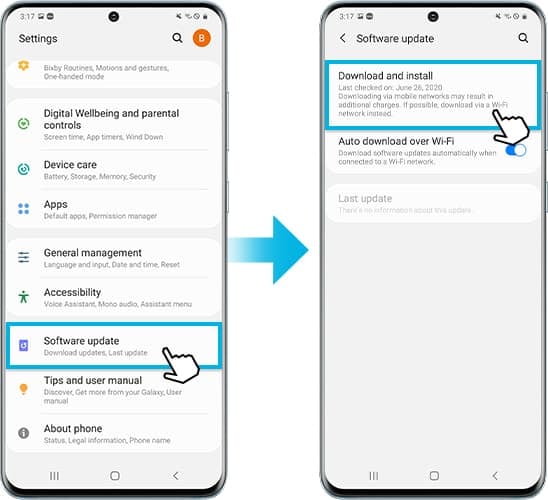
Before configuring Samsung Smart Lock, ensure your Galaxy runs the latest software version. Outdated firmware often causes Smart Lock features to malfunction or disappear from settings menus entirely. Many users waste time troubleshooting when a simple update would resolve their issue.
Update Process:
– Open your Settings app
– Scroll to and select Software update
– Tap Download and install
– Follow on-screen prompts to complete installation
Pro Tip: Connect to Wi-Fi before updating to avoid data charges and ensure faster download speeds. Most Smart Lock issues disappear after installing the latest security patches and system improvements.
Verify Google Play Services Are Current
Smart Lock functionality relies heavily on Google Play Services for location-based features like Trusted Places. Outdated Google services can disrupt location detection and cause Smart Lock to behave erratically.
Update Google Services:
– Open Google Play Store
– Tap your profile icon in top-right corner
– Select Manage apps & device
– Tap Updates available if shown
– Update Google Play Services and Google Play Store
Warning: Never skip system updates when setting up Samsung Smart Lock—these updates often contain critical security patches that protect your device while Smart Lock is active.
Activate Samsung Smart Lock on Your Galaxy Device
Access the Smart Lock Configuration Menu
Once your software is current, navigate to the Smart Lock settings through this precise path:
- Open Settings app
- Scroll down and select Biometrics and security (or Lock screen on newer models)
- Tap Smart Lock
- Enter your current PIN, pattern, or password when prompted
- Choose your preferred Smart Lock method from the available options
Troubleshooting Tip: If Smart Lock appears grayed out or missing, you haven’t properly set a primary screen lock method. Return to Settings > Biometrics and security > Screen lock type and establish a secure PIN, pattern, or password first.
Configure On-Body Detection for Active Unlocking
Enable Motion-Based Continuous Access
On-body detection keeps your Galaxy unlocked while you’re actively carrying it, locking automatically when set down or placed on a surface. This eliminates constant unlocking when checking notifications throughout the day.
Activation Steps:
– Select On-body detection from Smart Lock menu
– Toggle the switch in top-right corner to green
– Tap CONTINUE after reading security notice
– Test by placing phone on table to verify auto-lock
Security Alert: This feature cannot distinguish between you and someone else holding your unlocked phone. If another person grabs your device while it’s unlocked, they’ll have immediate access to your data.
Best Practice: Only enable on-body detection if you maintain physical control of your phone in public spaces. Disable it when visiting crowded areas where phone snatching could occur.
Set Up Trusted Places for Home and Work Unlocking

Define Custom Location-Based Unlock Zones
Trusted Places keeps your Galaxy unlocked when you’re at specific locations like home, work, or a friend’s house. The setup process creates a GPS-based geofence that automatically disables your lock screen within the designated area.
Complete Setup Process:
– Select Trusted places in Smart Lock menu
– Tap Add trusted place
– Search your address or drag map to location
– Adjust radius circle (10-50 meters) around your safe zone
– Tap OK to save location
Quick Tip: Your saved “Home” address in Google Maps automatically appears as an option—just tap to enable it without re-entering information.
Testing Method: Walk outside your trusted place boundary and back to verify automatic locking and unlocking behavior. GPS accuracy varies by location, so test thoroughly before relying on this feature.
Connect Bluetooth Devices for Automatic Unlocking

Pair Trusted Devices for Seamless Access
The Trusted Devices feature unlocks your phone when connected to specific Bluetooth accessories like your smartwatch, car system, or wireless headphones—perfect for hands-free access while driving or exercising.
Pairing Instructions:
– Select Trusted devices from Smart Lock menu
– Tap ADD TRUSTED DEVICE
– Choose from available Bluetooth devices
– Confirm with YES, ADD
– Verify connection by disconnecting and reconnecting device
Important: Your Galaxy may lock if the Bluetooth connection drops momentarily, even if it reconnects immediately. Environmental interference like buildings or other electronics can affect connection stability.
Recommended Pairings:
– Your personal Samsung Galaxy Watch
– Your vehicle’s Bluetooth system
– Wireless headphones you regularly use
– Home smart speaker system
Troubleshoot Missing or Non-Working Smart Lock Features
Fix Common Setup Problems Immediately
When Samsung Smart Lock options don’t appear or function correctly after setup, follow these diagnostic steps:
Missing Smart Lock Menu:
– Verify screen lock exists (Settings > Biometrics and security > Screen lock type)
– Check device compatibility (older Galaxy models may lack this feature)
– Restart your phone—simple reboot often resolves menu display issues
– Clear Settings app cache (Settings > Apps > Settings > Storage > Clear cache)
Location Detection Failures:
– Enable location services (Settings > Location)
– Activate “Improve accuracy” in location settings
– Use complete street addresses, not business names
– Test outdoors first—GPS works better with clear sky access
Bluetooth Connection Issues:
– Ensure Bluetooth is enabled on both devices
– Remove and re-pair the device through Bluetooth settings
– Check battery levels on connected device
– Move away from potential signal interference sources
Implement Smart Lock Security Best Practices
Balance Convenience with Essential Protection
While Samsung Smart Lock adds convenience, maintain security with these essential guidelines:
Recommended Smart Lock Settings:
– Enable only home and office locations
– Connect only your personal vehicle’s Bluetooth
– Pair only your own smartwatch
– Set reasonable location radii (20-30 meters)
Avoid These Risky Configurations:
– Public locations like coffee shops or libraries
– Shared family devices that others might access
– Rental cars or temporary Bluetooth connections
– Locations with high foot traffic near your home
Monthly Maintenance:
– Review Settings > Biometrics and security > Smart Lock
– Remove unused trusted places or devices
– Update locations after moving homes or changing jobs
– Verify all trusted devices still belong to you
Understand Samsung Smart Lock Limitations
Know the Built-In Security Restrictions
Samsung Smart Lock has specific behavioral limits designed to protect your data:
- Auto-lock timer: Maximum 4 hours of continuous unlock before requiring manual authentication
- Restart requirement: Device restart always requires manual unlock regardless of settings
- Single activation: Only one trusted condition needs to be met for the device to remain unlocked
- Battery impact: Minimal—uses existing sensors and connections without significant drain
Critical Reminder: Smart Lock never overrides your primary security method—it simply delays the lock screen based on your trusted conditions. Your PIN, pattern, or password remains the ultimate security measure.
Complete Samsung Smart Lock Setup Checklist
Verification Process Before Daily Use:
– [ ] Confirmed software is updated to latest version
– [ ] Verified primary screen lock is properly configured
– [ ] Tested each enabled Smart Lock feature individually
– [ ] Checked auto-lock behavior after 4 hours of inactivity
– [ ] Verified lock screen appears after device restart
Real-World Testing:
– Walk outside your trusted place boundary and back
– Disconnect and reconnect trusted Bluetooth device
– Set phone down to trigger on-body detection lock
– Simulate device restart to confirm security requirements
Get Expert Help for Persistent Smart Lock Issues
Access Samsung Support Resources
For ongoing Smart Lock problems that won’t resolve through standard troubleshooting:
- Use Samsung Members app to submit detailed error reports
- Access Settings > Tips and user manual for model-specific guidance
- Visit samsung.com/support for official troubleshooting articles
- Schedule live chat with Samsung support specialists
Pro Tip: When contacting support, take screenshots of your Smart Lock settings—this helps technicians understand your exact configuration without lengthy explanations.
By following this complete guide to set up Samsung Smart Lock, you’ll eliminate the daily hassle of repetitive phone unlocking while maintaining strong security for your Galaxy device. Start with one Smart Lock feature, test it thoroughly, then gradually add others as you become comfortable with the system. Remember that security and convenience exist on a spectrum—find your perfect balance with Samsung Smart Lock.