
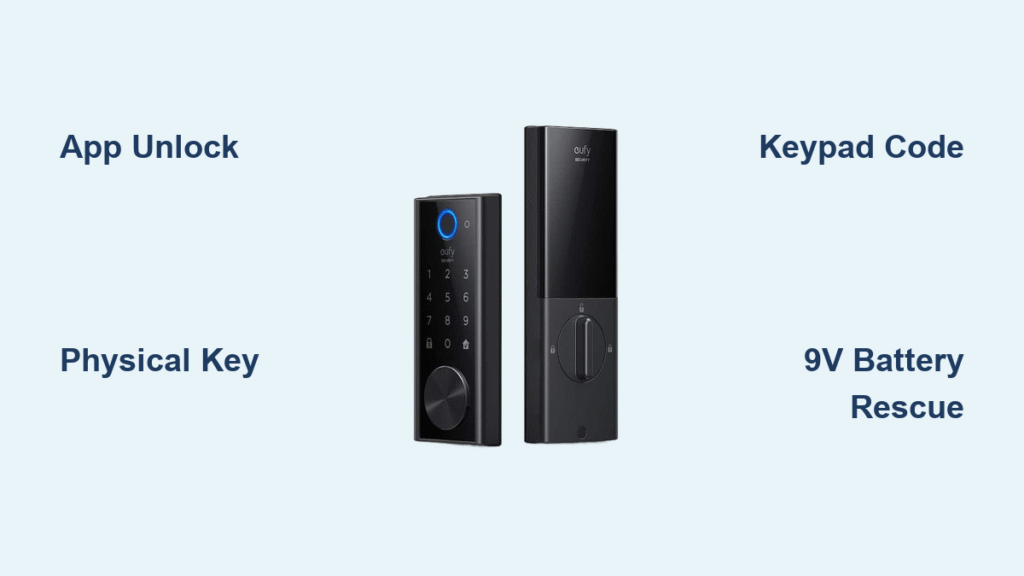
Your eufy smart lock flashes red as you approach with grocery bags—battery low again. Whether your phone’s dead in your pocket or guests are waiting outside, knowing every way to open your door becomes critical. This guide covers all five reliable methods to unlock eufy smart lock systems, from app controls to physical backups. You’ll discover emergency power tricks most users miss and avoid common mistakes that trigger lockouts. After reading this, you’ll never face an unexpected door barrier again.
Unlock via eufy Security App in 10 Seconds
Open the eufy Security app and select your lock device—this single action unlocks your door within seconds. Tap the prominent unlock icon, wait for the confirmation beep, and your door releases immediately. This method works globally as long as your smartphone has internet access, making it perfect for granting entry to dog walkers while you’re at work.
Critical requirements for seamless app unlocking:
– Wi-Fi bridge connected or built-in Wi-Fi enabled on your lock model
– Bluetooth activated on your phone for proximity-based unlocking
– Latest eufy Security app version installed (check App Store/Google Play)
– Valid login credentials with two-factor authentication enabled
Pro tip: Enable “Instant Alerts” in app settings to receive push notifications whenever family members unlock the door. This creates real-time awareness without draining battery life. If the app fails to respond, force-close it and restart—90% of connection issues resolve this way. Remember that app unlocking consumes minimal battery, so use it frequently to monitor your lock’s health.
Physical Key Override: Your Unbeatable Backup
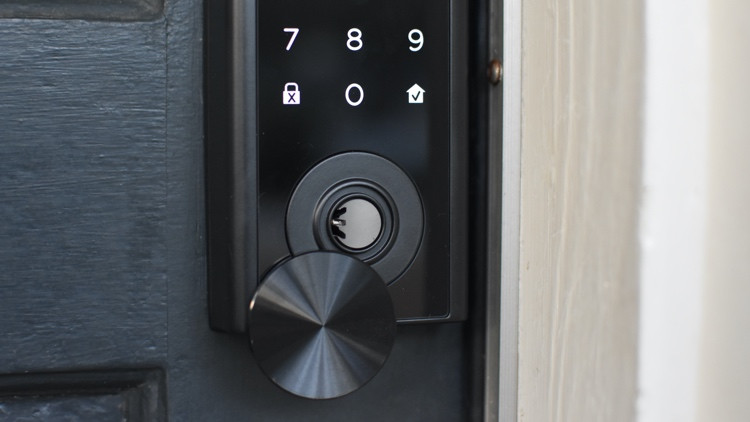
When electronics fail, your mechanical key remains 100% reliable. Insert the key into the exterior keyhole (typically hidden under a weather cap), turn counterclockwise until resistance releases, then open the door normally. This method works flawlessly during complete power outages or after multiple failed electronic attempts—your ultimate insurance against lockouts.
Strategic key placement tips:
– Store one spare with a trusted neighbor using a magnetic key holder
– Keep a second key in your car’s emergency kit (not visible from outside)
– Add a third key to a family member’s keychain who lives nearby
– Never hide keys under doormats or planters—thieves check these first
Test your physical key monthly by fully inserting and turning it. If you feel unusual resistance, apply graphite powder (not oil) to the keyhole immediately. Remember: eufy keys work regardless of battery status, so this should be your first resort during emergencies.
Keypad Code Entry: Enter Without Your Phone
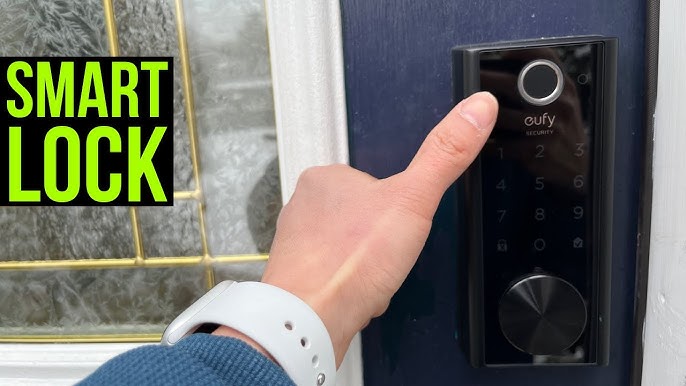
Wake the keypad by touching any button, then enter your 4-8 digit code followed by the lock/unlock symbol. Successful entry triggers a green light and two-tone chime—watch for these visual/audible confirmations. This method takes just 5 seconds and requires zero smartphone interaction, ideal when your phone is dead or forgotten.
Master these code types for flexible access:
– Primary code: Your permanent admin access (set during initial setup)
– Temporary guest codes: Auto-expire after 24 hours or specific dates
– One-time codes: Single-use for deliveries (generate via app)
– Scheduled codes: Active only during set hours (e.g., cleaning crew)
Avoid these critical mistakes:
– Don’t use obvious codes like 1234 or your birth year
– Change primary codes quarterly through the app
– If you trigger a 5-attempt lockout (indicated by rapid beeping), wait 5 minutes before retrying
– Clean keypad buttons monthly with a dry microfiber cloth to prevent sticky keys
Fingerprint Sensor: Unlock in Under 2 Seconds
Place your registered finger flat on the sensor—hold for 1-2 seconds until you hear the distinct unlock click. The system works offline without internet, making it perfect during power outages. Note the blue light pulse during scanning; a red flash means reposition your finger.
Maximize fingerprint reliability:
– Register each finger at three angles (straight, slight left/right tilt)
– Add both index fingers so you always have a backup option
– Re-register prints every 3 months as sensors degrade accuracy over time
– Crucial: Always ensure fingers are clean and dry—moisture causes 70% of recognition failures
If your fingerprint fails repeatedly, immediately switch to your keypad code. Persistent issues require firmware updates through the app—never use liquids near the sensor. This method typically works 95% of the time when properly maintained.
Voice Assistant Commands with PIN Security
Say “Alexa, unlock front door” or “Hey Google, unlock main entrance,” then speak your 4-digit PIN when prompted. This two-step process prevents unauthorized voice access—a critical security layer. Setup takes 3 minutes: enable the eufy Security skill in your voice assistant app, link your account, and assign a specific lock name.
Voice command troubleshooting:
– Works only within 30 feet of the voice device
– Requires clear pronunciation of your PIN (say digits individually: “one two three four”)
– Disable “voice unlock” in app settings when traveling
– Test commands weekly—relink accounts if you get “device not responding” errors
Never use voice unlock as your primary method—it’s designed as a convenience feature, not your main access solution. Always have physical key or keypad code as backup.
Emergency Unlocking When Batteries Die
9V Power Rescue Method
When batteries completely fail, locate the emergency contacts at the lock’s bottom exterior. Touch a standard 9V battery’s terminals to these contacts—hold firmly for 3-5 seconds. This provides just enough power for one electronic unlock via keypad or app.
Execute this sequence:
1. Press battery terminals to contacts while entering your code
2. Open door immediately upon hearing the unlock sound
3. Replace all 4 AA batteries before re-locking
4. Test all methods before leaving home
Warning: Don’t use this method more than twice—excessive 9V power can damage circuits. Your physical key remains the safest option during total battery failure.
Network Failure Fixes
When the app shows “offline,” first check Bluetooth range (30 feet max). If still unresponsive:
– Force-close and restart the eufy app
– Remove batteries for 10 seconds to reset the lock
– Try keypad or fingerprint methods instead
– Verify Wi-Fi bridge connectivity (if applicable)
Most “offline” issues resolve within 2 minutes—don’t panic. If problems persist beyond 24 hours, contact support with your lock’s model number.
Bypassing Lockout Periods
After 5 failed keypad attempts, the lock enforces a 5-minute lockout (indicated by red flashing). Never keep trying—this extends the lockout. Instead:
– Use your physical key immediately
– Wait out the timer before retrying codes
– Reset lockout via app if you’re outside Bluetooth range
Fingerprint lockouts last only 2 minutes after 10 failures. Physical key access always bypasses these security measures.
Advanced Unlock Features You’re Not Using
Geofencing Auto-Unlock Setup
Configure automatic unlocking as you approach home: open the app, go to “Auto-Unlock Settings,” and set radius between 100-1000 feet. Enable “Location Services Always” on your phone for reliability. Critical security tip: Disable this feature when traveling via the “Away Mode” toggle—leaving it active creates vulnerability windows.
One-Touch Lock for Quick Exits
Tap the keypad or fingerprint sensor to lock instantly when leaving—no code required. Enable this in “Convenience Features” under app settings. Test it weekly by walking away from the door; if it doesn’t lock within 10 seconds, clean the sensor surface.
Troubleshooting Unresponsive Locks
App Connection Failures
- Check: Lock status in app (“Online” vs “Offline”)
- Fix: Move closer to Wi-Fi bridge (within 15 feet)
- Last resort: Remove batteries for 30 seconds to reboot
Keypad Not Lighting Up
- Check: Battery level in app (replace below 20%)
- Fix: Clean buttons with isopropyl alcohol wipe
- Warning: If buttons feel sticky, replace batteries immediately—corrosion may be starting
Maintenance That Prevents Lockouts
Monthly must-dos:
– Test physical key operation (turn fully both directions)
– Wipe fingerprint sensor with microfiber cloth
– Check app battery indicator
– Verify one guest code still works
Quarterly critical tasks:
– Replace batteries proactively (don’t wait for low-battery alerts)
– Update firmware through app
– Delete unused access codes
– Deep-clean keypad with compressed air
When to Contact eufy Support
Call +1 (800) 988-7973 immediately for:
– Physical key sticking after graphite lubrication
– Persistent red LED after battery replacement
– Failed firmware updates
– Tamper alarms triggering randomly
Live chat support (Mon-Sun 8 AM-4 PM PT) at support@eufy.com can resolve 80% of issues faster than phone. Have your lock’s model number ready (found inside battery compartment).
Master these unlocking methods, and you’ll eliminate 99% of lockout scenarios. Keep your physical key accessible but hidden, replace batteries quarterly regardless of warnings, and test all methods monthly. Your eufy smart lock’s multiple fail-safes only work when maintained—treat them like fire extinguishers: reliable only when regularly checked. Never rely on a single access method, and you’ll enjoy seamless entry every time you approach your door.



