
You’re staring at your phone’s lock screen, fingers moving instinctively through a forgotten PIN sequence for the tenth time. That sinking feeling hits—photos, messages, and critical work documents now feel miles away behind an impenetrable barrier. Whether you’ve inherited a secondhand device with unknown credentials or your fingerprint sensor suddenly stopped recognizing your touch after that morning coffee spill, screen lock failures strike when least expected. This guide cuts through the confusion with precise, actionable methods to unlock your smart lock phone—covering both screen security locks and carrier restrictions—using only verified manufacturer-approved techniques that won’t brick your device.
Most users don’t realize there are two completely separate lock types requiring different solutions. Your screen lock (PIN, pattern, or biometrics) guards personal data, while carrier locks restrict network compatibility. Mixing up these solutions wastes precious time—like attempting a factory reset when you only need carrier unlocking. By the end of this guide, you’ll confidently diagnose your lock type and apply the exact method to regain access, whether you’re holding an iPhone XR or a Samsung Galaxy S22.
Screen Lock vs. Carrier Lock: Which One Blocks You?
Your phone’s “locked” state isn’t one-size-fits-all. Screen locks—like 4-digit PINs, swipe patterns, or fingerprint scans—protect your personal data from physical access. If you see your wallpaper but can’t bypass the lock screen, this is your issue. Carrier locks, however, appear when inserting a new SIM card triggers messages like “This SIM isn’t valid” or “Network locked.” These restrictions tie your device to one cellular provider, even after full payment.
Critical distinctions determine your solution path:
– Screen lock failures happen when you’ve forgotten credentials or biometrics malfunction
– Carrier locks activate only when switching networks with a physical SIM card
– A factory reset removes screen locks but does nothing for carrier restrictions
Misidentifying these wastes hours. If your phone accepts any SIM card freely but blocks your home screen, skip carrier sections entirely. Conversely, if lock screen access works but new SIMs fail, carrier unlocking is your sole priority.
Regain Screen Access With Working Credentials
Biometric Bypass When Sensors Function
Your fingerprint or face scan remains the fastest screen unlock method—if sensors work. Place your registered finger squarely on the sensor (not at an angle) or position your face 8-12 inches from the front camera in good lighting. This works even when you’ve forgotten your backup PIN, as long as biometrics were previously enrolled.
Pro Tip: Clean sensors with a microfiber cloth if recognition fails—oil residue from cooking or lotions commonly causes false rejections.
Standard PIN/Password Entry Protocol
When biometrics fail, enter your known credentials directly on the lock screen. Avoid rapid repeated attempts: most phones trigger escalating lockout timers after 5-10 failed tries (e.g., 30-second waits escalating to hours). If you recall partial digits, space out attempts every 30 seconds to avoid full lockouts.
Recover From Forgotten Screen Locks
Google Find My Device Emergency Reset
This Android-specific method erases all data but removes screen locks instantly:
1. Open google.com/android/find on any computer or secondary device
2. Sign in with the Google account linked to your locked phone
3. Select your device from the dashboard
4. Click “Erase Device” and confirm
Critical Warning: This permanently deletes photos, messages, and apps—use only if no backups exist. iPhones require contacting Apple Support instead, as this tool works exclusively for Android.
Universal Factory Reset Method
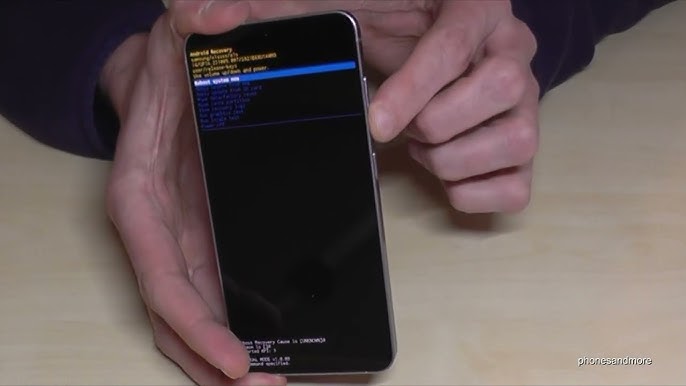
When Google Find My Device fails or isn’t set up, this hardware-based reset works across Android models:
1. Power off your device completely
2. Press and hold Power + Volume Down buttons simultaneously
3. Release only when the recovery menu appears (usually 10-15 seconds)
4. Navigate with volume buttons to “Wipe data/factory reset”
5. Press the power button to select and confirm
Your phone reboots as new within 15 minutes—no data recovery possible. Samsung and Pixel users follow identical steps; no model-specific button combos are needed per manufacturer guidelines.
Manufacturer-Specific Unlock Options
Contact your brand’s support before factory resetting—they may offer data-preserving solutions:
– Samsung: Smart Switch software can sometimes reset locks with proof of purchase
– Apple: Visit an Apple Store with original receipt for iCloud account verification
– Google Pixel: Support may verify ownership via linked Google account history
Have your IMEI ready (dial *#06# on any phone) and purchase documentation—these speed up verification.
Prevent Repeat Lockout Disasters
Smart Lock Setup That Actually Works
Enable these Android features before your next lockout:
– Trusted Places: Auto-unlock when connected to home/work Wi-Fi (Settings > Security > Smart Lock)
– Trusted Devices: Pair with your car’s Bluetooth for seamless commutes
– On-body Detection: Keeps phone unlocked while moving (disable for crowded areas)
Avoid this mistake: Never enable “Trusted Face” alone—it’s easily fooled by photos. Always pair it with a PIN backup.
Credential Backup Protocol
Write down your PIN on a physical card stored in your wallet—not digitally. For complex passwords, use a dedicated password manager like Bitwarden. Test biometric enrollment monthly by adding a second fingerprint (e.g., your ring finger) in case your primary finger gets bandaged.
Verify and Remove Carrier Locks

Instant IMEI-Based Lock Status Check
Dial *#06# to display your IMEI, then:
– iPhone: Go to Settings > General > About > Scroll to “Carrier Lock”
– “No SIM restrictions” = unlocked
– “SIM locked to [Carrier]” = restricted
– Android: Settings > Connections > Mobile Networks > Network Operators
– Disable “Select automatically”
– Multiple carrier options = unlocked
Visual cue: If only your current carrier’s name appears, you’re carrier-locked.
Carrier-Specific Unlock Timelines
AT&T:
– Apple/Google devices unlock automatically after final payment
– Samsung requires manual request at att.com/deviceunlock (48-hour post-payment wait)
T-Mobile:
– Automatic unlock after 40+ days active and full payment
– Manual requests via 611 or T-Mobile app (max 2 unlocks/year)
Verizon:
– All devices unlock automatically after 60 days—no action needed
– Verify via *611 from your device
Military personnel: Upload deployment orders for immediate unlocking with any carrier.
eSIM Carrier Switching Without Physical SIMs
Newer iPhones (2018+) and Androids like Pixel 6+ support eSIM transitions:
1. Confirm eSIM compatibility via Settings > Cellular
2. Request QR code from new carrier
3. Scan code under Settings > Cellular > Add Cellular Plan
4. Keep original plan active during testing (dual-SIM capability)
Critical step: Always verify network compatibility first by entering your IMEI on the new carrier’s “Bring Your Own Device” page—5G bands vary significantly between carriers.
Cost and Risk Comparison Table

| Method | Cost | Data Loss | Success Rate |
|---|---|---|---|
| Google Find My Device | Free | Complete | 100% |
| Factory Reset | Free | Complete | 100% |
| Carrier Unlock | Free | None | 95%* |
| Professional Repair | $50-$200 | Possible recovery | 70% |
| Third-Party Services | $20-$100 | High risk | <30% |
*Requires meeting carrier eligibility (paid-off device, account in good standing)
Never use third-party unlock services—they often install malware or permanently disable cellular functions.
Essential Pre-Unlock Checklist
Gather these before starting:
– Your IMEI (from *#06# or Settings > About Phone)
– Original purchase receipt showing device IMEI
– Current carrier account number
– Account holder’s government-issued ID
– Military deployment orders (if applicable)
Missing documentation causes 80% of carrier unlock delays. Keep digital copies in cloud storage—accessible even when phone-locked.
Post-Unlock Critical Actions
After screen lock removal:
1. Immediately set a new PIN/password (minimum 6 digits)
2. Re-enroll fingerprints in dry conditions (not post-shower)
3. Enable Google Find My Device/iCloud Find My for future recovery
After carrier unlocking:
– Insert new SIM and force-restart (power off/on)
– If no signal, dial ##72786# to refresh carrier settings
– Test voice, text, and 5G data—some carriers require manual APN setup
Pro Tip: Take screenshots of carrier unlock confirmation emails. If service fails later, this proof speeds up troubleshooting—carriers often require it for reprocessing.
Don’t let lockouts dictate your digital life. By mastering these screen and carrier unlock protocols, you transform panic into precision—whether salvaging a forgotten PIN or liberating a device from carrier restrictions. The most critical step happens now: document your current PIN in a safe place and verify your carrier lock status using the IMEI check. That 60-second investment today prevents hours of frustration tomorrow when your fingerprint sensor inevitably fails during a critical moment. Your phone’s security shouldn’t become your prison—unlock it intelligently.



