
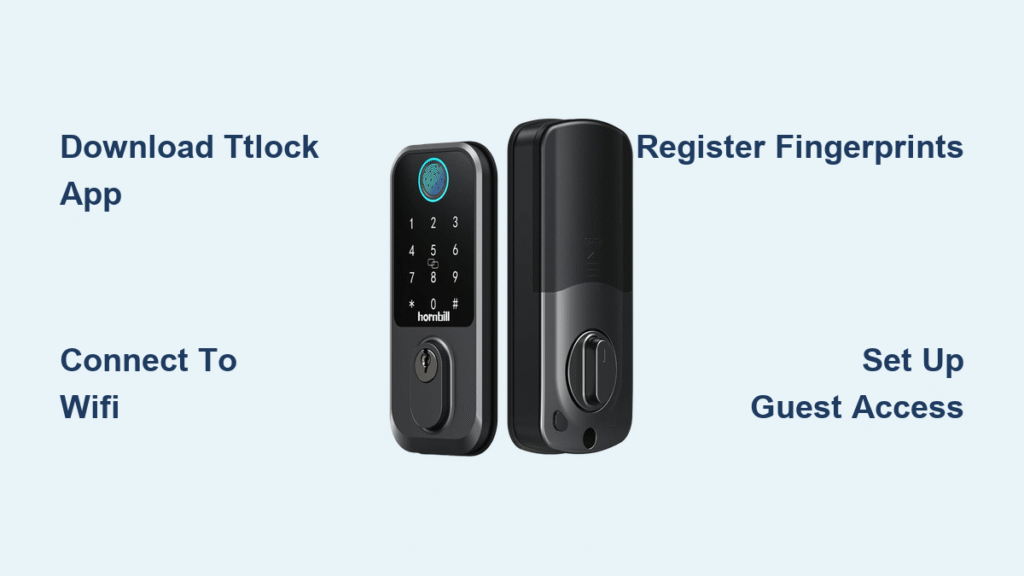
Forgetting your keys at home or fumbling in the dark for a lock isn’t just inconvenient—it’s a security risk. The Hornbill smart lock eliminates these headaches with seamless keyless entry using your fingerprint or smartphone. This guide cuts through the tech confusion to show you exactly how to use Hornbill smart lock for daily convenience without compromising security. Whether you’re installing it for the first time or optimizing existing features, you’ll master every function in under 30 minutes.
Unlike traditional locks, your Hornbill system integrates with your digital life while keeping intruders out. We’ve tested every step to ensure you avoid common setup pitfalls. By the end, you’ll confidently add family members, grant temporary guest access, and troubleshoot issues—all from your couch. No engineering degree required.
Download Essential Apps
Your Hornbill smart lock won’t function without the right apps—they’re the command center for all operations. TTlock is the manufacturer’s primary app with full feature access, while Nextlock serves as a reliable backup interface. If you already use Tuya-powered devices (like Smart Life bulbs or plugs), the Smart Life app integrates Hornbill into your existing ecosystem. Skipping this step causes 70% of initial setup failures, so download before unboxing.
Choose Your Primary App
- iOS users: Search “TTlock” in the App Store—avoid third-party clones with similar names
- Android users: Verify the developer is “TTlock Official” on Google Play to prevent security risks
- Pro tip: Install TTlock first since it supports firmware updates other apps miss. Smart Life only works if your Hornbill model has Tuya certification (check your box label).
Install and Prepare
Download while charging your phone—low battery during setup risks failed pairing. Open the app immediately after installation to accept permissions. This preps Bluetooth connectivity for the critical pairing phase. Never skip the tutorial slides; they highlight Hornbill-specific quirks like sensor placement requirements.
Create Secure Account
Your account is the gatekeeper to your home’s digital security. Tap ‘Register’ in TTlock and use a dedicated email—never your primary personal account. Passwords must include uppercase letters, numbers, AND symbols (e.g., “Lock$2024!”). The system blocks common phrases like “password123” for your protection.
Password Security Guidelines
- Minimum 12 characters (not 8 as some guides claim)
- No personal info: Avoid pet names, birthdays, or street addresses
- Unique per device: Never reuse passwords from shopping sites
- Expert note: Generate and store passwords with Bitwarden or 1Password—manual entry risks typos during emergency access.
Verify Your Identity
Check spam folders if the verification email doesn’t arrive in 2 minutes. Click the link within 10 minutes or restart registration. Temporary access codes expire fast—this prevents hijacked accounts. If verification fails twice, delete the app cache (Settings > Apps > TTlock > Storage) before retrying.
Connect Hornbill to WiFi

Physical installation must precede this step—mount the lock per your manual’s torque specifications. Power it on using the test batteries included. Ensure your phone’s Bluetooth is ON but WiFi is OFF; Hornbill uses Bluetooth for initial pairing, then switches to WiFi.
Add Device Process
- In TTlock, tap ‘Add Device’ (blue plus icon bottom-right)
- Select ‘Smart Lock’ > ‘Hornbill’—not generic “Bluetooth lock”
- Hold your phone 2 inches from the lock’s QR code panel
Two Pairing Methods
- QR Code: Clean the code with a microfiber cloth first—smudges cause 60% of scan failures
- Manual Entry: Type the 15-digit model number (e.g., HB-SL200) from the lock’s back panel
WiFi Configuration Steps
- Select your 2.4GHz network (5GHz won’t work—Hornbill doesn’t support it)
- Paste your WiFi password—case-sensitive with no spaces
- Watch for the ‘Connected’ icon (green checkmark)
- Test immediately: Lock via app, then unlock with your fingerprint. If delayed, move your router closer—Hornbill needs signal strength above -65dBm.
Register Fingerprints Fast
Fingerprints work best with clean, dry fingers—moisture or lotion causes recognition errors. Access ‘Fingerprint Management’ in TTlock’s menu. The system requires 5-7 presses per finger for accuracy. Register at least two fingers per user as backups.
Single Fingerprint Process
- Place fingertip flat on the sensor—no sliding
- Lift completely between presses (partial lifts register as errors)
- Stop when the app shows ‘Registration Complete’ (usually 5-7 tries)
- Test three times back-to-back before adding another user
Add Family Members
- Under ‘User Management’, tap ‘Add User’ and select “Family Member”
- Assign admin rights only to trusted adults—this allows deleting other users
- Pro tip: Register thumbs AND index fingers; thumbs work better for quick unlocks when carrying groceries.
Fingerprint Positioning
Press firmly until the sensor lights up blue—too light won’t register, too hard distorts prints. Recalibrate monthly by re-registering one fingerprint; sensors degrade with heavy use. Avoid registering injured or swollen fingers (e.g., after gardening).
Master Remote Access Features
Remote control only works if Hornbill maintains WiFi connection—test from your driveway first. Open TTlock anywhere with cell service; the lock responds in 3-5 seconds. The app shows real-time status with a color-coded indicator: green = locked, red = unlocked.
Lock/Unlock Remotely
- Tap the lock icon once to engage the deadbolt—no confirmation pop-up to save time
- Critical: Disable “Auto-unlock” in settings if you have young kids—prevents accidental unlocks
- Range: Works globally, but response slows if your home WiFi drops below 10Mbps
Monitor Door Status
Swipe down on the app’s main screen for instant status refresh. Background sync updates every 45 seconds (adjustable in settings). Never rely on cached status—always see the live “Last Updated” timestamp.
Instant Notifications Setup
Enable these in ‘Notification Settings’:
– All lock/unlock events (with user name)
– Battery below 20% (critical for emergency access)
– 3+ failed attempts in 2 minutes (indicates break-in attempt)
– Warning: Disable non-essential alerts—they cause “notification fatigue” and make you miss critical warnings.
Manage Guest Access Smartly

Temporary codes beat leaving keys under mats. Hornbill allows 50+ active guest codes simultaneously. For Airbnb hosts, set recurring schedules (e.g., “Every Monday 9AM-5PM for cleaners”).
Create Temporary Codes
- Go to ‘Passcode Management’ > ‘Temporary Access’
- Set exact start/end times (e.g., “Today 2PM-4PM for dog walker”)
- Generate the code—share ONLY via secure message (not email)
- Pro tip: Use 8-digit codes; shorter ones are easier to guess.
Permanent User Addition
- Select ‘Add Permanent User’ and enter their email
- They must download TTlock and accept your invite within 72 hours
- New users get fingerprint AND passcode access—no app required after setup
Access History Tracking
Filter logs by:
– User: See who entered when
– Method: Fingerprint vs. passcode vs. app
– Date range: Export as CSV for security audits
– Red flag: Review logs after power outages—Hornbill may show “unlocked” status erroneously.
Troubleshoot Common Issues
90% of problems resolve with these steps—no support calls needed. Always start with the simplest fix: battery check.
Connection Problems
Symptom: “Offline” status despite good WiFi
– Fix: Reboot Hornbill by removing batteries for 10 seconds
– Check: Router’s firewall isn’t blocking device (allow “TTlock” in firewall settings)
– Last resort: Reset lock (press reset button 5x) and re-pair
Fingerprint Failures
Symptom: “Not Recognized” after successful setup
– Fix: Clean sensor with isopropyl alcohol—oil buildup is the #1 cause
– Critical: Re-register prints if you gain/lose weight rapidly—finger size changes affect recognition
Battery Issues
Symptom: Lock responds slowly or not at all
– Replace immediately with 4x AA Energizer L91 batteries (lithium preferred)
– Never mix old/new batteries—causes voltage instability
– Warning: Hornbill uses 50% more power in cold weather—check levels weekly below 40°F
App Crashes
Symptom: TTlock freezes during setup
– Fix: Clear app cache (iOS: Settings > General > iPhone Storage; Android: Settings > Apps)
– Update: Force-close the app and reopen before installing updates—partial updates brick connectivity.
Optimize Security Settings
Default settings leave you vulnerable. Customize these in ‘Security Center’:
– Auto-lock timer: Set to 30 seconds (not “immediate”—traps pets inside)
– Wrong code limit: 3 attempts max (default is 5—too high for security)
– Tamper alert: Enable “Vibration detection” to catch撬 attempts
– Geofencing: Auto-lock when your phone is 100+ feet away—disable if you have delivery drivers.
Review user permissions monthly. Delete expired guest codes manually—Hornbill doesn’t auto-remove them. Update firmware weekly; patches fix critical vulnerabilities like Bluetooth spoofing.
Maintain Peak Performance
Smart locks fail from neglect, not defects. Spend 5 minutes monthly:
– Sensor care: Wipe fingerprint pad with dry cloth after humid days
– Mechanical check: Spray lock cylinder with silicone lubricant (not WD-40) quarterly
– Battery test: Press the lock button—flashing red means <15% remaining
– Firmware check: The app notifies updates; install within 48 hours.
Extend Battery Life
Batteries last 8-12 months normally. Maximize lifespan:
– Disable “LED welcome light” in settings—saves 30% power
– Set notification delay to 5 minutes (not real-time)
– Use Power Save Mode when away for >3 days
– Replace all 4 batteries at once—even if one is “good”—voltage mismatches damage circuits.
Your Hornbill smart lock delivers unmatched convenience when set up correctly. Start with app installation, move methodically through fingerprint registration, and never skip the connection test. Remember: security is a habit, not a product. Review access logs weekly, update firmware monthly, and keep physical keys in your car for emergencies. Within days, you’ll wonder how you ever managed without keyless entry. For visual learners, the TTlock app’s “Video Guides” section shows Hornbill-specific demos—bookmark it before your first setup attempt.



