
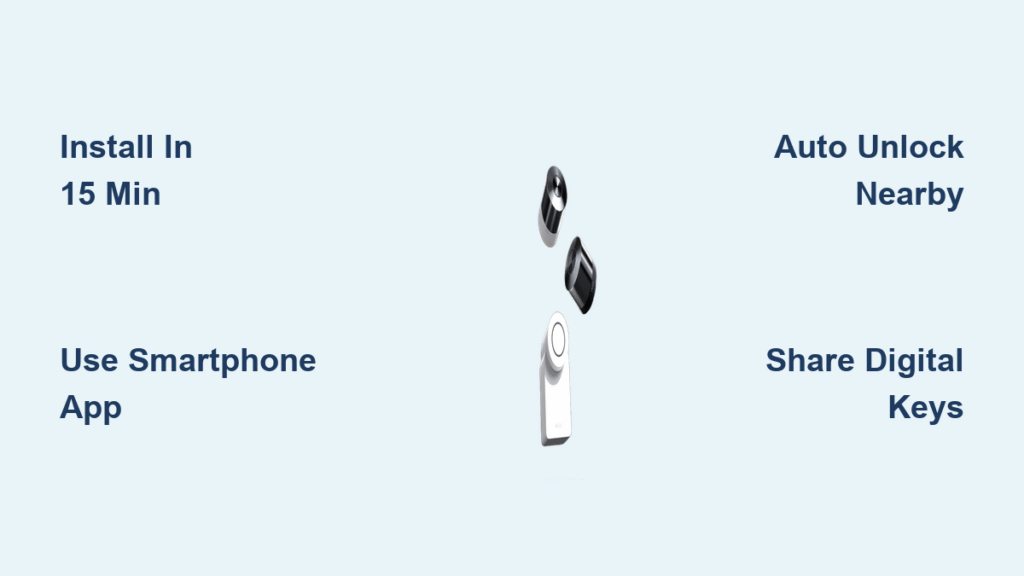
You’re juggling grocery bags, your phone rings, and you’re frantically digging for keys while your dog barks inside. This daily struggle ends when you learn how to use Nuki Smart Lock—the retrofit solution that transforms your existing door into a keyless entry system in just 15 minutes. Unlike complex smart locks requiring professional installation, Nuki seamlessly integrates with your current lock without drilling or permanent modifications.
Whether you’re a busy parent, property manager, or simply tired of lost keys, mastering how to use Nuki Smart Lock unlocks effortless home access. This European market leader works with most standard door cylinders and offers multiple entry methods beyond your smartphone. In this complete guide, you’ll discover every feature from basic unlocking to advanced automation—so you can leave physical keys behind for good.
Install Your Nuki Smart Lock Without Drilling

Confirm Your Door Compatibility First
Before unboxing your Nuki Smart Lock, verify compatibility using Nuki’s online installation check tool—it takes just two minutes. Enter your cylinder type to ensure seamless integration, preventing potential issues later. Most European doors work perfectly, but this critical step guarantees your specific lock configuration will function correctly with the Nuki system.
Mount the Smart Lock in Under 15 Minutes
Position the mounting bracket directly over your existing cylinder—no tools required. The Smart Lock clicks securely onto this bracket, electronically interfacing with your physical key mechanism. Your key remains inside the lock; Nuki simply turns it for you when needed. This non-invasive installation leaves zero marks when removed, making it ideal for renters who want keyless convenience without landlord approval.
Complete Your First Unlock Test
Download the free Nuki App, pair via Bluetooth, and test your first unlock within minutes. The app guides you through calibration to ensure smooth operation. Critical tip: Perform this initial test with your door open to prevent accidental lockouts during setup. If the lock doesn’t turn properly, adjust the mounting bracket position slightly—this tiny tweak often resolves 90% of initial installation issues.
Unlock Your Door Using 5 Different Methods
Smartphone App Control for Instant Access
Open the Nuki App and swipe to unlock—this primary method offers customizable settings including tap-to-unlock or gesture controls. The app works offline via Bluetooth when you’re near your door, so you never need cellular data for basic operation. Pro tip: Enable “Quick Unlock” in settings to bypass the app interface entirely—just open the app and your door unlocks automatically.
Auto Unlock When Approaching Your Door
Activate auto unlock once in the app settings, and your door opens automatically as you approach. Your phone’s Bluetooth signals proximity, eliminating manual app interaction. Configure the detection range between 5-30 meters to prevent accidental triggers from neighboring apartments. Warning: Keep your phone charged and Bluetooth enabled for consistent performance—low battery mode often disables background Bluetooth functionality.
Fingerprint Access with Nuki Keypad 2
Add the Nuki Keypad 2 for biometric entry—store up to 20 fingerprints with sub-second recognition, even with wet fingers. Perfect for family members without smartphones or children coming home from school. Install the keypad within arm’s reach of your door and pair it through the Nuki App in under two minutes. Maintenance tip: Clean the fingerprint sensor weekly with a microfiber cloth to maintain optimal recognition accuracy.
Manage Access for Family and Service Providers
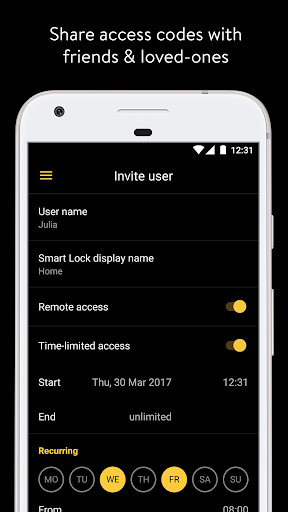
Share Digital Keys with Time Restrictions
Grant access through the Nuki App by sending digital keys via text or email. Create permanent access for family members or time-limited keys for cleaners (e.g., Tuesdays 10am-2pm). Critical feature: Instantly revoke access with one tap—no need to collect physical keys when service providers change. For Airbnb hosts, generate self-expiring codes that automatically deactivate after checkout.
Monitor Every Entry with Detailed Activity Logs
View complete activity logs showing who unlocked when—each entry displays the user’s name, exact timestamp, and method used (app, keypad, auto unlock). Export these logs as PDF for rental property records or insurance requirements. Pro tip: Enable “Entry Confirmations” to receive push notifications whenever specific users (like your teenager) arrive home.
Create Smart Schedules for Automatic Locking
Program automatic locking at 11pm nightly or unlock at 7am on weekdays. Set vacation mode schedules where the door locks/unlocks randomly to simulate occupancy while you’re away. Expert note: Combine scheduled locking with your smart lights for maximum security presence—Nuki integrates seamlessly with major smart home systems to create these automated routines.
Troubleshoot Common Nuki Smart Lock Issues
Fix Dead Phone Battery Emergencies
Always keep your physical key as backup—Nuki never interferes with manual operation. Alternatively, install the Nuki Keypad for code access without a smartphone. Emergency solution: Borrow any smartphone, download the Nuki App, and temporarily log into your account for access—no permanent installation needed on the borrowed device.
Resolve Auto Unlock Failures
If auto unlock stops working, first check your Bluetooth settings—ensure the Nuki App runs in the background. Reset proximity settings: decrease detection range if unlocking too early, increase if not triggering. Critical step: Update to the latest firmware through the app—this fixes most connectivity issues. If problems persist, temporarily disable battery optimization for the Nuki App in your phone settings.
Fix Connectivity Problems with Nuki Bridge
When remote access fails, restart both your router and Nuki Bridge device. Position the Bridge within 5 meters of your lock with minimal walls between them. Technical tip: Use 2.4GHz Wi-Fi networks instead of 5GHz for better range—most connectivity issues stem from using the wrong frequency band.
Maintain Your Nuki Smart Lock for Longevity
Monitor Battery Levels Proactively
Check battery status monthly through the app—typical batteries last 6-12 months depending on usage. Enable low-battery notifications at 20% to give yourself weeks to replace them. Warning: Ignoring low battery alerts may cause temporary lockout—always replace batteries before they reach critical levels.
Keep Software Updated Automatically
Enable automatic updates for security patches and new features. Updates install overnight when you’re home, ensuring no interruption to daily use. Pro tip: Check update history in app settings to confirm you’re running the latest version—this prevents compatibility issues with new smartphone operating systems.
Clean Physical Components Regularly
Wipe the Smart Lock monthly with a dry cloth—never use harsh chemicals that could damage sensors. Clean keypad fingerprint readers with a microfiber cloth to maintain recognition accuracy. Expert note: Apply a tiny drop of graphite lubricant to your key cylinder annually for smooth electronic operation—avoid oil-based lubricants that attract dust.
Advanced Features for Power Users
Create Custom User Profiles with Permissions
Build separate profiles for family members with tailored permissions. Restrict teenagers to auto unlock only, while giving partners full access management. Allow cleaners keypad access only during scheduled times—no need for digital keys that require management.
Integrate with Smart Home Automation
Connect Nuki to IFTTT for advanced automations: “When I arrive home AND it’s after sunset, unlock door AND turn on entrance lights.” Create vacation mode: “When I leave for more than 3 days, randomly lock/unlock daily.” Pro tip: Pair with smart thermostats to adjust temperature settings upon entry—maximizing both security and energy efficiency.
Generate Rental Property Reports
Export monthly access logs as PDF for rental records. Include guest names, entry/exit times, and method used. These comprehensive reports satisfy insurance requirements and help resolve any access disputes. Property manager hack: Schedule automatic log exports to your email on the first of each month—no manual effort required.
Next Steps After Mastering Basic Operation
Start with smartphone app unlocking for one week to build confidence before enabling auto unlock. Gradually share access with family members as you become comfortable with the system. Once you’ve mastered core functions, explore advanced automation features and consider adding the Nuki Bridge for full remote capabilities.
Your Nuki Smart Lock transforms from simple key replacement to complete access management system. Whether managing family comings and goings, rental properties, or daily convenience, these features adapt to your evolving needs. Begin with fundamental operations, then layer advanced features as your expertise grows—your truly keyless future starts today with these essential how to use Nuki Smart Lock techniques.



