
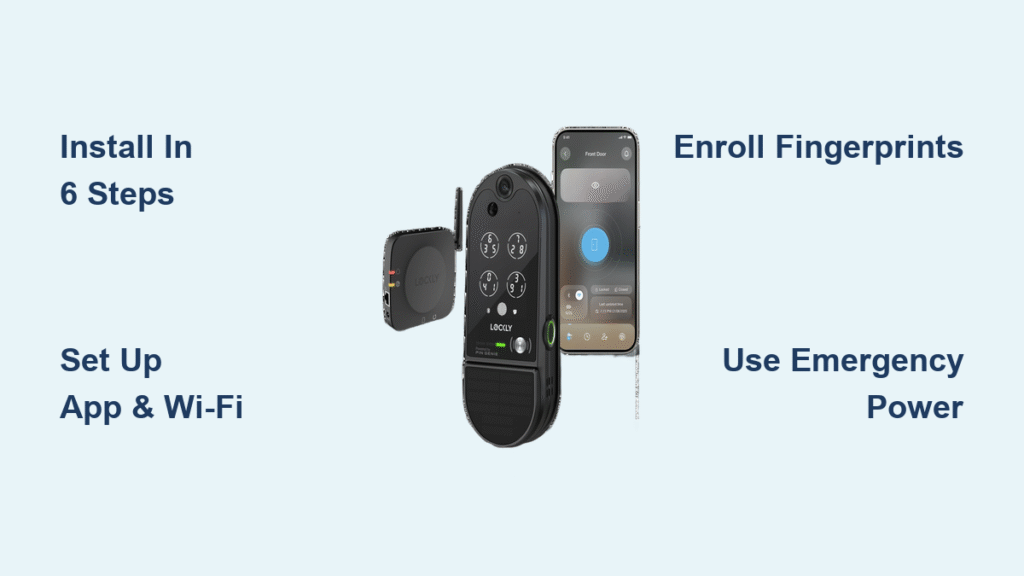
Your new Lockly smart lock promises keyless convenience and advanced security, but the array of buttons, apps, and features can feel overwhelming at first. Whether you’re upgrading from traditional keys or switching from another smart lock brand, this guide walks you through everything from initial setup to mastering advanced features like fingerprint access and guest codes. You’ll learn exactly how to install, configure, and operate your Lockly lock across all access methods—touchscreen, smartphone, fingerprint, and physical backup key.
You’ll discover how to troubleshoot common issues and optimize settings for your specific needs, whether you’re a homeowner, landlord, or business manager. By the end of this guide, you’ll have complete confidence in how to use Lockly smart lock technology to its full potential, saving you time and providing peace of mind about your home security.
Install Lockly in 6 Simple Steps
Gather Required Tools and Materials
Before you start installing your Lockly smart lock, collect these essentials: a Phillips head screwdriver, 4 fresh AA batteries (alkaline recommended), your smartphone with the Lockly app pre-installed, your existing deadbolt for measurement reference, and your 2.4GHz Wi-Fi network password. These items ensure a smooth installation process without unexpected delays.
Pro tip: Test your Wi-Fi signal strength at the door location before starting—weak signals cause 90% of setup failures. Stand at your door with your phone and check if you get at least three bars of signal strength for reliable connectivity.
Remove Old Deadbolt Safely
Start by unscrewing your existing deadbolt from the interior side while keeping the door closed to maintain alignment. If your current deadbolt sticks, spray a small amount of lubricant into the screws and wait 5 minutes before attempting removal. Never force screws out, as this can damage the door frame and complicate your Lockly installation.
Mount Exterior Assembly
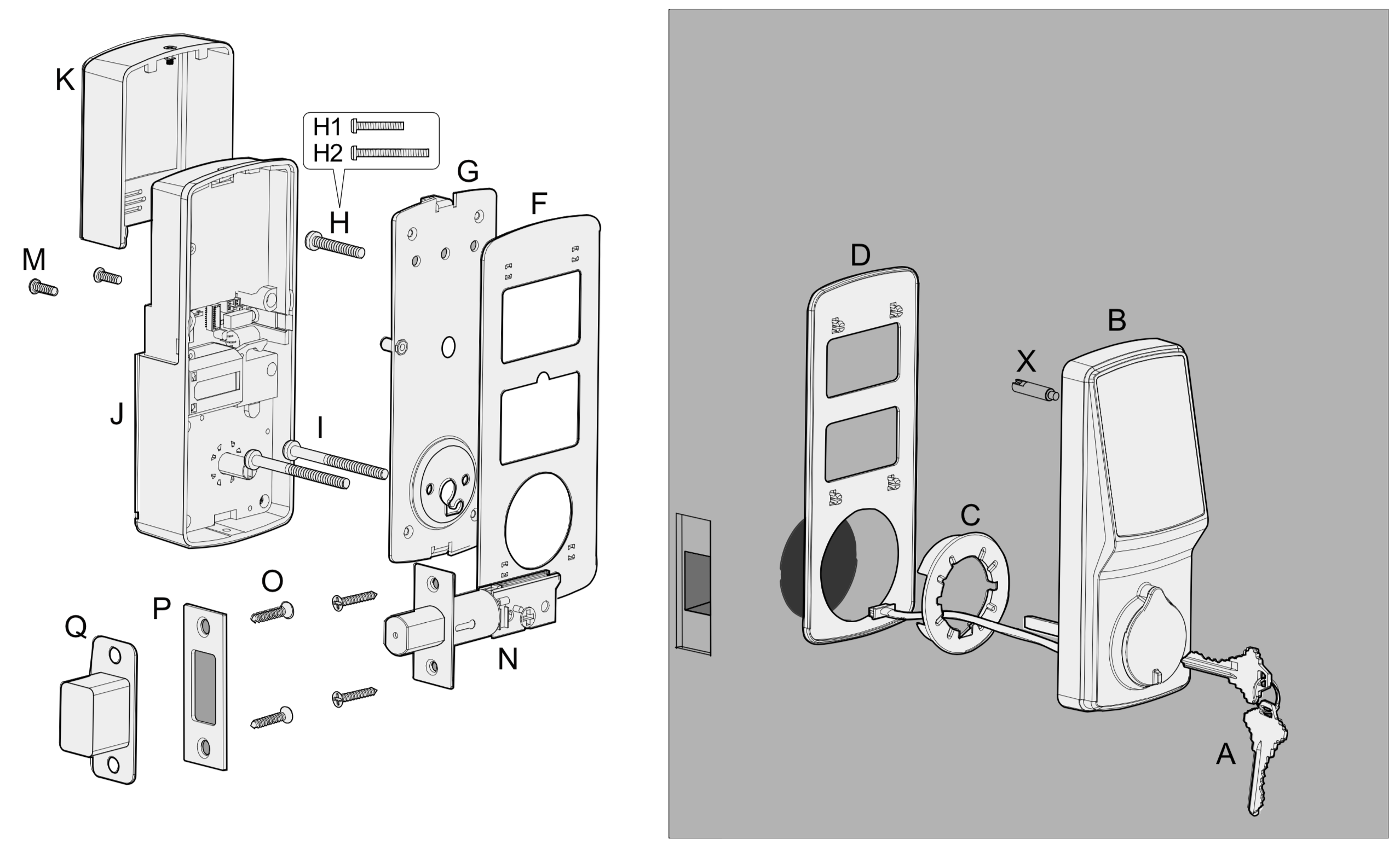
Slide the Lockly exterior assembly through the door bore hole, ensuring the cable feeds through easily. If it catches, rotate the assembly slightly until it slides smoothly. Verify the exterior handle points downward in its resting position—this orientation is crucial for proper functionality and weather resistance.
Connect Interior Components
Attach the interior mounting plate using the provided screws, ensuring it sits flush against the door. Gaps here cause battery drain and connection issues, so double-check alignment before tightening. Connect the cable securely; you’ll hear a small click when properly seated. This connection powers all electronic features, so proper seating is essential.
Install Batteries and Test
Insert all 4 AA batteries, carefully observing the + and – symbols inside the compartment. Immediately test the thumb turn to confirm smooth operation. If you feel resistance, recheck your mounting plate alignment before proceeding. The lock should operate silently and smoothly—any grinding noises indicate misalignment that needs correction.
Configure Your Lockly App
Create Account and Add Lock
Open the Lockly app and tap “Add New Lock” to begin the digital setup process. Scan the QR code inside the battery compartment or on your installation card—this automatically detects your lock model and begins guided setup. Creating your account takes less than two minutes and establishes the secure connection between your phone and the lock.
Connect to Wi-Fi Network
Select your 2.4GHz network from the list—Lockly won’t appear on 5GHz networks. Enter your password carefully; one typo sends you back to the beginning. The lock confirms connection with two beeps and a solid blue light. If you encounter connection issues, move closer to your router temporarily during setup.
Set Master Access Code
Choose a 6-8 digit code that’s easy for you to remember but hard for others to guess. Avoid birthdays, addresses, or sequential numbers. Enter the code twice when prompted—mistakes here require starting over. This master code gives you full access and administrative privileges, so keep it secure but accessible.
Master the Touchscreen Keypad
Understand PIN Genie Technology
Lockly’s signature feature displays numbers in three rotating circles: 0-3, 4-6, and 7-9. These positions shuffle after each use, making it impossible for someone to guess your code by watching finger positions. This security innovation prevents “shoulder surfing” while maintaining user-friendly access.
Pro tip: The circles appear in different locations each time, but the numbers within each circle always stay together—memorize which circle contains your digits, not their screen position. This mental shortcut makes entering your code faster with practice.
Enter Codes Correctly
Touch the circles containing your code digits in sequence. You have 10 seconds between each digit entry—pause longer and the sequence resets. The lock beeps softly with each successful digit entry, providing immediate feedback. For best results, press firmly but gently to avoid accidental multiple entries.
Set Up Fingerprint Access
Enroll Primary Fingerprints
Access fingerprint settings through the app → Users → Add Fingerprint. Place your finger on the sensor at different angles—flat, sideways, and tilted. The app prompts you to lift and replace your finger 5-7 times for complete enrollment. This multi-angle approach ensures reliable recognition regardless of how you naturally approach the lock.
Troubleshoot Recognition Issues
If fingerprints fail to register, clean the sensor with a microfiber cloth. Dry your hands thoroughly—moisture causes most failures. For persistent issues, re-enroll the fingerprint in slightly different positions. Remember that cold weather can temporarily affect fingerprint recognition, so have your backup access method ready during winter months.
Generate Temporary Access Codes
Create Codes Without Internet
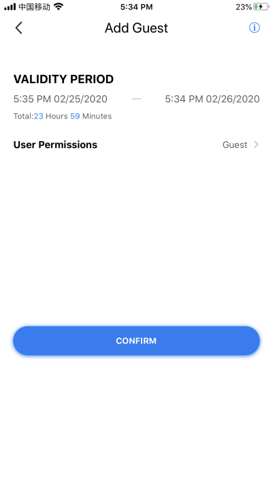
Open the app while connected via Bluetooth (range: 30-50 feet). Select “Offline Access Codes” and set duration from 1 hour to 30 days. Choose single-use or recurring access—perfect for dog walkers or cleaners. These codes work even if your Wi-Fi goes down, providing reliable temporary access.
Send Codes to Guests
Tap “Share Code” to text or email the temporary access. Include the exact code and expiration time. Codes work immediately, even if the recipient doesn’t have the app—just the 6-digit number and any special instructions. This feature eliminates the need for physical key exchanges when welcoming guests.
Control Lockly From Your Phone
Remote Lock and Unlock
With the Secure Link bridge installed, control your lock from anywhere. The main screen shows lock status—tap the large lock icon to toggle. You’ll receive confirmation within 3 seconds of successful operation. This remote capability is invaluable when you’re already at work but realize you forgot to lock the door.
Set Up Geofencing
Enable auto-lock when your phone leaves a specified radius (50 feet to 1 mile). This prevents accidentally leaving your door unlocked. The feature uses minimal battery and works reliably in urban and suburban areas. For families, consider setting different geofencing radii for each family member’s phone.
Troubleshoot Common Problems
Fix Unresponsive Touchscreen
When your Lockly touchscreen won’t light or respond to touch, follow these steps: clean with a dry microfiber cloth, check for cracks or damage, remove batteries for 30 seconds then reinstall, and ensure your hands are clean and dry. Most touchscreen issues resolve with simple cleaning, as dirt and oils interfere with the capacitive sensors.
Resolve App Connection Issues
If you see “Lock offline” error messages, check your Wi-Fi bridge power connection, verify 2.4GHz network availability, force close and restart the Lockly app, and move the bridge closer to the lock (within 30 feet). Remember that Lockly only works with 2.4GHz networks, so if your router broadcasts both 2.4GHz and 5GHz, ensure you’re connecting to the correct network.
Emergency Access Without Power
The 9V battery terminals on the exterior provide emergency power. Touch a 9V battery to these terminals to temporarily power the lock. Physical keys work regardless of battery status—always keep one accessible outside your home, perhaps with a trusted neighbor. This emergency access ensures you’re never locked out due to dead batteries.
Optimize Security Settings
Enable Privacy Mode
Activate privacy mode when you’re home for extended periods. All electronic access methods disable—only physical keys work. Access through the app or press and hold the interior button for 3 seconds. Auto-deactivates after 24 hours, providing temporary maximum security during vacations or when hosting large gatherings.
Configure Auto-Lock Timer
Choose from 5 seconds to 5 minutes based on your needs. Families with kids often prefer 30 seconds, while businesses might set 5 minutes for customer convenience. Disable entirely for manual control during parties or events. The right auto-lock setting balances security with convenience for your specific lifestyle.
Maintain Peak Performance
Monthly Battery Check
Open the app—battery level displays on the main screen. Replace when showing 20% or less. The lock provides 50+ additional uses after low battery warnings begin, giving you ample time to change batteries. Keep spare batteries in an accessible location for quick replacements.
Quarterly Deep Clean
Clean the touchscreen with electronics-safe wipes. Use compressed air to remove debris from the fingerprint sensor. Check mounting screws for tightness—loose hardware causes battery drain. A thorough cleaning every three months maintains optimal performance and extends your lock’s lifespan.
Final Configuration Checklist
Before considering your Lockly fully operational, verify these critical items: test your master code successfully three times, enroll all family members’ fingerprints, ensure your emergency physical key is accessible outside, confirm Wi-Fi bridge connection with remote testing, verify voice assistant links, create necessary temporary codes, enable activity notifications on your primary phone, and set your auto-lock timer to your preferred duration.
Your Lockly smart lock now delivers the keyless convenience and security you invested in. The initial setup complexity pays dividends in daily ease-of-use and peace of mind. Return to this guide whenever adding new users, troubleshooting issues, or exploring advanced features as your needs evolve. Whether you’re a homeowner, landlord, or business manager, mastering how to use Lockly smart lock technology transforms your security experience from reactive to proactive control.



