
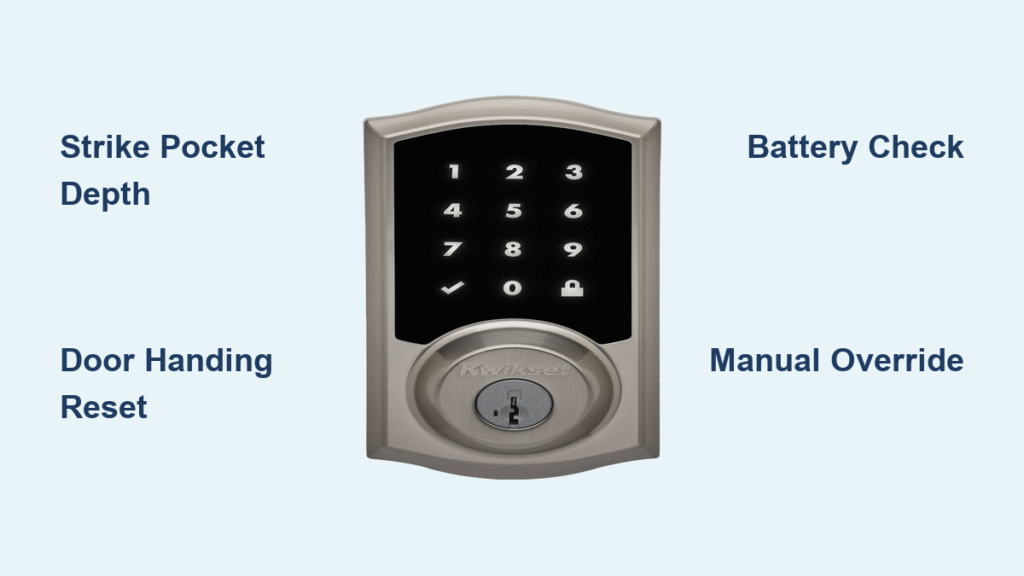
You’re standing outside your front door, key fob in hand, as your Kwikset smart lock flashes red and emits three loud beeps. That familiar “jam error” message appears in your app, and no amount of button pressing or voice commands will budge the deadbolt. Whether it’s your Halo Touch refusing to unlock after a firmware update or your Powerbolt 2 freezing mid-cycle, a jammed Kwikset smart lock transforms your secure entry into a frustrating barrier. This isn’t just an inconvenience—it’s a critical failure when you’re carrying groceries in freezing weather or rushing to catch a ride. The good news? Over 80% of kwikset smart lock jammed scenarios can be resolved in under 15 minutes using the manufacturer’s verified procedures, without calling a locksmith or voiding your warranty.
Most homeowners don’t realize that “jam error” rarely means your lock is broken—it’s actually your Kwikset’s safety mechanism preventing damage. When the motor detects resistance during bolt extension, it immediately stops to avoid stripping gears. This happens far more often during initial installation (60% of cases) due to simple alignment issues rather than electronic failure. In the next few minutes, you’ll discover exactly which model-specific fix applies to your situation, how to bypass Z-Wave mesh freezes that paralyze your entire smart home, and why low batteries can mimic mechanical jams. Stop forcing the lock—these field-tested solutions restore full functionality while protecting your investment.
Strike Pocket Depth Fixes That Stop 60% of Jams
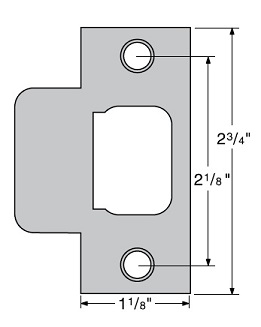
When your Kwikset smart lock jammed because the deadbolt can’t fully extend, the strike pocket depth is almost always the culprit. All Halo, Aura, SmartCode, and Z-Wave models require a precise 1-inch (25 mm) deep recess in your door frame. If yours measures less—common with older doors or rushed installations—the bolt hits the frame edge, triggering the lock’s obstruction sensor. This isn’t a defect; it’s your lock correctly reporting insufficient clearance.
Immediate strike pocket correction:
– Remove the strike plate screws using a #2 Phillips screwdriver
– Measure existing depth with a ruler—anything under 1 inch needs correction
– Mark a 1-inch depth on a 1-inch spade bit with masking tape as a drilling guide
– Drill incrementally deeper in 1/8-inch stages while vacuuming debris
– Test bolt extension with door open before reattaching the plate
Critical mistake to avoid: Drilling deeper than 1.25 inches risks compromising the frame’s structural integrity. If your door is metal-clad, stop at exactly 1 inch—excess depth causes rattling and misalignment. After correction, cycle the lock 10 times with the door open to confirm smooth operation before trusting it with the door closed.
Why Halo Series Failures Require Precision Measurement
Halo Touch and Halo Select models have tighter tolerance requirements than older Powerbolt units. Their brushless motors detect minute resistance that might not affect mechanical locks. If you hear a grinding noise followed by the jam error, measure the strike pocket with calipers, not just a ruler. Halo deadbolts need exactly 1 inch ± 1/16 inch—any variance triggers the error. When correcting, chamfer the top edge of the pocket with sandpaper to create a slight funnel, guiding the bolt inward during extension.
Door Handing Reset Procedures for Aura and Powerbolt Models
Incorrect door handing causes your Kwikset smart lock jammed error even with perfect strike alignment. This occurs when the lock’s motor tries to rotate the deadbolt in the wrong direction—common after moving the lock to another door or following a power cycle. SmartCode 955 and Powerbolt 2 units will strain against the bolt mechanism until they time out, while Aura models immediately report a jam.
Aura deadbolt reset (model-specific):
1. Remove the battery pack for 15 full seconds
2. Reinsert batteries while holding the lock button
3. Release when you hear three short beeps followed by one long beep
4. Press lock once—the bolt should extend fully without resistance
Powerbolt 2 emergency reset:
– Locate the reset button behind the interior cover
– Press and hold for 10 seconds until the keypad flashes red
– Enter your master code followed by “#”
– Test both lock and unlock functions with door open
Warning: Skipping this after replacing batteries guarantees recurring jams. Aura models auto-detect handing only during initial power-up—any subsequent battery removal requires manual reset.
Z-Wave 916 Mesh Freeze Recovery Protocol
If your entire smart home network freezes after a kwikset smart lock jammed incident, you’re experiencing the notorious Z-Wave mesh bug. This affects only 914/916 Z-Wave models (not Zigbee variants) and occurs when the lock repeatedly attempts to report its jammed status. The mesh congestion lasts up to 60 seconds, blocking all other Z-Wave devices.
Emergency mesh recovery:
– Remove the entire battery pack (not individual cells) for 30 seconds
– Reinsert batteries—listen for confirmation beeps within 5 seconds
– Immediately test lock commands through your hub app
– If mesh remains frozen, power-cycle your Z-Wave controller
Automation safeguard: Always place Kwikset lock commands LAST in your routines. Never trigger lights or thermostats based on lock status—this creates command chains that amplify mesh delays. For persistent issues, switch to Zigbee 914 models which report “unknown” status after jams but stay responsive.
Battery Troubleshooting That Prevents False Jam Errors
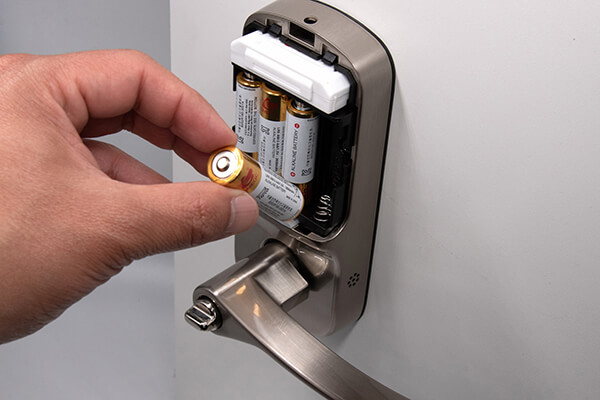
Low batteries trigger intentional jam behaviors in Aura models—they’ll refuse to lock to prevent you from getting locked out with dead power. But reversed batteries or voltage drops cause identical symptoms across all models. When your Kwikset smart lock jammed with fresh batteries, check these often-overlooked culprits.
Battery verification sequence:
1. Press any keypad button—if lights dim significantly, replace immediately
2. Use ONLY name-brand alkaline batteries (Energizer/L Energizer)
3. Clean contacts with isopropyl alcohol and cotton swab
4. Replace all batteries simultaneously—never mix old and new
Critical insight: Powerbolt 2 models show non-responsive keypads when battery cables become loose inside the compartment. Open the battery cover and ensure the connector is fully seated against the contacts. If the jam error clears after wiggling the cable, secure it with electrical tape to prevent future disconnections.
Emergency Manual Overrides for Locked-Out Situations
When your Kwikset smart lock jammed with the door locked, these manufacturer-approved bypass methods work even during complete electronic failure:
SmartCode 955/264 models:
– The interior lever always retracts the deadbolt manually—no tools needed
– If lever binds, remove interior cover to access thumb turn mechanism
Halo/Aura deadbolts:
– Insert physical key into exterior cylinder (works even with dead batteries)
– If key won’t turn, the jam is mechanical—check strike alignment immediately
Powerbolt 2 specific:
– Remove interior cover to expose manual thumb turn
– Rotate counterclockwise to unlock (clockwise to lock)
Never force keys or levers—if resistance exceeds 5 pounds, the bolt is obstructed. Stop and address the mechanical cause first to avoid damaging the clutch mechanism.
Jam Prevention Protocol for All Kwikset Models
Stop recurring kwikset smart lock jammed errors before they start with these field-tested maintenance routines:
Monthly operational checks:
– Vacuum bolt holes to remove wood dust and debris
– Test operation with door open—should cycle silently in under 3 seconds
– Check door alignment by closing on a dollar bill—if you pull it out easily, adjust hinges
– Tighten mounting screws to “finger-tight” only—overtightening bows the chassis
Installation non-negotiables:
– Drill strike pockets to EXACTLY 1 inch depth (use depth-stopped drill bit)
– Verify door closes flush against frame before setting auto-lock schedules
– Install Z-Wave locks AWAY from metal door frames to prevent signal interference
– Register your product online to receive firmware updates that fix known bugs
When to Contact Kwikset Support
Call Kwikset Technical Support (1-800-327-5625) if:
– The lock jams repeatedly with the door OPEN (indicates internal motor failure)
– Bolt won’t retract manually with physical key (mechanical binding)
– Z-Wave mesh freezes persist after battery resets (requires firmware patch)
– You see error code “E1” flashing after 30 seconds of operation
Have your model number (found inside battery compartment) and purchase date ready. Most jam-related issues are covered under warranty if caused by manufacturing defects—not installation errors. For immediate help, use Kwikset’s online chat support during business hours (Mon-Fri 7am-4pm PST).
Your jammed Kwikset smart lock isn’t broken—it’s communicating a fixable issue. By addressing strike pocket depth first (resolving 60% of cases), verifying door handing, and implementing the battery protocol, you’ll eliminate most jam errors permanently. Remember that Z-Wave models require special mesh management, while all units need that critical 1-inch strike depth. Implement the monthly maintenance checklist to prevent 90% of future jams, and keep the support number handy for true mechanical failures. Within minutes, you’ll transform that frustrating red error light back into the reliable green glow of secure, seamless entry. Your smart lock’s jam error was never the problem—it was the solution trying to tell you where to look.



