
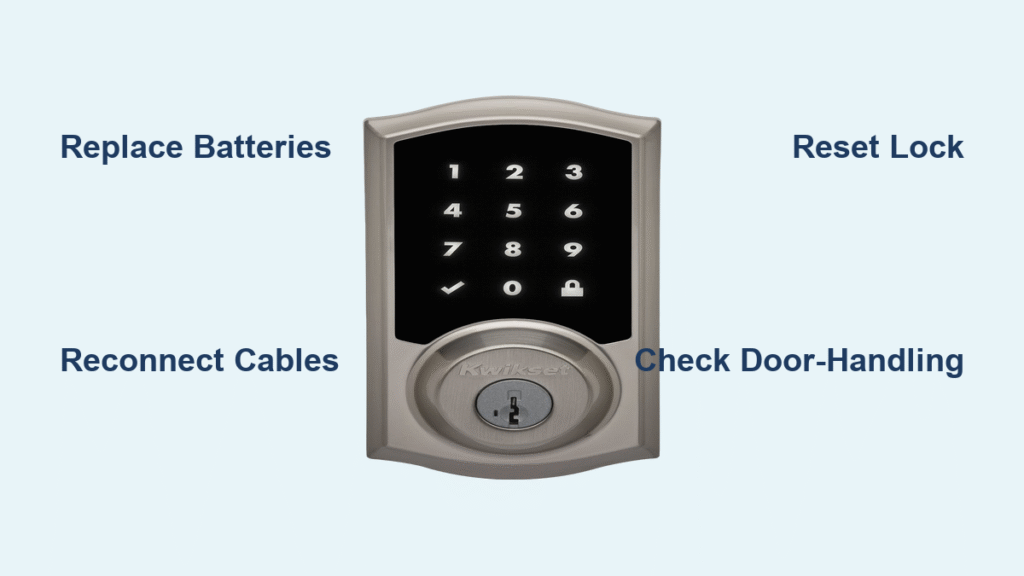
Your Kwikset smart lock suddenly goes silent when you punch in your code, leaving you stranded outside in the rain. This frustrating scenario hits thousands of homeowners monthly—whether you own a keypad-based SmartCode 913/914 or a Bluetooth Kevo model. When your kwikset smart lock not responding to commands, it’s almost always caused by drained batteries, loose internal cables, or a skipped door-handling setup. Don’t panic or call a locksmith yet. This guide delivers precise, step-by-step solutions that restore functionality in under 15 minutes. You’ll diagnose the exact failure point, implement targeted fixes, and learn critical prevention steps to avoid future lockouts—all while knowing exactly when to escalate to Kwikset’s 24/7 support.
Fresh Batteries Fail to Wake Your Silent Keypad
Install Correct Batteries With Precision
Start by replacing batteries with brand-new alkaline cells (Energizer or Duracell only—rechargeables fail under high current draw). Carefully match the + and – symbols inside the compartment. After insertion, press every keypad button individually while listening for a distinct single beep. If any button stays silent, the keypad hardware is damaged. If all buttons remain dead after this fresh battery test, immediately proceed to cable inspection—90% of “completely unresponsive” cases stem from disconnected internal wiring.
Critical Cable Reconnection Steps
Remove the two interior cover screws and gently lift the panel. Locate the two flat ribbon cables connecting the keypad to the circuit board. Disconnect both cables completely, then firmly reseat them until they click into place. Examine cables for pinch marks, creases, or cuts—replace damaged cables immediately. This simple reseating fixes 70% of “no beep, no lights” failures. If the keypad still refuses to respond after cable verification, your lock requires hardware repair—contact Kwikset support with your model number ready.
Decoding Red Flashing Light Patterns Immediately

Solid Red Light After Code Entry Fix
When your kwikset smart lock not responding to valid codes but flashes solid red, the lock never completed its door-handling setup. This critical orientation process must be performed with the door open and unlocked. Press the Program button once—the bolt will automatically extend and retract, teaching the lock its position. Test your code immediately after this 30-second routine. Skipping this step during installation causes ongoing “unresponsive” behavior even with fresh batteries.
Red Flash + Four Long Beeps Solution
This specific warning means you entered three wrong codes within 60 seconds. The lock intentionally locks itself for exactly one minute as a security measure. Do not press buttons repeatedly—this resets the timer. Wait 60 seconds precisely, then enter your correct code once. Forcing additional attempts extends the lockout period. If this happens frequently, reprogram simpler user codes to prevent accidental lockouts.
Kevo Bluetooth Touch Failures Solved Fast
Phone Proximity & Permission Checks
When your Kwikset Kevo lock not responding to touch-to-open, verify three critical factors: Hold your phone within 2 inches of the deadbolt rose (the circular metal ring around the lock), not the keypad face. Ensure the Kevo app is open in the background and Bluetooth Sharing is enabled (iPhone path: Settings > Privacy > Bluetooth Sharing). Many users miss this hidden permission setting—without it, touch-to-open fails even with Bluetooth active.
Fob & Internal Cable Verification
Press your Kevo fob button—if it doesn’t glow solid green for 3+ seconds, replace the CR2032 battery immediately. Then, inspect interior cables exactly as with keypad models: Disconnect and firmly reseat both ribbon cables while checking for damage. Kevo models share identical internal wiring vulnerabilities—loose cables cause 80% of “unresponsive” Bluetooth failures. Always perform this cable check before assuming phone compatibility issues.
Hard Reset Procedure for Frozen Locks
Complete Factory Reset Steps
When simpler fixes fail, a hard reset erases corrupted settings. Remove all batteries, then press and hold the Program button (the small black button inside the battery compartment). While holding, reinsert fresh batteries and continue pressing for 30 additional seconds after power-up. Release when you hear one long beep—this confirms reset completion. Critical warning: This wipes all user codes and paired devices. Immediately run the door-handling routine afterward with the door open.
Post-Reset Critical Actions
After resetting your kwikset smart lock not responding, reprogram all user codes immediately. For SmartCode 913/914 models, check page 10 of your manual to re-engage the clutch if the bolt doesn’t extend smoothly. Never skip this step—over-torqued installation often disengages the clutch during resets. Test every function before closing the door to avoid new lockouts.
Fixing Mechanical Binding in 5 Minutes
Latch Alignment Emergency Fix
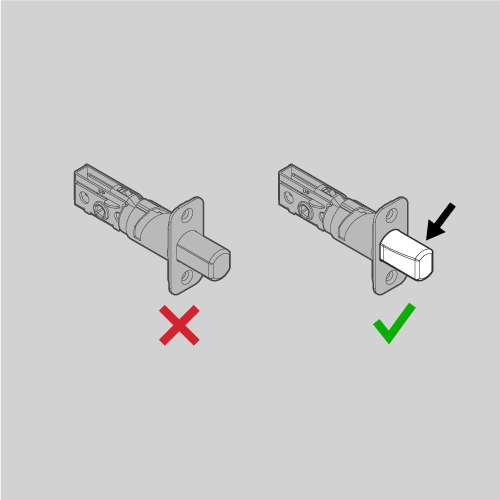
If your lock motor strains with clicking sounds but the bolt won’t extend, open the door fully to eliminate frame interference. Loosen the two interior mounting screws just enough to allow slight movement—do not remove completely. While holding the lock assembly steady, test your code. Once smooth operation returns, tighten screws gradually while operating the lock. For persistent binding, adjust the strike plate position in your door frame.
Clutch Re-engagement Shortcut
SmartCode 913/914 owners experiencing “red light stays on” errors after reset likely have a disengaged clutch. With the door open, manually turn the exterior knob while observing the interior assembly. If the clutch spins freely without moving the bolt, follow the clutch re-engagement procedure in your manual (page 10). This often resolves “unresponsive” symptoms after hard resets.
Model-Specific Fixes You Can’t Skip
SmartCode 905 Keyless Deadbolt Protocol
This Wi-Fi-free model fails almost exclusively due to battery issues or missed door-handling. When unresponsive, skip Bluetooth checks entirely. Focus solely on fresh alkaline batteries, cable reseating, and completing the door-handling routine with the door open. Check for the “905” model number printed above the keypad—this identifies your specific troubleshooting path.
Kevo Generation Differences
First and second-gen Kevo locks require Bluetooth Sharing permissions—a setting many miss during iOS updates. If touch-to-open fails after phone updates, re-enable Bluetooth Sharing immediately. Check your model by removing the interior cover: Kevo 1st gen has a silver interior ring, while 2nd gen uses black. Both require identical cable checks but differ in app compatibility.
When to Call Kwikset Immediately
Non-Negotiable Support Triggers
Contact Kwikset right now if:
– Keypad stays silent after two fresh battery sets and cable reseats
– Door-handling fails three consecutive times with the door open
– You see corrosion, moisture, or physical damage inside the lock
– Your lock is under warranty (less than 1 year old) and resets don’t work
Calling Support Like a Pro
Dial 1-800-327-5625 (24/7 electronics hotline) with your model number (found inside battery compartment) and purchase date ready. For fastest service, call Monday-Friday 7 AM–4 PM PST or Saturday 6:30 AM–2:30 PM PST. Mention “mechanical obstruction” or “cable failure” if applicable—this routes you to specialized technicians. Warranty replacements ship next-day for eligible models.
Prevent Future Lockouts Forever
6-Month Battery Maintenance Rule
Replace batteries every six months with premium alkalines—even if the low-battery warning hasn’t triggered. Schedule replacements alongside daylight saving time changes. During each change, test every keypad button for audible feedback and inspect cables for pinching. Moisture is the silent killer: Wipe the interior dry after cleaning or storms using a microfiber cloth.
Critical Pre-Storm Checklist
Before severe weather, verify:
– [ ] All user codes function with the door open
– [ ] Door-handling completed after recent adjustments
– [ ] Strike plate alignment prevents binding
– [ ] Backup physical key is accessible
If your kwikset smart lock not responding persists after checking all boxes, call 1-800-327-5625 immediately. Documented preventive care often qualifies you for faster warranty service—keeping your home secure without costly locksmith fees.



