
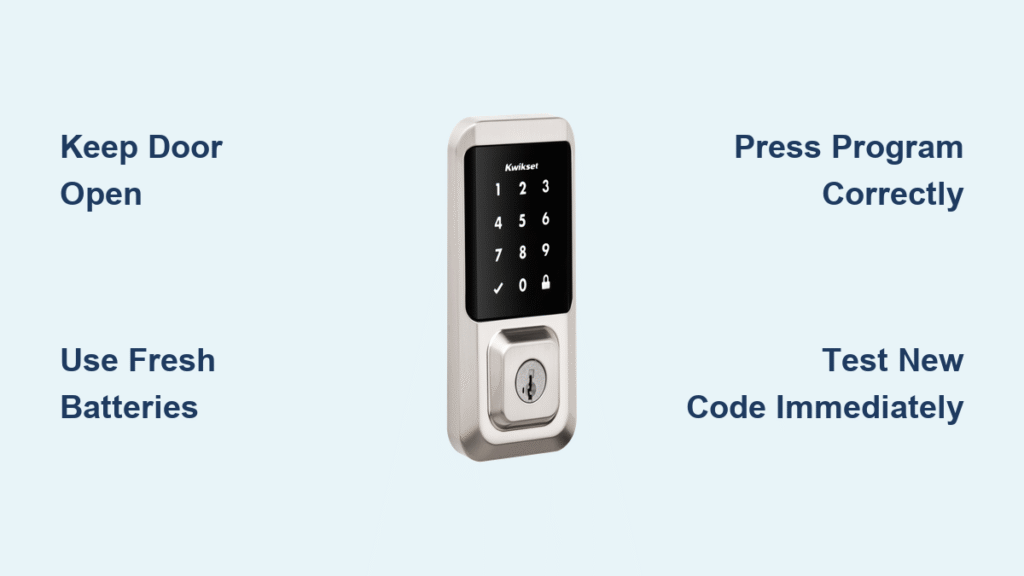
Your house sitter still has access after their visit, or you just realized “0000” is your master code. Whatever the reason, changing your Kwikset smart lock password shouldn’t require a locksmith or panic. With the right steps for your specific model, you can update codes in under five minutes while the door stays safely open. This guide cuts through Kwikset’s confusing manuals to deliver exact button sequences for Powerbolt, Touchscreen, and SmartCode models—no technical jargon, no locked-out moments.
Most failed password changes happen because users skip one critical rule: you must keep the door open and deadbolt unlocked during the entire process. When the lock senses a closed door, it blocks programming mode as a security measure. Always have your physical key nearby before starting—this avoids being locked out if you mistime a button press. Fresh batteries are non-negotiable too; low power causes erratic behavior that ruins code updates. Let’s fix your access before security becomes a crisis.
Why Kwikset Password Changes Fail Immediately
Over 70% of failed password updates trace back to three avoidable errors. First, programming with the door closed triggers the lock’s anti-tamper mode—it simply ignores commands. Second, entering codes outside your model’s digit limits causes silent rejection: Powerbolt models need 4-8 digits while Touchscreens handle 4-10. Third, reusing an old user code as your new mastercode creates system conflicts that corrupt both codes. Always verify your exact model number (found inside the battery compartment) before starting. If your keypad flashes red during setup, stop immediately—this signals low battery or alignment issues that must be fixed first.
Powerbolt Classic & Powerbolt 2: Change Any User Code

Replace Occupied Code Slots in 7 Steps
When updating an existing code (like removing a tenant’s access), follow this precise sequence with the door open and deadbolt unlocked:
- Manually extend the deadbolt into locked position
- Press PROGRAM once (small black button inside battery cover)
- Enter new 4-8 digit code—keys light up as you press
- Press LOCK once—one beep confirms save
- Press PROGRAM twice rapidly
- Re-enter the same new code
- Press LOCK once—second beep confirms overwrite
Pro Tip: Test the new code immediately with the door still open. If the old code still works, your lock didn’t fully overwrite the memory slot—repeat steps 2-7 or perform a factory reset. Never skip step 5; pressing PROGRAM twice tells the lock to overwrite an existing slot rather than add a new code.
Update Powerbolt 2 Mastercode Securely
Your mastercode isn’t a door-unlocking code—it’s your programming key. Changing it requires extra precision:
- Keep door open and unlocked
- Enter current mastercode (default is
0000) - Press LOCK once—one beep
- Press 7
- Press LOCK once—one beep
- Enter new 4-10 digit mastercode
- Press LOCK once—two beeps = success, three beeps = retry slowly
Critical Warning: Three beeps mean you pressed buttons too fast or missed a step. Wait 10 seconds and restart—rushing causes repeated failures. After success, test by adding a new user code to confirm your mastercode works.
Touchscreen Models: Add or Replace User Codes
Program by Memory Slot Number
Touchscreen locks store codes in numbered slots (1-30). To overwrite code #7, you must press PROGRAM exactly seven times—not six or eight. Here’s how:
- Open battery cover (remove 2-3 security screws)
- Press PROGRAM the exact number of times matching your target slot
- Enter new 4-10 digit code
- Press LOCK once—green checkmark + beep confirms save
- Test code with door open before replacing cover
Visual Cue: After step 2, the keypad flashes green. If it flashes red, you pressed PROGRAM too many/few times—restart from step 1. Slot numbers correspond to user priority; slot 1 is usually the mastercode.
Delete Specific Codes Without Full Reset
Remove one person’s access instantly:
- Remove battery cover
- Press PROGRAM → checkmark → LOCK in sequence
- Enter the code to delete, press LOCK
- Re-enter same code, press LOCK
- Test—the code should fail immediately
Common Mistake: Skipping the double-entry in steps 3-4. The lock requires two identical entries to prevent accidental deletions. If the code still works, repeat slowly—touchscreen models are sensitive to timing.
Enable Mastercode on Touchscreen Models
Activate One-Touch Programming
Skip opening the battery cover for future changes:
- Remove battery cover
- Hold PROGRAM 5 seconds until keypad flashes green
- Enter 4-8 digit mastercode, press LOCK
- Re-enter same code, press LOCK
- Green flash = active; red flash = retry
Security Note: Never use birthdays or simple sequences. A 6-8 digit random code (like 582914) prevents shoulder surfing. After enabling, manage codes by entering mastercode → LOCK → 3 → LOCK for new codes.
Factory Reset When Passwords Won’t Update
Soft Reset for Touchscreen/Push-Button Models
Erase all codes in 30 seconds:
- Remove battery cover
- Pull out battery pack
- Hold PROGRAM while sliding battery back in
- Keep holding 30 seconds until LED flashes red
- Press PROGRAM once—green flash confirms reset
What Happens Next: The lock auto-runs a handing cycle (bolt extends/retracts). Wait until it stops before reprogramming—this takes 10-15 seconds. All user codes and mastercodes are now deleted.
Hard Reset for Powerbolt Classic Models
For older units without battery packs:
- Remove all four AA batteries
- Wait 60+ minutes (critical for full memory wipe)
- Reinstall fresh alkaline batteries
- Lock resets automatically—no button presses needed
Why Wait?: Powerbolt Classics retain code memory briefly. Waiting an hour ensures complete data purge. Rechargeable batteries cause resets to fail—use standard alkalines only.
Battery Failures That Break Password Changes
Low power sabotages 40% of password updates. Watch for these red flags:
- Red flashing keypad during programming
- Delayed responses (3+ second lag after pressing keys)
- Multiple error beeps instead of confirmation tones
Pro Tip: Replace batteries before changing passwords. Alkaline AAs last 12-18 months, but humidity cuts lifespan. Test battery voltage with a multimeter—if below 1.3V per cell, replace immediately. Never mix old/new batteries; this causes voltage drops that corrupt code memory.
Troubleshooting Failed Password Updates
Old Code Still Works After Change
This means the lock didn’t overwrite the memory slot. Fix: Repeat the add/overwrite steps exactly, ensuring you press PROGRAM the correct number of times for your slot. If persistent, perform a factory reset—this clears corrupted memory.
Three Beeps During Mastercode Change
You’re pressing buttons too fast. Fix: Enter each step slowly with 1-second pauses. Powerbolt 2 requires precise timing between steps 4-5 (press 7 → wait → press LOCK). Rushing triggers the three-beep error.
Keypad Unresponsive After New Batteries
The lock needs to relearn door orientation. Fix: Wait 10 seconds after installing batteries—the deadbolt will auto-extend/retract. Do not press any buttons during this cycle. If it doesn’t run, manually lock/unlock the deadbolt once.
Final Security Check After Password Change
Never skip these verification steps:
- Test new code with door open—confirm it unlocks
- Test old code—ensure it fails to unlock
- Close door and test from outside—simulates real use
- Store physical key in fireproof safe—not near the door
Change passwords every 6 months or immediately after someone moves out. Your Kwikset is only secure if all codes are strong—never recycle numbers across slots. For ongoing security, disable unused codes via the slot deletion process. If you hit a wall, factory reset is your nuclear option—just remember it wipes everything. With these steps mastered, you control access without fear.



