
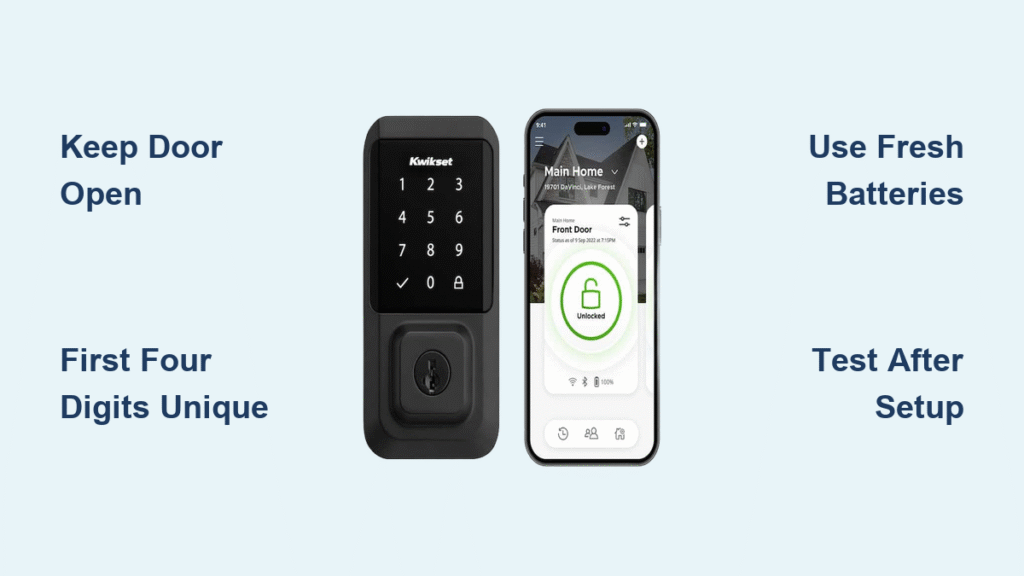
That moment when your rental property tenant moves out and you need to reset access codes remotely—it’s why your Kwikset smart lock programming code exists. Unlike regular user codes that simply open your door, this administrative credential gives you full control over lock settings from outside your property. Landlords and property managers rely on this feature to manage access across multiple units without fumbling with interior buttons. But here’s the critical catch: your programming code cannot unlock the door. It’s strictly a digital administrator that lets you add, delete, or modify user codes—while simultaneously disabling the physical program button for all functions except factory reset.
When properly activated, this feature transforms your Kwikset lock into a remotely manageable security system. But skip one step in the process, and you’ll trigger three angry beeps with a red flash—locking you out of programming mode entirely. Worse, many users accidentally create conflicting codes that brick their entire system. In this guide, you’ll learn exactly how to set up, change, and troubleshoot programming codes for SmartCode 955, 264 Deadbolt, and 275 Contemporary models—without risking a permanent lockout.
Why Your Kwikset Programming Code Gets Rejected Immediately
First-Four-Digit Uniqueness Rule Explained
Kwikset’s security system enforces a strict rule you can’t bypass: the first four digits of every code must be unique across your entire lock. Trying to create user codes like 48151 and 48152? The system will reject them instantly. This prevents code confusion that could let unauthorized users guess access combinations. When setting your programming code:
– Must differ from all active and disabled user codes
– Cannot reuse the first four digits of any existing code
– Triggers three beeps/red flash if conflicts exist
Critical Security Constraints You’re Ignoring
Most failed programming attempts happen because users miss these non-negotiable rules:
– User codes must be enabled before adding new ones (disabled codes block programming)
– Programming code length varies by model: 4–8 digits for SmartCode 955, 4–10 digits for 264/275 models
– Default 275 Contemporary code is 0-0-0-0—but changes immediately after first use
– Weak batteries cause silent failures even when lights appear normal
Activate Programming Code on Kwikset 955 (Door-Open Method)

Step-by-Step Setup Without Physical Button Access
Warning: Keep your door OPEN throughout this entire process. Failure means permanent lockout until batteries die.
-
Trigger program mode: Press the interior program button with a paperclip until you hear two quick beeps
– Visual cue: Keypad backlight turns on
– Critical tip: Use a SmartKey tool if available—paperclips often miss the button depth -
Select programming function: Press
3→ one short beep + green flash → Press Kwikset button
– Common mistake: Waiting too long between steps (lock exits mode after 5 seconds) -
Enter NEW programming code: Input 4–8 digits not used by any user
– Pro verification: Test digits against existing codes before entry
– Failure sign: Red flash if first four digits match another code -
Confirm the code: Re-enter identical digits → Press Kwikset button
– Success signal: One long beep + solid green flash
– Failure signal: Three beeps + red flash (restart from Step 1)
What Happens After Activation
Your physical program button permanently disables for all functions except factory reset. This security measure prevents intruders from reprogramming your lock through the door. To regain physical button control later, you must disable the programming code using the exact reverse process.
Change Programming Code on Kwikset 264 Deadbolt in 60 Seconds
Streamlined Code Update Procedure
Unlike the 955 model, the 264 Deadbolt keeps physical button functionality active after programming code setup. Follow this sequence with door OPEN and lock UNLOCKED:
- Authenticate: Enter current programming code
- Access menu: Press Kwikset button →
4→ Kwikset button - Input NEW code: Enter 4–10 digit replacement (must follow uniqueness rules)
- Confirm: Press Kwikset button
Feedback system:
– ✅ Success: Two beeps + double green flash
– ❌ Failure: Three beeps + triple red flash (indicates code conflict or timing error)
– 🔇 Silent mode: No lights/sounds if lock is muted—check settings first
Pro tip: Test the new code immediately after confirmation by attempting to add a temporary user code. Never close the door until verified.
Update Default Code on Kwikset 275 Contemporary (Arrow Button Method)

Modern Interface Programming Steps
The 275 Contemporary uses arrow buttons instead of a Kwikset button. Default code is 0-0-0-0 for new installations—change this immediately after setup:
- Enter current code (0-0-0-0 if new)
- Press enter arrow → single beep
- Press
4→ no feedback - Press enter arrow → single beep
- Input NEW 4–10 digit code
- Press enter arrow to confirm
Success confirmation: Two distinct beeps within 2 seconds
Critical failure point: Delaying between steps 4 and 5 triggers automatic exit—restart if you hear only one beep.
Fix Three Beeps and Red Flash Immediately

Universal Troubleshooting Flowchart
Three beeps + red flash means one of three things:
-
Code conflict (most common):
– Verify first four digits don’t match any user code
– Disable conflicting user codes first via physical button -
Timing error:
– Enter digits at 1-second intervals (not faster)
– Complete entire sequence within 15 seconds -
Battery emergency:
– Replace batteries even if green light appears
– Test with fresh alkaline batteries—lithium causes intermittent issues
Model-Specific Fixes
- SmartCode 955: Physical button remains disabled after failures—must restart entire process
- 264/275 Models: Existing user codes stay intact during code changes—no reprogramming needed
- All models: Remove battery cover for 10 seconds to reset electronics if unresponsive
Programming Code Security Best Practices
Non-Negotiable Maintenance Rules
- Rotate codes every 6 months for rental properties (never share programming code with tenants)
- Store codes offline in a fireproof safe—cloud storage risks hacking
- After tenant turnover: Perform factory reset before assigning new codes
- Battery protocol: Replace annually or when keypad response slows (weak power corrupts programming)
Critical Safety Protocols
- ALWAYS keep door open during programming—this isn’t optional
- Lock must stay unlocked throughout the sequence
- Use quality tools: Flimsy paperclips damage program buttons (SmartKey tool recommended)
- Test before trusting: Verify new code by adding a temporary user code first
When to Factory Reset Your Kwikset Lock
Last-Resort Code Recovery Steps
Only use this if programming codes are lost AND physical access is available:
- Remove battery cover
- Press and hold program button for 30+ seconds
- Wait for 5 beeps confirming reset
- Reprogram entirely—all user and programming codes are erased
Warning: This requires interior access and takes 10 minutes. Never attempt remotely.
Your Kwikset smart lock programming code is the backbone of secure remote access management—but only when configured correctly. By following these model-specific procedures and enforcing the first-four-digit uniqueness rule, you’ll avoid the #1 cause of permanent programming lockouts. Remember: This code is your administrative master key, not an entry code. Guard it like your property’s digital skeleton key, rotate it quarterly for rentals, and always—always—keep the door open during setup. One skipped safety step could leave you staring at a three-beep red flash with no way to regain control. For Powerbolt 2 models, consult Kwikset’s separate PDF guide as procedures differ significantly. Stay secure, stay accessible.



