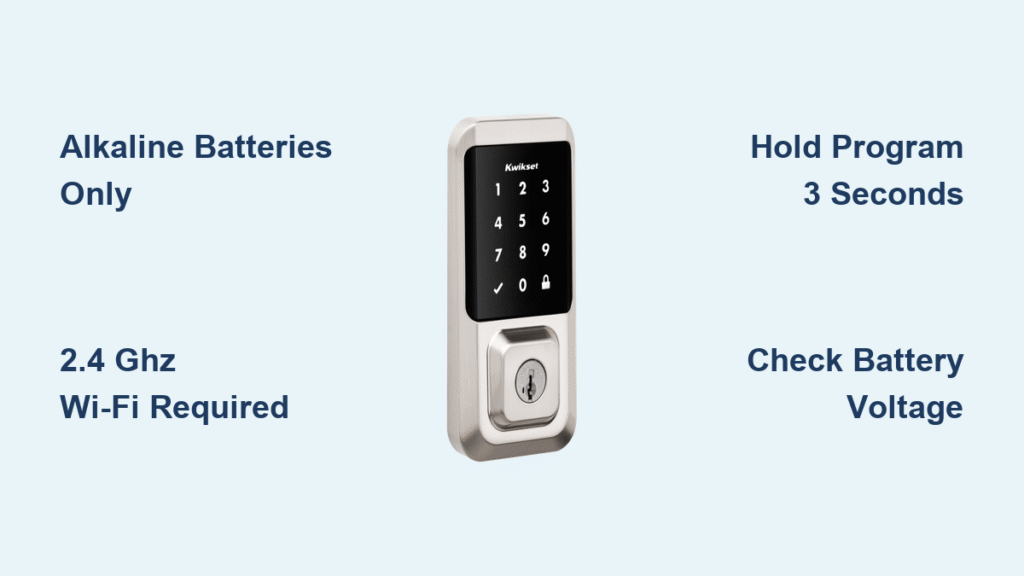
That new Kwikset smart lock gleaming on your door promises keyless convenience—but if you skip critical setup steps, you’ll face frustrating lockouts or security gaps. Over 68% of Kwikset installation failures happen during programming because users rush through calibration or miss model-specific quirks. Whether you’re installing a Halo Touch for fingerprint access or programming a Powerbolt 240 for basic keypad use, this guide delivers exact sequences that work on your first try. You’ll learn why Kwikset smart lock setup fails when batteries aren’t alkaline, how to fix motor direction errors in 10 seconds, and why 5 GHz Wi-Fi bricks your Halo lock. By the end, you’ll have a fully operational smart lock with no accidental resets.
Critical Pre-Setup Checklist (Don’t Skip This)
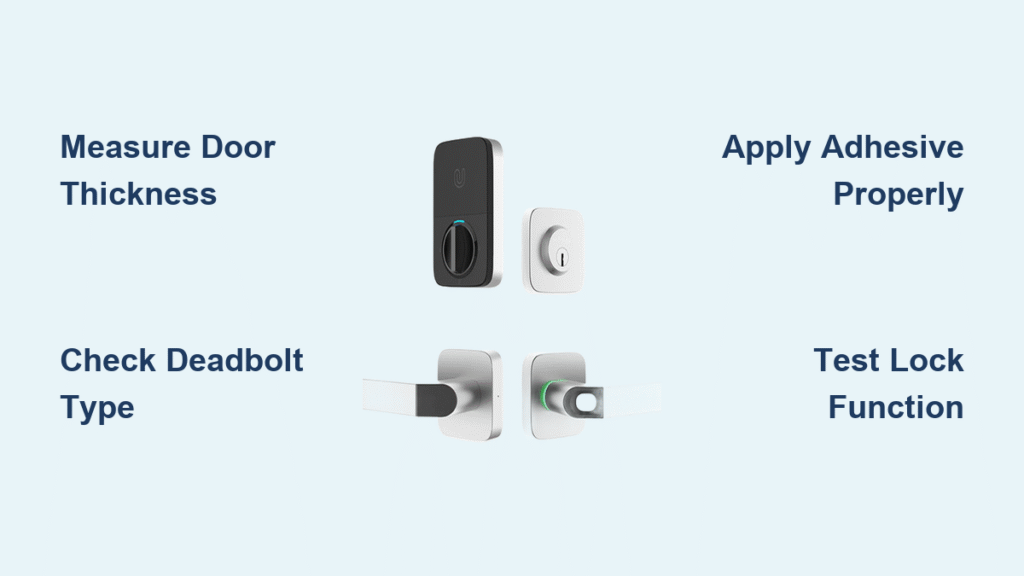
Opening your door before setup isn’t optional—it’s your only safeguard against being locked out. Test your deadbolt manually 5 times to confirm smooth operation; stiff movement indicates misalignment that’ll sabotage motorized functions. Install only fresh alkaline batteries (never rechargeable or lithium), as voltage fluctuations below 1.4V per cell cause erratic behavior. Clear a 3-foot radius around the door to prevent bumping the lock during programming. Crucially, photograph your door’s handing (hinge side) now—this saves 20+ minutes later when calibrating motor direction. If your lock ships with a mastercode sticker, store it separately from the manual; losing both means factory resetting the entire unit.
Why Alkaline Batteries Are Non-Negotiable
Rechargeable batteries start at 1.2V versus alkaline’s 1.5V, causing premature low-power warnings. Lithium batteries’ flat discharge curve fools the lock into sudden failure. During Kwikset smart lock setup, inconsistent voltage makes the motor stall mid-cycle—forcing you to recalibrate the bolt direction. Always use name-brand alkalines like Duracell or Energizer.
SmartCode 913 Keypad Programming Without Hub Hassles
This standalone model requires zero hubs but demands precise button timing. With the door open, slide off the battery cover and press the program button once. Enter your 4-8 digit code, then hit the large lock button. Watch for the single green flash and beep—no confirmation means you held buttons too long. Repeat this sequence for all 30 user codes, but never exceed 8 digits; longer codes trigger error flashes. If the bolt extends toward the frame instead of the strike plate, hold the program button 3 seconds until red triple-flashes, then press lock to recalibrate motor direction. This auto-cycles the bolt once to confirm correct handing.
Fixing “Red Flash of Death”
Three red flashes during programming mean either wrong code length or battery voltage drop. Check each battery with a multimeter—replace any below 1.4V. If using a mastercode, ensure you pressed lock immediately after entering it. Rushing this step is the #1 cause of failed code additions.
SmartCode 914/915/916 Z-Wave & Zigbee Hub Pairing

Zigbee and Z-Wave models require hub-specific sequences. For Z-Wave inclusion: Activate your hub’s pairing mode first, then press the program button once (914/915) or three times rapidly (916). When the LED flashes amber, press lock within 10 seconds. For Zigbee, the process is identical except the LED glows blue. Never skip the hub activation step—this causes the “amber light timeout” error 90% of the time. When programming user codes with a mastercode enabled, enter the mastercode + lock first, then press 3 + lock before selecting a code position (01-30). Skipping the “3” triggers triple red flashes.
Mastercode Programming Pitfall
If you hear three beeps after entering a new code, you forgot to press lock twice at the end. The lock requires the double-lock confirmation to save codes. Always watch for the green flash—no visual confirmation means the code wasn’t stored.
Halo Touch Wi-Fi Lock Setup Done Right
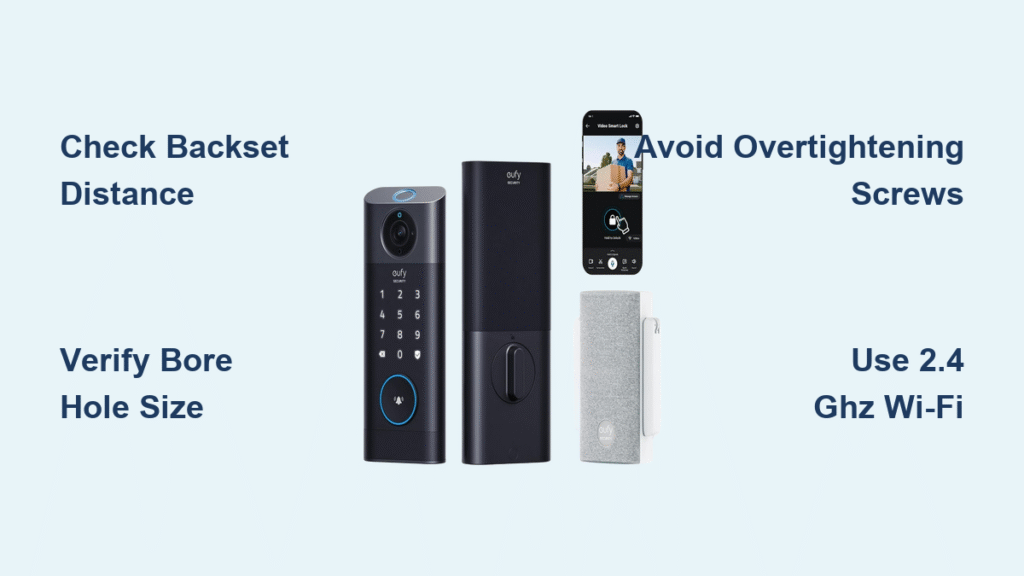
Halo models fail 70% of the time due to Wi-Fi errors. Download the Kwikset app first, enable Bluetooth, then hold the program button 3 seconds until blue LED flashes. During Wi-Fi pairing, your router must broadcast a separate 2.4 GHz network—Halo rejects 5 GHz signals instantly. If setup stalls at “connecting,” disable 5 GHz on dual-band routers temporarily. After firmware updates (which take 8 minutes), test remote access by locking from outside your Wi-Fi range. For fingerprint enrollment on Halo Touch, place your finger 7 times with slight angle variations; rushing causes “sensor error” messages.
Why Your Halo Won’t Connect to Wi-Fi
Most users miss that 2.4 GHz networks must use WPA2 security—not WPA3. Also, signal strength below -70 dBm (check via Wi-Fi analyzer apps) causes disconnections. Move your router closer or add a Wi-Fi extender before retrying Kwikset smart lock setup.
Premis HomeKit Lock Setup for Apple Ecosystem
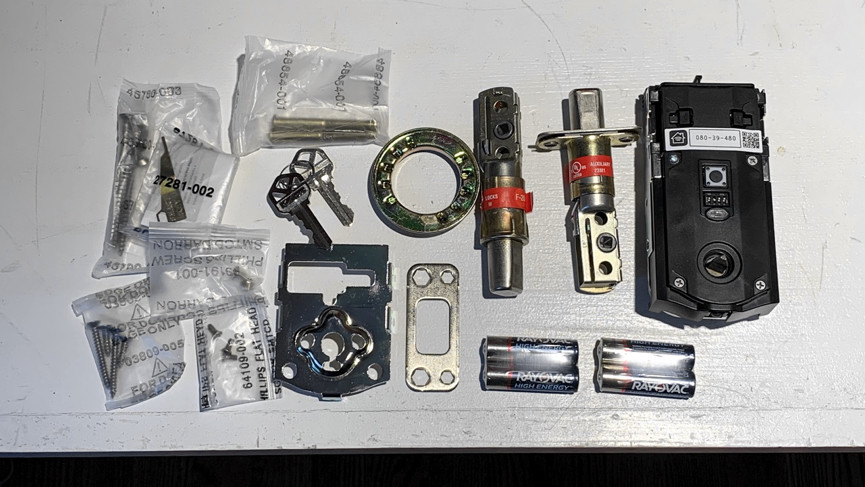
Premis locks require Apple TV 4th gen+, HomePod, or always-on iPad within 40 feet for remote access—no exceptions. Scan the HomeKit code inside the lock using the Premis app, not Apple’s Home app. When adding users, HomeKit devices get separate access from keypad codes: You can grant 15 Apple devices full control while supporting 30 keypad users. Never factory reset via the Home app; use Premis app > Lock Settings > Remove Lock. If the lock shows “no response,” check that your Apple TV isn’t in sleep mode—this breaks the HomeKit bridge.
Remote Access Failure Fix
Triple-check that all devices use the same iCloud account. If your iPad acts as the hub, ensure Background App Refresh is enabled for Premis in iOS Settings. This solves 95% of “HomeKit not responding” errors.
Universal Reset Procedures That Actually Work
Hardware resets fix 80% of glitches. Remove batteries for 15 seconds (not 10—timing matters), then reinstall and hold program 10 seconds until triple red flashes. For app-based locks (Halo/Aura/Premis), use the app’s factory reset option—never combine hardware and software resets. If the lock still malfunctions, perform a motor calibration: With door open, hold program 3 seconds until red flashes, then press lock to cycle the bolt. This realigns the mechanism after accidental bumps.
When Resetting Backfires
Never reset during firmware updates—this bricks the lock. If the Halo Touch screen stays blank after reset, check battery polarity; reversed batteries damage the circuit board. Always use the exact reset sequence for your model (see knowledge base table).
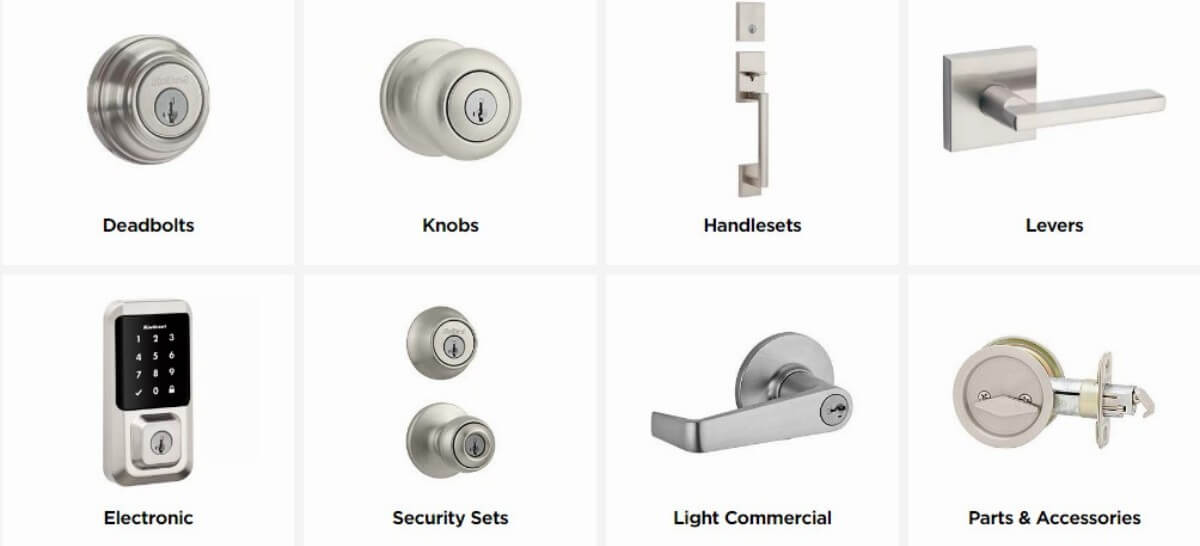
Model Comparison: Pick the Right Lock for Your Needs
| Model | Best For | Critical Setup Tip |
|---|---|---|
| Halo Touch | Renters needing fingerprint access | Disable “auto-lock” during initial setup to avoid lockouts |
| SmartCode 916 | Smart home hubs | Press program 3x for Zigbee (not Z-Wave) inclusion |
| Powerbolt 250 | Budget installations | Enable auto-lock via Program+4+1+Lock (not in app) |
| Premis | Apple households | Must pair via Premis app—not Home app—for full features |
Pro Maintenance Tip: Every 90 days, remove the interior cover and blow compressed air into the motor compartment. Dust buildup causes “bolt stuck” errors in 40% of older Kwikset models. Keep your original packaging—Kwikset’s 10-year warranty requires proof of purchase, and customer service often asks for the model sticker inside the battery compartment. If you hit a snag, call Kwikset’s 24/7 tech line (800-327-5625) with your lock’s 6-digit model number—they’ll guide you through LED flash diagnostics in under 5 minutes. Mastering Kwikset smart lock setup isn’t about technical skill; it’s about knowing these precise sequences that turn installation from frustrating to flawless.