

Forgetting how to update your Lockly smart lock access code leaves you vulnerable to security risks, especially after moving into a new home or when houseguests overstay their welcome. With over 3 million Lockly units installed nationwide, knowing how to properly change your access code ensures your home remains secure against unauthorized entry. This guide delivers the exact steps you need to modify your Lockly smart lock code without calling customer support or risking a lockout. You’ll learn the precise button sequences, avoid common mistakes that trigger Safe Mode, and maintain seamless access to your home.
Activate Programming Mode to Change Lockly Code
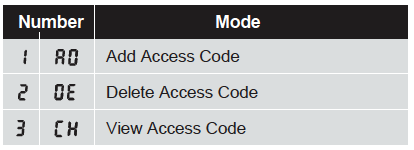
Changing your Lockly access code starts with entering programming mode, the gateway to all code modifications. Unlike standard locks that require physical keys for reset, Lockly’s electronic system responds to specific button sequences that put the lock into configuration mode. Your Lockly keypad must be active before initiating programming—simply slide your hand across the screen to wake the display.
Enter Programming Sequence Correctly
Press and hold the OK button for approximately 5 seconds until you hear a series of beeps confirming programming mode activation. The keypad illumination changes to indicate readiness for code changes. If you don’t hear the confirmation beeps, check that your Lockly has sufficient battery power, as low power can prevent entry into programming mode.
After hearing the beeps, immediately enter your current master access code followed by pressing OK. The system requires your existing code for security verification before allowing changes. If you enter an incorrect current code, Lockly emits two beeps—press OK to reset and try again before triggering Safe Mode.
Avoid Safe Mode During Code Changes
Three consecutive incorrect code entries activate Lockly’s Safe Mode, which disables electronic access for five minutes as a security measure. To prevent this during code changes, press OK anytime you make a digit error to reset the attempt counter. This simple action gives you unlimited correction opportunities without security lockdown.
If Safe Mode activates accidentally, use your physical backup key to enter your home. Wait for the five-minute timer to expire before attempting code changes again. Never force multiple rapid attempts, as this extends the Safe Mode duration on subsequent triggers.
Create Strong 6-8 Digit Access Codes

Lockly smart locks require numeric codes between 6 and 8 digits for optimal security and functionality. This specific length range balances security against usability—shorter codes are vulnerable to guessing while longer sequences increase entry errors. Your new code must contain only numbers, as alphanumeric combinations aren’t supported.
Generate Unpredictable Code Combinations
Avoid common patterns like 123456, 111111, or your address digits when creating new access codes. Lockly’s system accepts any numeric sequence within the 6-8 digit range, providing over 1 million possible combinations for 6-digit codes and 100 million for 8-digit versions. Choose sequences that follow personal but non-obvious patterns, like alternating numbers from your birth year and street address.
Test your new code immediately after programming by locking and unlocking the door. Close the door completely, wait for the automatic 5-second lock engagement, then enter your new code. Successful entry produces a single confirmation beep and smooth bolt retraction.
Manage Multiple Access Codes Effectively
Lockly smart locks store multiple access codes simultaneously, allowing different codes for family members, service providers, or temporary guests. Each code operates independently, so changing one doesn’t affect others. This feature lets you revoke specific access without disrupting household routines.
When adding new codes, maintain a secure record outside your home. Document each code’s purpose (e.g., “Housekeeper Tues/Thurs”) and the date created. Review active codes monthly and remove unused ones to prevent code bloat that complicates lock management.
Utilize PIN Genie™ for Enhanced Security
Lockly’s PIN Genie™ feature dramatically improves security by randomizing keypad number positions each time you access the lock. This prevents shoulder surfing and fingerprint pattern observation that could compromise static keypad layouts. Toggle between Fixed Digit and PIN Genie™ displays based on your security needs in different situations.
Switch Between Keypad Display Modes
Press and hold the OK button for 3 seconds to toggle between Fixed Digit and PIN Genie™ display modes. The lock confirms the change with distinct audio tones—two short beeps for PIN Genie™ activation and one long beep for Fixed Digit return. Use PIN Genie™ when entering codes in public view or shared buildings where security risks are higher.
When using PIN Genie™, take a moment to locate the numbers before entering your code. The randomized layout requires slightly more attention but provides significant security benefits. After entering your full code, press OK to confirm—remember you can press OK anytime to reset incorrect digits without triggering security protocols.
Optimize Auto-Lock Timing for Your Routine
Lockly automatically engages the deadbolt 5 seconds after unlocking and opening the door, but you can adjust this timing to match your household flow. Longer delays help when carrying groceries or managing multiple entries, while shorter intervals increase security. Test different timing settings during low-traffic periods to find your optimal balance.
To modify auto-lock timing, enter programming mode and navigate to lock settings. Select your preferred delay between 3-30 seconds based on your daily routines. After setting, simulate entry scenarios to ensure the timing works with your natural movement patterns through doorways.
Troubleshoot Common Code Entry Problems
Most Lockly code issues stem from simple user errors rather than system malfunctions. Understanding the lock’s feedback system helps diagnose problems quickly without unnecessary service calls or panic during lockout situations.
Fix Double Beep Error Responses
Two consecutive beeps after code entry indicate an incorrect access attempt. First, verify you’ve entered the complete 6-8 digit sequence—Lockly requires the exact programmed length. Common mistakes include missing the final digit or pressing OK prematurely before completing the code.
Clean the touchscreen with a microfiber cloth if digits aren’t registering properly. Dirt, oils, or moisture can interfere with touch sensitivity. Ensure your fingers are dry and make firm contact with the screen during entry. If problems persist, check battery levels as low power affects keypad responsiveness.
Recover From Safe Mode Lockouts
Three failed access attempts trigger Safe Mode, temporarily disabling electronic entry for security. During this 5-minute lockdown period, use your physical backup key to gain entry. Never attempt rapid successive entries, as this extends the Safe Mode duration.
After entering with your key, wait for the full 5 minutes to elapse before trying electronic access again. This patience prevents repeated Safe Mode activation. If you frequently trigger Safe Mode, consider creating simpler codes for household members who struggle with longer sequences.
Maintain Regular Code Hygiene Practices
Security experts recommend changing smart lock access codes every 3-6 months as part of routine home security maintenance. Immediate code changes are essential after moving into a new home, following employee turnover for service providers, or after any security concerns.
Document Code Management Procedures
Create a secure code management system outside your home, such as a password-protected digital document or physical copy stored with a trusted neighbor. Record each code’s purpose, creation date, and last usage. This documentation helps identify suspicious activity through unexpected usage patterns.
Schedule quarterly code reviews where you test all active codes and remove unused ones. This practice prevents code accumulation that complicates lock management and reduces security effectiveness. For households with frequent visitors, establish a policy for temporary code expiration immediately after guest visits conclude.
Prepare for Battery Failure Scenarios
Lockly smart locks operate on standard batteries that eventually require replacement. Test battery levels monthly and replace before complete depletion. Keep your physical backup key accessible but secure—store it with a trusted neighbor rather than near your door where it could be found.
When changing batteries, have your master code ready as the lock resets temporarily during power interruption. Test all access methods immediately after battery replacement to ensure full functionality before relying on the lock for security.
Final Note: Consistent Lockly smart lock code management protects your home security more effectively than reactive fixes after problems occur. Implement quarterly code reviews and immediate changes following any personnel transitions to maintain optimal protection. Your lock’s reliability depends on proactive maintenance—taking just five minutes now prevents potential security breaches and stressful lockouts later. Remember that strong, regularly updated access codes form the foundation of your smart home security system.



