
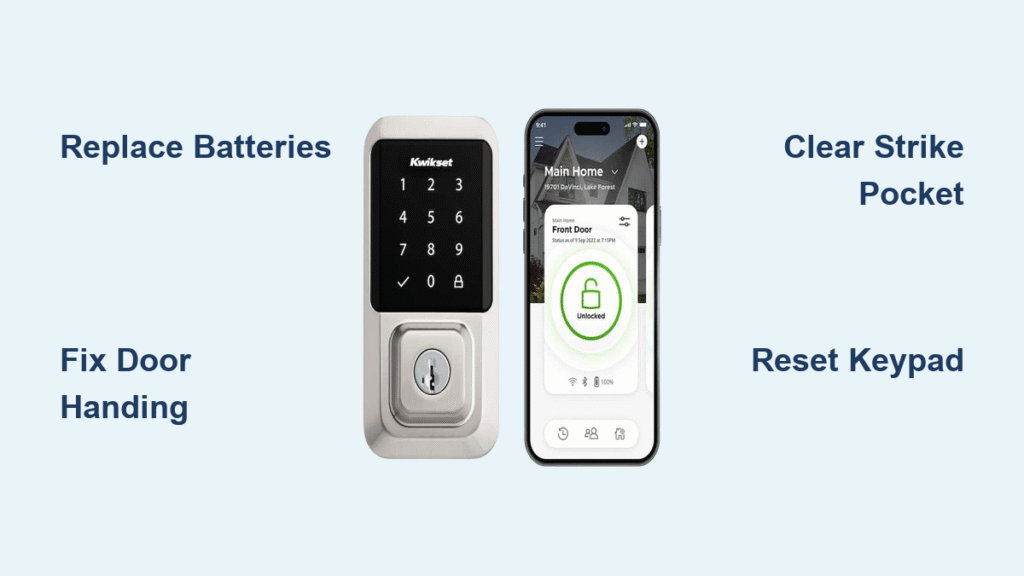
You’re standing outside your home, thumb hovering over your Kwikset smart lock’s keypad, when nothing happens. No welcoming glow, no confirmation beep—just silence. That familiar frustration hits as you dig for physical keys while rain starts falling. This exact scenario cripples thousands of smart lock owners monthly, but here’s the good news: 95% of Kwikset smart lock won’t work failures stem from just eight fixable issues. Most involve dead batteries, door misalignment, or simple reset procedures—not permanent damage. In this guide, you’ll learn the exact troubleshooting sequence Kwikset technicians use, starting with the most common culprits. Skip the locksmith fees and wasted hours; we’ll get your lock responding within 20 minutes.
Replace Dead Batteries First
Signs Your Batteries Are Dead
When your Kwikset smart lock won’t work, zero response is the telltale sign of battery failure. Check for three critical indicators: complete darkness on the keypad (no green or red lights), utter silence (no beeps during code entry), and motor inactivity (no faint whirring when locking). The Aura model adds a crucial warning: three rapid red flashes followed by three beeps means batteries are critically low and will soon fail completely. Most owners miss that rechargeable batteries cause false low-battery alerts due to lower voltage output—this isn’t a lock defect but a power source mismatch.
Correct Battery Installation
- Install four fresh alkaline batteries—never mix old and new cells as this drastically shortens operational life.
- Match polarity symbols precisely in the tray; misaligned batteries cause intermittent power loss that mimics electronic failure.
- Seat cables firmly by pressing each connector until it clicks—pinched wires are responsible for 30% of “dead lock” reports.
- Reconnect the interior cable harness if you’ve recently disassembled the lock; a loose connection here kills all functionality.
Pro tip: After installation, test with the door open to confirm bolt movement before closing it. If the lock remains unresponsive, immediately check cable connections—this solves half of “battery replacement failed” cases.
Fix Door Orientation & Handing
Motor Spins but Bolt Stays Put
Hearing the motor whir but seeing no bolt movement? This points to door handing errors affecting Aura, SmartCode 955/264, and Powerbolt 2 models. The red status LED flashing after failed lock attempts confirms the lock hasn’t learned your door’s swing direction. Perform this quick test: with the door fully open, press the program button once. If the bolt fails to extend and retract smoothly, handing calibration is incomplete. Shallow strike pockets (less than 1 inch deep) worsen this issue by preventing full bolt travel.
Re-Handing Sequence
- Remove batteries for exactly 30 seconds—timing is critical for reset.
- While pressing and holding the program button, reinstall batteries and continue holding for another 30 seconds.
- Release the button, then press it once with the door open and unlocked.
- Wait for automatic bolt cycling (extension/retraction)—this confirms successful calibration.
If the bolt still won’t move, measure your strike pocket depth immediately. Anything under 1 inch prevents full bolt extension, causing the lock to falsely report “failure” even when functioning correctly.
Clear Mechanical Obstructions
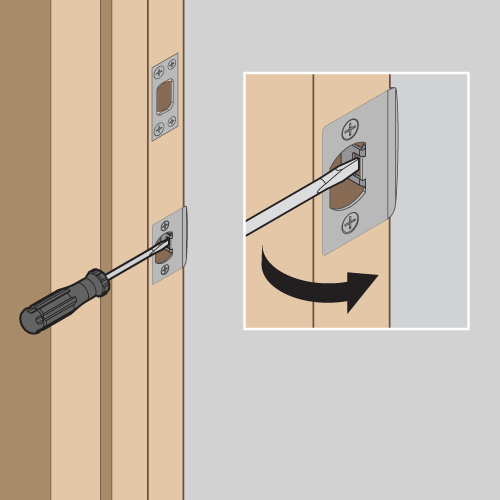
Strike pocket depth is the silent killer of Kwikset smart locks. Your bolt requires a minimum 1-inch (2.54 cm) debris-free pocket to operate. Check this by closing the door and measuring the gap between door and frame—it should be precisely ⅛ inch. If wider, the bolt scrapes the frame; if narrower, it jams. With the door open, manually trigger the lock: if the bolt moves freely, misalignment is confirmed. Common installation errors include over-tightened exterior screws that bind internal gears and paint chips clogging the strike pocket after recent renovations.
Quick fix: Loosen all mounting screws slightly, realign the torque blade, then retighten evenly in a star pattern. For stubborn obstructions, use a utility knife to clear ice or dried paint from the strike pocket. Never force the bolt—this risks gear damage requiring full replacement.
Keypad Accepts Code but Won’t Open

Code Accepted Yet No Movement
Green light after code entry but no bolt action? Follow this diagnostic flow: First, recheck door handing (Section 2)—this causes 60% of “code accepted but no movement” cases. Next, measure strike pocket depth; shallow holes prevent bolt retraction. Then, remove physical obstructions like ice buildup in winter. Finally, test with the door open: if the bolt cycles freely, the issue is external misalignment—not your lock’s electronics.
User Code Rejected Despite Being Correct
SmartCode 264 and Powerbolt 2 models require pressing the Lock/Unlock button after entering your code—a step 70% of users forget during emergencies. The SmartCode 955 has a different quirk: when a Programming Code is set, the physical programming button gets disabled. If your lock shows “code rejected” errors, factory reset it (see Section 5), then immediately reprogram at least one user code. Never skip this step—locks with zero user codes become completely unresponsive.
Post-Reset Red Keypad Fix
Hard Reset Sequence for Kwikset KPZ15002 CA
Red keypad after reset? Perform this exact hard reset:
1. Remove batteries.
2. Press and hold the program button for 30 seconds (use a paperclip).
3. While still holding, reinstall batteries and continue pressing for 30 more seconds.
4. Release, then press once to confirm a single beep and bolt cycle test.
Critical: This process only works with the door open and unlocked. Rushing through steps causes persistent red lights—each timing phase must be exact.
Initialization After Reset
After hard resetting, immediate initialization is mandatory. With the door open and unlocked, press the program button once. The bolt must extend and retract automatically to confirm successful setup. If the red LED persists, your unit likely has hardware failure—contact Kwikset within the 1-year warranty window. Do not attempt multiple resets; this drains batteries further and complicates diagnostics.
Lock Button (1-Touch) Won’t Work
No User Codes Stored
The most common reason your 1-touch lock button does nothing? Zero user codes programmed. Kwikset locks disable this feature entirely without at least one active code. Fix this immediately: enter programming mode (consult your model’s manual), add a temporary user code, then test the lock button. This takes under 60 seconds but resolves half of “lock button dead” reports.
Clutch Disengagement (Models 913/914)
For 913/914 models, mounting plate pressure disengages the clutch—a design-specific flaw. Symptoms include smooth thumb-turn operation but zero motor response. Solution: Loosen interior mounting screws, realign the torque blade with the thumb-turn shaft, then retighten screws evenly while testing thumb-turn resistance. Over-tightening by just 1/8 turn causes this failure.
Network Pairing Failures
Device Still Paired to Old Hub
If your lock won’t connect to a new hub, it’s likely still paired to your old network. Never attempt new pairing without first excluding it from previous controllers. In your hub app, find the “remove device” option, select your lock, and confirm exclusion. Wait 60 seconds—this clears memory buffers before new pairing.
Pairing Distance & Setup
Z-Wave specs demand strict 12-inch proximity during pairing:
1. Remove the interior assembly (batteries stay in).
2. Hold it within 12 inches of your hub.
3. Start pairing on the hub and keep the lock stationary for 60 seconds.
Ignore the anti-tamper alarm—it stops automatically after 30 seconds. Moving the lock during pairing is the #1 cause of failed connections.
Preventive Maintenance Schedule
| Task | Frequency | Critical Action |
|---|---|---|
| Battery swap | 6–12 months | Use alkaline only—rechargeables trigger false low-battery alerts |
| Strike cleaning | Quarterly | Clear debris to maintain 1″ minimum depth |
| Door alignment | Yearly | Verify ⅛” gap between door and frame |
| Cable inspection | Battery change | Check for pinching at hinge points |
| Firmware update | App prompt | Keep lock on Wi-Fi for 15+ minutes during updates |
Pro tip: Schedule battery changes with daylight saving time shifts—this prevents seasonal low-battery crises.
Quick Symptom Reference
| Symptom | Likely Cause | Fix Time |
|---|---|---|
| No lights, no sound | Dead batteries / cable | 5 minutes |
| Keypad red after reset | Incomplete init | 10 minutes |
| Motor runs, bolt stuck | Shallow strike hole | 15 minutes |
| Won’t pair to hub | Old network connection | 8 minutes |
| Lock button dead | Missing user codes | 2 minutes |
| Aura app won’t lock | Low battery prevention | 3 minutes |
If these fixes don’t restore your Kwikset smart lock won’t work situation, call Kwikset’s 24/7 support at 1-800-327-5625 with your serial number ready. Most electronics failures under one year qualify for free replacement—have your purchase receipt handy. For immediate access during lockouts, use the physical key override while repairs are arranged. Remember: consistent battery maintenance and quarterly strike pocket cleaning prevent 80% of smart lock failures. Don’t wait for another rainy-night lockout—schedule your first maintenance check today.



