
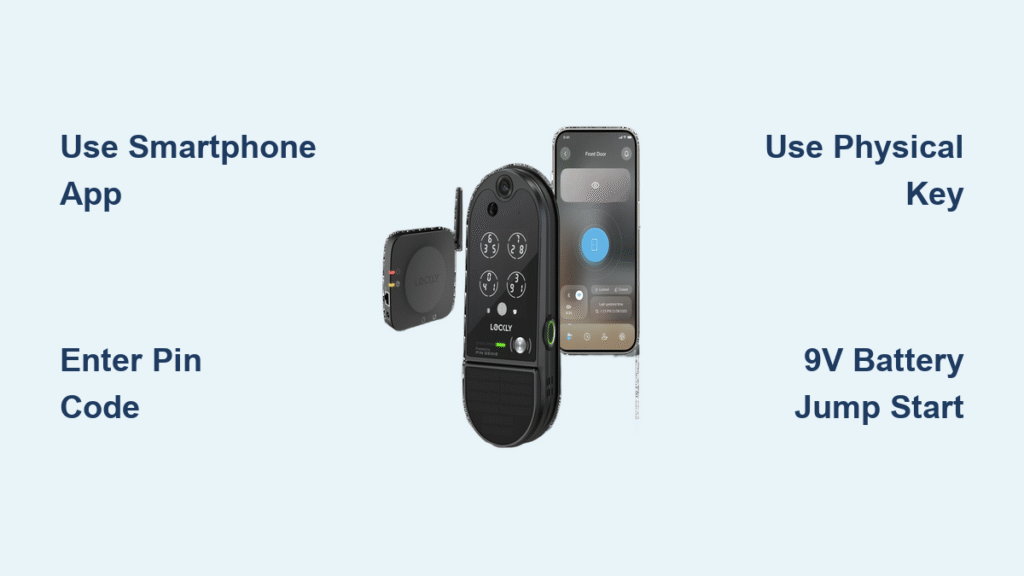
You’ve just returned home with arms full of groceries only to find your phone dead and your Lockly smart lock unresponsive. This frustrating scenario happens more often than you’d think, but here’s the good news: your Lockly smart lock offers five reliable access methods specifically designed to prevent permanent lockouts. Whether batteries die, networks fail, or you simply prefer traditional entry, understanding exactly how to open your Lockly smart lock ensures you’re never stranded outside your own home. This guide covers every practical method for gaining entry, including emergency procedures when technology fails unexpectedly.
Smartphone App: Your Primary Digital Key
When functioning properly, the Lockly app becomes your fastest and most convenient way to open your Lockly smart lock. This method works whether you’re standing at your front door or remotely accessing your home from across town.
Bluetooth Unlock Steps for Immediate Entry
- Enable Bluetooth on your smartphone before approaching your door
- Open the Lockly app and select your specific lock from the dashboard
- Tap “Unlock” when within 30 feet of your door (closer for best reliability)
- Listen for the confirmation beep and turn your door handle immediately
Critical detail: If you force-close the Lockly app, reconnecting takes 5-10 seconds—keep it running in the background for instant access. Environmental factors like thick doors or metal frames can reduce effective Bluetooth range by up to 40%, so position your phone toward the lock’s electronics for best results.
Remote Wi-Fi Access for Distance Entry
Unlock your Lockly smart lock from anywhere with internet using these steps:
– Ensure your Lockly Secure Link bridge is properly paired and powered
– Verify both your phone and the Secure Link have active internet connections
– Select “Remote Unlock” in the app menu (not the standard unlock button)
– Wait 3-5 seconds for cloud communication to complete the command
Warning: Remote access won’t work during power outages unless you have a battery backup system. Always test this feature before relying on it for unexpected arrivals.
PIN Genie Keypad: Secure Code Entry Without Your Phone
The Lockly PIN Genie shuffling keypad prevents code theft through fingerprint patterns or casual observation, making it the most reliable backup when your phone isn’t available.
Daily Keypad Operation Sequence
- Touch any key to activate the display (it sleeps to conserve battery)
- Identify the shuffled number positions—they change with every use
- Enter your 6-8 digit code using the current key positions
- Press the lock button to complete the opening sequence
Pro tip: For faster entry during cold weather, memorize the spatial pattern of your code rather than the numbers themselves—this works even with gloves on.
Physical Key Override: Emergency Access When Batteries Die
Every Lockly smart lock includes a hidden mechanical keyway that operates independently of electronics—your ultimate backup when all else fails.
Key Access Steps During Power Failure
- Locate the keyway cover beneath the keypad (slide downward to release)
- Insert the provided key fully into the exposed cylinder
- Turn clockwise to retract the deadbolt mechanism
- Operate your door handle to open the door
Essential advice: Store your backup key in a waterproof lockbox outside your home—not inside your house where you can’t reach it when locked out. Test this method quarterly to ensure the key turns smoothly.
Fingerprint Scanner: Instant Biometric Access on Select Models
Available on Lockly Vision, Vision Elite, and Secure Pro models, fingerprint access opens your door in under 0.3 seconds—faster than entering a code.
Optimal Fingerprint Usage Tips
- Register 2-3 fingers per person at different angles for reliable recognition
- Clean the scanner monthly with a dry microfiber cloth to prevent false rejections
- While it works with wet fingers, dry fingers provide 30% more reliable scanning
- Store up to 99 fingerprints for family members and frequent visitors
Troubleshooting: If your fingerprint fails repeatedly, try a different finger or angle—moisture levels and minor cuts significantly impact recognition accuracy.
Emergency Power Solutions When Batteries Deplete
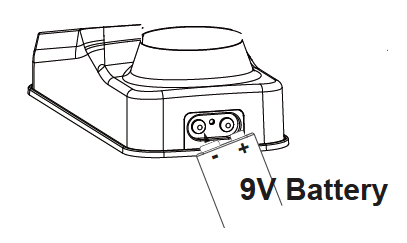
Dead batteries shouldn’t lock you out if you know these emergency access techniques.
9V Battery Jump Start Procedure
- Locate the metal contacts at the bottom edge of your Lockly smart lock
- Press a standard 9V battery against these contacts with firm pressure
- Enter your access code within the 10-second power window
- Immediately replace all four AA batteries after gaining entry
Critical note: This temporary power method works on most Lockly models but requires precise contact placement—practice this technique during normal operation so you’re prepared when needed.
Troubleshooting Common Lockly Access Failures

When your Lockly smart lock won’t open as expected, these targeted solutions resolve most issues within minutes.
Keypad Not Responding Fixes
Immediate actions to try:
– Check for red flashing LED (indicates critically low battery)
– Clean the keypad surface with a dry cloth to remove moisture or debris
– Remove batteries for 30 seconds to reset the electronics
– Wait 60 seconds after five failed attempts (security lockout feature)
Warning: Forcing entry during the 60-second lockout period triggers the tamper alarm and may require a full reset.
App Connection Failures
Bluetooth troubleshooting sequence:
– Toggle your phone’s Bluetooth off and on completely
– Force-close and restart the Lockly app (don’t just minimize it)
– Disable battery optimization for the Lockly app in phone settings
– Move within 15 feet of the lock for direct Bluetooth communication
Pro tip: If Bluetooth consistently fails, temporarily enable Wi-Fi on your phone—many users don’t realize the app uses Wi-Fi as a secondary connection method when in range.
Security Features That Affect Access

Understanding these built-in security protocols prevents accidental lockouts from security features.
Anti-Tampering Lockout Protocol
After five consecutive failed access attempts:
– The lock initiates a mandatory 60-second lockout period
– An audible alarm sounds if physical tampering is detected
– Vision models capture photos of failed entry attempts
– Real-time notifications alert you to suspicious activity
Important: Don’t attempt random codes during lockout—each additional failed attempt resets the timer. Wait the full minute for security to reset.
Monthly Maintenance for Reliable Access
Prevent unexpected lockouts with this 5-minute monthly routine:
- Test smartphone access from 15 feet away (simulating approach scenarios)
- Verify keypad operation with your primary access code
- Check fingerprint recognition from multiple angles
- Confirm physical key turns smoothly in the hidden keyway
- Inspect battery level through the app’s status screen
Battery best practice: Replace all four AA batteries simultaneously every 8-12 months—even if the low-battery warning hasn’t triggered. Lithium batteries provide more reliable performance in extreme temperatures.
Final Access Recommendations for Lockly Owners
Your most reliable approach to opening your Lockly smart lock combines multiple access methods in this priority order: use the smartphone app for daily convenience, memorize your master keypad code as your first backup, keep the physical key accessible but secure for emergencies, and create scheduled guest codes instead of sharing permanent access. Test each method monthly, maintain fresh batteries, and you’ll never experience an accidental lockout. Remember that the physical key override exists specifically for technology failures—always have a backup plan that doesn’t rely on electricity or networks. When properly maintained, your Lockly smart lock provides seamless access through multiple redundant pathways, making “how to open your Lockly smart lock” a question you’ll rarely need to ask in an emergency.



