
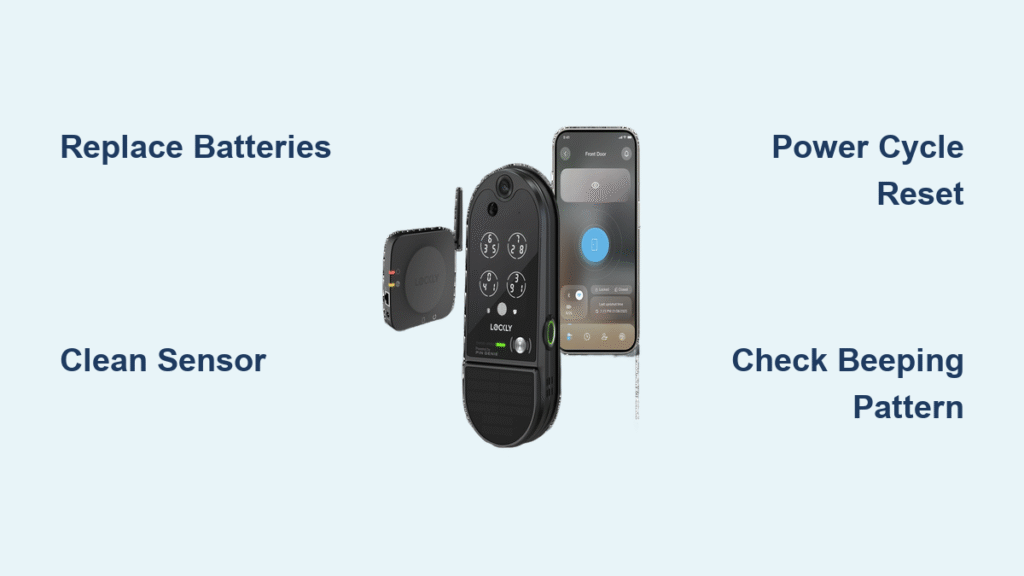
That relentless beeping from your Lockly smart lock at 3 AM isn’t a random glitch—it’s a critical security alert demanding your attention. When your Lockly smart lock keeps beeping, it’s communicating specific threats to your home’s security, from imminent power failure to potential intrusion attempts. Ignoring these alerts risks complete lockout or compromised safety. This guide delivers precise, actionable solutions to diagnose and eliminate the beeping within minutes, restoring both quiet operation and peace of mind. You’ll discover why low batteries trigger continuous alerts, how to distinguish user errors from security threats, and the emergency 9V battery trick that saves you from calling a locksmith.
Low Battery Alerts: The Most Common Beeping Culprit
Continuous, non-stop beeping paired with a flashing battery icon on your touchscreen signals critically depleted power—your Lockly’s final warning before total shutdown. This isn’t a gentle reminder; it means your lock has entered emergency operation mode where every beep counts down to failure. While the system allows up to 300 additional lock cycles in this state, daily family usage can exhaust this buffer in hours. Replace all four AA batteries immediately rather than testing this limit—waiting could strand you outside your own home.
Why Alkaline Batteries Are Non-Negotiable
Rechargeable or off-brand batteries lack the consistent voltage required for Lockly’s security protocols, causing erratic beeping even when partially charged. Only use premium alkaline batteries like Duracell or Energizer rated for 1.5V. Insert them with clean hands to avoid grease on contacts, and press firmly until you hear a distinct click confirming proper seating. If the battery icon remains visible after replacement, remove all batteries, wait 10 seconds, then reinstall—this often clears false low-power readings.
Emergency 9V Activation: Your Instant Entry Solution
When your Lockly smart lock keeps beeping and won’t respond due to dead batteries:
1. Locate the emergency contact points at the lock’s bottom edge (small metal pads)
2. Firmly press the terminals of any 9V battery against these pads—polarity doesn’t matter as Lockly auto-detects connections
3. While holding the battery in place, enter your access code on the touchscreen
4. Immediately replace internal AA batteries after gaining entry
This bypasses the dead batteries but provides only temporary power—never skip internal battery replacement after using this method, as the lock will revert to failure mode within minutes.
Decoding Non-Battery Beeping Triggers

User Error Patterns vs. Security Alerts
Accidental screen touches or wet fingers on the fingerprint sensor cause short, single beeps that stop when you remove your hand—distinct from low-battery’s continuous tone. These occur when:
– Your thumb rests on the touchscreen while approaching the door
– Moisture from rain or sweat triggers false fingerprint attempts
– Children press the lock during play
Fix: Clean the touchscreen weekly with a microfiber cloth and dry hands thoroughly before use. For fingerprint issues, enroll multiple fingers in the app and use the designated center zone of the sensor.
Critical Security Alarms Requiring Action
Persistent beeping with no battery icon indicates active threats detected by Lockly’s sensors:
– Three rapid beeps repeating: Physical tampering (e.g., someone prying at the lock)
– Steady high-pitched tone: Repeated wrong code entries (typically 5+ failures)
– Intermittent double beeps: Communication failure with your Wi-Fi bridge or hub
Immediate response: Check exterior cameras, verify no one is near the door, and reset the lock via the app if safe to do so. Never ignore these patterns—they mean your security system is actively defending your home.
Step-by-Step Beeping Diagnosis and Fix
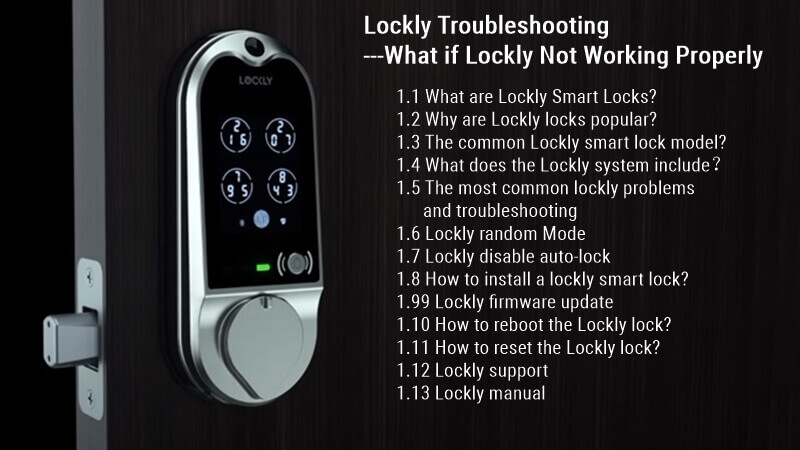
60-Second Battery Emergency Protocol
When your Lockly smart lock keeps beeping:
1. Check the display: A flashing battery icon confirms low power (replace batteries now)
2. Inspect battery contacts: Look for white corrosion; clean with cotton swab dipped in rubbing alcohol if present
3. Test with fresh batteries: Use brand-new alkalines (not “spare” batteries from drawers)
4. Hold power button: Press and hold the lock’s main button for 10 seconds to force a reset
Pro tip: Store a 9V battery in your car glove compartment—this emergency tool works even with completely dead internal batteries.
User Error Elimination Checklist
If beeping stops when you step away from the lock:
– ✅ Dry hands completely before touching—moisture causes 70% of false fingerprint triggers
– ✅ Use precise finger placement: Center your enrolled finger on the sensor pad
– ✅ Disable “guest mode” in the Lockly app if unused (prevents accidental access attempts)
– ✅ Adjust sensor sensitivity: In app settings, reduce fingerprint sensitivity if often triggering false rejections
Critical Reset Procedures (When Beeping Persists)
Power Cycle Reset: First-Line Defense
Do this before factory resetting:
1. Remove all batteries
2. Wait exactly 60 seconds (allows capacitors to fully discharge)
3. Insert fresh batteries while holding the lock’s main button
4. Listen for a single confirmation beep signaling successful reboot
This resolves 80% of persistent beeping cases caused by software glitches. Never skip the 60-second wait—shorter pauses leave residual power causing recurring errors.
Factory Reset: Nuclear Option (Last Resort)
Warning: Erases all codes and fingerprints. Only use if beeping continues after battery replacement and power cycling:
1. Backup user data via Lockly app
2. For most models: Hold # and Lock buttons simultaneously for 15 seconds
3. Wait for touchscreen to display “Reset Complete”
4. Reprogram all users and test each access method
Model-specific note: U810 models require a paperclip in the reset hole instead—consult your manual before proceeding.
Proactive Maintenance to Prevent Future Beeping
Monthly Battery Health Routine
- Check battery levels every 4 weeks via the Lockly app (don’t wait for alerts)
- Replace at 20%: Critical low-battery triggers beeping at 5-10%, so act early
- Clean contacts quarterly with alcohol and cotton swab
- Store spare batteries at room temperature (extreme cold reduces output)
Security Settings Optimization
In the Lockly app:
– Set “quiet hours” (e.g., 10 PM – 6 AM) to mute non-critical alerts
– Reduce tamper sensitivity if near a windy door
– Disable time-based reminders if causing scheduled beeps
– Update firmware monthly to patch bug-related beeping
When to Call Lockly Support Immediately
Contact professional assistance if:
– Beeping continues after factory reset and battery replacement
– The lock mechanism jams during operation
– You notice physical damage (cracks, dents, or loose components)
– Your unit is under warranty—do not disassemble, as this voids coverage
Prepare these details for faster support:
– Exact model number (e.g., Lockly Vision U810)
– Beeping pattern description (e.g., “3 beeps repeating every 5 seconds”)
– All troubleshooting steps attempted
– Recent environmental changes (power outages, extreme temperatures)
Real User Success: Sarah’s 2-Day Beeping Nightmare Solved
Sarah’s new Lockly fingerprint lock emitted non-stop beeping for two days post-installation. Assuming it was a defect, she nearly called support—until she spotted the faint flashing battery icon missed during setup. After replacing the included “pre-installed” batteries with fresh Duracells, the beeping stopped instantly. Her key lesson? Never trust installation batteries—always replace them with new alkalines upon setup. She now checks battery levels weekly via the app, preventing recurrence.
Your Beeping Emergency Action Plan
Do these NOW if your Lockly smart lock keeps beeping:
1. Check for flashing battery icon—replace batteries immediately if visible
2. Clean touchscreen and sensor with dry microfiber cloth
3. Perform 60-second power cycle reset
4. Verify security settings for false alarms
Prevention secret: Keep a 9V battery in your car and garage—this emergency tool works within seconds when internal batteries die. Remember, your Lockly’s beeping is purposeful communication, not random noise. By addressing these alerts promptly with the targeted solutions above, you maintain both silent operation and maximum home security. Implement monthly battery checks and sensitivity adjustments to ensure your smart lock stays quiet while protecting your home 24/7.



