
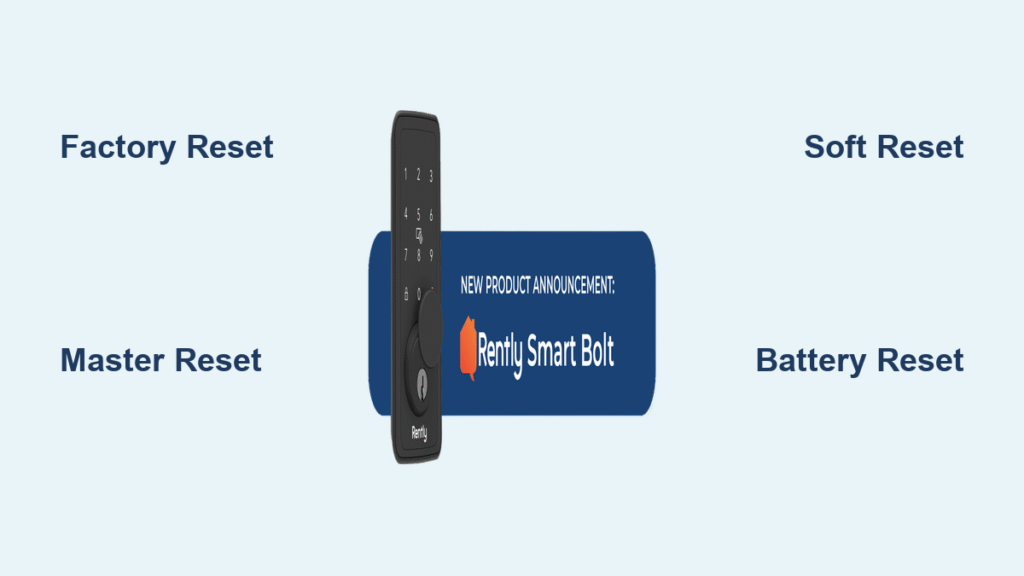
You’re standing at your property’s front door, phone in hand, but your Rently smart lock won’t respond to the app command. That sinking feeling hits you—now you’re potentially locked out of your rental unit or unable to grant access to new tenants. This frustrating scenario affects landlords and property managers daily, but the good news is most Rently lock issues can be resolved with the proper reset procedure. Whether you’re managing multiple properties or dealing with a malfunctioning lock, this guide delivers the exact steps to perform a successful Rently smart lock reset for any model.
If your Rently lock suddenly stops responding to the app, fails to recognize tenant codes, or won’t sync with your landlord portal, you’ve come to the right place. You’ll discover precisely which reset method solves your specific problem—whether you need a full factory reset, a targeted master reset, or just a quick soft reset. Plus, you’ll learn critical pre-reset steps that prevent security vulnerabilities and avoid common mistakes that could leave you locked out for hours.
Factory Reset vs. Master Reset: Which Rently Lock Solution Do You Need?

Identifying Your Specific Reset Requirement
A factory reset completely erases your Rently smart lock, returning it to its original out-of-the-box state. This nuclear option removes all user codes, schedules, Wi-Fi connections, and Rently cloud integration—use it only when selling the property, experiencing total system failure, or when directed by Rently support. The entire process takes 5-10 minutes but requires complete re-enrollment with your landlord portal.
The master reset specifically targets your Rently cloud connection while preserving physical lock programming. This lighter approach keeps your physical key codes functional but removes Rently app access—perfect for resolving app connectivity issues or during tenant transitions. Choose this option when your keypad still works but the app doesn’t recognize the lock.
Soft Reset for Immediate Connectivity Fixes
When your Rently smart lock suddenly stops responding to the app but still works with physical keys, a soft reset often solves the problem in under 30 seconds. Simply reboot your lock’s communication module by removing all batteries for 2 minutes, then reinstalling them. No codes are lost, and you’ll typically regain app access within 5 minutes—making this the first troubleshooting step for most connectivity issues.
5 Critical Steps to Take Before Resetting Your Rently Smart Lock
Authorization Verification Checklist
Tenant resets require written permission from property management before proceeding—unauthorized resets may violate your lease agreement. Landlords need an active Rently account with proper property access rights. In true emergencies (like a fire requiring immediate access), property management override codes may bypass standard authorization, but always document these situations thoroughly.
Essential Information Gathering Process
Before touching your Rently smart lock reset button, collect these four critical items:
– Property ID: Found in your Rently app under property details
– Lock serial number: Inside the battery compartment on a white sticker
– Current master code: If you still have access to the 6-digit code
– Landlord contact information: Required for re-enrollment after reset
Skip this step and you’ll waste valuable time during the reset window when your property may be vulnerable.
How to Reset Your Rently Smart Lock Through the Landlord Portal
Step-by-Step Landlord Portal Reset Procedure
- Access your dashboard at landlord.rently.com using your account credentials
- Select your property from the main property list
- Click the lock icon within property details to access lock management
- Choose “Reset Lock” from the device options menu
- Enter your landlord PIN when prompted for security verification
- Wait for confirmation – the system displays “Reset Complete” within 2-5 minutes
- Follow re-enrollment prompts to add the lock back to your system
Pro Tip: This method works best when managing multiple properties as it provides automatic re-enrollment assistance. If you don’t see the “Reset Lock” option, verify your account has proper permissions for that specific property.
Physical Reset Button Sequence for Rently-PRO/MAX/BOLT Models

Precise Reset Button Timing Requirements
Step 1: Slide down the battery cover and lift it off completely
Step 2: Locate the small recessed “RST” button near the battery terminals
Step 3: Press and hold RST for exactly 10 seconds (use a timer)
Step 4: Watch for rapid red LED flashing, then solid red light
Step 5: Release button when LED turns solid red
Step 6: Press RST three times within 5 seconds
Step 7: Look for three green LED flashes confirming successful reset
Critical Warning: If you miss the timing window between steps, remove batteries for 30 seconds and restart the sequence. The entire process takes under 2 minutes but requires precise timing—rushing through steps causes most reset failures.
Battery Removal Hard Reset for Unresponsive Rently Locks
When Standard Reset Methods Fail Completely
When your Rently smart lock won’t respond to any commands, this aggressive reset method often revives completely unresponsive units:
- Remove all batteries from the compartment immediately
- Wait 5-10 minutes to ensure complete power drain from internal capacitors
- Press and hold the exterior lock button for 30 seconds while batteries remain removed
- Install fresh batteries observing correct polarity alignment
- Allow 2-3 minutes for full system initialization
Visual Cue: During initialization, the LED should cycle through colors. If you see no lights after 3 minutes, try replacing batteries with brand new ones—weak batteries cause 70% of “failed” hard resets.
Model-Specific Reset Variations You Must Know
Rently-TOUCH Touchscreen Reset Procedure
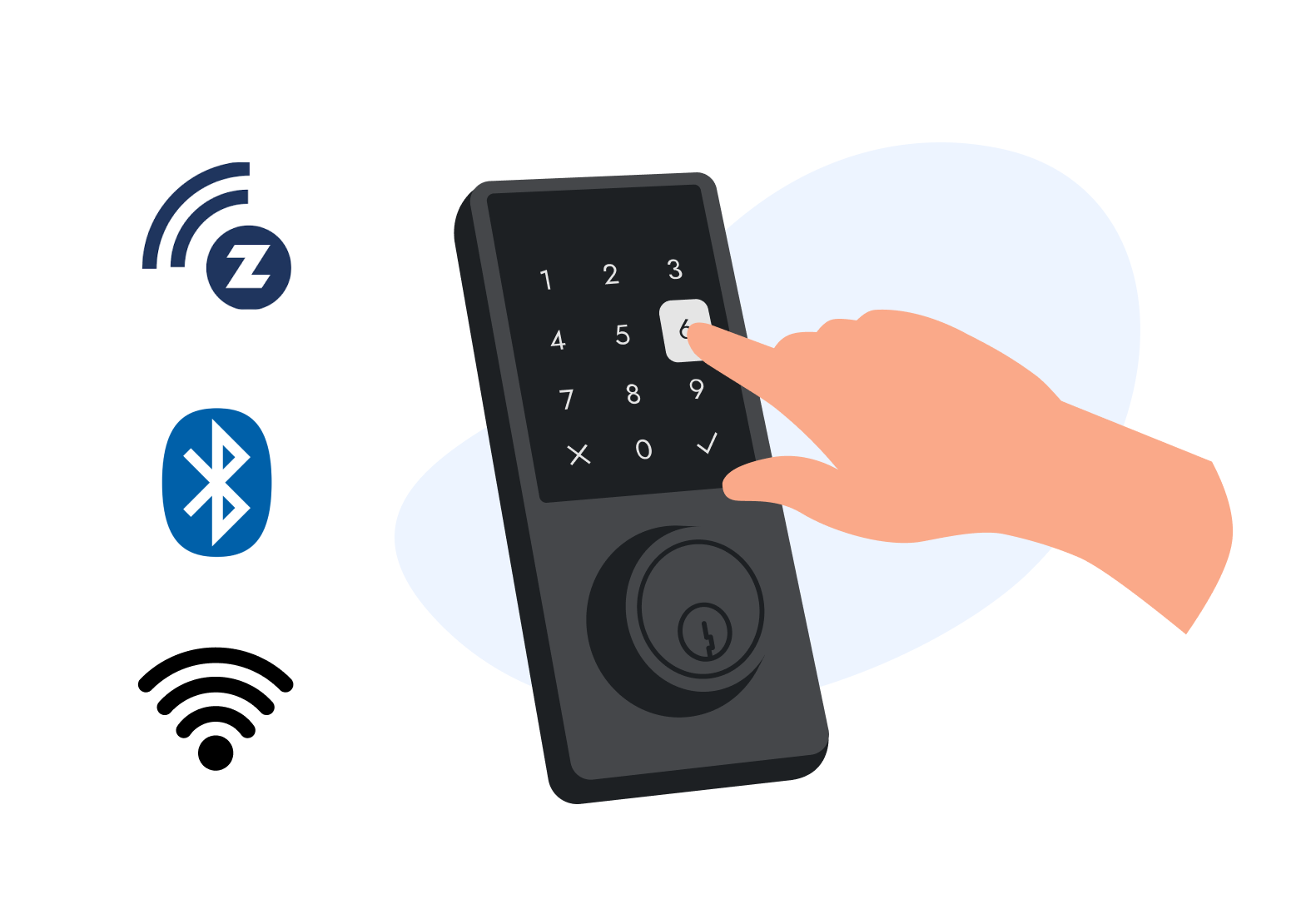
For Rently-TOUCH models, locate the pinhole on the interior side under a small rubber cover. Insert a paperclip and press for exactly 15 seconds until the screen displays “RESET.” Confirmation comes when the screen shows “RESET COMPLETE” followed by the Rently logo. Unlike other models, you must keep the paperclip inserted until the reset message appears.
Rently-MINI Compact Model Reset Requirements
Rently-MINI models require removing the mounting plate to access the interior assembly. Triple-press the small black button within 10 seconds of battery installation. Critical requirement: You must stay within 3 feet of your Wi-Fi router during the entire reset process—these compact models have weaker signal reception.
Troubleshooting Failed Rently Smart Lock Resets
Interpreting LED Error Patterns
Continuous red flashing after reset indicates hardware failure requiring lock replacement. No LED response suggests battery connection issues—try fresh batteries first. Unresponsive reset button may indicate physical damage needing professional service. If your lock shows partial reset symptoms (Rently functions fail but physical keys work), you likely have a network module failure requiring replacement.
Recovery Procedures for Stubborn Locks
When a Rently smart lock reset fails on the first attempt:
– Repeat the physical reset with brand new batteries and precise 10-second timing
– If stuck in reset mode, remove batteries for 30 minutes, then reinstall with 5-second pauses between each battery
– For re-enrollment failures, verify the serial number matches landlord records and check Wi-Fi signal strength at the lock location
Security and Legal Considerations During Reset
Data Protection and Compliance Requirements
All user access logs are permanently erased during factory reset, and previous tenant codes are completely removed from lock memory. Critical reminder: Tenant-initiated resets without proper authorization may violate lease terms and local tenant laws. Always document everything in your property management system including date/time stamps and reset confirmation screenshots.
Post-Reset Vulnerability Period
Your property remains vulnerable during the reset window (approximately 15-30 minutes). Landlords must ensure alternative security measures during this transition period. Pro Tip: Schedule resets during daylight hours when other staff members are onsite for security monitoring.
Immediate Post-Reset Actions You Can’t Skip
Verification Testing Protocol
After completing your Rently smart lock reset, immediately:
– Test physical operation using your backup key
– Check LED indicators by pressing any button
– Document the new status with photos showing the LED pattern
– Contact your landlord within 10 minutes to begin re-enrollment
Warning: Skipping verification testing could leave you unaware that the reset failed until you’re locked out later.
Final Note: When performing a Rently smart lock reset, always start with the least invasive method that matches your specific problem—soft reset first, then master reset, and only use factory reset as a last resort. Document every step with screenshots and maintain open communication with your landlord throughout the process. Most Rently smart lock issues resolve with these procedures, saving you the cost and hassle of professional service calls. Keep this guide handy for quick reference the next time your smart lock acts up—better yet, share it with your property management team to streamline future reset procedures.



