
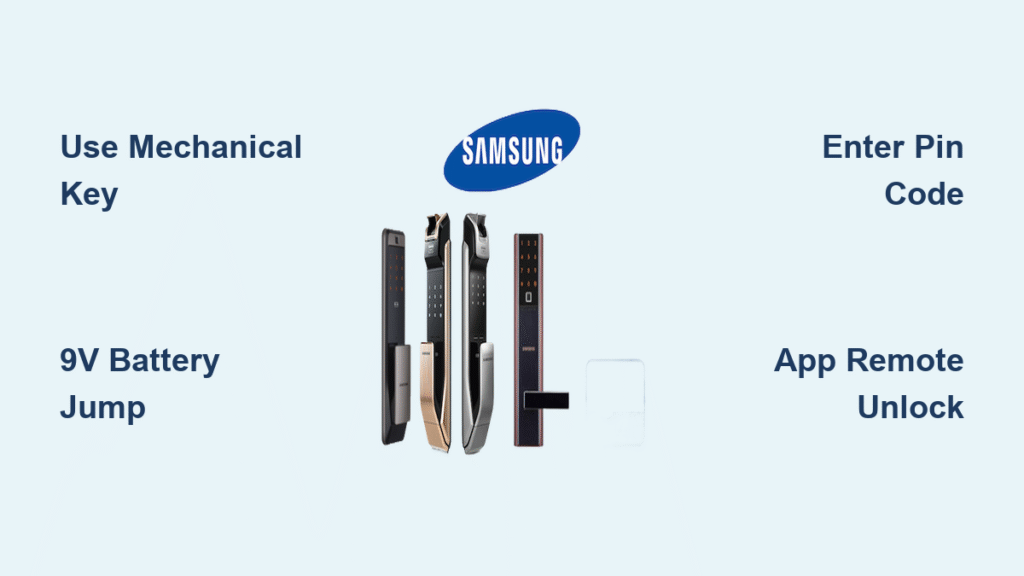
That moment when you’re standing outside your home, fingers fumbling for your keys only to remember you switched to a Samsung smart door lock last month—and now it won’t respond to your PIN. Whether you’re dealing with sudden battery failure, a glitchy fingerprint sensor, or simply forgot your access code, knowing exactly how to open your Samsung smart door lock can turn panic into relief. This comprehensive guide delivers every proven method to regain entry, troubleshoot common failures, and implement foolproof backup strategies so you’re never stranded outside your own home again.
With Samsung smart locks dominating the market for reliable home security, understanding your specific model’s access protocols is non-negotiable. By the time you finish this guide, you’ll master all standard and emergency opening techniques, recognize critical warning signs before lockouts occur, and establish redundant access methods that work even when technology fails you.
Emergency Mechanical Key Access When Electronics Fail
Every Samsung smart door lock includes a hidden mechanical override designed specifically for complete electronic failure. Locate the discreet cover—typically positioned beneath the keypad or along the lock’s bottom edge—and slide it open to expose the keyhole. Insert your emergency backup key fully, then turn clockwise with steady pressure until you hear the bolt retract. This purely mechanical operation works independently of batteries or electronic components, making it your ultimate failsafe.
Critical warning: If your key feels stuck or won’t turn smoothly, stop immediately—forcing it could damage the cylinder. Apply a graphite-based lubricant (never oil) to the key before reinserting. Store at least two emergency keys outside your home, such as with a trusted neighbor or in a magnetic lockbox attached to your vehicle.
9V Battery Jump Method for Dead Power Situations
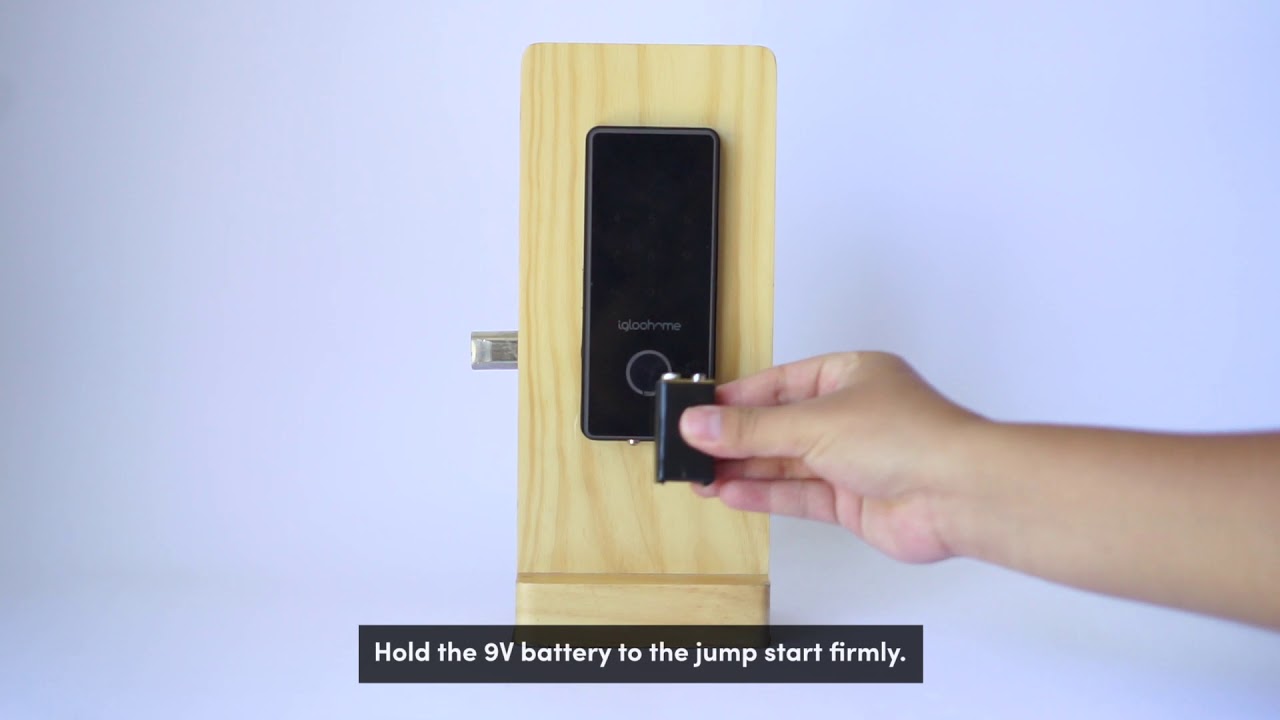
When your Samsung smart door lock displays no lights and ignores all input, dead batteries are almost certainly the culprit. Locate the emergency power contacts—two small metal terminals usually positioned along the bottom edge of the exterior assembly. Press a standard 9V battery against these contacts with correct polarity (positive to positive, negative to negative) while simultaneously entering your PIN code within 30 seconds. Maintain firm contact until the lock beeps confirmation, then enter immediately to replace the internal AA batteries.
Pro tip: Keep a 9V battery in your car’s emergency kit specifically for this scenario—it’s saved countless homeowners from expensive locksmith calls during unexpected battery failures.
PIN Code Entry Troubleshooting for Unresponsive Keypads
Your Samsung lock’s digital keypad should activate with a light touch, but when it doesn’t respond to your PIN, follow this diagnostic sequence: First, check for low-battery indicators—red LED flashes or distinctive beeping patterns signal power issues. Clean the keypad surface with a microfiber cloth to remove dirt buildup that interferes with touch sensitivity. If problems persist, remove the interior battery cover and press the physical reset button for 10 seconds to restart the electronics without losing your programming.
Common mistake: Entering your PIN too slowly. Samsung keypads time out after 3-5 seconds between digits—enter your code in one fluid motion for reliable recognition.
Smartphone App Remote Unlocking Procedures
When you’re not physically at the door but need to grant access, your Samsung SmartThings app becomes your digital key. Ensure Bluetooth or WiFi connectivity between your phone and lock (depending on your model), then open the app and select your lock from the device list. Tap the unlock icon and confirm with your master PIN. For recurring access, generate time-limited one-time passwords through the Guest Access menu—these codes expire after first use or within your specified timeframe (30 minutes to 24 hours).
Setup requirement: You must enable remote access features during initial configuration and maintain an active Samsung account. Without proper setup, app-based unlocking won’t function even with perfect connectivity.
Fingerprint Sensor Optimization for Reliable Recognition
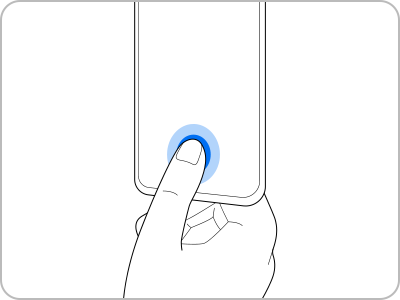
Premium Samsung models with biometric sensors require proper technique for consistent access. Place your registered finger flat on the sensor area—don’t swipe or slide—and maintain contact until the lock beeps confirmation (typically under one second). For best results, register each fingerprint from multiple angles during setup to accommodate natural hand positioning variations. If wet conditions cause failures, wipe your finger dry first; extreme moisture can temporarily reduce sensor accuracy.
Expert note: When fingerprint recognition fails three consecutive times, the lock automatically switches to PIN backup mode—have your code ready to avoid being locked out during sensor troubleshooting.
Model-Specific Opening Techniques for Common Samsung Locks
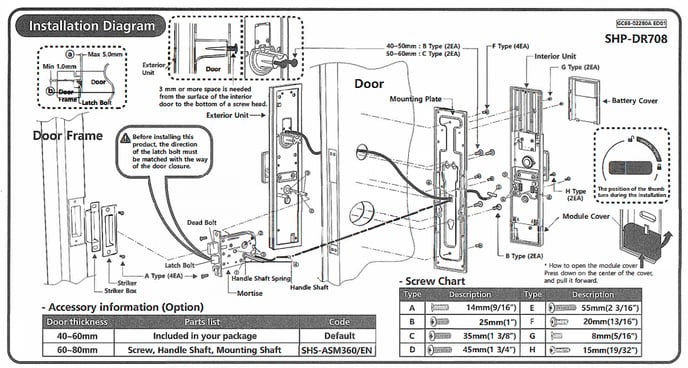
SHP-DR708/DR719 Series Push-Pull Handle Operation
These premium models integrate fingerprint sensors directly into the handle. After successful authentication, simply pull the handle toward you—no additional button press required. Voice guidance announces each step, and the lock automatically re-engages 3 seconds after closing. The double-lock feature (activated from inside) prevents external access even with valid credentials, so ensure this isn’t accidentally engaged when you’re locked out.
SHP-DP609/DP609 Series Lever Handle Unlocking
Traditional lever handle models require a specific sequence after authentication: Enter your PIN, tap the lock button, then turn the lever downward within 5 seconds. The large capacitive touchscreen responds to light touches, while the prominent RFID zone sits above the keypad. Z-Wave connectivity enables smart home integration, but remember that electronic failures still require mechanical key access.
SHP-DS705/DS705 Compact Apartment Model Access
These streamlined locks prioritize essential functions with basic PIN and RFID access but no fingerprint sensor. The manual key slot remains visible on the exterior, while batteries are housed inside your home—meaning you’ll need alternative entry methods before replacing dead power cells. The simplified interface reduces failure points but offers fewer backup options during emergencies.
Voice Command Unlocking Without Physical Contact
Activate hands-free access through Samsung Bixby, Google Assistant, or Amazon Alexa integration. First, enable voice control in your Samsung SmartThings app settings, then use the precise command structure: “Hey Google, unlock the front door” followed immediately by your spoken PIN confirmation. The system requires both elements for security—simply saying “unlock the door” won’t work. You can also check lock status with queries like “Alexa, is my door locked?” but voice commands only function when your smartphone maintains WiFi connectivity with the lock.
Important limitation: Voice unlocking won’t work during internet outages or if your smartphone battery dies—always maintain at least one non-app-based access method.
Proactive Maintenance to Prevent Future Lockouts
Implement this monthly testing protocol to ensure reliable access: Verify each registered PIN code, scan all enrolled fingerprints, test RFID cards, and confirm app connectivity. Replace batteries at 20% capacity (indicated by app notifications or red LED warnings) rather than waiting for complete failure—quality alkaline batteries typically last 8-12 months with normal use. Document your master PIN in a secure password manager and store mechanical keys in two separate secure locations outside your home.
Critical tip: Register at least three different access methods per user (PIN + fingerprint + RFID) to create redundancy. When one system fails, you’ll have immediate alternatives without panic or delay.
Your Samsung smart door lock offers multiple pathways to entry, but knowing which method to use—and when—makes the difference between smooth access and frustrating lockouts. Keep this guide saved in your phone’s notes app for immediate reference during emergencies, and remember that the most reliable security systems always include mechanical backups that work when electronics fail. By implementing these techniques and maintenance protocols, you’ll transform your Samsung smart door lock from a potential liability into the seamless, secure access solution it was designed to be.



