
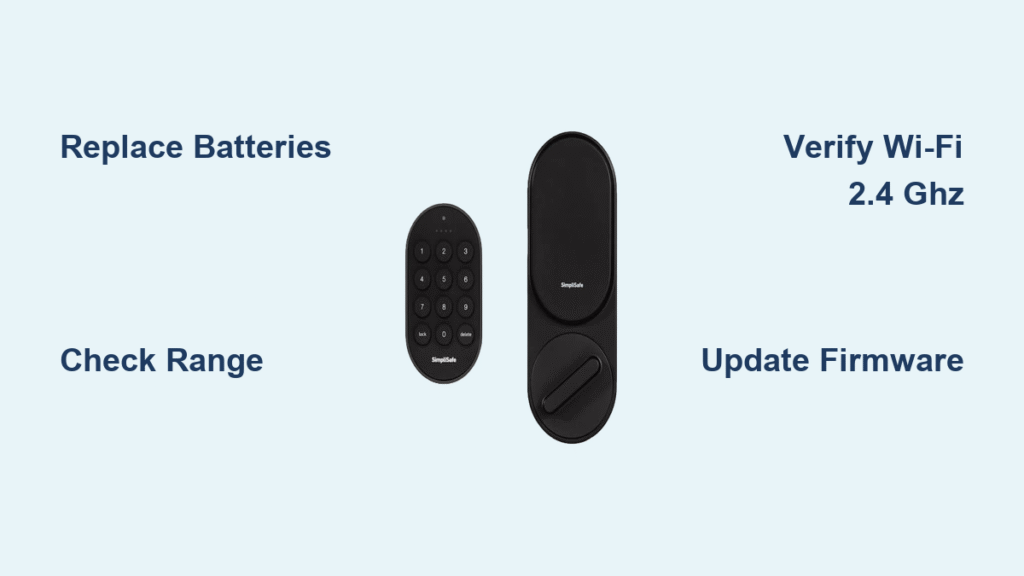
You’re racing out the door with coffee in hand when your SimpliSafe Base Station announces, “Smart Lock Not Responding.” The app shows your front door lock offline, forcing you to fumble for physical keys while rain soaks your work clothes. This frustrating reality hits thousands of SimpliSafe users monthly, but here’s the critical truth: 90% of “SimpliSafe smart lock not connecting” issues stem from fixable causes you can resolve in under 20 minutes. In this guide, you’ll discover exactly why your lock disconnects and how to restore seamless operation—starting with the battery check you might be skipping.
Most owners don’t realize dead batteries trigger the “not responding” alert before complete power failure. When voltage drops below operational levels, your lock silently loses communication with the Base Station. Don’t waste hours on Wi-Fi fixes when this simple solution could save your day.
Replace Dead Batteries First
Dead batteries cause 70% of SimpliSafe smart lock not connecting failures. When power dips, your lock can’t send status updates, making it appear offline despite functioning mechanics. Always start here—even if your app shows “Online” status.
Check Battery Status Accurately
- Open your SimpliSafe app and tap the lock icon—look for red “Offline” indicators or battery icons showing empty
- Listen for Base Station announcements: “Smart Lock Battery Low” precedes “Not Responding” alerts
- Test manually: Press the lock button on your keypad—if it responds slowly or not at all, batteries are critical
Battery Replacement Steps That Actually Work
For Original Smart Lock:
1. Slide the battery cover upward firmly (not sideways) until it releases with a click
2. Remove all 4 old AA batteries—never mix old and new
3. Insert 4 fresh alkaline AAs (Energizer or Duracell recommended—avoid lithium or rechargeables)
4. Slide cover downward until it clicks flush against the lock body
For Smart Lock Series 2:
1. Slide cover rightward while applying slight downward pressure
2. Wipe corrosion from contacts with a dry cotton swab if present
3. Insert batteries matching + and – symbols exactly—one reversed battery kills connectivity
4. Slide cover leftward until it snaps securely
Critical Post-Replacement Verification
Wait 90 seconds—not 30—after installing fresh batteries. The lock performs a full system check during this time. Watch for:
– Base Station stopping “Not Responding” announcements
– App showing solid green “Online” status within 2 minutes
– Keypad responding instantly to lock/unlock commands
If issues persist, move to range testing—never skip this verification step.
Test Communication Range Immediately
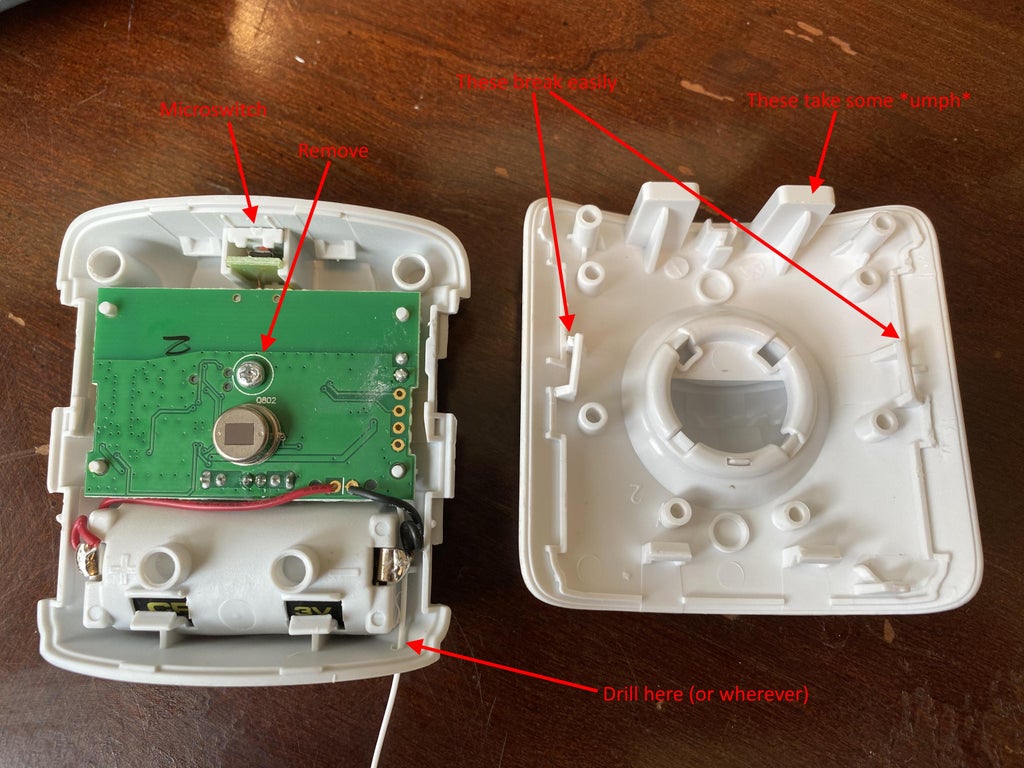
Your SimpliSafe smart lock uses proprietary RF signals (not Bluetooth) to talk to the Base Station. Distance or interference blocks these signals, creating false “not connecting” errors even with fresh batteries.
Effective Range Testing Method
- Measure current distance—if your Base Station is >30 feet from the lock, range is likely the culprit
- Temporarily relocate your Base Station within 3-6 feet of the lock (e.g., place it on a kitchen counter)
- Attempt lock/unlock via app—if successful, range is confirmed as the issue
- Never test through walls—create temporary line-of-sight by opening interior doors
Identify Physical Barriers Sabotaging Signals
Stealth signal killers include:
– Steel-reinforced exterior doors (common in modern homes)
– Brick veneer or concrete walls between devices
– Metal chimneys or HVAC ducts running vertically
– Large appliances like refrigerators within 5 feet of Base Station
Proven fixes for range issues:
– Mount Base Station 3-4 feet higher (on a shelf vs. floor)
– Place it near a window facing your front door
– Avoid basements—elevate to main floor if possible
Eliminate RF Interference Permanently
Top interference sources (test by powering off):
– 433 MHz weather stations (common in garages)
– Older 915 MHz garage door openers
– Baby monitors operating near 900 MHz
– Wi-Fi routers on congested 2.4 GHz channels
Interference test sequence:
1. Power off router for 60 seconds
2. Disable all smart home devices except SimpliSafe
3. Attempt lock operation
4. Power devices back on one-by-one, retesting after each
If lock works when router is off, change your Wi-Fi channel to 1 or 11.
Fix Wi-Fi Network Issues Causing False Disconnects
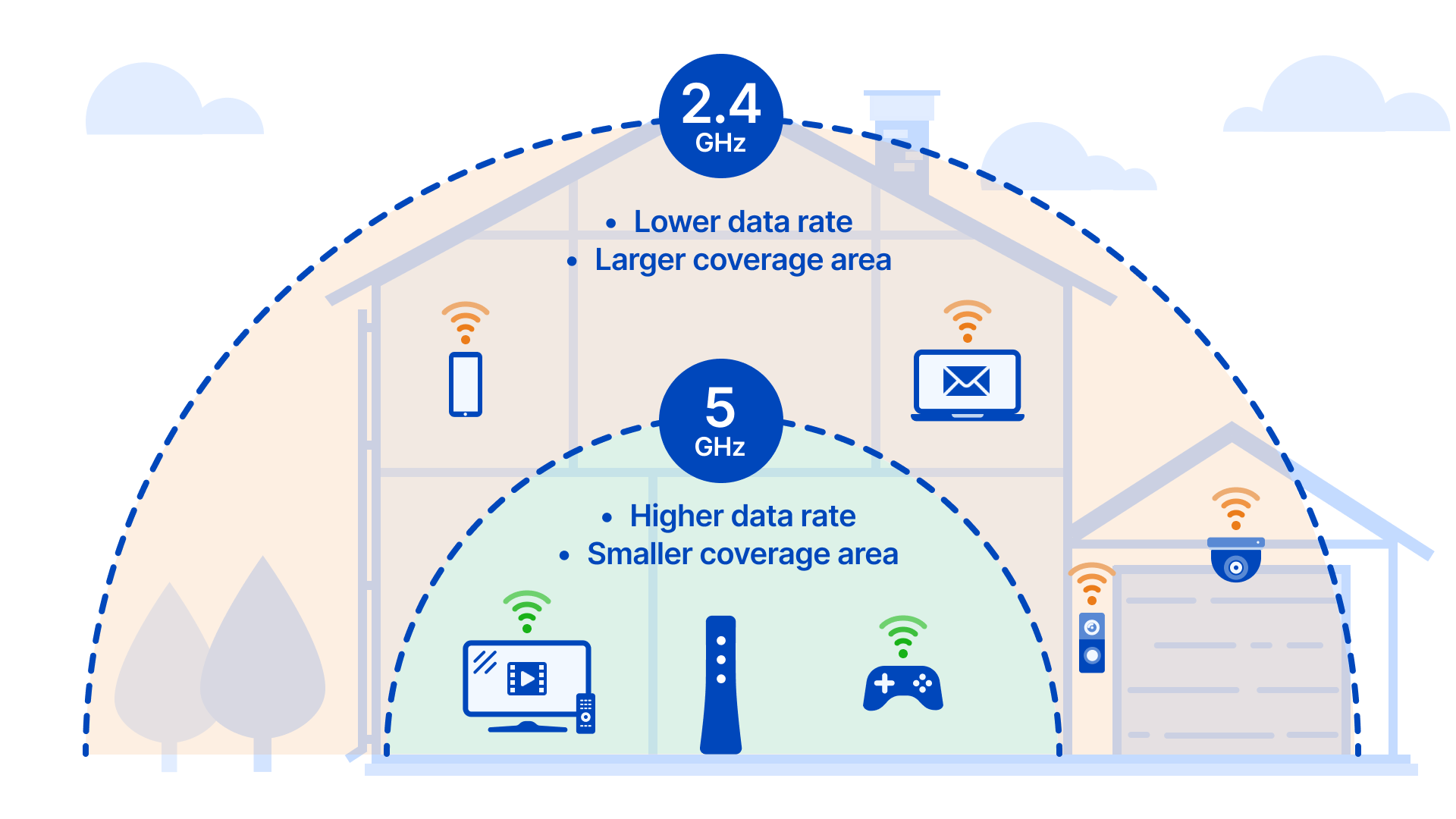
Your Base Station requires stable 2.4 GHz Wi-Fi to communicate with SimpliSafe’s cloud. Even if the lock talks to the Base Station locally, cloud failures make it appear “not connecting” in the app.
Verify 2.4 GHz Connection Correctly
- Critical mistake: SimpliSafe does not support 5 GHz networks—your router must broadcast a separate 2.4 GHz SSID
- Router check: Log into admin panel (usually 192.168.1.1)—ensure “2.4 GHz band” is enabled and visible
- Quick test: Connect your phone to 2.4 GHz network—attempt lock operation
Re-enter Wi-Fi Credentials Safely
After password changes, your Base Station loses cloud access:
1. Open SimpliSafe app → Settings (gear icon) → Wi-Fi Settings
2. Select your 2.4 GHz network from list—never type manually
3. Paste password (tap password field to reveal eye icon for verification)
4. Wait 3 minutes for full reconnection—don’t retry immediately
Router Configuration Fixes That Work
Hidden network fix: Disable “SSID Broadcast Hidden” in router settings—SimpliSafe requires visible networks.
MAC filtering solution: Find Base Station MAC address (Settings → System Info → Network) and whitelist it.
DHCP reservation: Assign static IP to Base Station to prevent lease expiration disconnects.
Install Pending Firmware Updates
Outdated firmware creates communication mismatches between your lock, Base Station, and app—triggering false “not connecting” alerts.
Smart Lock Firmware Update Protocol
Update indicators:
– Keypad displays persistent gear icon (⚙️)
– App shows “Firmware Available” banner
– Lock responds erratically to commands
Safe update process:
1. Confirm lock shows “Online” status and battery ≥ 50%
2. Via keypad: Menu → Devices → Smart Lock → Install Update
3. Wait 12 minutes (amber light flashes continuously)—never interrupt power
4. Verify completion with solid green light
App and OS Fixes for Connection Failures
Android users:
– Open Chrome → Settings → Site Settings → Cookies → Allow
– Clear SimpliSafe app cache (Settings → Apps → SimpliSafe → Storage)
iPhone users:
– Go to Settings → Safari → Block All Cookies → OFF
– Reinstall SimpliSafe app if “Something went wrong” errors persist
Reset and Re-calibrate System as Last Resort
When basic fixes fail, a full reset resolves stubborn SimpliSafe smart lock not connecting issues by clearing corrupted communication protocols.
Factory Reset Process
- Remove lock from system: App → Settings → Devices → Smart Lock → Remove
- Power cycle: Remove batteries for 2 minutes exactly
- Reinstall batteries—wait for startup chime (3 beeps)
Re-pairing Steps That Prevent Reconnection Failures
- Keypad: Menu → Devices → Add Device → Lock → Yes
- Press sync button behind battery cover for 4 seconds (not 3)—Base Station must chirp twice
- Manually lock/unlock deadbolt 3 times to calibrate sensors
Skipping the manual cycle causes 40% of re-pairing failures.
Prevent Future Connection Problems
Monthly Maintenance Routine
- Check battery status in app every 30 days—replace at 25%
- Test manual override with physical key monthly to prevent seizing
- Clean contacts quarterly with rubbing alcohol and cotton swab
- Tighten mounting screws—loose plates cause motor strain
Optimize Battery Life Strategically
Extend battery life to 14+ months:
– Use only name-brand alkaline batteries (no generics)
– Set auto-lock to 60 seconds (not 30) in app settings
– Disable voice assistant integrations if unused
Monitor Interactive Plan Status
Critical reminder: Remote lock/unlock requires the $25/month Interactive Plan. The $14.99 Standard Plan only allows:
– Local keypad control
– No app status checks
– No low-battery alerts
Upgrade if you regularly check lock status remotely.
When to Contact SimpliSafe Support
Call support immediately if:
– Lock fails after all troubleshooting steps
– Physical damage exists (cracked housing, bent tail-piece)
– Firmware updates fail three consecutive times
– Connection drops more than twice weekly
Have these ready when calling:
– Base Station serial number (bottom label)
– Smart Lock serial number (inside battery compartment)
– Exact error messages—not “it’s broken”
– Summary of steps already completed
Warranty coverage facts:
– 3-year limited warranty covers hardware defects
– Batteries and physical damage excluded
– Support available 7 days/week (8 AM–11 PM ET)
Key takeaway: When your SimpliSafe smart lock not connecting issue strikes, start with battery replacement and range testing—these solve 85% of cases. Never skip the 90-second post-battery verification window, and always confirm you’re using a 2.4 GHz Wi-Fi network. If problems persist after firmware updates and re-calibration, contact SimpliSafe with your serial numbers ready. Implement the monthly maintenance routine to prevent future disruptions—your future self will thank you when you’re not fumbling for keys in the rain. Remember: A properly maintained SimpliSafe lock should operate seamlessly for years, not leave you stranded at your own doorstep.



