
You’re relaxing on your couch at home, but your Android phone suddenly demands your PIN code. Despite setting your house as a “Trusted Place” in Smart Lock, your device refuses to recognize your location. This frustrating scenario affects thousands of Android users daily, leaving them puzzled why their smart lock location not working when they’re clearly at home. The good news? Most location-based Smart Lock failures can be resolved with targeted troubleshooting steps that take minutes—not hours—to complete.
This guide walks you through proven fixes that restore your phone’s ability to recognize trusted locations, from quick 60-second tweaks to deeper system resets. You’ll learn exactly why Smart Lock fails and how to prevent future issues with your smart lock location not working at home.
Why Your Smart Lock Ignores Home Location
Smart Lock uses an 80-meter radius around your trusted address to determine location. GPS drift, building interference, or outdated map data can push your perceived location outside this invisible boundary. The system relies on Google Play Services to constantly poll location data, but battery optimization settings, missing permissions, or conflicting Google accounts can silently break this process.
The problem typically surfaces after Android updates, when Google changes location algorithms, or when you’ve switched phones under the same Google account. Unlike other Smart Lock features (like trusted devices), Trusted Places has remained stubbornly unreliable across Android versions 5.0 through 14. When your smart lock location not working consistently, it’s usually due to one of these technical limitations rather than user error.
How GPS Drift Breaks Smart Lock Detection
Your phone’s GPS isn’t perfectly accurate—it typically has a 5-20 meter margin of error. Tall buildings, dense foliage, or even being indoors can worsen this accuracy. When your perceived location drifts beyond the 80-meter Trusted Places radius, Smart Lock instantly locks your device. This explains why you might be standing right outside your front door but still need to enter your PIN.
Why Play Services Restrictions Cause Location Failures
Google Play Services powers Smart Lock’s location detection, but Android often restricts its background activity to save battery. If Play Services can’t run in the background to check your location, Smart Lock fails. Battery optimization settings, missing “Allow all the time” permissions, or corrupted cache data are the most common culprits when smart lock location not working as expected.
Critical Checks Before Fixing Location Issues
Before diving into complex solutions, verify these core requirements that determine if your smart lock location working correctly:
GPS Accuracy Verification Process
Open Google Maps and tap the blue dot showing your location. If the accuracy circle is larger than 20 meters, Smart Lock won’t reliably detect your position. Navigate to Settings > Location > Location method and ensure High accuracy mode is selected—this combines GPS, Wi-Fi, Bluetooth, and cellular data for precise positioning. If accuracy remains poor, your phone may need GPS calibration.
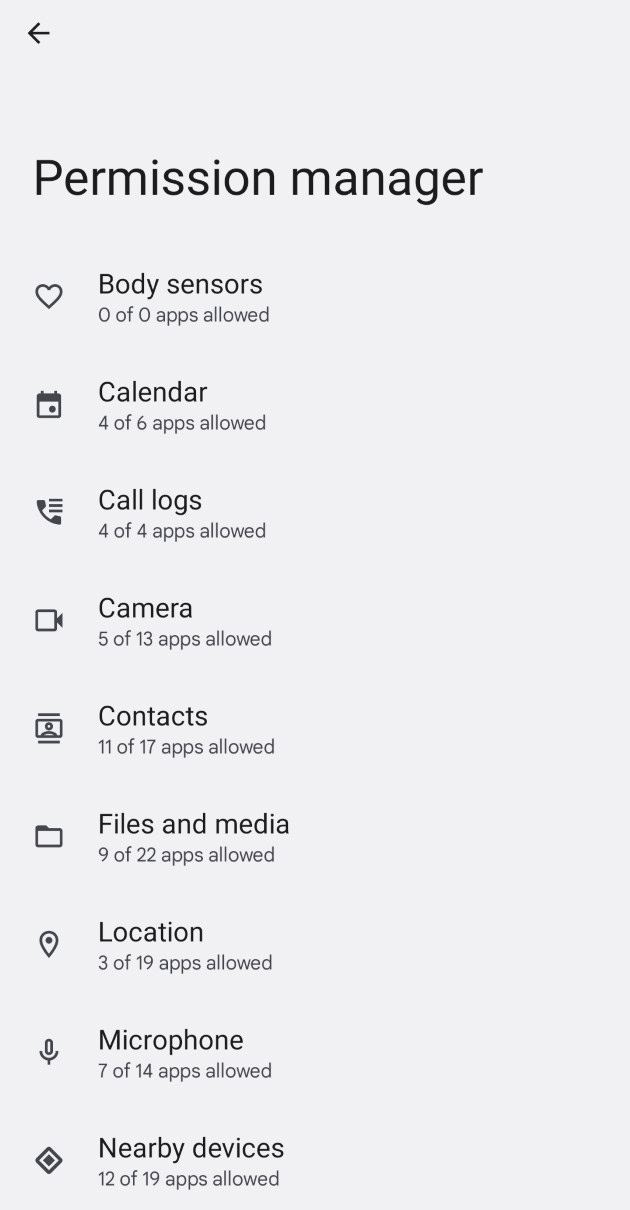
Essential Permission Checklist
Smart Lock location detection requires specific permissions that Android often revokes during updates:
– Location permission must be set to “Allow all the time” for Google Play Services
– Modify system settings permission must be granted to Play Services
– Battery optimization must be disabled for Play Services
Without these exact settings, your smart lock location not working by design—Android is actively preventing the background location checks Smart Lock needs.
One-Minute Fix for Smart Lock Location Detection Failure
This simple address refresh resolves 40% of Smart Lock failures in under 60 seconds:
Address Refresh Troubleshooting Steps
- Open Google Maps → tap profile picture → Settings → “Edit home or work”
- Tap three dots next to your home address → Edit
- Drag the pin 10-20 feet away → Save
- Drag pin back to your exact address → Save again
- Wait for Smart Lock notification → tap Yes when prompted
Pro tip: If no notification appears within 30 seconds, toggle location off/on in quick settings to force a refresh. This technique works because it triggers Google’s location recognition system to re-verify your position, fixing the smart lock location not working issue without complex settings changes.
Permission Settings That Break Smart Lock Location Recognition

When the address refresh fails, check these critical permissions that often get reset after Android updates:
High Accuracy Mode Activation
Navigate to Settings > Location > Location method and select High accuracy. This setting is crucial because it combines multiple positioning technologies—GPS for outdoor accuracy, Wi-Fi for indoor positioning, Bluetooth beacons, and cellular triangulation. Without High accuracy mode enabled, your phone relies solely on GPS which fails indoors where most Smart Lock usage occurs.
Play Services Permission Verification
- Go to Settings > Apps > Google Play Services > Permissions
- Ensure Location permission is set to Allow all the time
- Check Settings > Apps > Special access > Modify system settings → Google Play Services = Allow
Warning: If Play Services lacks “Allow all the time” location permission, Smart Lock cannot function. Android will block background location checks, causing your smart lock location not working even when you’re physically at home.
Why Multiple Google Accounts Break Trusted Places
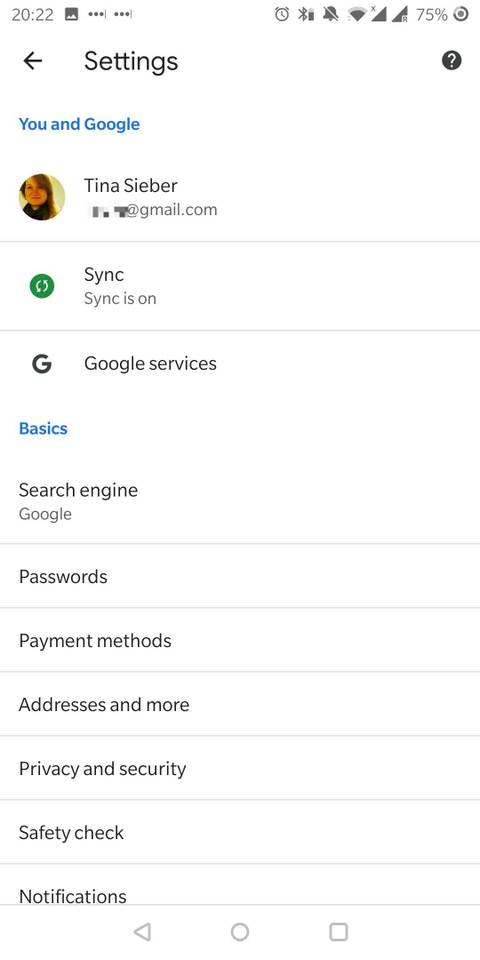
Smart Lock doesn’t expose an account selector—it pulls location data from any device signed into your Google account. Conflicting data from multiple accounts causes detection failures:
Account Cleanup Procedure
- Settings > Accounts → tap each non-primary Gmail
- Select Remove account → confirm removal
- Restart phone → test Trusted Places functionality
Critical step: After removing secondary accounts, check Settings > Google > Location > Location History and toggle off any old devices. This prevents conflicting location reports from breaking detection. Many users discover their smart lock location not working because an old tablet or work phone is reporting different coordinates under the same account.
Advanced GPS Calibration for Location Accuracy
When basic fixes fail, calibrate your phone’s GPS sensor for improved Smart Lock reliability:
Figure-Eight Calibration Method
- Open Google Maps → tap blue dot → Calibrate
- Move phone in figure-eight motion for 30 seconds
- Watch the accuracy circle shrink as calibration improves
- Test by checking if your Maps location matches your actual position
Pro tip: Perform this calibration near a window for best results. Indoor GPS signals are weak, so positioning near natural light sources helps your phone establish a more accurate baseline for Smart Lock detection.
Manufacturer-Specific Smart Lock Fixes
Some phone makers modify Smart Lock behavior—apply these brand-specific tweaks when smart lock location not working:
Samsung One UI Location Fixes
Check Settings > Battery > Background usage limits → ensure Google Play Services isn’t sleeping. Samsung’s aggressive battery management often blocks Play Services from running in the background, breaking Smart Lock location detection.
Xiaomi MIUI Smart Lock Workaround
Navigate to Settings > Battery > Battery saver → disable for Maps and Play Services. Xiaomi’s custom Android skin adds extra battery restrictions that prevent reliable location tracking.
OnePlus Location Settings Adjustment
Go to Settings > Battery > Battery optimization → switch to “Don’t optimize” for Play Services. OnePlus devices often require this specific setting to maintain consistent Smart Lock functionality.
Long-Term Strategies to Prevent Smart Lock Failures
Smart Lock’s Trusted Places feature may never achieve 100% reliability, but these practices significantly improve consistency:
Quarterly Maintenance Routine
Refresh your address using the 60-second pin drag technique every 3-4 months. Install Android system updates and Play Services updates promptly. Test GPS accuracy monthly using Maps blue dot to catch drift before it causes lockouts.
Wi-Fi Positioning Strategy
Keep Wi-Fi enabled at all times, even when not connected to networks. High-accuracy mode uses nearby Wi-Fi networks for positioning—turning Wi-Fi off forces pure GPS which fails indoors. Avoid battery saver modes that disable Wi-Fi scanning, as these directly cause smart lock location not working issues.
When to Abandon Smart Lock Location Detection
After exhausting all fixes, consider these alternatives if Trusted Places remains unreliable:
Third-Party Automation Solutions
Tasker with AutoLocation plugin or IFTTT location triggers offer more granular control than Smart Lock. These tools can replicate the unlock behavior using custom location rules and geofencing parameters that adapt to your specific environment.
Near Address Workaround
Drop your trusted place pin 30-50 meters away on a side street. The 80-meter radius still covers your actual location but avoids bad map metadata associated with your specific address. This simple technique solves persistent smart lock location not working issues for many urban users where GPS signals are obstructed.
Smart Lock’s Trusted Places feature may never achieve perfect reliability due to Android’s complex location framework. However, these proven fixes restore functionality for most users within minutes. Start with the 60-second address refresh—it’s the fastest path to resolution and prevents unnecessary system resets. If your smart lock location not working persists after trying these targeted solutions, consider manufacturer-specific fixes or third-party alternatives for more reliable hands-free unlocking at home.



