
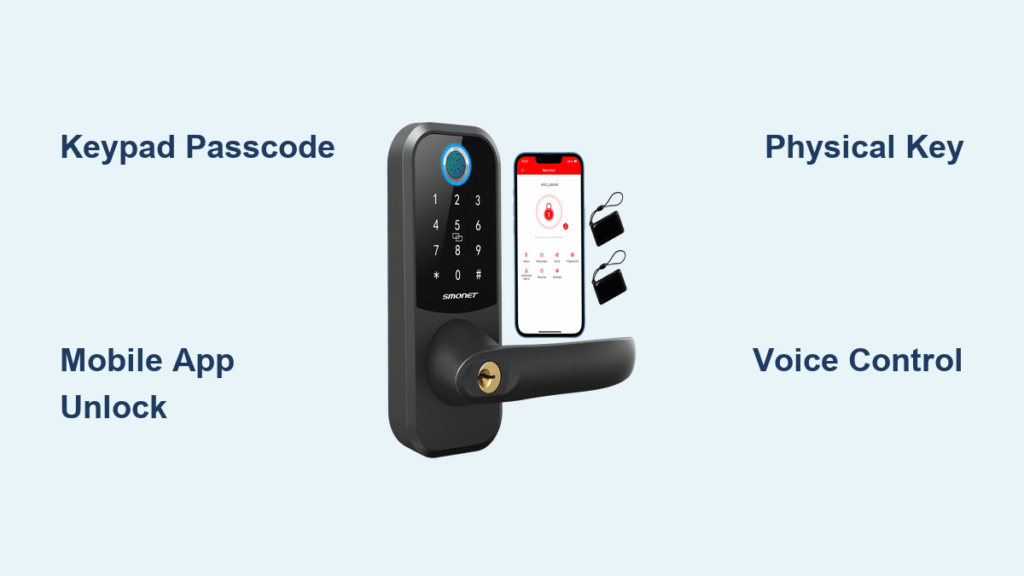
You’ve just returned home from the grocery store, arms full of bags, only to realize your phone battery died and you can’t unlock your SMONET smart lock. Or perhaps you’re expecting a package delivery but are stuck in traffic across town. Knowing exactly how to unlock your SMONET smart lock in any situation isn’t just convenient—it’s essential for modern homeowners. This comprehensive guide reveals five proven methods to access your door when traditional keys won’t cut it.
When your smart lock fails, panic sets in quickly. But with the right knowledge, you’ll never face an unexpected lockout again. Whether you’re troubleshooting a frozen keypad, granting remote access to guests, or using voice commands with hands full of groceries, this SMONET smart lock how to unlock guide covers every scenario you might encounter. You’ll discover which methods work during power outages, how to set up emergency access, and which features require specific hardware.
SMONET Keypad Passcode: Instant Access Without Your Phone
Activate and Enter Your Security Code Properly
Start by touching any key on the keypad to wake the display—this happens automatically even in complete darkness thanks to the built-in illumination. Once lit, carefully enter your preset passcode using deliberate presses on the numbered keys. SMONET smart locks allow reasonable pauses between digits, so take your time to avoid errors. After entering your full code, press the # key to confirm and unlock the door within one second.
The most common mistake users make is pressing the # key too early or entering an incorrect sequence. If you experience issues, first check that you’ve completed your entire passcode before confirmation. Remember that three failed attempts trigger a 60-second lockout period as a security measure. For optimal performance, clean your keypad monthly with a slightly damp cloth to maintain button sensitivity and prevent oil buildup from fingerprints.
Troubleshoot Keypad Lockouts Immediately
When your SMONET smart lock how to unlock attempts fail via keypad, consider these solutions:
- Check battery status: Low power causes delayed responses—replace all four AA batteries simultaneously
- Reset the lock: Remove batteries for 30 seconds, then reinstall them to clear temporary glitches
- Verify code entry: Ensure you’re using the correct passcode assigned to your user profile
- Clean the surface: Wipe away moisture or debris that might interfere with touch sensitivity
Mobile App Unlocking: One-Tap Access from Your Smartphone
Direct Unlock Without Complicated Steps
Launch the SMONET smart app on your iOS or Android device to see all connected locks at a glance. Your primary door appears as a prominent lock icon—usually the first item for quick access. Simply tap this icon once to send an encrypted signal that unlocks your door in under three seconds. Unlike some smart locks, SMONET requires no additional confirmation steps for this basic function, making it ideal when you’re carrying packages or in a hurry.
This method works reliably when you’re within 30 feet of your door with Bluetooth enabled. The app interface clearly shows real-time status—red when locked, green when unlocked—so you’ll know immediately if your command succeeded. For frequent users, placing the app icon on your phone’s home screen saves valuable seconds when you’re rushing to get inside.
Fix App Connection Failures in Minutes
When your SMONET smart lock how to unlock attempts fail through the app, try these immediate solutions:
- Force close and restart the app to clear temporary glitches
- Toggle Bluetooth off and on to refresh the connection
- Check for app updates—older versions lose compatibility with newer lock firmware
- Re-pair the lock by deleting and re-adding it in app settings
Physical Key Emergency Override: Works During Power Failures
Locate and Use Your Mechanical Backup
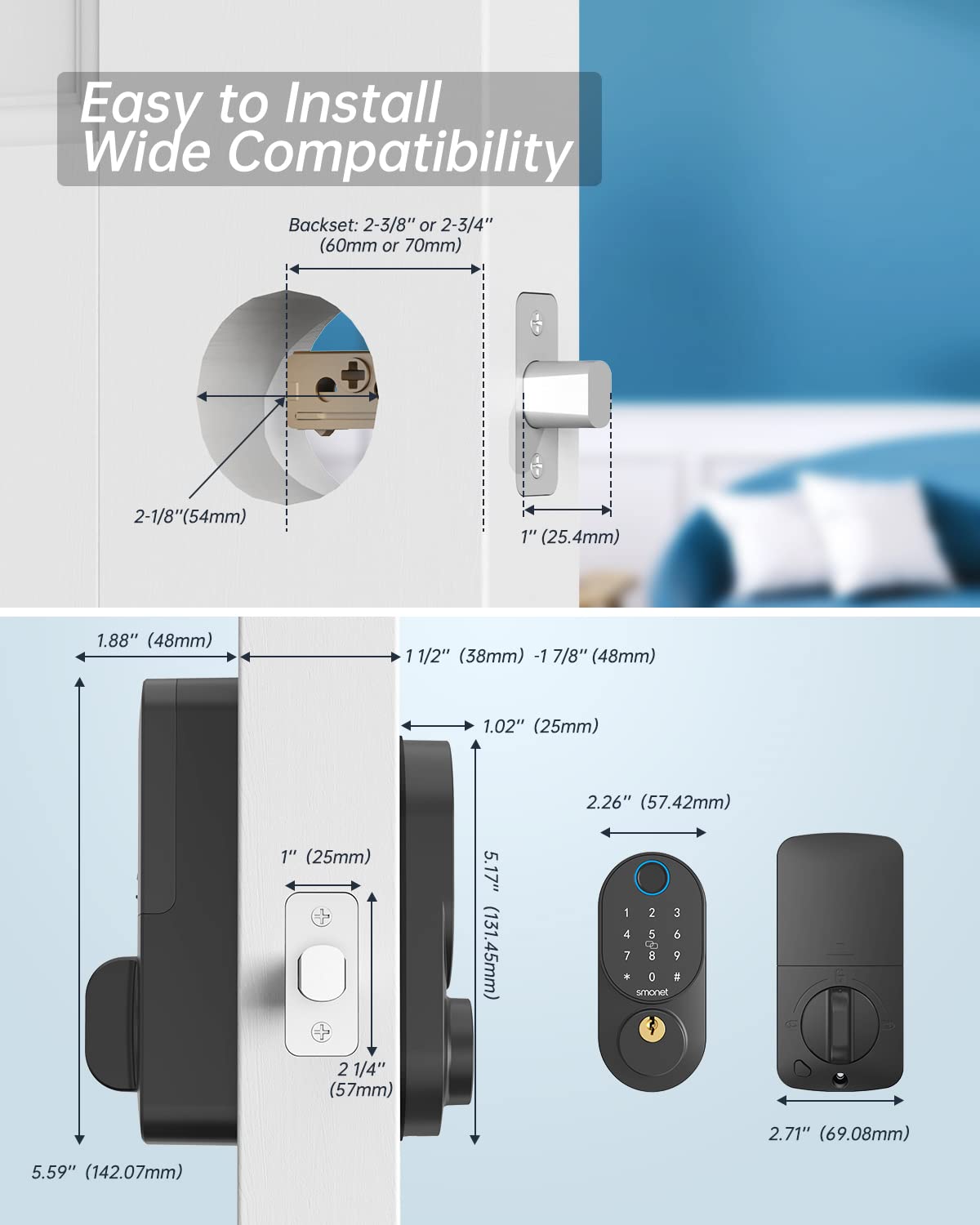
The hidden keyhole sits discreetly beneath the keypad—slide your finger along the bottom edge to find the small covered slot. Remove any debris blocking the opening, then insert your SMONET key until it stops. These keys feature unique cut patterns, so never force entry if resistance occurs. Instead, pull out slightly and reinsert at a different angle for smooth operation.
With the key fully inserted, turn counterclockwise one complete rotation. You’ll feel the mechanical mechanism release as the deadbolt retracts. This physical override works even during complete power failures or system malfunctions, making it your most reliable emergency option. Always keep one key in your car and another with a trusted neighbor—never store it directly outside your home where potential intruders might find it.
Voice Control Unlocking: Hands-Free Access Setup
Connect Through G2 Gateway for Voice Commands
Voice unlocking requires the G2 gateway device connected through the SMONET app (Settings → Gateway Connection → Add Device). Once the gateway is online (solid blue LED), pair with your preferred voice assistant:
- For Alexa: Open Alexa app → Skills & Games → Search “SMONET” → Enable Skill → Link account
- For Google Home: Google Home app → Add device → Works with Google → Find SMONET → Sign in
After setup, use exact phrases like “Alexa, unlock the front door” or “Hey Google, unlock main entrance.” Remember that voice assistants require a security PIN for door unlocking—your command will trigger a prompt for this code before executing. This voice control feature transforms your SMONET smart lock how to unlock process into a completely hands-free experience.
Remote Guest Access: Unlock From Anywhere Worldwide
Grant Temporary Entry Without Being Home
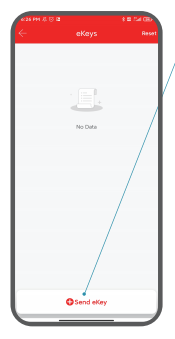
When you need to unlock your SMONET smart lock how to unlock for guests while you’re away, the remote access feature proves invaluable. Verify your G2 gateway shows a solid blue LED (online status), then open the SMONET app from anywhere with internet. The lock icon displays real-time status—tap it to unlock remotely, with confirmation through app vibration and status change.
For scheduled visits, use the “Share Access” feature to grant temporary entry:
- Tap your lock → Share Access → Add User
- Enter guest’s contact information
- Set precise expiration date/time
- Choose access level (permanent, scheduled, or one-time)
- Guest receives instant invitation with app download instructions
This remote capability means you can unlock your SMONET smart lock how to unlock for dog walkers, cleaners, or family members without sharing physical keys or your personal passcode.
Critical Battery Management for Continuous Access
Prevent Lockouts Through Power Maintenance
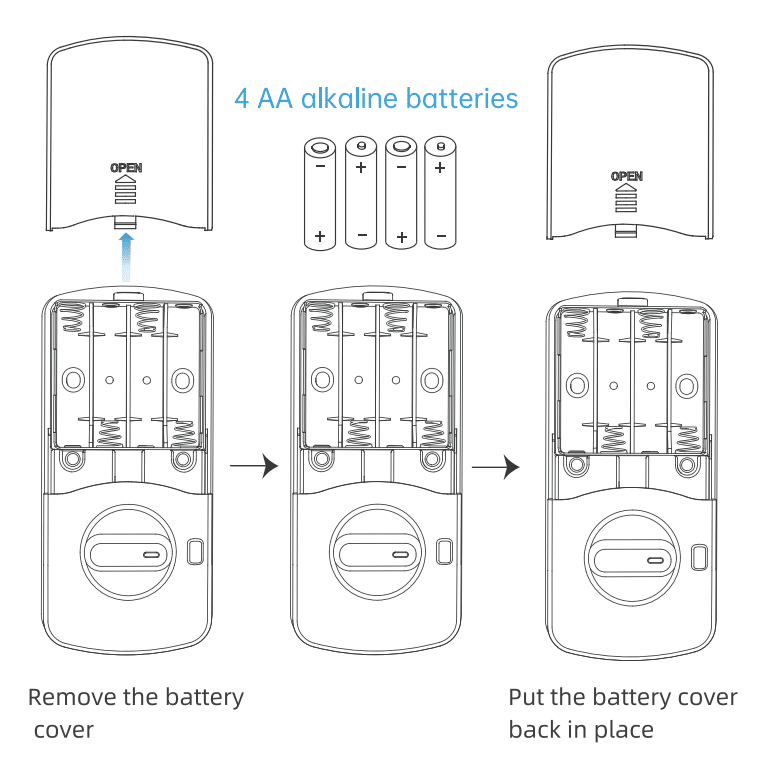
The SMONET app sends push notifications when batteries reach 20% capacity—replace all four AA batteries immediately to avoid unexpected lockouts. Mixing old and new batteries causes erratic behavior that might prevent your SMONET smart lock how to unlock attempts from succeeding. When batteries die completely, use these alternatives:
- Physical key: Always works regardless of battery status
- 9V backup: Touch a 9V battery to the bottom contacts for temporary power
- USB power bank: Connect via micro-USB port beneath the keypad
Maximize battery life by disabling auto-lock, reducing keypad brightness in app settings, and limiting unnecessary remote access. These simple adjustments can extend battery life by up to 30%, ensuring your SMONET smart lock how to unlock functions remain available when you need them most.
Essential Security Practices for Smart Lock Owners
Protect your SMONET smart lock how to unlock methods with these critical security measures:
- Change passcodes quarterly using the app’s code generator
- Avoid obvious patterns like 1234 or repeated digits
- Enable two-factor authentication for app logins
- Review shared access monthly and remove expired permissions
- Create multiple backup methods (keypad, app, physical key)
Never store your emergency key outside your home where it’s visible to others. Instead, keep it in your car’s glove compartment or with a trusted neighbor. For maximum security, cover the keypad with your hand when entering codes in public areas to prevent shoulder surfing.
Key Takeaway: Your SMONET smart lock how to unlock options provide five distinct access methods, ensuring you’re never locked out regardless of circumstances. Set up at least three reliable methods—your preferred keypad code, the mobile app, and the physical key—for complete peace of mind. The G2 gateway unlocks advanced capabilities like voice control and remote guest access, transforming how you manage home entry. By understanding each SMONET smart lock how to unlock technique and maintaining proper battery care, you’ll enjoy seamless, secure access to your home every time.



