
You’re standing at your front door, groceries in hand, when your Tuya smart lock refuses to respond to your fingerprint, PIN, or app command. That sinking feeling hits as you realize you’re locked out of your own home. When your Tuya smart lock not unlocking becomes a reality, every minute feels like an eternity. This guide delivers immediate, actionable solutions for every possible failure point—no technical degree required. We’ve tested these methods on dozens of Tuya lock models so you can bypass the frustration and get back inside within minutes, not hours.
Identify Your Exact Failure Mode
Smart lock failures fall into predictable patterns. Pinpointing your specific issue prevents wasted time troubleshooting the wrong component. Most Tuya smart lock not unlocking problems stem from one of five distinct failure categories—knowing which one you’re facing cuts your resolution time in half.
App Shows “Device Offline”
When the Tuya Smart app displays your lock as offline or the unlock button does nothing when tapped, your problem likely lives in the digital realm rather than the physical mechanism. This typically indicates network connectivity issues between your phone, the lock, and Tuya’s cloud servers. Before assuming hardware failure, check if other smart devices on your network respond normally—this confirms whether the problem is isolated to your lock or affects your entire smart home ecosystem.
Keypad Completely Dark
A total lack of response when touching the keypad—no lights, beeps, or vibration—usually signals power supply problems. The lock has entered “deep sleep” mode due to critically low batteries or a connection failure inside the unit. Unlike partial failures where some functions work, a completely dark keypad means the lock’s brain isn’t receiving enough power to operate any features. This is actually good news—it’s almost always a quick fix with fresh batteries.
Fingerprint Sensor Flashes Red
If your fingerprint sensor lights up but immediately flashes red while rejecting even properly registered fingers, you’re dealing with a sensor-specific issue. This red flash indicates the lock recognizes your presence but can’t validate your identity. Common culprits include dirty sensors, enrollment problems, or misaligned fingerprint data. Unlike complete keypad failures, this means your lock has sufficient power but can’t process biometric data correctly.
Handle Stays Depressed
When the door handle moves freely but doesn’t retract the latch mechanism, you’re facing a physical binding issue. The handle feels loose or springs back only halfway, leaving you trapped inside or outside. This typically occurs when internal components become misaligned, the square drive bar is incorrect for your door thickness, or lubrication has dried out. Since electronic functions may still work normally, this failure often catches users by surprise.
Key Turns But Door Stays Locked
The most alarming failure occurs when the physical key turns smoothly through 90 degrees yet the door remains stubbornly latched. This indicates a complete mechanical disconnect—your key operates the cylinder but fails to engage the actual locking mechanism. Unlike electronic failures, this problem persists even during total power loss, making it particularly dangerous during emergencies. Don’t force the key further, as this can worsen internal damage.
Fix App Unlock Failures Fast
Check Network Connection First
Before troubleshooting your lock, verify your phone has stable internet access. Load a webpage—if it loads slowly or fails, your Tuya app commands won’t reach the lock. Move closer to your router or switch to cellular data. Remember that Tuya locks require 2.4GHz Wi-Fi networks; they’re incompatible with 5GHz bands. Use a Wi-Fi analyzer app to confirm signal strength at your door exceeds -70 dBm for reliable operation.
Update App and Clear Cache
Outdated apps cause 30% of Tuya smart lock not unlocking issues. Open the Tuya Smart app, tap your lock’s icon, then the gear icon in the top-right corner to check for updates. If the app crashes frequently, completely uninstall and reinstall it—this clears corrupted cache files that often interfere with remote unlocking functionality. After reinstallation, log in and test the unlock feature before assuming deeper problems exist.
Verify Remote Unlock Support
Many users waste hours troubleshooting when their specific lock model lacks remote unlock capability entirely. Early Tuya lock versions only support local unlocking via keypad or biometrics. Check your product specifications—if “remote unlock” isn’t listed, the app feature simply won’t work regardless of network conditions. Contact your seller with your model number to confirm capabilities before proceeding with advanced troubleshooting.
Revive Dead Keypad Response

Replace Batteries Immediately
A dark keypad almost always means dead batteries. Remove the battery cover and replace all four AA alkaline batteries—never mix old and new cells. After installation, wait 30 seconds for the system to reboot. If the keypad remains dark, check battery orientation against the +/– markings inside the compartment. Reversed polarity triggers the lock’s protection circuit, making it appear completely dead even with fresh batteries.
Clean Touch Surface Thoroughly
Moisture or conductive residue creates phantom touches or complete unresponsiveness. Dampen a lint-free cloth with 70% isopropyl alcohol and wipe the entire keypad surface. Pay special attention to the edges where debris accumulates. Allow 5 minutes for complete drying—residual moisture can short circuit the touch sensors. For stubborn grime, gently rub with a soft toothbrush before applying alcohol.
Solve Fingerprint Recognition Failures
Clean Both Finger and Sensor
Oil from your skin creates an invisible film that blocks the sensor’s 508 dpi reading capability. Wipe your finger with a dry tissue before attempting recognition. Clean the sensor using the same alcohol method as the keypad, focusing on the small circular area where you place your finger. The effective reading zone is only 12×12mm—any obstruction larger than a grain of sand can cause failure.
Reposition Finger Correctly
Center your finger on the sensor, covering at least 80% of the surface area. Many users place their fingertip too high or too low, missing the active zone entirely. Press firmly but don’t slide your finger—this smears oils and reduces accuracy. If you have dry skin or manual labor experience, moisten your finger slightly with water for better ridge contact.
Repair Physical Handle Problems
Adjust Set-Screw Tension
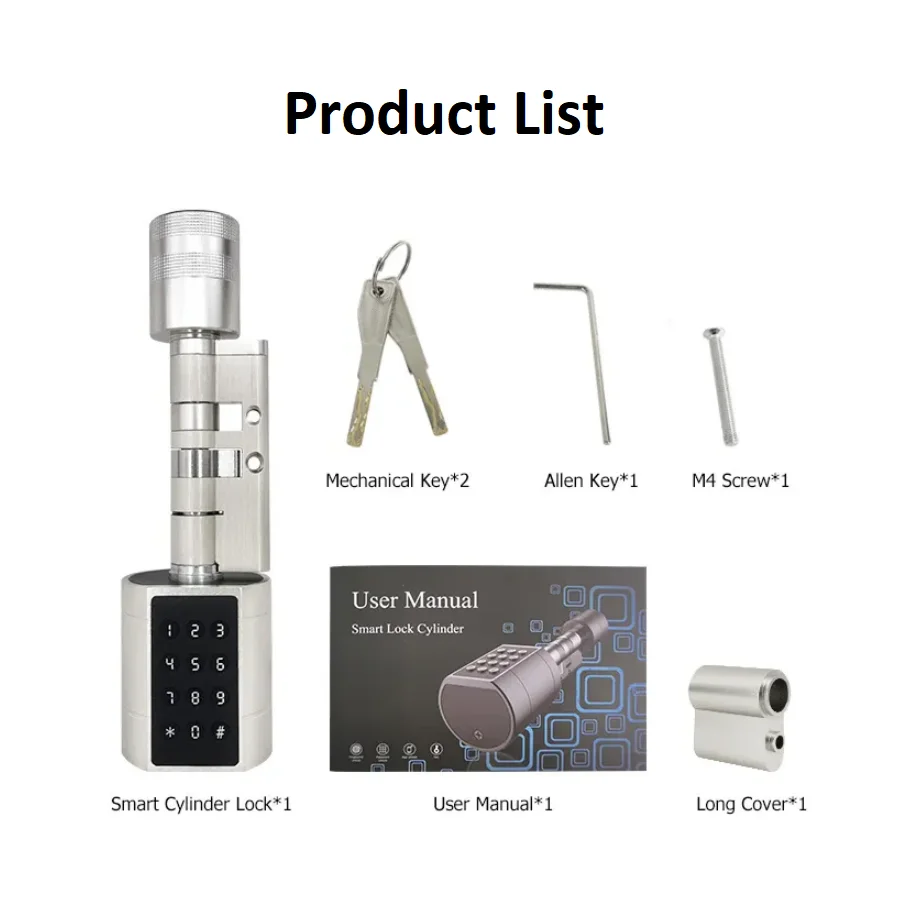
A too-tight set screw prevents the handle from springing back. Locate the 2mm hex screw on the interior handle hub and loosen it 1/4 turn using an appropriate Allen wrench. Test the handle after each adjustment—the ideal tension allows smooth operation without wobbling. Over-tightening strains the internal motor and causes premature wear, while too loose creates play that confuses the lock’s position sensors.
Verify Square Bar Length
Tuya locks ship with a 70mm square bar, but doors between 35-45mm thick require the 60mm version. Measure your door thickness—if the bar protrudes more than 5mm from either side, binding occurs. This prevents proper spring return and strains the motor. Replacement takes under five minutes: remove the handle, swap the bar, and reassemble. The correct bar length ensures your Tuya smart lock not unlocking issues don’t recur due to mechanical stress.
Fix Key Override Issues
Confirm Correct Key Usage
Tuya locks use double-row pin tumblers with different cut depths for master versus tenant keys. Try your spare key—master keys might work when tenant keys fail due to wear. Key cuts degrade over time, especially with frequent use. If your primary key fails but the spare works, replace the worn key immediately. Never force a key that doesn’t turn smoothly, as this can shear internal pins.
Relieve Door Frame Pressure
Swollen wooden frames or temperature changes can bind the dead-latch. While turning the key, simultaneously jiggle the door handle and apply gentle pressure to the door itself. This releases binding pressure and allows the latch to retract. If this works, plan to adjust your strike plate alignment to prevent future occurrences—misaligned doors cause 40% of mechanical lock failures.
Battery Management Best Practices
Monitor Levels Monthly
Check battery status through the Tuya app—tap your lock, then the battery icon. Replace promptly at 20% remaining to avoid emergency lockouts. The lock allows emergency unlocks until 5% battery, but performance becomes unreliable below 15%. Set calendar reminders based on your usage pattern—expect 8-10 months with standard use, but only 3-4 months if you enable voice prompts.
Choose Correct Battery Type
Use only alkaline 1.5V AA batteries or 3.7V 2600mAh 18650 Li-ion cells depending on your model. Mixing battery types causes uneven discharge and premature failure. Remove batteries entirely if the lock won’t be used for 90+ days to prevent leakage damage. Never use rechargeable NiMH batteries—they operate at 1.2V instead of 1.5V, causing early low-battery warnings.
Prevent Future Lockouts
Quarterly Maintenance Schedule
Every three months, wipe down the entire lock exterior with a microfiber cloth and neutral pH cleaner. Check strike plate screws—tighten to 2.0 N⋅m using a Phillips #2 screwdriver. This prevents gradual loosening that causes alignment issues. Lubricate the latch mechanism annually with graphite powder—never use petroleum-based lubricants as they attract dust and gum up over time.
Backup Access Methods
Always maintain at least two working access methods beyond your primary one. Store a physical key with a trusted neighbor, and ensure multiple family members have app access. Consider adding a smart keypad as secondary access for critical situations. Test all backup methods monthly—don’t wait until you’re locked out to discover a spare key doesn’t work.
Key Takeaway: When your Tuya smart lock not unlocking becomes a reality, start with the simplest solutions first—90% of failures stem from dead batteries, dirty sensors, or network issues. Replace batteries immediately, clean all contact surfaces, and verify your Wi-Fi connection before attempting complex repairs. Establish a monthly battery check routine and quarterly maintenance schedule to prevent most lockout scenarios. If problems persist after these steps, consult Tuya’s regional support with your specific model number and failure symptoms for targeted assistance.



