
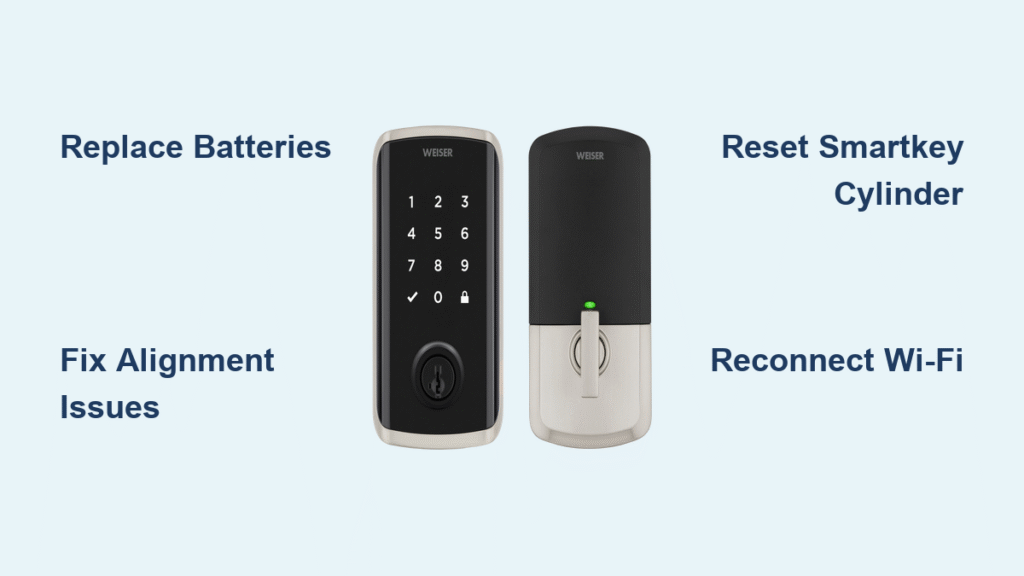
Your Weiser smart lock starts acting up right when you’re rushing out the door. The keypad flashes red, beeps incessantly, or worse—refuses to lock entirely. Before you panic about being locked out or spending hundreds on a locksmith, know this: most Weiser smart lock failures stem from just a handful of fixable issues. Whether it’s an installation hiccup, dead batteries, or programming glitches, you can resolve 90% of problems in under 30 minutes with the right approach.
This guide walks you through every possible scenario when your Weiser smart lock stops working, from simple battery swaps to complex network resets. You’ll learn to diagnose symptoms quickly, execute proven fixes, and prevent future failures—all backed by Weiser’s official troubleshooting protocols. No more guessing games when your Weiser smart lock not working situation strikes at the worst possible moment.
Stop Red Flashing Keypad and Beeping Immediately
Decode Red Light Patterns for Quick Diagnosis
When your Weiser lock’s keypad flashes red, it’s communicating specific problems through coded signals. Three short red flashes with accompanying beeps indicates an invalid access code entry. Continuous red flashing during locking attempts signals installation or alignment issues that prevent the deadbolt from fully engaging. A solid red light after unlocking points to either low battery conditions or mechanical obstruction in the bolt path.
Critical diagnostic steps to take:
– Count the flash pattern: 3 flashes = wrong code, continuous = hardware issue
– Listen for matching beep sequences—sound and light patterns correspond
– Note when the red light appears: after unlocking differs from during programming attempts
Eliminate Continuous Beeping Within Minutes
That non-stop beeping typically means your lock can’t complete its locking cycle due to physical obstruction. The deadbolt might be jammed against the strike plate, or wiring got pinched during installation. Start by verifying if the deadbolt slides freely when the door is completely open—this eliminates alignment issues as the culprit.
Immediate actions to silence the beeping:
– Remove interior cover and check for loose wire connections at the circuit board
– Verify deadbolt aligns perfectly with strike plate (should slide in without resistance)
– Test lock function with door both open and closed to isolate the problem
– Look for obstructions in deadbolt path like paint buildup or debris
Replace Batteries to Fix Weiser Smart Lock Not Working
Install 4 AA Batteries Correctly in Under 5 Minutes
Dead batteries cause 60% of Weiser smart lock failures. Your lock requires four standard AA alkaline batteries—never use rechargeable or lithium variants that can damage the electronics. When the keypad responds sluggishly or shows red flashes on every button press, swap batteries immediately before attempting other fixes.
Proper battery replacement sequence:
1. Slide battery tray downward from interior assembly
2. Note orientation: top two batteries face positive up, bottom two face positive down
3. Install fresh alkaline batteries (Duracell or Energizer recommended)
4. Test keypad responsiveness before reinstalling cover
Critical tip: Always keep batteries installed during any reset procedures to avoid accidental lockouts—power loss during resets can permanently disable your lock.
Prevent Rapid Battery Drain with Network Reset
If new batteries die within weeks, your lock’s Wi-Fi or Bluetooth radio might be stuck in constant transmit mode. Check the Weiser app for persistent connectivity attempts that drain power. A targeted network reset often resolves this issue without requiring full factory reset.
Network reset procedure for battery drain:
– Hold Program button for 10 seconds until blue LED blinks (Wi-Fi models)
– Re-pair lock to app after reset completes
– Monitor battery voltage weekly for first month post-reset
– If problem persists, consider relocating your router closer to the lock
Fix Installation Errors Causing Lock Malfunction
Correct Misaligned Door Holes Causing Binding

Poor installation causes most mechanical failures in Weiser smart locks. If your lock worked initially but now struggles, seasonal temperature changes might have shifted door alignment. The deadbolt must slide smoothly into the strike pocket without resistance—any binding prevents proper operation.
Alignment verification checklist:
– Ensure deadbolt tapers toward door frame (check for “UP” marking)
– Confirm strike plate sits flush with frame edge with no gaps
– Verify door closes fully without requiring extra force
– Check for gaps between lock exterior and door surface
Quick fix for minor misalignment:
1. Loosen strike plate screws slightly
2. Adjust plate position using elongated screw holes
3. Tighten screws while testing deadbolt movement
4. Chisel strike pocket deeper if needed (light taps only with sharp chisel)
Resolve Wiring Issues Causing Intermittent Failures

Pinched or disconnected wires during installation create frustrating intermittent failures. The symptom pattern: lock works sometimes, flashes red unpredictably, or specific buttons stop responding after certain weather conditions. These issues often stem from wires getting crimped between interior and exterior halves during assembly.
Wiring inspection protocol:
– Remove interior cover carefully using a plastic pry tool
– Check color-coded wire connections at circuit board for looseness
– Inspect entire wire path for crimps or pinching points
– Ensure wire harness isn’t stretched or compressed when reassembling
Fix SmartKey Cylinder Problems Without Professional Help
Reset a Stuck Key Cylinder in 60 Seconds
The SmartKey rekeying system occasionally jams, leaving your key stuck or preventing rotation. This happens when the learning position wasn’t fully engaged during rekeying attempts. You can usually resolve this without removing the entire lock.
Cylinder reset procedure:
1. Insert original key fully (door must be locked)
2. Gently pull key out 1-2mm while turning clockwise
3. Stop at 90° rotation (learning position)
4. Insert SmartKey tool fully, then remove
5. Remove original key, insert new key
6. Turn new key ½ turn counterclockwise
Critical warning: Without any working key available, you must take the entire lock to an authorized Weiser dealer—the cylinder cannot be reset DIY in this scenario.
Restore Network Connectivity When App Fails
Reconnect Wi-Fi and Bluetooth Successfully
Connection failures between your lock and app usually stem from signal strength issues or router compatibility problems. The lock requires minimum -60 dBm signal strength for reliable operation—check this in your router admin panel.
Connection troubleshooting sequence:
– Move router closer or add mesh node within 10 feet of lock
– Update router firmware to WPA2/WPA3 only (no mixed mode)
– Factory reset lock before re-pairing (hold Program 10 seconds)
– Keep phone within 10 feet during entire setup process
Fix Auto-Lock Feature That Won’t Engage
When auto-lock stops working, verify three critical elements: feature enabled in app, door closes completely, and deadbolt moves freely into strike plate. Many users miss the door closure requirement—auto-lock won’t engage if the door isn’t fully shut.
Auto-lock reset process:
1. Disable auto-lock feature in Weiser app
2. Perform hardware reset (hold Program during battery reinsertion)
3. Re-enable auto-lock after successful re-pairing
4. Test with door open first, then closed to verify operation
Execute Complete Factory Reset as Last Resort
Perform Hardware Reset Without Data Loss Panic
When all else fails, the factory reset erases all user codes and network settings, returning the lock to default state. This takes approximately 2 minutes but requires reprogramming everything afterward—plan for 15 minutes total reset time.
Reset steps with precision timing:
1. Remove battery cover and battery pack
2. Hold Program button while reinserting batteries
3. Continue holding until red LED flashes (exactly 3 seconds)
4. Release button, then press Program once more
5. Wait for green LED confirmation flash
6. Allow full 10 seconds for auto-calibration cycle
Post-reset essentials: You’ll need your master code handy and should re-add user codes one by one, testing each before proceeding. Network reconnection must happen before code reprogramming for Wi-Fi models.
Prevent Future Weiser Smart Lock Failures
Implement Monthly Maintenance Routine
Prevent 80% of Weiser smart lock problems with simple monthly checks that take less than 5 minutes:
– Test all user codes weekly to catch failures early
– Check battery level in app monthly (replace at 1.4V per cell)
– Clean keypad with dry microfiber cloth (never use liquids)
– Verify deadbolt alignment seasonally as temperature changes
– Update Weiser app immediately when prompted
Critical weather tip: Install fresh batteries before winter months—cold temperatures dramatically reduce battery performance. Check door seal integrity to prevent shifting that misaligns the deadbolt.
Your Weiser smart lock should provide years of reliable service with proper installation and basic maintenance. Most “not working” scenarios resolve quickly once you identify the specific failure pattern. Keep this guide bookmarked—you’ll likely need it only once, but when you do, it saves hours of frustration and potentially costly service calls. When your Weiser smart lock not working situation arises, methodical troubleshooting beats panic every time.



