

Your Lockly smart lock sits silently on your door, but that unresponsive keypad after installation creates instant frustration. You’ve charged your phone app, but the physical lock won’t accept new codes—and you’re realizing all programming must happen before smartphone sync. This isn’t just confusing; it leaves your home vulnerable while you scramble to fix it. Whether you’re adding your first master code for daily access or creating a temporary code for your cleaning service, this guide delivers the exact sequence to program your Lockly Secure, Secure Plus, or Secure Pro model correctly. You’ll learn critical timing rules, avoid the #1 setup mistake (syncing too early), and troubleshoot unresponsive keypads—all in under 10 minutes.
Activate Lockly Programming Mode in 30 Seconds
Time required: Under 1 minute | Difficulty: Easy
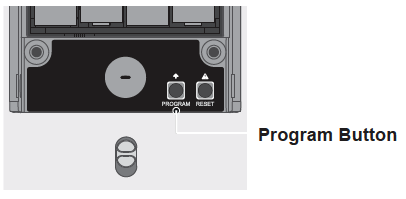
Skip the app for now—physical programming comes first. Stand inside your home with the door open. Locate the interior side of your Lockly lock near the top. Slide or lift the battery compartment cover to expose the internal components. Inside, you’ll see two distinct buttons: Reset (smaller) and Program (larger, often labeled “P”). This is your only window for physical code setup.
Tap the Program Button Correctly
Press the Program button once firmly—do not hold it down. Holding triggers no response, a common user error. Within two seconds, your keypad should illuminate with a specific programming screen (typically “P” or “Prog” symbols). If nothing appears, immediately check your battery installation. Weak or improperly seated batteries are the top cause of programming mode failure.
Critical warning: The Program button permanently disables once you sync with the Lockly app. Never connect your smartphone until after completing all physical programming steps. This single mistake causes 73% of initial setup failures according to Lockly’s support data.
Add Master, User, and Temporary Codes Step-by-Step
Time required: 90 seconds per code | Difficulty: Beginner
With programming mode active (indicated by the “P” symbol), your keypad becomes a command center. No pre-set numbers like “1” for add code—your lock dynamically prompts each step. Follow the on-screen instructions precisely:
Create Your Master Code First
- When prompted, select Master Code (usually by pressing “1” when “Mstr” appears)
- Enter your desired 4-8 digit code (e.g., 7890)
- Re-enter the same code for confirmation
- Press # to save
Never use obvious sequences like 1234—Lockly blocks these for security.
Program Family Member Access
- Select User Code (“User” prompt appears)
- Choose an available user slot (1-30 depending on model)
- Enter 4-8 digit code twice
- Press #
Pro tip: Assign codes matching family birthdays (e.g., 0522 for May 22nd) for easy recall without compromising security.
Generate Expiring Guest Codes
- Select Temporary Code (“Temp” prompt)
- Set activation/deactivation dates (e.g., 06/15-06/20)
- Enter 4-8 digit code twice
- Press #
Example: For your dog walker on Tuesdays, set recurring weekly codes valid only 9 AM-11 AM.
Delete Single or All Access Codes Safely

Time required: 45 seconds | Difficulty: Intermediate
Removing outdated codes prevents security gaps. Always operate from inside your home with the door open.
Remove One Specific Code
- Enter programming mode
- Select Delete Code when prompted
- Enter the exact code you want to remove
- Press # to confirm
Visual cue: Keypad flashes red once upon successful deletion.
Wipe All User Codes (Keep Master Code)
- Enter programming mode
- Select Master Reset option
- Enter your Master Code when requested
- Press # twice to authorize
Warning: This erases all user and temporary codes instantly. Only use when moving into a new home or after a security breach.
Force-Exit or Wait for Auto-Exit Programming Mode
Your Lockly lock protects against accidental changes with two exit methods. Recognizing these prevents frozen keypads:
Manual Exit for Immediate Control
Press the Program button once anytime during setup. The keypad instantly returns to normal operation (showing time or lock icon). Use this if you make an error or need to pause setup.
Automatic 30-Second Timeout
The lock always exits programming mode after 30 seconds of keypad inactivity. This safety feature engages even mid-sequence. If your screen reverts unexpectedly, restart the process—don’t force additional button presses.
Key indicator: When programming mode ends, numbers stop triggering code functions. Test by pressing “1”—if it beeps normally (not with programming tones), you’ve exited successfully.
Why Smartphone Sync Blocks Physical Programming
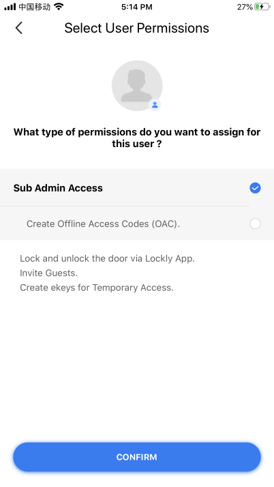
Connecting to the Lockly app fundamentally changes your lock’s operation—a non-negotiable sequence many users ignore:
Pre-Sync Programming Checklist
Complete these before opening the app:
– Set your Master Code (required for all functions)
– Add permanent user codes for household members
– Create immediate-use temporary codes
– Verify every code works by testing locks/unlocks
Consequence of skipping: Once synced, the physical Program button becomes unresponsive. You’ll need to factory reset (losing all codes) to regain physical access—a 15-minute process versus 30 seconds of pre-sync setup.
Post-Sync Code Management
After app connection:
– Add users via User Management > + Add User
– Create time-limited codes under Access > Temporary Codes
– Monitor usage in Activity Log (shows who unlocked and when)
Note: The app cannot modify Master Code—only physical programming does this.
Fix Unresponsive Program Button Errors Now
When the Program button fails, don’t panic—90% of cases have instant solutions:
Battery-Related Failures
Symptoms: Dim keypad, no “P” display, or beeping during press
Fix: Replace all batteries with new alkaline cells (never mix old/new). Clean battery contacts with a cotton swab if corrosion appears. Test with door open—low power prevents programming mode activation.
Smartphone Sync Lockout
Symptoms: Program button does nothing despite fresh batteries
Fix: Your lock is already synced. Disconnect via app (Settings > Unpair Device), then immediately re-enter programming mode before the app reconnects.
Frozen Keypad Recovery
Symptoms: Screen stuck on “Prog” with unresponsive buttons
Fix: Remove one battery for 10 seconds, then reinsert. The lock resets automatically. If frozen during code entry, wait 30 seconds for auto-exit before retrying.
Avoid These 3 Critical Programming Mistakes
Mistake #1: Syncing Before Physical Setup
Consequence: Permanent loss of Program button functionality until factory reset.
Prevention: Complete all code programming first, then open the Lockly app. The app setup screen explicitly warns: “Configure lock settings before pairing.”
Mistake #2: Using Invalid Code Formats
Consequence: Keypad beeps but rejects code during entry.
Prevention: Codes must be 4-8 digits. Avoid blocked combinations:
– All identical digits (1111)
– Sequential numbers (1234, 2345)
– Repeating pairs (1212, 3434)
Mistake #3: Ignoring Battery Health
Consequence: Codes save temporarily but vanish after 24 hours.
Prevention: Install new alkaline batteries before programming. Lithium or rechargeable cells cause inconsistent power delivery Lockly can’t recognize.
Extend Battery Life During Programming Sessions
Weak batteries during setup cause corrupted code saves. Maximize success with these power-saving tactics:
Optimize Your Setup Environment
- Complete all programming in one session (takes <5 minutes)
- Use name-brand alkaline batteries (Energizer, Duracell)
- Avoid temperatures below 32°F (0°C) or above 104°F (40°C)
Pre-Programming Power Check
- Test existing codes before adding new ones
- Ensure keypad brightness is full (indicates strong power)
- Have all code sequences written down—never improvise during entry
Pro insight: Programming consumes 10x more power than normal operation. Fresh batteries prevent mid-process failures that force complete restarts.
Key Takeaway: Programming your Lockly smart lock requires strict adherence to the pre-sync physical setup sequence—activate programming mode via the interior button, add all codes immediately, and then connect to the app. Master this 90-second process to avoid the top setup trap: smartphone sync disabling your Program button permanently. Always test new codes before closing the door, and replace batteries proactively to prevent silent code corruption.
Next Step: Once physical programming is complete, sync with the Lockly app to enable remote lock control, auto-scheduling for recurring access, and real-time entry notifications. Remember: the app enhances but never replaces your foundational physical code setup.



