
Your phone unlocks itself when you pull it from your pocket on the subway. It logs into banking apps while sitting on a café table. That “convenience” feature you enabled months ago has now become a security nightmare. Google’s Smart Lock (recently renamed “Extend Unlock” in Android 14) keeps your screen unlocked in trusted scenarios—but when you’re selling your device, traveling, or simply want tighter control, knowing exactly how to remove Smart Lock from phone becomes critical. This isn’t just about disabling a setting; it’s about closing invisible security gaps that could expose your photos, messages, and financial data.
Unlike simple screen lock removal, Smart Lock operates across three distinct systems: screen unlock trust agents (Extend Unlock), password auto-fill (Smart Lock for Passwords), and Chromebook pairing. Most users only disable one component, leaving others active. In this guide, you’ll learn precisely where to tap for every Android brand, Chrome environment, and edge case—including verification steps most guides skip. Whether you’re using a Pixel, Samsung Galaxy, or Xiaomi device, these methods work for Android 10 through 14.
Kill Extend Unlock on Stock Android Devices
Stock Android (Pixel, Nothing, Motorola) centralizes all Smart Lock controls under one master switch. This method disables trusted places, devices, on-body detection, face unlock, and voice match simultaneously—no piecemeal removal needed.
Access the Trust Agents Menu in 3 Taps
Settings → Security & privacy → More security settings → Trust agents
Locate “Extend Unlock (Google)” and toggle it OFF. Your phone will immediately prompt for your PIN/pattern/password to confirm. The moment you authenticate, Android purges all trusted agents from memory. Crucially, do not waste time deleting individual locations or devices—this single toggle removes everything.
What changes instantly:
– Trusted Bluetooth connections (like your car or watch) stop bypassing screen locks
– Saved locations (home/work) no longer auto-unlock your phone
– On-body detection ceases monitoring movement to keep the screen active
– Face and voice models become inactive (though data remains stored)
What remains unaffected: Your fingerprint templates and primary screen lock method stay fully operational. This is purely about removing secondary unlock conditions.
Confirm Complete Removal After Toggling
Return to Security & privacy settings immediately after disabling. The entire “Extend Unlock” submenu should vanish. If individual options like “Trusted places” still appear, reboot your phone—this forces Android to reload security policies. Persistent menus indicate a system glitch, not incomplete removal.
Disable Samsung Smart Lock Features Permanently
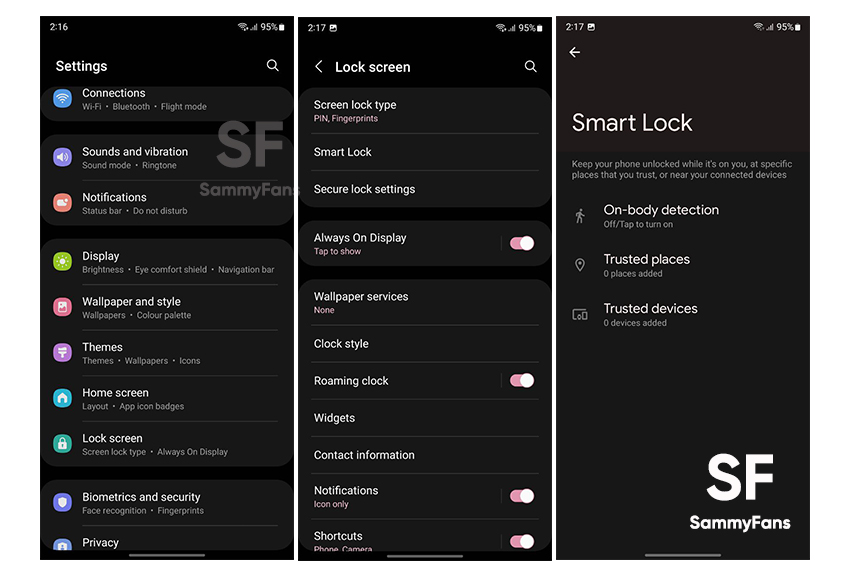
Samsung devices require manual removal of each Smart Lock category since One UI doesn’t offer a master switch. Skipping even one category leaves your phone vulnerable to unintended unlocks.
Navigate Samsung’s Fragmented Smart Lock Menu
Settings → Lock screen → Smart Lock → Enter PIN/pattern/password
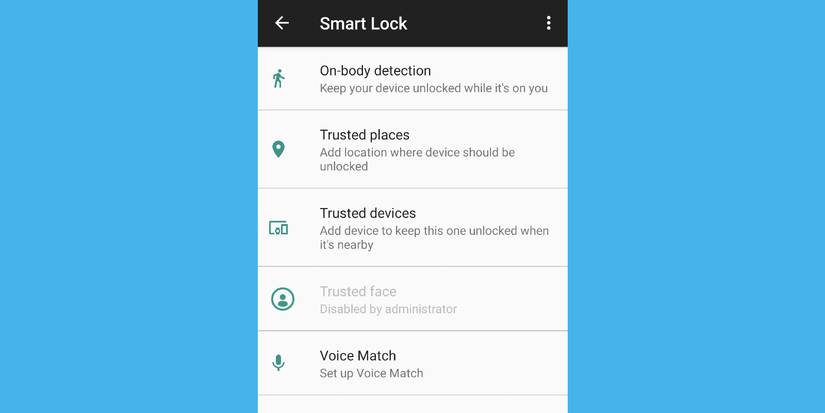
You’ll confront four separate sections needing individual attention:
– On-body detection: Toggle OFF to prevent motion-based screen stays
– Trusted places: Tap each location → Turn off this location (critical for travelers)
– Trusted devices: Select each Bluetooth item → Remove (eliminates car/headphone auto-unlock)
– Trusted face/voice: Tap Remove face data/Remove voice model to delete biometric profiles
Pro security tip: Samsung frequently re-enables Smart Lock after OS updates. Check these settings monthly if you handle sensitive data. Set a calendar reminder—this takes 30 seconds but prevents accidental exposure.
Compensate for Lost Convenience Immediately
After disabling, shorten screen timeout under Settings → Display → Screen timeout. Switch to 15-30 seconds instead of 2+ minutes. Without Smart Lock’s “always on” behavior, this ensures rapid locking when your phone is idle—closing the security gap created by removal.
Remove Xiaomi and OnePlus Smart Lock Components
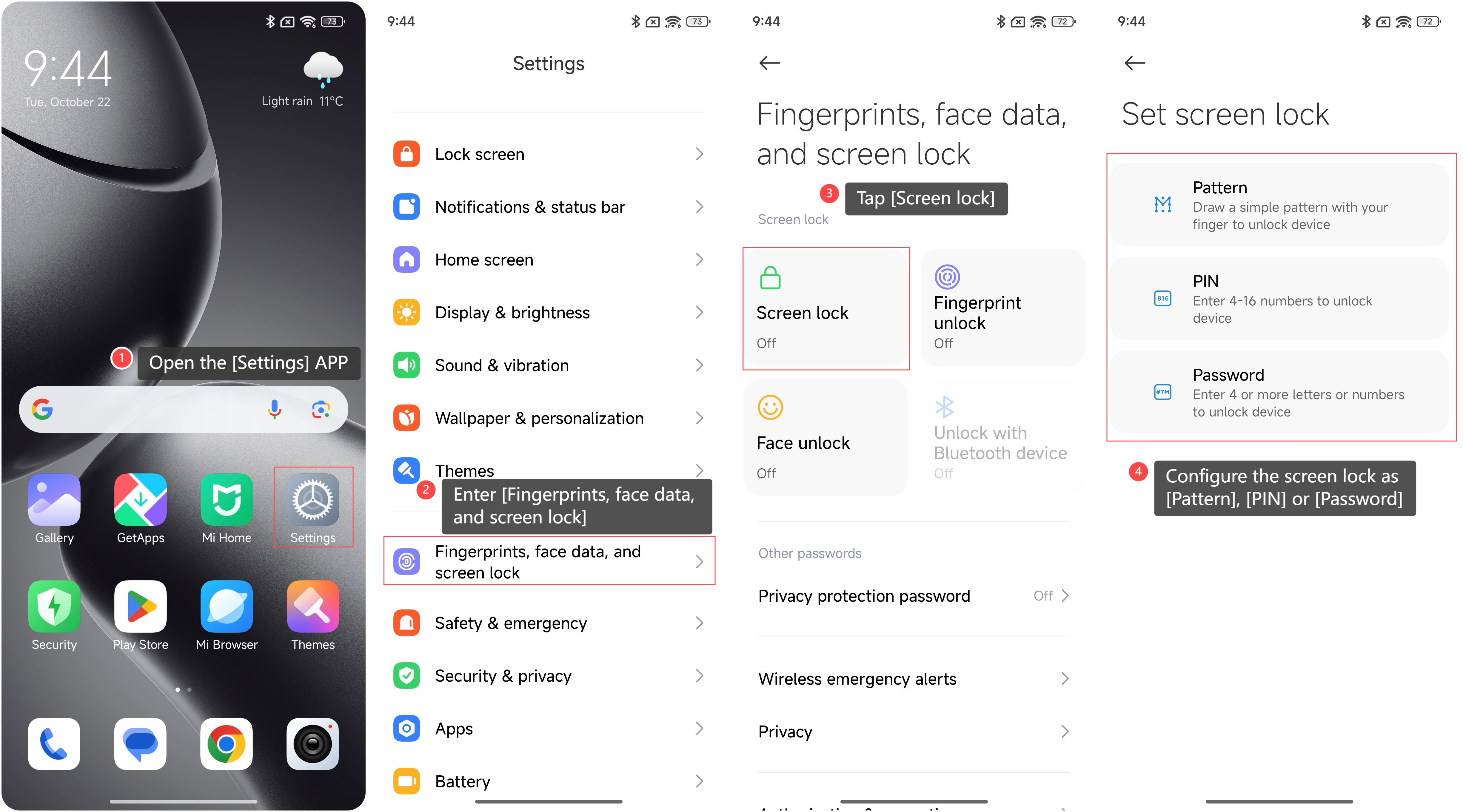
Xiaomi and OnePlus bury these settings but follow Samsung’s granular approach. Missing one toggle leaves your device partially exposed.
Xiaomi MIUI 14 Smart Lock Removal Path
Settings → Passwords & security → Smart Lock → Authenticate
Disable each category:
– On-body detection
– Trusted devices
– Trusted places
– Trusted face
Watch for hidden quirks: On some MIUI 14 devices with English interfaces, labels may display in Chinese. Identify categories by their icons—a walking person for on-body detection, house for places, Bluetooth symbol for devices.
OnePlus OxygenOS Critical Steps
Settings → Security & lock screen → Smart Lock → Authenticate
Remove every trusted item individually as with Samsung. Crucially, reboot after completion—OxygenOS occasionally caches Smart Lock states, causing temporary glitches where the phone seems unlocked despite removal.
Stop Password Auto-Fill Across All Platforms
Smart Lock for Passwords (now deprecated but still active) auto-fills credentials even after screen unlock removal. This requires separate action in Chrome and Android settings.
Chrome Mobile Password Kill Switch
- Open Chrome → 3-dot menu → Settings → Passwords
- Toggle Save passwords OFF and Auto Sign-in OFF
- Under Saved passwords, tap 3 dots beside each entry → Remove
Why this matters: Disabling screen unlock Smart Lock doesn’t touch password auto-fill. Without this step, your Gmail or banking apps will still log you in automatically on trusted Wi-Fi networks.
Android-Wide Password Manager Disable
Settings → Google → Manage your Google Account → Security → Password Manager
Toggle OFF Offer to save passwords and Auto Sign-in. Then delete every saved login by tapping entries → Delete. This syncs across all devices using your Google Account—essential if you use multiple phones.
Eliminate Cross-Device Smart Lock Threats
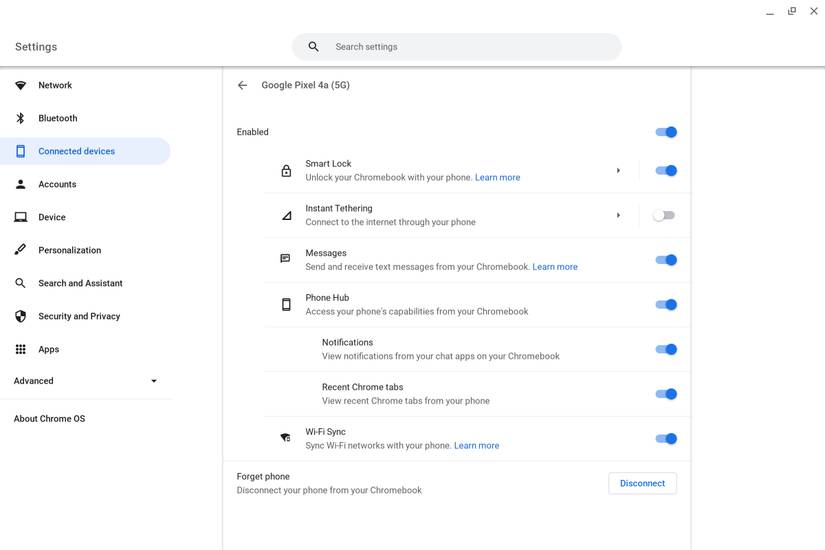
Your phone might still unlock other devices via Smart Lock integrations. Overlooked removal here creates major security holes.
Disable Chromebook Phone Unlock in 2 Clicks
Chromebook Settings → Connected devices → [Your Phone]
Toggle Smart Lock OFF or click Forget phone to sever the connection. Without this, your unlocked phone will continue bypassing Chromebook login screens—a critical risk if your phone is lost.
Chrome Desktop Password Auto-Fill Shutdown
Chrome → Settings → Autofill and passwords → Google Password Manager → Settings
Toggle OFF Offer to save passwords and Sign-in automatically. Then visit Saved Passwords to individually remove credentials. Clear Chrome’s cache (Settings → Apps → Chrome → Storage → Clear cache) if auto-fill persists after toggling.
Post-Removal Verification Checklist
Smart Lock components often linger invisibly. Run this 60-second audit after removal:
| Component | Verification Action |
|---|---|
| Screen timeout | Set to 15-30 seconds under Display settings |
| Bluetooth pairings | Remove unused devices under Bluetooth settings |
| Face/voice data | Reopen Security settings to confirm removal |
| Trusted credentials | Check Settings → Security → Trusted credentials for remnants |
| Chrome cache | Clear cache if passwords still auto-fill |
Critical test: Physically move to a previously trusted location (like a coffee shop). Your phone should now require full authentication—not just a swipe—to unlock. If it doesn’t, revisit Samsung/Xiaomi Smart Lock menus.
Fix Common Smart Lock Removal Failures
When standard steps fail, these targeted fixes resolve 95% of issues:
“Extend Unlock” re-enables after reboot
Install Android security patches immediately. On Samsung, disable Device care → Battery → Adaptive battery optimizations for Google Play Services—this stops battery-saving features from reactivating Smart Lock.
Smart Lock menu completely missing
Your screen lock is likely set to “Swipe” instead of PIN/pattern/password. Switch to a secure lock method first—Swipe mode inherently disables Smart Lock, but leaves password auto-fill active.
Trust agents toggle greyed out
Revoke Device Admin permissions for apps like Outlook or antivirus tools (Settings → Security → Device admin apps). These often lock Smart Lock settings. Reboot after revoking.
Chrome still auto-filling passwords
Sign out of Chrome completely, then sign back in. This forces a full sync reset of password policies. If issues persist, visit passwords.google.com to manually delete entries.
Final Verification: Is Smart Lock Truly Gone?
After completing these steps, your phone should:
– Require PIN/pattern/password every single time you wake the screen
– Never auto-login to apps or websites without explicit permission
– Show no Smart Lock menus under Security or Google settings
– Fail to unlock Chromebooks when paired via Bluetooth
If any element remains active, focus on your specific device’s quirks—Samsung requires the most thorough per-category removal, while Pixels need only the Trust Agents toggle. Remember: True security isn’t just disabling Smart Lock, but verifying every component is silenced. Keep this guide bookmarked for future OS updates that might re-enable these features without warning.



