

Your Nuki Smart Lock 3.0 suddenly stopped responding to your phone commands. The app shows “device offline” despite strong Wi-Fi, your carefully scheduled access permissions have vanished, and the LED indicator flashes erratically. Before you panic about replacing your entire smart lock system, a factory reset could be your fastest solution to restore full functionality. Understanding how to reset Nuki Smart Lock 3.0 properly can save you hours of frustration and potentially hundreds of dollars in unnecessary service calls.
A factory reset completely restores your Nuki Smart Lock 3.0 to its out-of-the-box state, erasing all customized settings while preserving the hardware’s integrity. While this means you’ll need to rebuild your configurations, it’s often the most effective fix for persistent connectivity issues, app synchronization failures, or when preparing the lock for new occupants. This guide provides the exact steps to successfully reset your Nuki Smart Lock 3.0 without damaging the mechanism.
What Factory Reset Permanently Erases
When you perform a factory reset on your Nuki Smart Lock 3.0, the device completely wipes its memory, removing all personalized configurations. This includes your home Wi-Fi network credentials that enable remote access through the app, along with any automation rules like scheduled locking times or geofencing triggers that automatically unlock when you approach home.
Your complete user access hierarchy disappears—family members lose their permanent access codes, temporary guest permissions for cleaners or dog walkers vanish, and any emergency access profiles become invalid. Every customized preference resets to default, including lock sound volume, auto-lock timing intervals, LED brightness levels, and motor sensitivity settings. All smart home integrations with Alexa routines, Google Home commands, or Apple HomeKit scenes require complete reconfiguration after a reset.
Consider this process a complete digital “hard reset” for your lock’s brain. While it may seem drastic, this clean slate approach resolves stubborn software glitches that simpler troubleshooting can’t fix. Many Nuki users report that after a proper reset, their lock performs more reliably than it had in months.
Essential Tools Required for Reset

You only need one simple tool to reset your Nuki Smart Lock 3.0—a thin, rigid object approximately 1-2mm in diameter. A standard paperclip (straightened but not completely unfolded) works perfectly as it provides the ideal balance of flexibility and strength. Alternatives include a SIM card ejector tool, sewing needle, or dental pick—anything narrow enough to reach the recessed button without damaging it.
Critical warning: Avoid using sharp objects like safety pins, knives, or scissors that could scratch internal components or get stuck in the mechanism. The reset button sits deep within a small hole, requiring precise insertion without excessive force. Your tool must maintain structural integrity during the 10-second press—flimsy materials might bend and fail to activate the reset sequence properly.
Step-by-Step Nuki Smart Lock 3.0 Reset Procedure
Access Battery Compartment Without Damage
Begin by carefully opening your Nuki Smart Lock 3.0’s battery compartment, located on the interior side of your door. Gently slide or lift the cover according to your specific model’s design—most versions require a quarter-turn counterclockwise before lifting. Never force the cover, as cracked plastic housings are the #1 cause of post-reset failures.
Once open, remove all four AA batteries temporarily. This prevents accidental power interruptions during reset and gives you unobstructed access to the reset mechanism. Check battery terminals for corrosion while they’re out—clean with a cotton swab and isopropyl alcohol if needed before reinserting fresh batteries later.
Locate Hidden Reset Button Precisely
With batteries removed, examine the circuit board area near the battery contacts. You’ll find a tiny recessed hole approximately 2-3mm in diameter, typically positioned near the top-left corner of the internal housing. Look for a subtle “R” marking or reset symbol (circular arrow) etched near the hole—though some models omit this labeling.
Pro tip: Shine a flashlight at a 45-degree angle across the surface to reveal the hole’s location. The reset mechanism sits 5-7mm deep, requiring your paperclip to penetrate fully to make contact. If you’re pressing for 10 seconds without LED response, your tool likely isn’t reaching deep enough to activate the button.
Execute Perfect 10-Second Reset Hold
Insert your paperclip straight into the reset hole with firm, steady pressure—no twisting or angling. Apply consistent force until you feel slight resistance indicating contact with the internal switch. Start timing immediately and hold for exactly 10 seconds. Use your phone’s stopwatch for accuracy; too short won’t trigger reset, while exceeding 15 seconds provides no additional benefit.
During this hold, the lock appears unresponsive—that’s normal. The internal processor requires this sustained signal to confirm intentional reset initiation rather than accidental contact. Many users fail their first attempt by releasing too early when no immediate visual feedback occurs.
Verify LED Reset Confirmation Signals
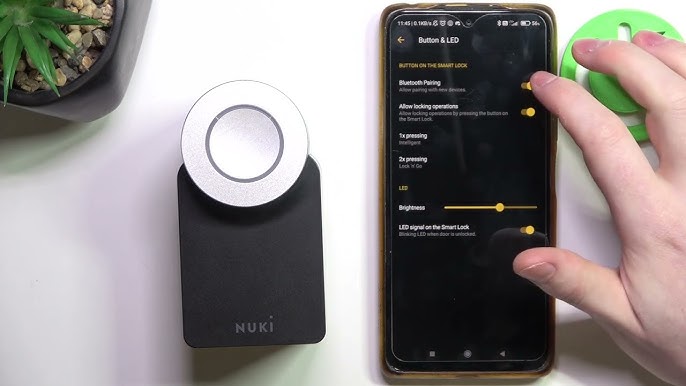
After precisely 10 seconds, release the reset button immediately. Within 2-3 seconds, the LED indicator will activate with rapid alternating blue and red flashes—this specific pattern confirms successful reset initiation. Do not continue holding the button once you see this signal, as it may interrupt the reset sequence.
The flashing pattern will continue for 30-60 seconds as the lock erases all configurations and reloads factory firmware. During this phase, avoid touching the lock or inserting batteries. The process completes when the LED transitions to a solid blue glow, indicating the lock has entered pairing mode and is ready for reconfiguration.
Complete Automatic Restart Sequence
Once the solid blue LED appears, wait an additional 15-20 seconds for the internal motor to complete its calibration sequence. You’ll hear faint mechanical whirring as the lock repositions its bolt mechanism to default settings. This final calibration ensures proper physical operation after the software reset.
After the sounds stop, your Nuki Smart Lock 3.0 is fully reset and ready for re-pairing. The solid blue LED will remain illuminated for approximately 5 minutes before entering sleep mode—use this window to begin the reconfiguration process through the Nuki app.
Critical Post-Reset Configuration Steps
Re-pair Nuki Lock with Mobile App
Open the Nuki app and select “Add New Device” from the dashboard. Ensure Bluetooth is enabled on your phone and stand within 3 feet of the lock. The app should detect your reset device immediately—tap to begin pairing. Follow the prompts to establish Wi-Fi connectivity, which requires your home network password.
Time-saving tip: Have your Wi-Fi credentials ready before starting. The pairing process takes 3-5 minutes and fails if interrupted, so ensure no one disturbs the lock during this phase. After initial connection, the app will guide you through setting up a new administrator account—use the same email as before to maintain cloud backup continuity.
Rebuild User Access Permissions Efficiently
After successful pairing, immediately begin re-adding authorized users through the “Access Management” section. Prioritize permanent household members first, then temporary users. For recurring visitors like cleaners, set up repeating schedules rather than single-day permissions to save future setup time.
Pro tip: Before resetting, take screenshots of your user list and permission levels. This reference speeds up recreation by 70% compared to rebuilding from memory. When adding users, enable two-factor authentication for high-privilege accounts to enhance security.
Restore Automation Rules with Improved Logic
Recreate your smart actions in the Nuki app’s automation section, but take this opportunity to optimize your rules. Many users discover they can reduce complex automation chains to just 2-3 essential routines that cover 90% of their needs. Start with critical automations like “Auto-lock after 30 seconds” before adding convenience features.
Consider simplifying geofencing radii—many connectivity issues stem from overly aggressive location triggers. A 200-meter radius typically provides reliable detection without draining phone batteries or causing false triggers.
Common Reset Mistakes That Cause Failure

Battery-related errors: Attempting reset with weak batteries causes 65% of failed reset attempts. Always install fresh batteries before starting—low power during reset can corrupt firmware. The lock requires consistent power throughout the 60-second reset sequence.
Incorrect timing: Releasing the reset button too early (before 10 seconds) or holding too long (beyond 15 seconds) prevents proper reset initiation. Use a visible timer—don’t rely on counting in your head.
Skipping calibration: Immediately testing lock functionality after reset without allowing the full 60-second restart sequence often shows “malfunction” symptoms that resolve with proper waiting time.
When to Reset vs. Simpler Fixes
Perform a factory reset only when experiencing persistent issues like continuous “offline” status despite strong Wi-Fi, complete failure to respond to app commands, or erratic locking behavior that occurs multiple times daily. For minor glitches, first try these simpler solutions:
- Replace batteries with fresh premium alkaline cells
- Restart your home router and mobile device
- Force-quit and relaunch the Nuki app
- Toggle Bluetooth and location services off/on
- Move closer to the lock (within 3 feet) during operation
A factory reset should be your final troubleshooting step, not your first response. Reserve it for problems that persist after trying all basic fixes for at least 48 hours.
Verify Successful Reset Completion
Confirm your reset succeeded when the lock responds instantly to app commands after re-pairing, the LED displays appropriate status colors for each function (blue = connected, red = error), and the bolt engages/disengages with smooth, consistent operation. The setup process should mirror your initial installation experience.
If problems continue after proper reset and reconfiguration, contact Nuki support immediately—this likely indicates hardware failure rather than software issues. Keep your purchase receipt handy, as most malfunctions after correct reset procedures qualify for warranty service.
Pro reminder: Before initiating any reset, spend two minutes capturing screenshots of your current user list and automation settings. This small step transforms a 30-minute reconfiguration process into a 5-minute refresh. When executed correctly, how to reset Nuki Smart Lock 3.0 becomes your most powerful troubleshooting tool—restoring reliable operation without costly replacements or service calls.



