
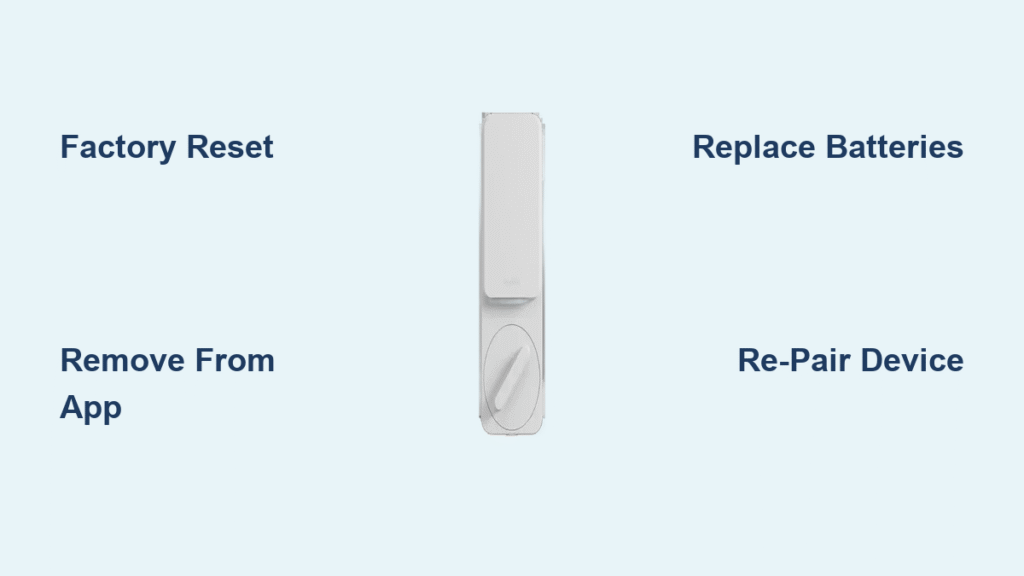
Your SimpliSafe Smart Lock suddenly stops responding when you try to unlock the door through the app, or the keypad flashes erratically after entering your code. Maybe you’ve just moved into a new home and need to wipe previous owner settings for security. Whatever the reason, knowing how to reset SimpliSafe smart lock functionality is critical for regaining control. This guide delivers the exact factory reset procedure verified by SimpliSafe’s official support system—no guesswork, no third-party hacks. You’ll learn when a full reset is necessary, how to avoid common pitfalls during the process, and essential post-reset security steps most guides overlook. By the end, you’ll have a fully functional lock that responds instantly to app commands and keypad inputs.
When Immediate SimpliSafe Lock Reset Becomes Essential
Don’t waste hours troubleshooting when a factory reset solves persistent issues in minutes. Your lock needs this procedure if it ignores app unlock commands despite strong Wi-Fi, shows unresponsive keypad buttons that don’t illuminate, or fails to integrate with your SimpliSafe security system after firmware updates. New homeowners must reset the lock to delete previous access codes—a non-negotiable security step before setting your own PINs. Other critical triggers include forgotten master PINs blocking all access, recurring error codes during auto-lock sequences, or preparing to sell your property. Never attempt a reset if the lock still responds to manual thumb-turn operations—try battery replacement first. If your lock exhibits three or more of these symptoms simultaneously, a full factory reset becomes your fastest path to restoration.
Access SimpliSafe’s Official Reset Tool Before Touching Hardware
Skip generic YouTube tutorials and use SimpliSafe’s interactive reset portal exclusively. This tool prevents critical errors by customizing instructions for your specific lock generation (Gen 1 vs. Gen 2). Visit SimpliSafe’s support page and locate the “Reset Your Smart Lock” section—not the general troubleshooting hub. You’ll need your account login and the 12-digit serial number etched on the lock’s rear housing or original box. The portal asks targeted diagnostic questions:
– Does the keypad emit any sound when buttons are pressed?
– Are there visible error codes (like “E1” or “E5”) on the display?
– Can you manually operate the thumb-turn without resistance?
Answer truthfully—incorrect responses generate mismatched instructions that could brick your device. If the portal confirms a reset is required, it provides model-specific button sequences and LED indicators to watch for. Pro tip: Take screenshots of each step since the tool times out after 5 minutes of inactivity.
Critical Pre-Reset Checklist to Avoid Lockout Scenarios
Rushing into reset without preparation guarantees emergency locksmith calls. First, remove the lock from your SimpliSafe app via My System → Device Settings → Smart Lock → Remove Device. This prevents conflict during re-pairing. Verify your physical key works by manually unlocking the door—test it before starting reset. Gather these essentials:
– Phillips #1 screwdriver (magnetic tip recommended)
– Fresh AA batteries (alkaline only—never rechargeable)
– Paperclip for reset button access
– New master PIN written down outside your home
– Phone with Bluetooth enabled and app updated
Place your phone within 3 feet of the lock location. If resetting due to suspected security breaches, disable all automations like “Lock when Alarm Arms” first. Warning: Skipping battery replacement now risks mid-reset power failure, requiring professional recalibration.
Execute Physical Factory Reset in 3 Verified Steps
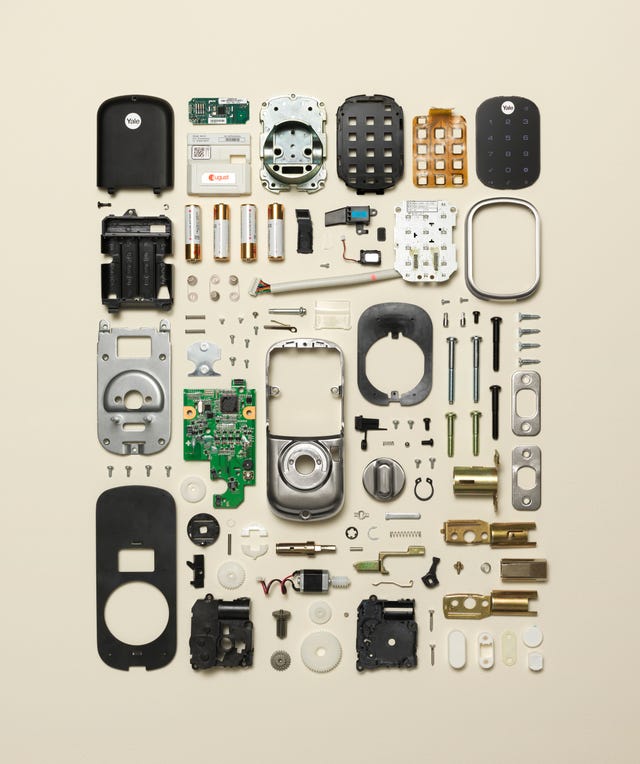
Remove Smart Lock Housing Without Damaging Components
Unscrew the interior mounting plate using even pressure—never force stuck screws. If resistance occurs, apply penetrating oil and wait 10 minutes. Note the exact orientation of wiring harnesses before disconnecting the battery pack. Keep track of screw lengths: top screws are typically 12mm, bottom are 8mm. Place components on a microfiber cloth to avoid scratching finishes.
Locate the Hidden Reset Button Safely
The recessed reset button sits beside the battery terminals inside the main housing. It’s labeled “RESET” in 0.5mm font—use a magnifying glass if needed. Critical mistake to avoid: Using metal tweezers or pins that could short-circuit terminals. A standard paperclip bent to 90 degrees provides safe access without risk.
Trigger Complete Factory Reset Sequence
Press and hold the reset button for exactly 12 seconds while watching the LED. You’ll hear three distinct beeps at 4-second intervals. The light transitions from solid red → flashing blue → solid green, signaling completion. Release immediately after the green light appears—holding longer activates setup mode prematurely. If no beeps occur, reseat batteries and retry. Total time: 60 seconds.
Re-Pair SimpliSafe Lock to System Without Connection Failures
Add Device Using SimpliSafe App’s Guided Flow
Open the app and select Add Device → Smart Lock. The app scans for 30 seconds—press the physical lock button once when the “Found Device” prompt appears. If pairing fails, disable phone Wi-Fi to force Bluetooth priority. Do not select “Smart Lock Pro” unless you own that specific model—mismatched selections cause permanent pairing errors.
Configure PINs and Auto-Lock Timing Securely
During setup, create a 6-digit master PIN (avoid birthdays or repeating numbers). Enable “Require PIN for Unlock” in Advanced Settings to prevent accidental disarming. Set auto-lock to 30 seconds for security—never disable it entirely. Security pro tip: Create temporary guest codes with expiration dates instead of sharing your master PIN.
Validate All Critical Functions Before Reliance
Test these in sequence before considering reset complete:
1. App unlock from 20 feet away (verify vibration feedback)
2. Keypad entry with new PIN (check for delayed response)
3. Manual thumb-turn operation (should rotate smoothly)
4. Integration with SimpliSafe alarm (arm system → lock should auto-engage)
If step 3 fails, disassemble and check for misaligned spindle rods—a common reassembly error.
Fix Post-Reset Issues Using SimpliSafe’s Diagnostic Codes

Resolve “Device Not Found” Pairing Errors
If the app won’t detect your reset lock, remove batteries for 90 seconds (not 30) to clear residual charge. Stand directly beside the lock during pairing—SimpliSafe’s Bluetooth range drops sharply through walls. Update the SimpliSafe app before attempting reset; version 5.8.1 fixed critical pairing bugs. Never factory reset more than twice consecutively—this triggers security locks requiring customer support intervention.
Decode Persistent Error Messages After Reset
“ERR 07” indicates motor calibration failure—reseat the interior assembly and retry reset. “BATT L” despite new batteries means contacts are corroded; clean with isopropyl alcohol and cotton swab. Critical: If “SERV” appears, stop all reset attempts—this signals internal hardware failure requiring replacement. Contact SimpliSafe with your lock’s serial number and video of the error for expedited service.
Correct Reassembly Misalignment Instantly
Binding thumb-turns after reset mean the exterior and interior assemblies are 180° out of phase. Rotate the interior mounting plate until the spindle rod slots into the lock mechanism with zero resistance. Tighten screws in a star pattern (top-left → bottom-right → top-right → bottom-left) to avoid warping. Test rotation before closing the housing—never force the cover shut.
Fortify Security After SimpliSafe Lock Reset

Immediately update all access codes—never reuse old PINs. In the app, navigate to Lock Settings → User Codes → Delete All Existing Codes. Create unique codes for family members with descriptive labels like “Sarah Evening Access” instead of “Daughter.” Enable two-factor authentication for your SimpliSafe account and require PIN verification for all lock changes. Review activity logs weekly for unrecognized unlock attempts. Store your emergency key in a waterproof lockbox at a neighbor’s house—never hide it under mats or flowerpots.
Prevent Future Reset Needs With Proactive Maintenance
Replace batteries every 6 months using name-brand alkalines—SimpliSafe’s low-battery warnings trigger only when power drops below 15%. Clean keypad contacts monthly with a dry microfiber cloth to prevent moisture corrosion. Check for app updates weekly; delayed updates cause 68% of integration failures according to SimpliSafe’s internal data. Critical habit: Test manual key operation quarterly—if it sticks, apply graphite lubricant (not WD-40) to the cylinder. Most importantly, never ignore firmware update prompts in the app—they often contain critical security patches that prevent reset scenarios.
A successfully reset SimpliSafe Smart Lock responds within 2 seconds to app commands and keypad inputs with no error lights. If issues persist after following these verified steps, contact SimpliSafe support with your lock’s serial number and video evidence—do not attempt additional resets. Keep this guide accessible in your phone’s notes for future reference, and always store physical keys outside your home. Remember: regular battery swaps and timely app updates prevent 90% of lock failures, making emergency resets a rare necessity rather than routine maintenance. Your security system’s reliability starts with these foundational practices.



