
You’ve entered your smart lock password a hundred times, but now it’s vanished from memory. Maybe you’re staring at your Google account wondering how to see smart lock password entries for Netflix, or perhaps you can’t recall the PIN for your Yale smart door lock. You’re not alone—millions of users struggle with this exact problem every year. The confusion starts with the term “Smart Lock” itself, which refers to three completely different systems with distinct password retrieval methods.
This guide cuts through the confusion with precise instructions for each scenario. Whether you’re trying to view Google Smart Lock passwords for websites, retrieve PIN codes from SmartThings-connected door locks, or recover credentials for standalone Yale systems, you’ll find the exact steps you need. No more guessing which “Smart Lock” applies to your situation—you’ll know exactly where to look and what limitations to expect.
Why You Can’t Find Your Smart Lock Password (The 3-System Confusion)
The term “smart lock password” actually refers to three separate technologies that share branding but have completely different access methods. Google Smart Lock stores website and app passwords in your Google account. SmartThings Smart Locks manages PIN codes for physical door locks through the SmartThings app. Standalone Yale locks operate their own password systems without cloud integration. Each system handles password visibility differently, which explains why standard searches often lead to frustration.
Google Smart Lock actually stores 480+ passwords for long-term users across Chrome and Android devices. SmartThings intentionally hides physical lock PINs from its interface for security reasons. Yale standalone locks never display user PINs after programming—only confirming which user slot accessed the lock. Understanding these distinctions is critical before attempting recovery.
Google Smart Lock vs Physical Lock Systems
When searching how to see smart lock password entries, most users encounter misleading information because they don’t realize they’re dealing with different systems. Google Smart Lock passwords appear in your Google account but require re-authentication to view. Physical smart lock PINs behave completely differently—you won’t find them in Google at all. Confusing these systems leads to wasted time trying Google methods on door locks or vice versa.
Common Mistakes That Block Password Recovery
Many users accidentally lock themselves out further by making these critical errors: attempting Google password recovery methods on physical door locks, expecting to see PINs in SmartThings when the platform deliberately hides them, or assuming factory resetting a lock will reveal rather than erase passwords. Each system has specific recovery pathways—deviating from them creates additional problems.
Google Smart Lock Password Recovery: Web & Mobile Methods
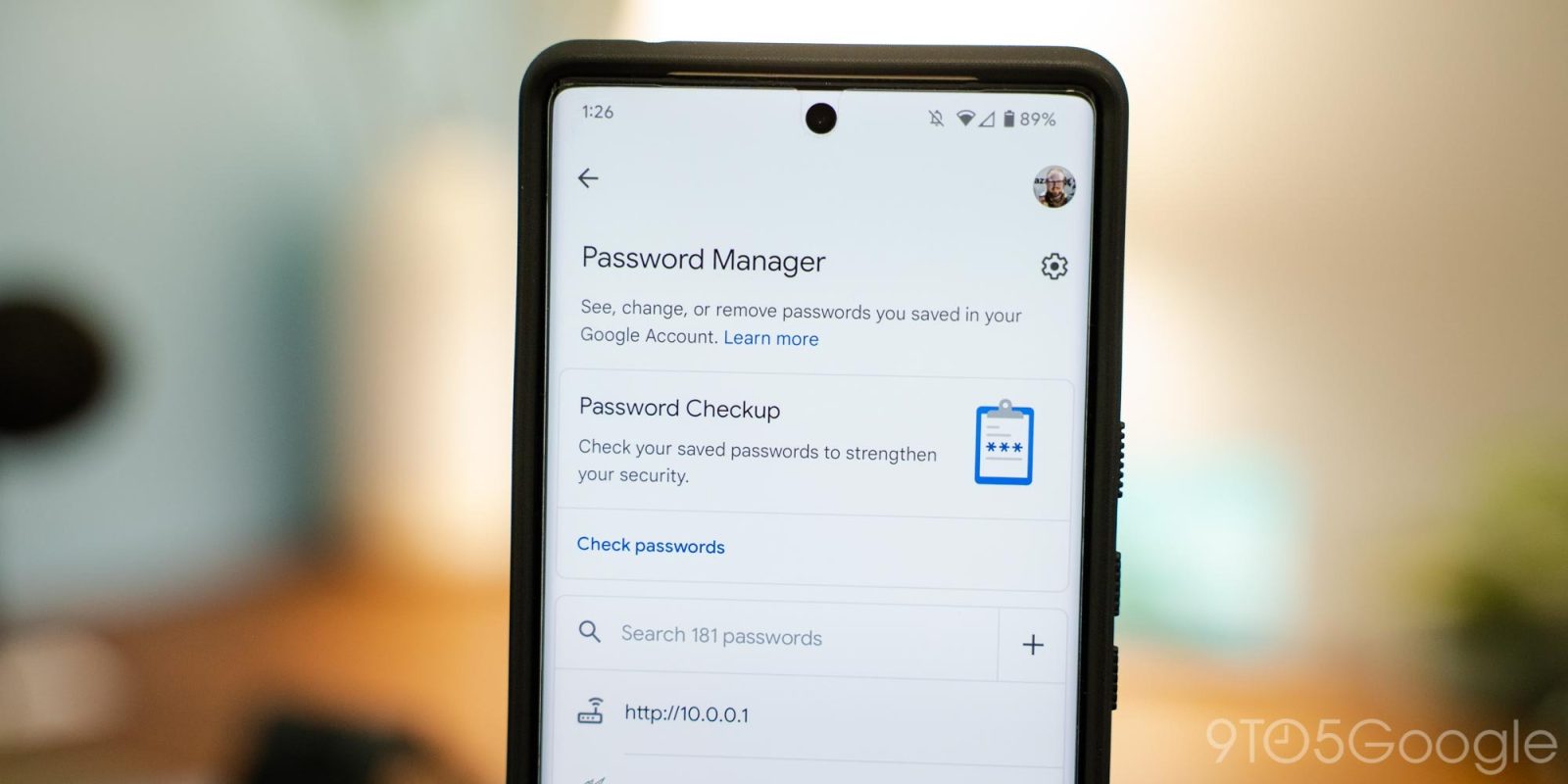
The fastest way to see smart lock password entries for websites and apps is through Google’s dedicated password manager. This method works whether you saved passwords via Chrome desktop, Chrome mobile, or Android autofill. You’ll need access to the Google account that stored the credentials, plus ability to complete the re-authentication challenge.
Direct Web Browser Access Steps
- Open any browser and navigate directly to passwords.google.com
- Sign in with your Google account credentials
- Browse or search your saved passwords list
- Click the eye icon next to any entry to request password reveal
- Complete Google’s security challenge (password, fingerprint, or 2FA)
- View the plaintext password temporarily before clicking to hide it
Pro tip: Bookmark this page for future access—don’t rely on searching “how to see smart lock password” when you need it urgently. The direct URL saves critical time during password emergencies.
Mobile Device Password Viewing
Android users can access saved passwords through Settings → Google → Autofill → Google → Passwords. iOS users must open Chrome, tap the three dots, go to Settings → Passwords, then select any entry and tap the eye icon. Unlike desktop, mobile interfaces typically require biometric verification (fingerprint or face ID) before revealing passwords—a security feature that prevents casual snooping if your phone is unlocked.
SmartThings Door Lock PIN Retrieval Workarounds That Actually Work
SmartThings’ built-in Smart Locks feature (found under Automations → Smart Locks) intentionally never displays actual PIN codes. You’ll only see user labels like “Cleaner” or “Dog Walker”—not the numeric codes themselves. This security design prevents PIN exposure if your phone is compromised, but creates legitimate access challenges when you forget codes.
Name Embedding PIN Storage Method
When creating user codes in SmartThings, append the PIN to the user label: “Cleaner-75632” instead of just “Cleaner.” This keeps the PIN visible only on your personal device while maintaining security. The lock itself still only recognizes the numeric code—the label is purely for your reference. This workaround works immediately with no additional setup.
Physical Lock Menu PIN Lookup
Most Yale locks let you view programmed codes directly on the device: Press * → 1 → # → 3 → # to list all user slots. Schlage locks typically use [Programming Code] → 3 → # → 1 → #. These sequences vary by manufacturer, so check your specific lock’s manual. This method bypasses SmartThings entirely and shows actual PINs—but requires physical access to the lock.
Yale Standalone Lock Password Visibility Limitations

Yale locks have two critical password types with different visibility rules. The 6-digit master PIN (often defaulting to 123456 or 000000) can never be retrieved—only reset through factory default. User PINs (up to 25 codes) aren’t viewable in plaintext on most firmware versions. When someone uses a PIN, the lock announces “User 3” but never reveals the actual code.
When Factory Reset Becomes Necessary
If you’ve forgotten all access codes, factory reset is your only option:
- Remove the lock’s batteries
- Press and hold the reset button inside the battery compartment
- Re-insert batteries while continuing to hold the button
- Maintain pressure for 3 seconds after power returns
- All PINs erase, restoring master PIN to factory default
Warning: This nuclear option requires reprogramming every user PIN from scratch. Only use it as a last resort after exhausting all other methods to see smart lock password options.
Google Smart Lock Security Best Practices
Viewing passwords introduces security risks that require immediate mitigation. Never view Google Smart Lock passwords on public or shared computers—shoulder surfers could capture your credentials. Always use incognito mode when accessing passwords on unfamiliar devices, and clear browser cache immediately after viewing.
Essential Protection Measures
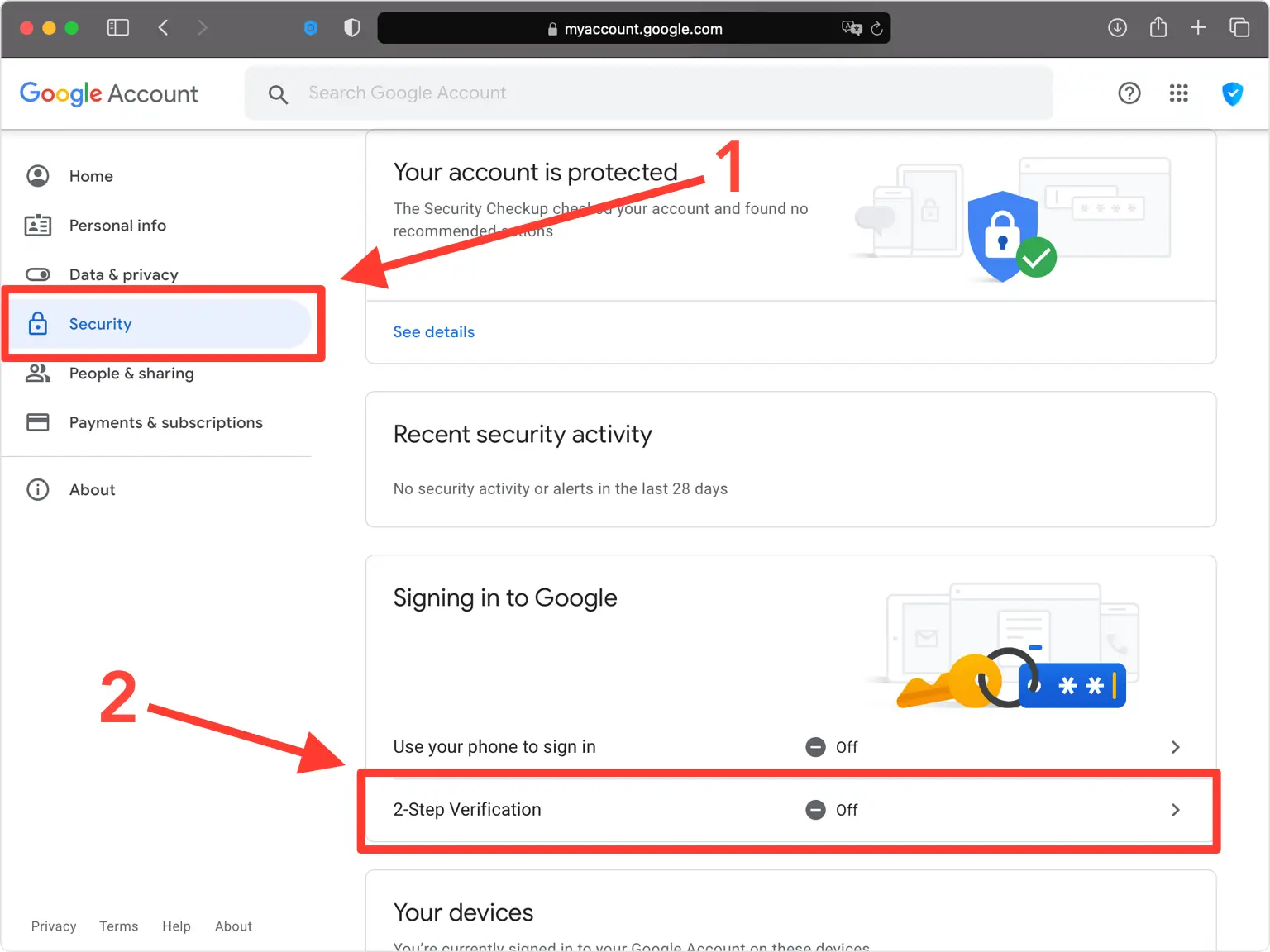
- Enable 2-Step Verification on your Google account as your primary defense
- Use biometric authentication on Android devices so passwords require fingerprint or face ID
- Export passwords quarterly to an encrypted CSV file through Settings → Privacy & Security → Password Manager → Export
- Set up password alerts for suspicious activity to detect breaches early
Pro tip: Create emergency access by sharing your password export file with a trusted family member through a secure channel. Store it in an encrypted cloud folder accessible only with a separate master password.
Emergency Access Quick Reference Guide
When locked out with no time to read instructions, follow these immediate actions:
- Google Smart Lock passwords: Visit passwords.google.com → eye icon → authenticate → reveal
- SmartThings door lock PINs: Use your lock’s built-in menu sequence (Yale: * → 1 → # → 3 → #)
- Total lockout scenario: Perform factory reset only after confirming no other options exist
Keep this sequence saved in your phone notes: “Google passwords online, physical locks via keypad menu, reset as last resort.” This simple phrase covers 95% of smart lock password emergencies.
Preventing Future Smart Lock Password Problems
Document all PINs in a dedicated password manager—not just SmartThings labels. Set calendar reminders to rotate physical lock codes annually and test emergency procedures monthly. For Google passwords, use unique, strong credentials for each account to prevent cascading breaches.
Pro tip: Create a simple spreadsheet tracking lock codes, last changed dates, and user assignments. Store it in an encrypted cloud folder named “Emergency Access” with restricted permissions. Update it whenever you change any PIN, and verify accessibility quarterly.
Remember that legitimate password recovery always maintains security boundaries. If a method claims to bypass authentication entirely, it’s likely a security vulnerability rather than a feature. When in doubt, consult official documentation before attempting recovery—your security depends on using verified methods to see smart lock password options safely.



