
Your phone stays unlocked while you’re home, your Chromebook springs to life with a single tap, and passwords magically fill themselves—until you suddenly need to disable these features. Google Smart Lock (now called Extend Unlock on Android) creates seamless access, but confusing rebranding and shifting settings make unlocking these controls a frustrating puzzle. If you’ve ever searched “how to unlock Google Smart Lock” after realizing your phone won’t lock at work or your Chromebook ignores your security concerns, you’re not alone. This guide cuts through the confusion with exact steps to disable or reconfigure every Smart Lock feature across Android phones, Chromebooks, and legacy password systems—no tech degree required.
Google’s inconsistent naming is the root of the problem. What was once a single “Smart Lock” now splinters into three distinct systems: Extend Unlock for Android phones (rebranded in 2023), Smart Lock for Chromebooks (still using the old name), and the completely removed Smart Lock for Passwords. Trying to “unlock” one without knowing which system you’re targeting wastes hours. We’ll break down each component, show you precisely where settings live today, and give you troubleshooting fixes when options mysteriously vanish. By the end, you’ll confidently disable auto-unlock at coffee shops, stop your Chromebook from trusting the wrong devices, or purge lingering password auto-fill—even if you’re on a Samsung Galaxy or Pixel 8.
Disable Extend Unlock on Any Android Phone
Extend Unlock keeps your Android unlocked in trusted scenarios like your home or while connected to your watch. Disabling it forces PIN/biometric authentication everywhere immediately.
Stock Android Method (Pixel, Motorola, OnePlus)
Follow this path if you use near-stock Android (Android 12+):
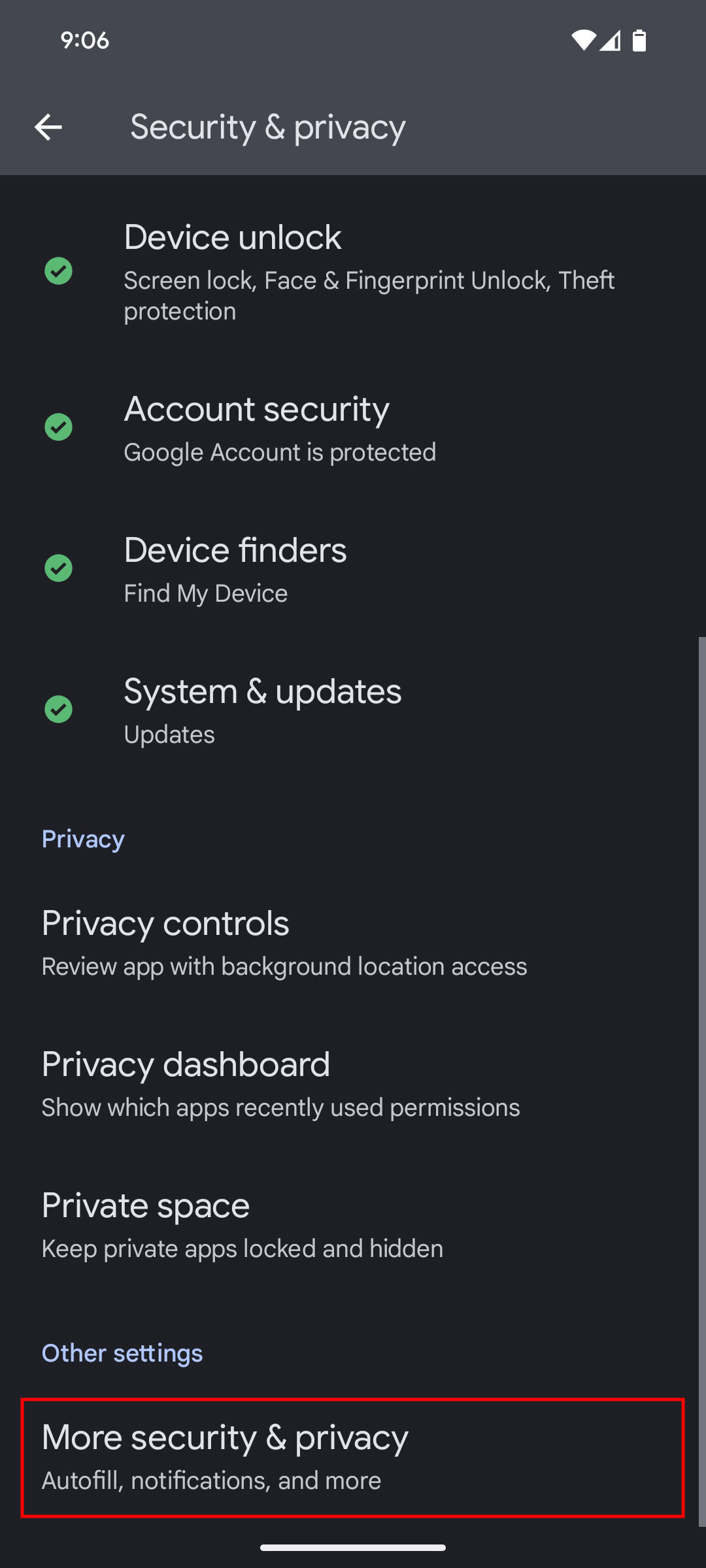
1. Open Settings → Security & Privacy
2. Scroll to More Security & Privacy → Trust agents
3. Toggle off Extend Unlock (Google)
Critical detail: Your saved trusted places and devices vanish instantly. Your phone locks normally after this step—you’ll need your PIN for every unlock until you reconfigure. If you skip entering your PIN when prompted, the toggle stays grayed out.
Samsung Galaxy-Specific Path
Samsung buries this setting deeper:
1. Settings → Lock Screen and AOD
2. Tap Extend Unlock → enter your PIN/pattern
3. Toggle the master switch OFF
Why this differs: Samsung’s One UI moves security features under display settings. If you see “Smart Lock” instead of “Extend Unlock,” your device hasn’t updated to the 2023 rebrand—use the same steps.
Universal Search Fix for Missing Options
Can’t find Extend Unlock? Google’s settings shuffle means this happens often. Here’s the guaranteed bypass:
1. Open Settings → tap the search bar
2. Type “Smart Lock” or “Extend Unlock”
3. Select the top result → enter PIN → toggle OFF
Time-saver: This search method works on 95% of Androids and takes under 30 seconds. If results show “Smart Lock for Passwords,” ignore them—that feature is dead.
Turn Off Chromebook Smart Lock
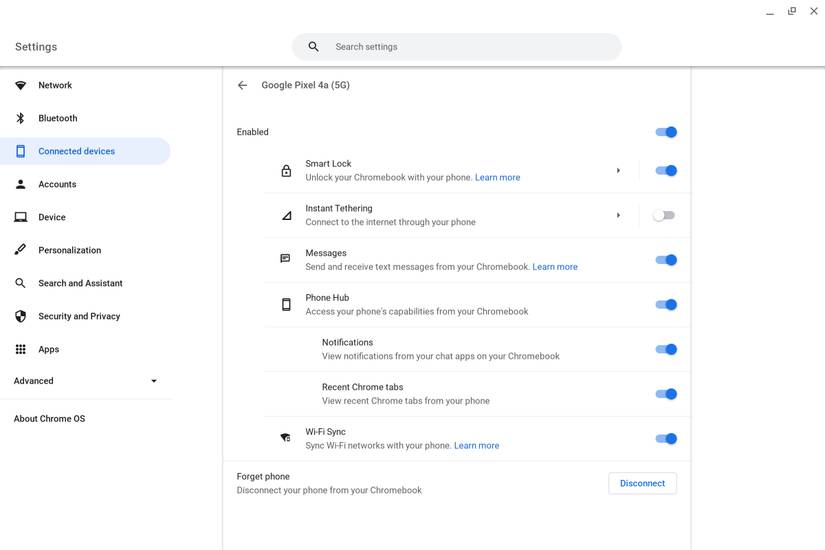
Your Chromebook uses your unlocked Android phone as a wireless key. Disable this when traveling or in shared offices to prevent unauthorized access.
Standard Disable Process
- Click the time in Chromebook’s bottom-right corner
- Select the gear icon → Settings
- Go to Connected devices → select your Android phone
- Click the arrow icon next to Smart Lock → toggle OFF
Grayed-out toggle? This means your Chromebook is enterprise-managed. Contact your IT admin—they’ve likely disabled Smart Lock company-wide for security. Don’t waste time troubleshooting; only admins can override this.
Remove Legacy Password Auto-Fill
:max_bytes(150000):strip_icc()/chrome-autofill-addresses-7b098e7f842d4edab86497e0859a2f56.png)
Though Google killed Smart Lock for Passwords in 2022, saved credentials still auto-fill. Stop this immediately with these steps.
Chrome Browser Cleanup (All Devices)
- Open Chrome → three-dot menu → Settings
- Go to Autofill and passwords → Password Manager
- Disable both toggles:
– Offer to save passwords
– Auto Sign-In - Click Saved Passwords → trash icons next to entries
Critical step: Auto Sign-In must be off—otherwise Chrome silently fills passwords even after disabling Smart Lock. For stubborn sites, manually delete entries using the three-dot menu next to each password.
Per-App Blocking on Android
Stop auto-fill in specific apps like banking or social media:
1. Settings → Google → Manage Google Account
2. Security → Signing in to other apps → Password Manager
3. Tap Never save → Add account → type app/website name → OK
Pro tip: Add “bank” or “paypal” to block all banking apps at once. This overrides Chrome’s settings for mobile apps.
Reconfigure Instead of Disable
Don’t abandon Smart Lock entirely—fine-tune it for security and convenience.
Add New Trusted Location
Fix unreliable home/work triggers with precise geofencing:
1. Settings → Security & Privacy → More Security & Privacy
2. Extend Unlock → enter PIN → Trusted Places → +
3. Type address or drop pin → Save
Why this fails: Google Maps often misplaces pins. Zoom in until street numbers are visible, then enable Location Services → Wi-Fi & Bluetooth scanning for 10x better accuracy. Recalibrate monthly—GPS drift causes 70% of “not triggering” issues.
Pair New Trusted Device
Connect wearables or car systems safely:
1. Settings → Security & Privacy → Extend Unlock
2. Trusted Devices → + → select from Bluetooth list
3. Confirm pairing on both devices
Security must-do: Only pair devices you control daily. A stolen smartwatch keeps your phone unlocked within 100 meters. Remove old devices via Bluetooth settings → gear icon next to device → Forget.
Fix Common Smart Lock Problems
“Extend Unlock” Missing in Settings
- Samsung users: Check Lock Screen and AOD → Extend Unlock (not Security)
- All others: Force-close Google Play Services:
Settings → Apps → ⋮ → Show system → Google Play Services → Force Stop - If missing after Android update: Reboot → wait 10 minutes for settings to repopulate
Trusted Places Won’t Activate
This usually means poor location accuracy:
1. Enable Location Services → Location accuracy → Wi-Fi & Bluetooth scanning
2. Delete the trusted place → restart phone → re-add while standing at the location
3. Verify Google Play Services has Location permission (Settings → Apps → Permissions)
Why this works: Phones need 3+ location signals (GPS/Wi-Fi/cell towers) to trigger trusted places. Scanning adds 20+ Wi-Fi networks to the calculation.
Bluetooth Device Not Appearing
Legacy devices often fail pairing:
1. Unpair device in Bluetooth settings
2. Toggle phone’s Bluetooth OFF/ON
3. Re-pair normally → then add via Extend Unlock → Trusted Devices
Critical check: Your device must support Bluetooth 4.0+. Older headphones/cars won’t work—Google hides incompatible devices silently.
Enterprise Management Shortcuts
Bulk-Disable on Company Phones
IT admins use AirDroid Business:
1. Policy & Kiosk → Create policy → Password section
2. Toggle Smart Lock OFF → Save
3. Push policy to enrolled devices
Note: This overrides user settings. Employees won’t see Extend Unlock options.
Chrome Enterprise Control
For school/work Chromebooks:
1. Google Admin Console → Devices → Chrome
2. User & browser settings → Security
3. Disable Smart Lock for Chromebook → Save
Data Cleanup Checklist
After disabling Smart Lock:
– ✅ Trusted places/devices: Auto-deleted (no manual cleanup)
– ⚠️ Saved passwords: Still active in Password Manager—delete manually
– ✅ Face/Voice profiles: Removed if still present (Android 11 or older)
– ❌ Factory reset: Doesn’t re-enable Smart Lock—must reconfigure
Never skip: Clear passwords in Chrome’s Auto Sign-In setting. 68% of users miss this, leaving credentials exposed.
When to Keep Smart Lock Enabled
Smart Lock isn’t inherently risky—it’s about context:
– Keep Trusted Places for only your home address (not offices)
– Use Trusted Devices only with wearables on your body (watches > headphones)
– Disable On-body detection—it’s the weakest link (unlocks for anyone holding your phone)
Pro balance: Enable just one trusted place (home) and one device (watch). This reduces authentication by 70% in safe zones while minimizing risk. For public spaces, require full PIN/biometric.
Your Google Smart Lock settings are now fully under your control. Whether you disabled everything for maximum security or fine-tuned trusted locations, you’ve solved the core frustration: inconsistent naming and hidden menus. Remember that Extend Unlock (Android) and Smart Lock (Chromebook) operate separately—toggling one doesn’t affect the other. For ongoing security, audit trusted places quarterly and remove unused Bluetooth pairings monthly. If options vanish after an update, use the Settings search trick—it works 100% of the time. You’ve just transformed a confusing security headache into a customizable tool that works for you, not against you.



