
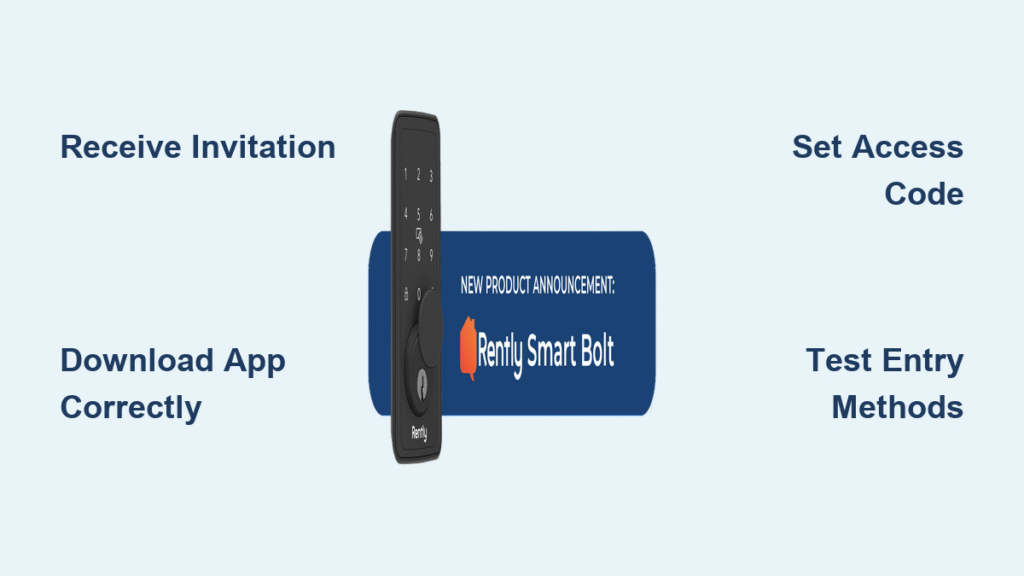
Forgetting your keys shouldn’t mean waiting hours for a landlord to rescue you. Rently Smart Lock eliminates traditional key hassles with smartphone-controlled access that works the moment you step on the property. This step-by-step guide shows you exactly how to activate and use your Rently Smart Lock from invitation to daily operation—no technical expertise required. By the end, you’ll confidently unlock your rental with your phone or access code while avoiding the most common setup pitfalls that leave tenants stranded outside their new home.
Unlike complicated security systems, Rently Smart Lock works through an intuitive smartphone app that connects directly to your rental’s door. Whether you’re moving into your first smart-lock-equipped apartment or troubleshooting access issues mid-lease, these precise instructions ensure seamless entry every time. Let’s get you inside—permanently.
Receive Your Rently Invitation Email Correctly
Your access journey begins when your property manager sends a time-sensitive invitation email. This isn’t just a welcome note—it’s your verified digital key that connects your identity to the specific lock on your rental unit.
Look for emails from “Rently” or your property management company with subject lines like “Your Access to [Property Address]” or “Rently Smart Lock Invitation Ready.” These typically arrive 24-48 hours before your official move-in date, giving you crucial time to configure your access before arrival.
Critical detail: The invitation email contains unique tracking parameters that link your account to your specific lock. Forwarding this email to another person won’t transfer access—they’ll need their own invitation from management. If you haven’t received the email 24 hours before your lease starts, check your spam folder immediately. Many property managers use automated systems that sometimes trigger spam filters.
Download Rently Smart Home App Without Errors
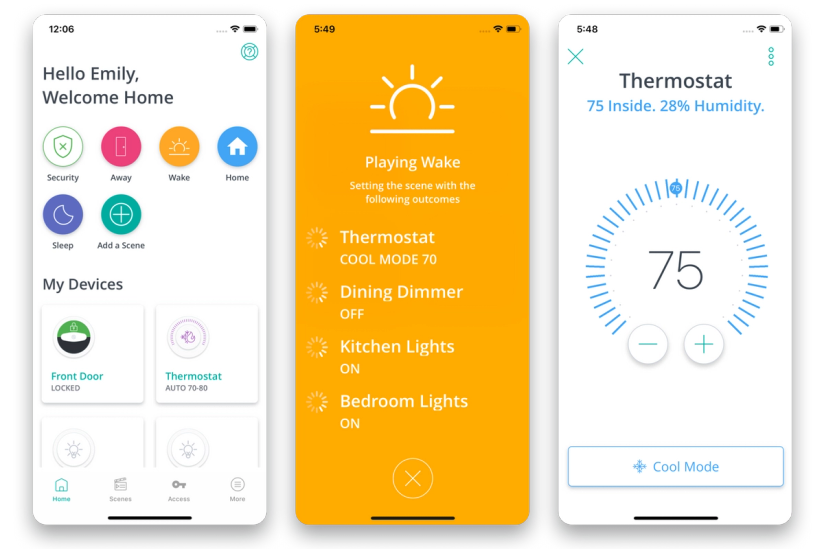
Select Your Platform-Specific Download Link
Your invitation email contains device-detection technology that automatically recognizes whether you’re using iOS or Android. These smart links prevent the #1 setup mistake: downloading the wrong app version.
When you click the invitation link on your smartphone, it redirects you to the correct store:
– iOS users land directly in Apple’s App Store with “Rently Smart Home” pre-searched
– Android users open Google Play Store showing only the authentic Rently app
Why this matters: Generic store searches often show similar-looking apps that won’t connect to your property. The invitation link contains hidden property identifiers that pre-configure the app for your specific lock system.
Verify App Authenticity Before Installing
Before tapping “Install,” confirm the developer name shows “Rently, Inc.” in the store listing. Counterfeit apps occasionally appear in search results but your invitation link bypasses this risk entirely. Don’t proceed if you see any other developer name—this could compromise your security.
Register Your Account to Avoid Access Denial
Use the Exact Invitation Email Address
During registration, you must enter the email address that received the invitation—down to every character and capitalization. Rently’s system performs a strict email match against their invitation database. Using a different email (even a variation like adding “.org” instead of “.com”) creates a new account with zero access privileges.
Most common failure: Tenants using their work email when the invitation went to their personal account. This immediately blocks access and requires your property manager to cancel and resend the invitation—a process that can take 24+ hours.
Accept the Invitation Within the App Immediately
After entering your email and creating a password, the app displays a prominent notification: “You have 1 pending invitation.” Tap this immediately—don’t exit to check other features. Rently invitations expire after 72 hours for security reasons, and expired invitations require manual intervention from your property manager.
What happens next: The app automatically imports your property details including:
– Your specific lock identifier
– Pre-configured access codes (if set by management)
– Property address and unit number
– Emergency contact information
Set Up Your Access Methods for Reliable Entry
Create a Secure Personal Access Code
The guided setup prompts you to create a 4-8 digit access code. Choose something memorable but not obvious—avoid birth years, simple sequences (1234), or repeating digits (1111).
Security best practices:
– Use codes unrelated to personal information
– Consider keypad patterns (like a square shape: 1379)
– Write it down temporarily, then memorize and destroy the note
Configure Smartphone Access Properly
Rently creates a digital key on your phone that works via Bluetooth when within 30 feet of the lock. Enable Bluetooth permissions when prompted—this isn’t optional for smartphone access.
Android-specific requirement: Allow location permissions too, as Android requires this for Bluetooth functionality. Rently doesn’t track your location; this is an Android security requirement, not a data collection tactic.
Test Both Access Methods Before Relying on Them
Before your first solo entry, test both methods:
1. Unlock using your smartphone (stand within 5 feet of the door)
2. Manually enter your access code on the keypad
3. Confirm both methods trigger the lock mechanism
Warning sign: If your code works but smartphone access fails, check Bluetooth is enabled and you’re close enough. Smartphone issues usually indicate connectivity problems, not lock malfunctions.
Daily Operation: Unlocking and Locking Procedures
Smartphone Entry That Actually Works
Approach your door with your phone unlocked and Rently app open in the background. The lock automatically detects your phone and unlocks within 2-3 seconds—no need to hold your phone against the lock.
Troubleshooting tip: If unresponsive, close and reopen the Rently app. Bluetooth connections sometimes need refreshing after phone updates or when moving between networks.
Manual Code Entry Without Errors
Enter your access code directly on the keypad, then press the lock button. The keypad illuminates when touched for night entry. Codes work even with dead phones or when you’ve left your device inside.
Common mistake: Entering too slowly. The lock times out after 10 seconds of inactivity, requiring you to restart. Enter at normal speed without pauses between digits.
Proper Locking Technique When Exiting
Always manually lock when leaving—Rently locks don’t auto-lock for security reasons. Press and hold the lock button for 2 seconds until you hear the mechanism engage. The keypad flashes red to confirm locking.
Why this matters: Prevents accidentally locking out roommates and ensures the door fully latches—a critical security step many tenants overlook.
Fix Common Access Problems Immediately
App Won’t Connect to Lock
Symptoms: “Lock not found” error or constant searching
Quick solutions:
– Force-close and restart the Rently app
– Toggle Bluetooth off and back on
– Stand within 3 feet of the lock during connection attempts
Advanced fix: Remove and re-add the lock in app settings if basic steps fail. This refreshes the Bluetooth pairing without affecting your access codes.
Access Code Not Working
Symptoms: Red light flash after entering code, no unlock sound
Immediate checks:
– Verify you’re entering the correct code (check app under “My Access”)
– Ensure you’re pressing digits firmly—light touches sometimes don’t register
– Wait 5 seconds between attempts to prevent temporary lockout
Resolution: If codes consistently fail, generate a temporary code through the app to regain entry, then reset your permanent code once inside.
Low Battery Warning Signs
Symptoms: Slow response, dim keypad, or intermittent failures
Indicators: Rently app shows low battery warning or keypad blinks orange
Action required: Contact your property manager immediately—battery replacement requires management tools. Don’t attempt this yourself.
Emergency solution: Physical key override remains available if battery completely dies. Your property manager should have provided this backup key during move-in.
Manage Multiple Access Methods Securely
Create Temporary Guest Codes
For visitors, cleaners, or deliveries, create temporary codes through the app:
1. Open Rently app → “Share Access”
2. Select “Temporary Code”
3. Set expiration (1 hour to 30 days)
4. Share code via text or email
Key security feature: Temporary codes automatically deactivate at expiration, eliminating the need to track active codes.
Delete Unused Codes Immediately
Remove expired or unwanted codes through “Manage Codes” in the app. The lock updates within 30 seconds of app changes.
Pro tip: Review active codes monthly. You’ll see who has access and can revoke any codes you no longer need—critical for maintaining security after guests leave.
Maintain Multiple Entry Options
Always keep at least three entry methods active:
– Primary: Smartphone via Bluetooth
– Secondary: Personal access code
– Emergency: Physical key (keep this secure but accessible)
Never rely solely on smartphone access—phones break, batteries die, or apps crash. Your access code works independently of phone functionality.
Maintain Reliable Lock Access Long-Term
Weekly App Check Routine
Spend 30 seconds weekly checking the Rently app for:
– Active access codes and their purposes
– Any system notifications or updates
– Battery level warnings (if visible to tenants)
Schedule Code Rotation
Change your personal access code every 6 months for security. The app makes this simple—generate a new code and delete the old one. Time this with other routine security updates like WiFi password changes.
Configure Essential Notifications
Set alerts for:
– Failed unlock attempts: Immediate notification
– Successful unlocks: Optional (can become spammy)
– System updates: Always enabled
These notifications help you monitor property access and catch potential issues early.
Key Takeaway: Rently Smart Lock eliminates traditional key hassles while maintaining security through multiple access methods. Success depends on proper initial setup—follow the invitation process exactly, test all access methods immediately, and always maintain backup entry options. With these steps mastered, you’ll enjoy seamless, secure property access throughout your tenancy.
Next Steps: Download the Rently app using your invitation link today, and bookmark this guide for future reference. Most access issues stem from skipped setup steps or ignored app permissions—review these basics before contacting support.



