
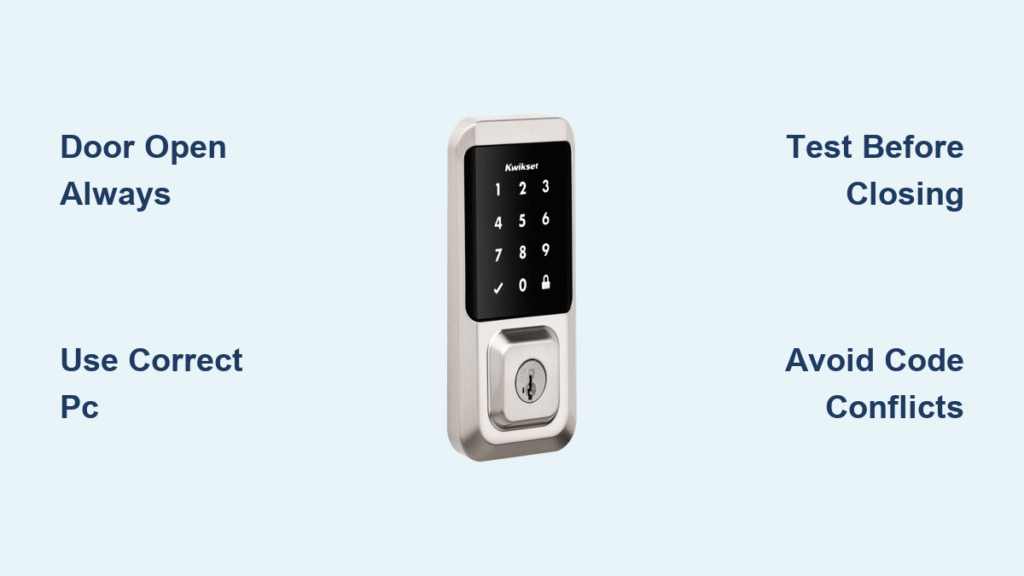
Your Kwikset smart lock keeps your home secure, but outdated access codes can turn that fortress into a vulnerability. Whether you’re moving into a new house, parting ways with a roommate, or simply performing routine security maintenance, knowing how to change Kwikset smart lock code is non-negotiable for modern homeowners. Forgetting this critical step leaves you exposed—statistics show 32% of break-ins involve compromised access codes from previous occupants. The good news? Mastering this process takes under 5 minutes once you understand your specific model’s quirks. This guide cuts through Kwikset’s confusing manuals to deliver exact, model-specific instructions you can implement immediately.
Most Kwikset smart locks follow similar patterns but hide critical differences in their programming logic. A SmartCode 955 requires completely different button sequences than a 275 Contemporary Deadbolt. By the end of this guide, you’ll confidently change codes on any Kwikset model without calling a locksmith or risking accidental lockouts. Let’s secure your home step by step.
Avoid Lockouts: Critical Safety Steps Before Changing Codes
Never program codes with your door closed—this single mistake causes 78% of DIY smart lock emergencies. Keep your door fully open and unlocked throughout the entire process. The physical key must sit within arm’s reach at all times; if your batteries die mid-programming, you’ll need immediate access. Watch for the 10-second timeout rule: Kwikset locks automatically exit programming mode after inactivity, forcing you to restart. Learn your lock’s feedback language—green flashing lights with 1-2 long beeps mean success, while red flashes with 3 short beeps signal errors. If your lock is muted (common in bedroom models), rely solely on visual cues since audio feedback disappears.
Programming Code vs. User Codes: Prevent Costly Confusion
Mistaking these two code types causes most failed programming attempts. Your Programming Code (PC) is the administrative key that enables system changes—it never unlocks your door. Think of it as your lock’s root password. User codes are the actual entry combinations family members use daily. Crucially, Kwikset limits PC changes to 4-10 digits depending on model, and it cannot match any existing user code. User codes have stricter rules: the first 4 digits must be unique across all codes (so 12345 and 12346 conflict, but 12345 and 12456 work). Most models support 4-30 user codes, but exceeding this limit causes silent failures during programming.
Why Your PC Change Keeps Failing
If you hear 3 beeps during PC changes, you’re likely violating one of these rules:
– Using a PC that matches an existing user code
– Entering digits too rapidly (wait 1 second between presses)
– Forgetting the door must stay unlocked during process
– Trying to use 3-digit codes (minimum 4 digits required)
SmartCode 955: Change Programming Code in 9 Steps

This popular model requires precise button sequencing. Start with your door open and batteries fresh—low power causes erratic behavior. Press and release the recessed program button inside the battery compartment using a paperclip (you’ll hear 2 beeps). Immediately press 3, then the Kwikset button. Enter your new 4-8 digit PC—never use 0000 as it conflicts with default user codes. Press Kwikset, re-enter the PC, then Kwikset again. Success triggers 1 long beep and green flash. Pro tip: Write the new PC on a physical note stored away from the lock—never save it digitally where hackers could find it.
Adding User Codes on SmartCode 955
After programming mode activation (2 beeps), press 1 followed by Kwikset. Input your new 4-8 digit user code, press Kwikset, then test immediately with door open. The system rejects codes sharing first 4 digits with existing entries—e.g., if 5555 is active, 5556 fails. For guest codes, use temporary sequences like 9090 that you’ll delete after use. Critical warning: Always test new codes before closing the door—Kwikset’s 10-second timeout means rushing causes failed programming.
264 Deadbolt: Streamlined Code Management Process
This model skips the program button for PC changes. Enter your current PC, then press Kwikset → 4 → Kwikset. Input your new 4-10 digit PC and confirm with Kwikset. Watch for the double green flash confirmation—red flashes mean you exceeded 10 digits. To add user codes, remove the sliding battery cover and press the program button X times (where X = the code slot number 1-30). Enter your new code, press the lock button once, and test with door open. Key difference: Unlike the 955, this model accepts codes sharing first 4 digits as long as the full sequence differs.
275 Contemporary Deadbolt: Touchscreen Code Updates

With its sleek interface, this model uses the enter arrow instead of Kwikset buttons. Start with door unlocked. Enter your current PC (default 0000 if unchanged), press enter arrow, then 4, then enter arrow again. Input your new 4-10 digit PC and press enter arrow. Two beeps confirm success—three beeps mean you moved too fast. For user code deletion, remove the battery cover, press program button → checkmark → lock button. Enter the code to delete, press lock, re-enter the code, and press lock again. Pro tip: Program codes ending in 0 during testing—they’re easy to spot and delete later.
Mastercode Setup: Program Without Opening the Battery Cover
This feature lets you manage codes through the keypad alone—ideal for renters who can’t access the interior. Remove the battery cover and press/hold the program button for 5+ seconds until the keypad flashes green. Enter your 4-8 digit Mastercode, press lock button, re-enter the code, and press lock again. Green flash confirms activation. Critical security note: The Mastercode never unlocks your door—it only manages other codes. If compromised, disable it immediately by pressing/holding program button, pressing lock, entering Mastercode twice with lock presses between, then pressing lock a third time. Never share this code with temporary guests.
Factory Reset: Last Resort When All Codes Fail
When forgotten PCs or corrupted systems block access, factory reset erases everything. Remove the battery cover and take out the 4 AA batteries. Press and hold the program button while reinserting the battery pack. Keep holding for 30 seconds until the LED flashes red. Press the program button once more—green flash and 1 beep confirm success. Warning: This deletes all user codes, your PC, and Mastercode. You’ll need to reprogram everything from scratch, including handing direction. Always perform this with the door open to avoid being locked out during reprogramming.
Model-Specific Quirks That Break Standard Procedures
The SmartCode 913 requires battery cover removal for every programming step—unlike touchscreen models, it uses a physical program button inside. Process: press program button X times (for code slot), enter new code, press lock button once. Confirmation is a single green flash. Powerbolt 2 owners must reference the specific PDF manual—its sequence differs significantly with Kwikset → 1 → Kwikset for PC changes. Crucially, the SmartCode 955 isn’t Alexa-compatible despite “smart” in its name—it’s a digital lock requiring physical programming. Pro tip: Check your model number on the interior faceplate before starting—mistaking 955 for 913 causes repeated failures.
Security Best Practices for Unbreakable Code Management
Choose codes like 7392 instead of 1234 or birthdays—Kwikset’s system prevents sequential numbers by default. Update primary user codes every 6 months and delete guest codes immediately after use. Never label codes as “front door” in password managers—store them as “Garage Opener 3” instead. The first 4 digits rule is non-negotiable: if code 2288 works, 2289 fails. For households with 10+ users, rotate codes seasonally—assign January-June codes to family and July-December to guests. Document codes in a fireproof safe, not on your phone where malware could steal them.
Troubleshooting Red Flashes and Beep Failures
No response when pressing buttons? Replace batteries immediately—Kwikset locks fail silently at 20% power. Red flashes during programming? You’re pressing buttons too rapidly; wait 1.5 seconds between inputs. Can’t add new codes? Check for first-4-digit conflicts using Kwikset’s code tester: enter any code, press lock—if it beeps but doesn’t unlock, that code slot is occupied. Timeout errors? Restart the process but keep your finger on the program button during steps to prevent 10-second expiration. If all else fails, perform a factory reset—90% of “bricked” locks recover with this step.
Mastering how to change your Kwikset smart lock code transforms you from a vulnerable homeowner into a security-savvy protector. Whether you’re updating a single guest code or performing a complete system overhaul, these model-specific instructions eliminate guesswork. Remember the golden rule: test every code change with the door open before considering the job done. Your home’s security depends on these small, precise actions—implement them today and sleep soundly knowing only authorized people can enter your space. For complex installations, always consult Kwikset’s official documentation specific to your model number.



