
Your Kwikset smart lock suddenly stops responding to codes, your phone won’t connect, or you’re moving into a new home. That sinking feeling hits when you realize you need a factory reset—but one wrong press could lock you out permanently. Unlike simple reboots, a factory reset erases everything on your lock, returning it to its original out-of-box state. This isn’t just troubleshooting; it’s a complete digital demolition requiring precision. Whether you’re dealing with a security breach or prepping your home for new owners, this guide delivers model-specific reset instructions verified directly from Kwikset’s technical specifications. You’ll learn exactly what vanishes forever, avoid critical mistakes that brick your lock, and complete the process safely in under five minutes.
What Your Kwikset Smart Lock Forgets Permanently
Before pressing any buttons, understand the nuclear nature of this reset. A factory reset doesn’t just clear glitches—it permanently obliterates all personalized configurations. Every user code you’ve ever programmed, including that backup code for your dog walker, disappears instantly. Your lock forgets every Bluetooth pairing with phones, tablets, and smart home hubs. Wi-Fi network credentials vanish without recovery options. Even fundamental settings like your door’s handing direction (which way it swings) revert to factory defaults.
Critical data erased includes:
– All user access codes and schedules
– Bluetooth pairings with all devices
– Wi-Fi network credentials
– Z-Wave, HomeKit, or Alexa integrations
– Complete event history logs
– Door handing orientation settings
This isn’t temporary—it’s irreversible. If your housekeeper’s weekend access code isn’t reprogrammed after reset, they’ll be locked out permanently. Treat this like wiping a smartphone: what’s gone stays gone.
When a Factory Reset Is Your Only Lifeline
Don’t reset impulsively—know when this nuclear option is truly necessary. Immediate security threats demand action: if your phone with app control gets stolen, or you suspect someone cracked your master code, a factory reset cuts off unauthorized access instantly. Ownership transitions require it: moving out, selling your home, or transferring the lock to a new resident means wiping previous user data completely.
Technical failures that warrant reset:
– Lock completely unresponsive to physical or digital commands
– Persistent connection issues after basic troubleshooting
– New installations behaving erratically despite correct setup
– Suspected firmware corruption causing random lockouts
Attempting simpler fixes first? Try replacing batteries or restarting your home Wi-Fi. But when those fail, a factory reset becomes your final troubleshooting step before professional help.
Halo Series Factory Reset Protocol
Halo, Aura, and Halo Touch Exact Procedures
Pre-Reset Non-Negotiables:
First, delete the lock from your Kwikset app home screen—this isn’t optional. Then go to your phone’s Bluetooth settings and select “Forget Device” for the lock. Skipping this creates ghost pairings that block reconnection. Note that existing access codes remain visible in the app until full deletion, but they’ll stop working immediately post-reset.
Reset Execution:
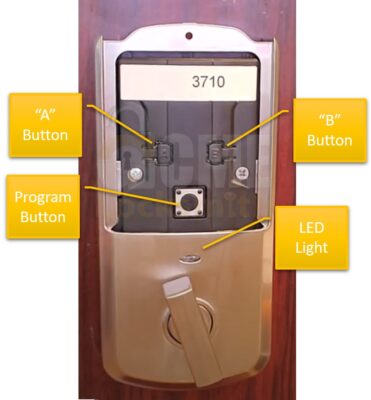
Hold the program button for exactly 30 seconds using your SmartKey tool or straightened paperclip. Listen for one long beep confirming initiation. Press the button once more for a short confirmation beep. Wi-Fi credentials and Bluetooth pairings vanish permanently—no recovery possible.
Halo Select Critical Warnings
Halo Select models behave differently post-reset. The lock appears permanently offline in the Kwikset app until fully reconfigured. It becomes deactivated, requiring you to treat it as a brand-new device during setup. Never skip the door-handling step afterward—this model won’t auto-detect swing direction like others.
SmartCode 955 Reset Without Lockout
Step 1: Door Safety Check
Open your door fully and ensure it’s unlocked. This prevents accidental entrapment during reset—a common panic point.
Step 2: Initiate Nuclear Option
Press and hold the program button for precisely 30 seconds. Use the SmartKey tool (included with lock) or a paperclip. Stop when you hear one long beep—this confirms reset initiation.
Step 3: Seal the Reset
Press the program button once. A single short beep confirms completion.
Step 4: Verify Success
Test with any existing user code. The lock must not respond at all—if it unlocks, repeat with fresh batteries. Every code requires reprogramming; write your new master code down before starting.
Z-Wave 888 SmartCode Reset Sequence

Power Cycle Precision:
Remove the entire battery pack. Wait 10 full seconds for residual power to drain. While reinserting batteries, press and hold the Program Button for 30 seconds. Watch for the red LED flash and confirmation beep.
Final Confirmation:
Press the Program Button once more. A green LED flash and single beep confirm success. Crucially, manually extend and retract the latch bolt 3-5 times to teach door orientation—skip this and the lock won’t know which way to turn.
SmartCode 909-914 Series Reset Blueprint
All 909, 910, 913, and 914 models share identical reset protocols:
Battery Timing Matters:
Remove batteries completely. While reinstalling, hold the Program Button for 30 seconds until the red LED flashes. Press once more, then wait 20 seconds for the green LED confirmation.
Post-Reset Non-Negotiables:
You must re-perform door handling (extend/retract latch bolt). Z-Wave pairing disappears—you’ll need to re-add the lock to your hub. Every user code requires complete re-entry; no exceptions.
911 Electronic Lido Lever Reset Simplicity
This model follows the exact SmartCode 909-914 procedure despite different branding. Remove batteries, hold the Program Button for 30 seconds during reinsertion, then press once for confirmation. The red-to-green LED transition and single beep verify success. Treat it as identical to the SmartCode series—no special variants exist.
Premis Series: Three Reset Levels Decoded
Network Reset (The Safety Net)
Press and hold Button “A” for exactly 7 seconds. This only removes the lock from Premis and HomeKit apps while preserving all user codes and schedules. When re-paired, it rediscovers existing data automatically—ideal for temporary connection glitches.
System Reset (The Middle Ground)
Hold Button “A” for 20 seconds. Removes lock from apps but may retain some user data. Use when Network Reset fails but you don’t want total data loss.
Factory Reset (The Nuclear Option)
Use the Program button method for complete data annihilation. All user codes, schedules, and network connections permanently erased. Reserved for ownership changes or severe malfunctions.
Deadly Reset Mistakes That Brick Your Lock
Battery Timing Disasters:
Pulling batteries too early during reset causes partial wipes. Never interrupt the process before green LED confirmation. Using weak batteries? They cause failed resets—always start with fresh AAs.
Post-Reset Sabotage:
Skipping door handling makes locks think doors swing opposite directions. Forgetting to “Forget Device” in Bluetooth before re-pairing creates ghost connections. Assuming all Kwikset models reset identically? Halo instructions on SmartCode 955 will fail catastrophically.
Model Confusion Traps:
The 30-second hold applies to most models, but Premis uses Button “A” presses instead. Verify your exact model number (found inside battery compartment) before starting.
Post-Reset Setup Checklist: First 5 Minutes
Critical immediate actions:
– [ ] Perform door handling (extend/retract latch 5x)
– [ ] Program new master code immediately
– [ ] Test manual operation with key
– [ ] Re-pair with Kwikset app before closing door
– [ ] Reconnect to smart home systems
Within 24 hours:
Add family codes, recreate schedules, and test all access methods. Pro tip: Snap photos of your new code list before programming. Store encrypted in cloud storage—not on your phone.
Battery Safety During Reset Operations
Before starting:
Ensure batteries exceed 80% charge. Clean corrosion from contacts with a dry cloth—dampness causes shorts. Keep fresh AAs nearby; low power mid-reset corrupts memory.
During reset:
Never force the battery pack. Listen for beep volume—weak sounds indicate dying power. If the LED won’t flash red, replace batteries immediately and restart.
Warning signs:
No beeps? Dead batteries. Continuous beeping? Error state requiring full power cycle. Green LED won’t appear? Repeat with new batteries—partial resets cause erratic behavior.
What Reset Signals Mean: LED & Beep Decoder
Red flashing LED:
– Reset process initiated (normal)
– Battery critically low (emergency)
– Error state detected (troubleshoot immediately)
Green flashing LED:
– Successful reset completion
– Ready for door handling
– Setup mode active
Single beep:
– Step completed successfully
– Code accepted during programming
– Normal operation confirmation
Continuous beeping:
– Low battery warning (replace now)
– Reset process in progress (wait it out)
– Critical error requiring full restart
Fixing Failed Resets in Under 60 Seconds
Lock responds to old codes?
You didn’t hold the Program Button long enough. Repeat with fresh batteries, timing 30 seconds precisely with a stopwatch. Ensure no firmware updates are pending in the app.
No LED response?
Replace batteries immediately. Clean contacts with rubbing alcohol on cotton swab. Verify you’re pressing the correct Program Button (often hidden behind battery cover).
Smart home won’t reconnect?
“Remove device” from all apps first. Power cycle your Wi-Fi router. For Z-Wave locks, exclude the device from your hub before re-adding.
Final Reality Check: A factory reset is a point of no return—your lock becomes a blank slate. Never perform this without fresh batteries and your physical key nearby. After resetting, test every access method before closing the door. Keep your new master code in a secure offline location; cloud backups fail when you need them most. Done correctly, this process transforms a malfunctioning lock into a secure, like-new system ready for your next chapter.



