
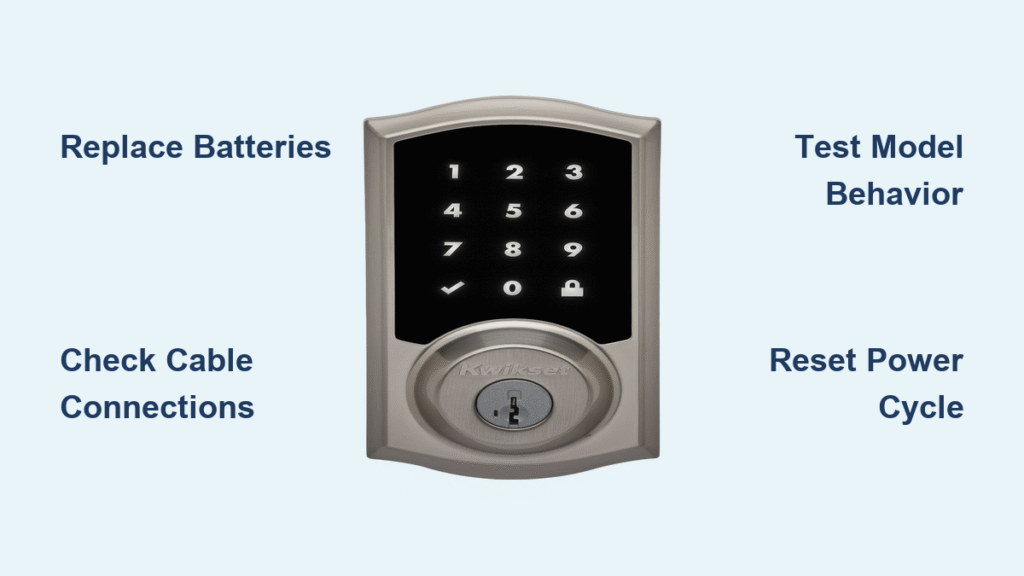
You’re standing outside in the dark, fingers fumbling for the keypad as rain begins to fall. You press the Kwikset smart lock buttons repeatedly, but the display stays stubbornly dark. This exact scenario frustrates thousands of homeowners monthly when their Kwikset smart lock not lighting up. Whether you own an Aura, Halo, 916, or SmartCode 888 model, this critical failure blocks entry and creates unnecessary stress. The good news? Over 80% of these lighting failures stem from three fixable issues: dead batteries, loose cables, or misunderstood model-specific behaviors. This guide delivers precise, model-by-model solutions to restore your keypad illumination in under 15 minutes.
Don’t waste hours guessing at solutions designed for other brands—Kwikset’s LED systems operate uniquely across their product line. What looks like a broken lock might simply be Halo’s intentional design where only the lock button activates the display. We’ll help you diagnose whether your Kwikset smart lock not lighting up indicates a simple power issue or requires professional support. By the end of this guide, you’ll know exactly which buttons to press, which cables to check, and when to call Kwikset’s 24/7 technical team.
Pinpoint Your Model’s Normal Lighting Pattern
Aura Keypad Must Light on Any Button Press
Your Aura deadbolt should illuminate the entire keypad when any single button is pressed—no exceptions. If pressing numbers or the lock button yields zero light, this confirms an actual malfunction rather than user error. Unlike other models, Aura intentionally activates its display with every interaction to aid nighttime use. Verify this behavior by testing multiple buttons in complete darkness; if none produce illumination, immediately proceed to battery diagnostics.
Halo Only Lights via Lock Button When Locked
Halo models operate differently—a critical detail causing unnecessary panic. The keypad only illuminates when you press the one-touch lock button while the deadbolt is already engaged. Pressing number keys won’t activate the display if the door is unlocked. This isn’t a defect—it’s Halo’s security feature preventing random button presses from waking the keypad. Test by first unlocking your door manually, then pressing the lock button; the display should light during this action. If it doesn’t, you’ve confirmed a genuine lighting failure.
916 Touchscreen Activates Only on Direct Contact
The 916 touchscreen remains dark until you physically touch the screen surface. Additionally, its status LED blinks every six seconds by default (green for locked, red for unlocked). If you see no blinking light but hear lock sounds, check your Ring app settings—phantom notifications often mimic functionality while the display stays dark. Never assume the 916 is broken if it doesn’t light immediately; it requires direct screen contact to activate.
SmartCode 888 Status LED Blinks Every 6 Seconds
Your SmartCode 888 should display a pulsing status LED every six seconds when properly powered. This indicator shows lock status even when the main keypad is dark. If this background pulse is missing, but the lock operates mechanically, focus on battery and connection checks. You can disable this feature through programming (red light = disabled), so verify settings before assuming failure.
Replace Batteries Using Model-Specific Protocols
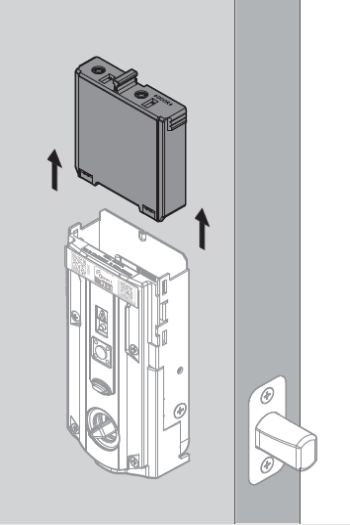
Install Fresh Alkaline Batteries Correctly
Start with battery replacement using these critical steps:
– Use only alkaline batteries—rechargeables often lack the 1.5V minimum required
– Check polarity markings—one reversed battery disables the entire system
– Inspect for corrosion—white/green residue on 916 contacts blocks power flow
– Test voltage—replace any cell below 1.3V (use a multimeter for accuracy)
For Aura models, watch the installation video to avoid common polarity errors. Halo owners should reference the keypad-specific guide since touchscreen versions have different battery compartments. Never mix old and new batteries—this causes voltage imbalances that mimic lighting failures.
Perform a Complete Power Cycle Reset
After battery replacement, execute this reset sequence:
1. Remove all batteries for exactly 30 seconds (use your phone timer)
2. Clean contacts with a dry microfiber cloth
3. Reinstall batteries with firm pressure until they “click” into place
4. Immediately test the keypad in total darkness
Pro tip: During cold snaps, keep spare batteries at room temperature. Smart locks draw 30% more power below 40°F, causing premature dimming. If the display works once after reset but fails again, you’re likely facing a hardware defect—not a battery issue.
Secure Critical Cable Connections
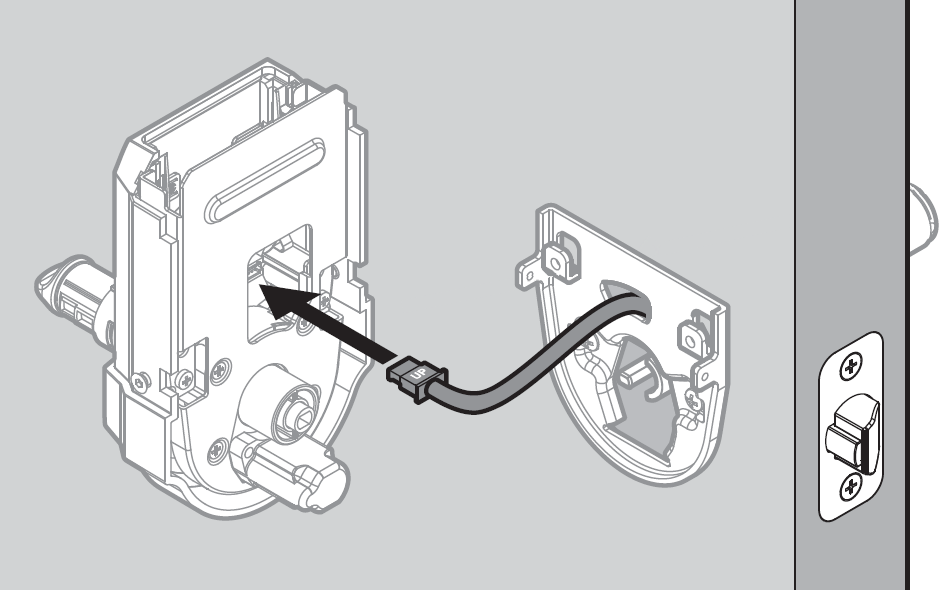
Reconnect Interior Keypad Cables Firmly
Loose internal cables cause 35% of Kwikset smart lock not lighting up cases. To fix:
– Remove the interior mounting plate using a Phillips screwdriver
– Locate the flat ribbon cable connecting keypad to interior unit
– Unplug and firmly reseat ensuring pins align perfectly
– Perform a “tug test”—cable should resist gentle pulling
– Verify no cables are pinched between mounting plates
For Aura models, the installation video shows proper cable routing to prevent door-swing damage. On Halo units, check that the cable isn’t twisted during reassembly—this stresses delicate connections.
Adjust Door Alignment Issues
Misaligned doors strain cable connections over time. Test by:
– Opening/closing the door slowly while observing cable movement
– Checking for binding sounds that indicate frame interference
– Tightening all mounting screws (loose plates shift cable positions)
– Ensuring no door weatherstripping compresses cables
If your door sticks when closing, realign hinges before retesting the lock. Persistent cable issues after multiple reseats require professional installation review.
Fix Model-Specific Lighting Failures
Resolve 916 Touchscreen Phantom Activity
When your 916 shows Ring app activity but stays dark:
1. Remove batteries and clean corrosion with vinegar-soaked cotton swab
2. Replace with name-brand alkaline batteries (avoid generics)
3. Hold the reset button for 10 seconds before reinstalling batteries
4. Re-pair with Ring app using the latest firmware version
Critical warning: If the display works for one entry attempt then dies again, this indicates internal circuit damage. Document this pattern with video evidence before contacting support—this specific symptom qualifies for warranty replacement.
Correct Halo Keypad Misuse Errors
Most “Halo not lighting” complaints stem from user error. Confirm proper operation:
– Press the lock button (not number keys) when the door is already locked
– If unlocked, the keypad won’t illuminate—this is intentional design
– Test by first unlocking manually, then locking via the exterior button
– Check app settings to ensure “Keypad Light” isn’t disabled
Never force button presses—Halo’s capacitive touch requires light contact. Heavy pressing can damage sensors over time.
When to Contact Kwikset Technical Support

Recognize Unfixable Hardware Defects
Call Kwikset immediately at 1-800-327-5625 if you experience:
– Complete darkness after multiple battery/cable resets
– Intermittent lighting that worsens over days
– Visible damage to the keypad surface or mounting plate
– Error codes during reset attempts (like rapid red flashes)
Pro tip: Have your model number (found on interior mounting plate) and purchase receipt ready. Support can often diagnose issues via photo evidence—snap clear shots of your battery compartment and cable connections before calling.
Navigate Warranty Claims Successfully
Maximize warranty coverage by:
– Registering your product online within 30 days of installation
– Documenting all troubleshooting steps with timestamps
– Keeping original packaging for potential return shipments
– Noting installer details if professionally installed
Kwikset typically covers LED failures under their 10-year mechanical/1-year electronic warranty, but voids coverage for DIY installation errors. Professional locksmith documentation strengthens your claim.
Prevent Future Lighting Failures
Implement Proactive Battery Maintenance
Avoid midnight lockouts with this routine:
– Test keypad weekly by pressing buttons in darkness
– Replace batteries every 9 months regardless of performance
– Clean contacts monthly during battery checks
– Track usage patterns—frequent entries drain power faster
Store spare batteries in a labeled container near your lock. Cold-weather regions should replace batteries every 6 months.
Verify Installation Integrity Quarterly
Prevent cable-related failures by:
– Tightening mounting screws every 3 months
– Checking door alignment seasonally (especially after humidity shifts)
– Inspecting cable routing during battery changes
– Updating firmware immediately when prompted
Expert note: Schedule lighting checks during daylight savings time changes—this biannual reminder ensures consistent maintenance without calendar tracking.
When your Kwikset smart lock not lighting up blocks entry, systematic troubleshooting beats panic every time. Start with model-specific behavior checks—Halo’s lock-button-only design fools countless users into thinking their unit is broken. Then execute the battery reset protocol with fresh alkalines, followed by cable reseating. For persistent issues, Kwikset’s 24/7 technical support (1-800-327-5625) provides model-specific diagnostics and warranty guidance. Remember: 90% of lighting failures resolve with battery replacement or cable reconnection. Implement the monthly maintenance routine to prevent future darkness, and never ignore that six-second status LED blink—it’s your lock’s early warning system. Keep this guide accessible in your phone notes for instant reference during late-night lockouts.



