
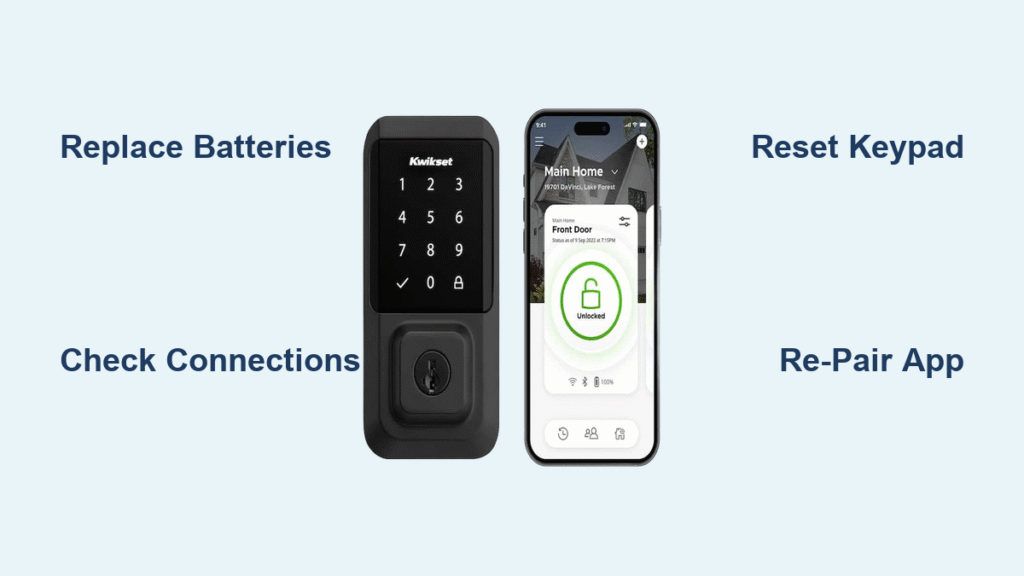
Your Kwikset smart lock not working when you’re standing outside with groceries or trying to leave for work creates immediate frustration and security concerns. Whether your keypad won’t light up, the deadbolt refuses to engage, or your app shows “offline,” these failures happen without warning and leave you vulnerable. This guide delivers targeted solutions for every Kwikset model, from quick emergency fixes you can implement in minutes to complete system resets that restore full functionality. Stop worrying about being locked out or compromised—these proven steps will get your smart lock working again.
When your Kwikset smart lock not working properly, the first critical step is diagnosing whether you’re dealing with a mechanical issue, electrical failure, or connectivity problem. Most owners waste valuable time trying random fixes without understanding what’s actually broken. By following this systematic approach, you’ll identify the root cause efficiently and apply the exact solution your specific model needs, whether it’s a SmartCode 955, Aura, or Powerbolt 2.
Diagnose Physical Lock Mechanism Failures
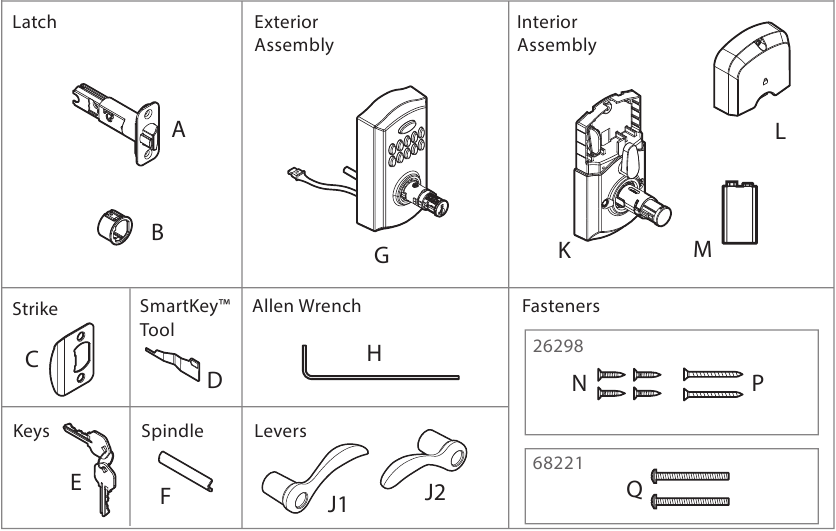
SmartCode 955 Won’t Lock or Unlock
Your SmartCode 955 has a built-in safety feature that explains why the interior lever always works even when electronics fail. Emergency egress functionality allows you to exit your home regardless of battery status, but this also means interior operation won’t reveal electronic problems. When your Kwikset smart lock not working properly from the outside:
- Test manual thumb turn operation first—if it turns smoothly but the motor doesn’t engage, you’ve got an electrical issue
- Check programming button status: If you’ve set a programming code, the physical programming button becomes disabled for security. Only your programming code can add or delete user codes
- Verify user code entry: Ensure you’re pressing the Kwikset button after entering your code—this step is required but often missed
Critical mistake to avoid: Never force the deadbolt. If it resists movement, you likely have door alignment issues rather than lock failure.
Aura Deadbolt Makes Noise But Won’t Lock
Hearing motor sounds without deadbolt movement? Your Aura hasn’t completed the “handing” process that teaches the lock which direction extends the bolt based on your door’s orientation. This common issue occurs after battery replacement or power cycling.
Fix improper handing immediately:
1. Remove all batteries for 30 seconds
2. Reinstall fresh batteries—the lock automatically hands itself on first power-up
3. Listen for the distinctive sequence where the motor runs both directions
4. Test lock/unlock operations three times to confirm proper function
Pro tip: Before attempting re-handing, verify your bolt hole has at least 1″ depth. Shallow holes prevent full bolt extension regardless of electronic settings.
Powerbolt 2 Complete Mechanical Failure
When your Kwikset smart lock not working shows no lights or sounds, investigate these often-overlooked causes:
- Cable disconnections: Interior assembly cables frequently loosen during battery changes—pop the cover and secure all connections
- Battery orientation errors: Both batteries must face the correct direction; reverse polarity blocks all function
- Corrosion damage: White crust on terminals prevents power flow—clean with cotton swab and vinegar before installing new batteries
Warning: If the door is stuck in the locked position, use your physical key immediately rather than forcing the mechanism.
Restore Keypad Functionality
Red Light Keypad Emergency Fixes
A glowing red keypad on your Kwikset smart lock not working properly signals critical attention needed, not permanent failure. Address these causes in order:
- Battery replacement: Install fresh alkaline batteries—never mix old and new cells
- Connection verification: Open the interior assembly and press down firmly on all ribbon cables
- Polarity check: Match + and – symbols exactly to battery compartment markings
Pro tip: Keep spare batteries in your nightstand specifically for smart lock emergencies—they’ll save you during unexpected failures.
Complete Keypad Reset Procedure
When standard battery replacement fails, perform this hard reset:
Step-by-step recovery:
1. Remove all batteries and wait 10 seconds
2. Hold the program button while reinstalling batteries
3. Continue holding for 30 seconds after battery insertion
4. Release and wait for confirmation beep
5. Reinitialize by pressing program button once—observe automatic latch cycling
Critical step: Always perform resets with the door open to prevent accidental lockouts during reconfiguration.
Resolve App and Connectivity Failures

Bluetooth Pairing Blockages
Your lock connecting to a previous owner’s phone is the most common reason your Kwikset smart lock not working with your device. Before attempting new pairing:
- Remove from previous networks: Delete the lock from any existing smart home systems
- Forget device: Check your phone’s Bluetooth settings for “Kwikset” entries and select “Forget”
- Ensure proximity: Place the interior assembly within 12 inches of your controller during Z-Wave setup
Warning: Some locks trigger anti-tamper alarms when interior is disconnected. If alarm sounds, reconnect interior to exterior and retry pairing.
Wi-Fi Network Configuration Issues
Aura and Halo models require direct router connection—if your lock shows “offline” after setup:
- Signal strength check: Move router closer or add a Wi-Fi extender; locks need consistent 2.4GHz signal
- Password verification: Re-enter Wi-Fi credentials in Kwikset app, watching for hidden spaces at password end
- Router compatibility: Confirm your router supports WPA2 security—older WEP networks won’t work
Pro tip: Create a dedicated 2.4GHz network for your smart home devices to avoid interference with your main network.
Execute Model-Specific Factory Resets
When Complete Reset Becomes Necessary
Perform factory reset when:
– Changing lock ownership
– Lost phone with app access
– Multiple failed troubleshooting attempts
– Selling your home
Halo/Aura complete reset removes:
– All access codes and schedules
– Bluetooth and Wi-Fi pairings
– User associations and event history
– Handing and calibration settings
Reset procedure:
1. Delete lock from Kwikset app first
2. Remove from phone’s Bluetooth list via “Forget Device”
3. Hold reset button for 10 seconds until LED flashes red
4. Wait for LED to turn solid red, then off when complete
Critical warning: After reset, your lock will appear “offline” in the app until fully reconfigured—this is normal.
Prevent Future Kwikset Smart Lock Failures
Monthly Maintenance Routine
5-minute monthly check prevents 90% of Kwikset smart lock not working issues:
– Battery level monitoring: Replace when app shows below 20%
– Physical inspection: Wipe keypad clean, test manual operation
– Door alignment verification: Ensure smooth closure without sticking
– Strike plate clearance: Remove debris and check for wear patterns
Battery Best Practices
Extend battery life with these habits:
– Replace both batteries simultaneously—never mix old and new
– Use name-brand alkaline batteries only (avoid rechargeables)
– Store spares in climate-controlled location
– Enable push notifications in Kwikset app for low battery alerts
Pro tip: Keep your backup physical key in your car or with a trusted neighbor—smart locks still have mechanical override capabilities.
Emergency Solutions When Locked Out
Immediate Access Methods
When your Kwikset smart lock not working leaves you stranded outside:
– Physical key override: Always keep your backup key accessible
– SmartCode 955 emergency egress: Interior lever works regardless of electronic state
– Emergency power: Touch a 9V battery to exterior contacts for temporary power (Halo models)
Warning: Never attempt to force entry through windows or alternative doors—this creates greater security risks than waiting for proper access.
24/7 Technical Support Access
When all else fails:
– Electronics support: Call 1-800-327-5625 (available 24/7)
– Prepare information: Have model number (found inside battery compartment), purchase date, and specific symptoms ready
– Support hours: Monday-Friday 7:00 AM-4:00 PM PST, Saturday 6:30 AM-2:30 PM PST
Pro tip: Take photos of your lock’s interior components before calling—technicians can often diagnose issues visually.
Next Steps After Restoring Functionality
Your Kwikset smart lock now works reliably, but don’t stop here. Implement these preventive measures immediately:
- Create backup access: Program at least two user codes and store one with a trusted neighbor
- Enable notifications: Activate low battery and lock activity alerts in the app
- Document settings: Screenshot your access codes and schedules before the next issue arises
- Schedule maintenance: Mark your calendar for monthly battery checks and quarterly deep cleaning
Most Kwikset failures stem from simple issues—dead batteries, loose connections, or door misalignment. By following this systematic approach, you’ll resolve problems quickly and prevent them from recurring. Remember that your smart lock combines mechanical and electronic components, so effective troubleshooting requires checking both systems. When your Kwikset smart lock not working properly, approach the problem methodically rather than randomly trying fixes. With these targeted solutions, you’ll maintain both convenience and security in your smart home.



