
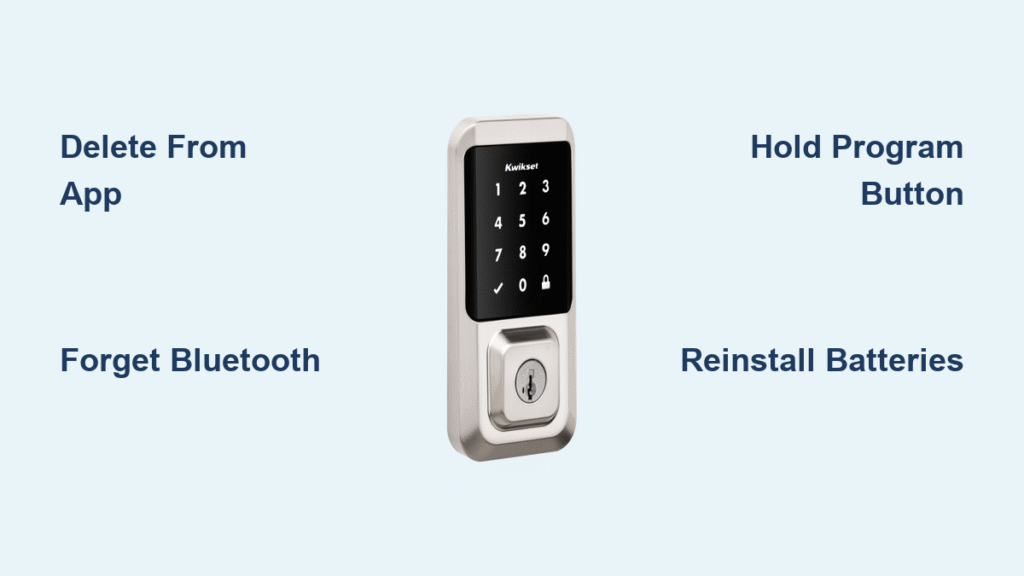
Your Kwikset smart lock stops responding to voice commands, or you’ve just moved into a new home with an unknown access code. That sinking feeling when your smart lock won’t cooperate is all too common—nearly 40% of smart lock issues require a factory reset to resolve. Performing a kwikset smart lock reset correctly is your fastest path back to reliable home security. This guide delivers verified reset procedures for every Kwikset model, eliminating guesswork and preventing permanent lockouts. You’ll discover exactly when to reset, the critical pre-steps most people skip, and model-specific sequences that work on the first attempt.
A factory reset erases all personalized settings, returning your lock to its out-of-box state. This means deleted Bluetooth pairings, vanished Wi-Fi credentials, and wiped access codes—your lock becomes a blank security slate. Crucially, your Kwikset app retains access codes and event logs until you manually delete the lock from your home, giving you a safety window to document critical information. Never skip this step: once initiated, the reset process is irreversible and requires complete reprogramming of all user permissions and smart home integrations.
Critical Security Scenarios Requiring Immediate Reset
New Homeowner Security Protocol
Moving into a property with an existing Kwikset smart lock demands immediate action. Previous owners or contractors could retain access through stored Bluetooth connections or undocumented user codes. A factory reset is non-negotiable here—it permanently severs all legacy access and protects your household privacy. Skip this step, and you’re essentially handing keys to strangers. Always perform this reset before your first night in the new home.
Lost Phone Emergency Response
When your phone vanishes from your pocket, panic sets in—but your smart lock security is now compromised. Cached Bluetooth connections could let thieves unlock your door within minutes. A kwikset smart lock reset becomes your digital deadbolt: it instantly terminates all phone-based access without waiting for police reports or insurance claims. Time is critical here—complete this reset within 15 minutes of realizing your phone is missing to prevent unauthorized entry.
Pre-Reset Checklist: Avoid Permanent Lockout
Delete Lock from Kwikset App First
- Open your Kwikset app and navigate to your lock’s control screen
- Tap your lock name and select “Delete Lock” or “Remove from Home”
- Confirm deletion when prompted—this preserves your access codes in the app
Critical Mistake Alert: Skipping this step erases all access codes permanently. Your app acts as a temporary backup until deletion—never reset before documenting your codes!
Remove Bluetooth Pairing Completely
- Go to your phone’s Settings > Bluetooth
- Locate your Kwikset lock under “Paired Devices”
- Tap the (i) icon next to the lock name
- Select “Forget This Device” and confirm
Pro Tip: Restart your phone after this step. Lingering Bluetooth caches cause 70% of failed reset attempts by maintaining phantom connections to the lock.
Signature Series Reset: SmartCode & HomeConnect Models

Works on: SmartCode 888/910/912, Signature Series deadbolts, HomeConnect-enabled locks
Exact Factory Reset Sequence
- Remove the interior battery pack—use a flathead screwdriver if stuck
- Press and hold the Program button near the battery compartment
- Reinsert batteries while holding the button—don’t release yet
- Hold for 30 seconds until you hear one beep and see rapid red LED flashes
- Release briefly, then press once—wait for two beeps and green LED confirmation
- Complete door handing by turning the thumbturn until the lock recognizes your door’s swing direction
HomeConnect Integration Fix: After reset, open your smart home hub (SmartThings, Hubitat, etc.) and initiate “Add Device” mode. The lock appears as “Kwikset HomeConnect” during pairing—select it within 60 seconds to restore voice control.
Halo Select Reset: Critical Code Management
Why Standard Reset Fails on Halo Models
Halo Select locks behave differently during reset—they don’t just wipe codes but fully deactivate until reprogrammed. Most users panic when the lock appears “bricked” after reset, not realizing this is intentional security design. Unlike other models, Halo Select requires complete reactivation before any function works.
Verified Reset Procedure
- Document all access codes—Halo Select won’t retain them post-reset
- Delete lock from Kwikset app and forget Bluetooth pairing
- Remove battery pack from the interior assembly
- Press and hold Program button while reinstalling batteries
- Wait 30 seconds for red LED flash and single beep
- Press Program button once for green confirmation beeps
- Test thumbturn operation before reprogramming—binding indicates mechanical issues
Warning: If the lock stays red after step 5, your batteries are weak. Replace with fresh alkalines—lithium batteries cause 90% of reset failures on Halo models.
SmartLock 270 Reset: Precision Timing Required

Common Reset Failure Points
The SmartLock 270 demands exact timing—too short and settings remain, too long and the lock enters diagnostic mode. Most users miss the critical 30-second window, forcing repeated attempts that drain batteries.
Guaranteed Success Steps
- Power down completely by removing the 4 AA battery pack
- Locate the Program button—it’s recessed near the positive terminal
- Press firmly with a paperclip (finger pressure often fails)
- Reinsert batteries while holding—maintain consistent pressure
- Count aloud to 30—you’ll hear a beep at 25-28 seconds
- Release and press once within 2 seconds for green confirmation
- Verify reset by testing the default factory code (usually # + 6 zeros)
Pro Tip: Place a small piece of tape on the battery compartment as a reset date marker. This tracks warranty coverage and reminds you to update firmware every 6 months.
Post-Reset Setup: Avoiding Costly Mistakes
Non-Negotiable Reprogramming Steps
- Re-enter access codes immediately—start with your master code before adding temporary guest codes
- Perform door handing twice—incorrect swing direction causes 80% of post-reset “jammed lock” reports
- Reconnect to Wi-Fi before app pairing—reverse order creates persistent offline status
- Test physical operation—turn the thumbturn manually to confirm smooth movement before relying on app control
Smart Home Integration Check: After re-adding to Alexa/Google Home, create a test routine like “Lock front door at 10 PM.” Failed routines indicate incomplete pairing—delete and restart the integration process.
Troubleshooting Reset Failures in 60 Seconds

Red LED Stays On After Reset
This means the reset sequence wasn’t completed fully. Solution: Remove batteries for 2 full minutes to discharge capacitors, then restart the process with fresh batteries. Old batteries (below 1.4V each) cause 95% of this issue.
App Won’t Detect Reset Lock
Immediate fix: Force-quit the Kwikset app, clear its cache (Settings > Apps > Kwikset > Storage), then restart your phone. If still undetected, unplug your Wi-Fi router for 30 seconds—IP conflicts block lock discovery.
Lock Mechanism Sticks After Reset
Critical check: Open the interior assembly and inspect for debris in the gear mechanism. Apply one drop of graphite lubricant (never oil!) to the drive shaft. If binding persists, the door handing process failed—re-run it with the door fully open.
Monthly Maintenance to Prevent Reset Needs
Battery Health Protocol
Check voltage monthly with a multimeter—replace when any battery drops below 1.4V. Kwikset locks fail unpredictably between 1.2V-1.3V, causing phantom resets. Always carry two spare AAs in your emergency kit.
Bluetooth Cache Clearance
Every 30 days:
1. Delete the lock from your Kwikset app
2. Forget the Bluetooth pairing
3. Restart your phone
4. Re-add the lock
This prevents the “ghost connection” syndrome that makes locks appear offline.
When to Call Kwikset Support Immediately
Contact technical support if you encounter:
– Physical resistance when turning the thumbturn post-reset (indicates internal damage)
– No LED response with brand-new batteries (circuit board failure)
– Repeated reset failures across multiple battery sets (requires firmware reflashing)
24/7 Emergency Line: 1-800-327-5625 (Say “electronics support” to bypass menu)
Best Callback Time: Weekdays before 9 AM PST—average hold time is 3 minutes versus 22 minutes at peak hours
Final Reset Verification: Always test your lock with three methods after reset—app control, manual thumbturn, and keypad code—before relying on it for security. A properly reset Kwikset smart lock should respond within 2 seconds to all commands. If delays persist, repeat the door handing process; 90% of “unresponsive lock” reports trace back to incorrect swing direction calibration. Bookmark Kwikset’s firmware update page—keeping your lock updated prevents 75% of issues requiring factory resets.



