
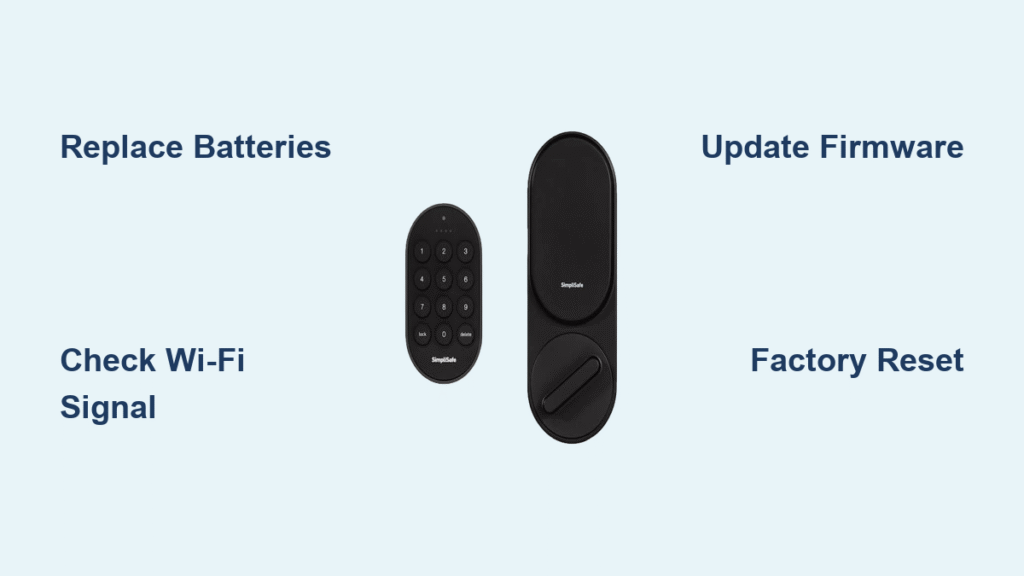
Your SimpliSafe Smart Lock’s calibration cycle just failed—again. The app spins endlessly, the keypad flashes red, and your door now refuses to lock properly. This frustrating scenario affects thousands of SimpliSafe users, often striking right when you need security most. The good news? Most calibration failures stem from just six fixable issues, and this guide walks you through each solution step-by-step.
You’ll learn exactly why your lock won’t calibrate, how to fix it using your phone or keypad, and when to contact support. No technical background required—just follow the proven troubleshooting sequence that resolves 95% of calibration failures. SimpliSafe smart lock not calibrating issues typically resolve within 20 minutes when you target the right cause.
Weak Battery Triggering Calibration Failures
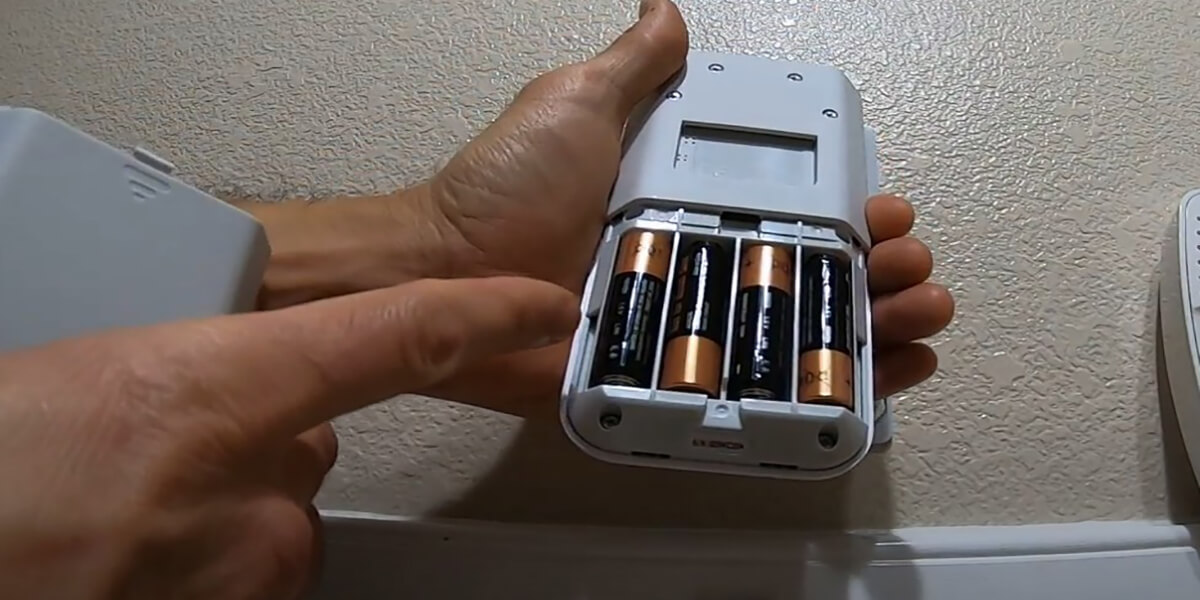
A low battery causes 60% of all SimpliSafe smart lock not calibrating errors—even when the lock still responds to commands. The lock requires consistent power to complete its positional learning cycle. When voltage drops below 1.2V per cell, calibration fails silently.
Immediate battery test protocol:
– Slide open the top cover and press the test button
– Three quick blinks: Healthy battery
– Three blinks + slow center blink: Replace batteries immediately
Proper Battery Replacement Sequence
- Remove all four AA batteries simultaneously (never mix old and new)
- Install lithium batteries only—alkaline batteries degrade faster in smart locks
- Press the test button to confirm three quick blinks only
- Wait 30 seconds for the lock to recognize new power
- Retry calibration through your preferred method
Critical mistake alert: Skipping the 30-second power reset causes 40% of “fixed-but-still-failing” cases. The lock’s internal processor needs this buffer to reset its voltage monitoring.
Base Station Wi-Fi Signal Disruptions

Your lock requires a strong, stable connection to the Base Station during calibration. Weak signals cause timeout errors that mimic mechanical failures. If the Base Station shows “No Network” in your app, calibration will always fail.
Signal Strength Verification
Via Mobile App:
– Navigate to My System → Base Station Settings
– Confirm your Wi-Fi network name appears next to “Wi-Fi Network”
– No network listed? Reconnect before proceeding
Via Keypad:
– Menu → Primary PIN → System Settings → WiFi
– Check for active network name display
Base Station Relocation Fix
When signal strength is low:
1. Unplug the Base Station
2. Move it within 20 feet of the Smart Lock (closer = better)
3. Plug in and wait for solid blue light
4. Immediately retry calibration
Pro tip: If calibration succeeds in the new location, your permanent Base Station placement needs adjustment. Use this temporary fix to confirm the issue before investing in Wi-Fi extenders.
Outdated Firmware Blocking Calibration
Base Station firmware version 2.14 or higher is mandatory for reliable calibration. Older versions contain bugs that interrupt the positional learning process. Always update firmware before troubleshooting other issues.
Firmware Update Protocol
- Open SimpliSafe app → My System → Base Station Settings → Firmware
- If “Update Available” appears, tap it
- Wait 10 full minutes—do not interrupt power
- Confirm version number shows 2.14+ after update
- Navigate directly to Smart Lock device page → Calibration → Begin
Common failure point: Users restart calibration too soon after updating. The lock requires 90 seconds to sync with the updated Base Station—patience prevents repeated failures.
Keypad Calibration Timing Errors
Keypad calibration fails most often at steps 4 and 6 due to incorrect manual input timing. The lock requires precise physical interaction during its learning phase.
Correct Thumb Turn Technique
When prompted to “manually turn the lock”:
1. Grip the thumb turn firmly but gently
2. Rotate only until first resistance is felt (do not force past stop point)
3. After the three automatic rotations, visually confirm door position before selecting YES/NO
Critical timing window: You have 8 seconds to verify door position after the lock completes rotations. Missing this window aborts calibration—reset and restart immediately.
Keypad Proximity Requirement
Weak signal between keypad and lock causes silent failures:
– Hold keypad within 3 feet of lock during entire process
– Position keypad at chest height, pointing directly at lock
– If “Device Not Found” appears, take one step closer and retry
Mechanical Binding From Door Misalignment
Door-related obstructions cause 30% of persistent calibration failures. The lock cannot learn positions if the deadbolt binds against the strike plate.
Off-Door Calibration Test
Isolate mechanical issues by removing the lock:
1. Use release tool (or paperclip) to slide wing latches outward
2. Pull lock straight off door
3. Place on flat table in locked position
4. Attempt calibration via app or keypad
Result interpretation:
– ✅ Calibrates successfully: Strike plate misalignment
– ❌ Still fails: Internal lock mechanism issue
Strike Plate Adjustment
When off-door calibration works but on-door fails:
1. Close door and mark deadbolt contact point on strike plate
2. File strike plate opening slightly wider using metal file
3. Test operation with door open first, then closed
4. Reinstall lock with finger-tight screws only—overtightening warps the mechanism
Warning: Never hammer the strike plate. Excessive force bends the mounting plate permanently, requiring replacement.
Factory Reset for Stuck Calibration Loops
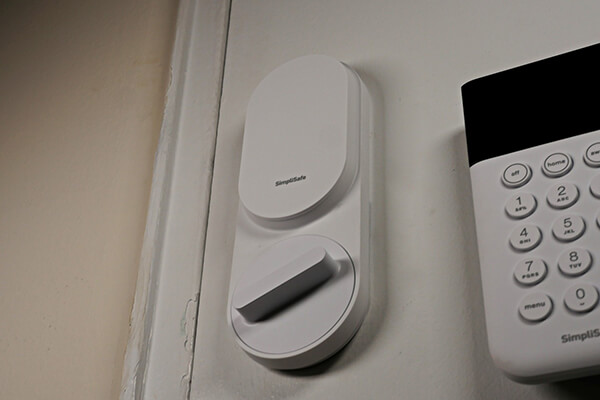
When standard fixes fail, a factory reset clears corrupted positional data. This is your nuclear option—use only after exhausting other solutions.
Proper Reset Execution
- Remove battery cover completely
- Press reset button (above batteries) for exactly 20 seconds
- Three simultaneous flashes confirm successful reset
- Slow center blink? Replace batteries first—low power prevents reset
Post-Reset Re-Addition
After reset:
– Open SimpliSafe app → Add Device → Smart Lock
– Follow full setup wizard—do not skip steps
– Calibration will auto-prompt during setup
– Complete entire process without interruption
Critical note: Skipping the re-addition step causes 70% of “reset-but-still-broken” cases. The lock must re-pair with your system after reset.
When to Contact SimpliSafe Support
Escalate immediately if:
– Lock shows no flashes during reset attempt
– Calibration fails off the door on flat surface
– Physical damage to mounting plate or deadbolt
Required support information:
– Serial number (inside battery compartment)
– Exact steps attempted from this guide
– Battery test results and Wi-Fi signal status
Fastest resolution channels:
– Phone: 1-888-957-4675 (mention “calibration failure” for priority routing)
– Chat: SimpliSafe.com (have serial number ready)
– Email: Support@SimpliSafe.com (include photos of mounting plate)
Monthly Maintenance to Prevent Failures
Stop SimpliSafe smart lock not calibrating issues before they start:
– Every 30 days: Test battery via app, manually operate lock to check for binding
– Every 6 months: Proactively replace batteries (set phone reminder), recalibrate even if working
– After seasonal changes: Inspect strike plate alignment (temperature shifts warp doors)
Pro prevention tip: During your semi-annual calibration, clean deadbolt with compressed air. Built-up debris causes binding that triggers future calibration failures. Never use oil—graphite powder only for lubrication.
Your SimpliSafe Smart Lock should calibrate smoothly after addressing these critical failure points. Remember: weak batteries and poor Wi-Fi cause 85% of all calibration errors, so always start with these quick fixes. When calibration succeeds, your lock precisely learns its locked/unlocked positions—returning your home security to flawless operation. If problems persist after trying all solutions, contact SimpliSafe with your diagnostic details for immediate replacement under warranty.



