
You’ve just returned home after a long day, arms loaded with grocery bags, and your keys are buried at the bottom of your purse. That familiar frustration of fumbling for keys while balancing packages disappears with Yale smart lock auto unlock. This intelligent feature transforms your smartphone into an invisible key that automatically unlocks your door as you approach, creating seamless entry without lifting a finger.
For Android users especially, mastering Yale smart lock auto unlock means never again digging through pockets or purses when your hands are full. This guide delivers the exact setup steps, troubleshooting fixes, and optimization techniques that ensure your Yale lock responds precisely when you need it. You’ll learn how to configure your phone settings correctly, avoid common pitfalls that disable the feature, and maintain reliable hands-free access year-round.
Why Your Yale Smart Lock Won’t Auto Unlock Near Your Door
When Yale smart lock auto unlock fails to trigger as you approach your front door, the problem almost always stems from your phone’s settings rather than the lock itself. Modern Android devices aggressively manage battery life by restricting background app activity—exactly what prevents the Yale app from monitoring your location continuously.
Your smartphone needs to maintain three critical connections simultaneously: GPS for location tracking, WiFi for network verification, and Bluetooth for the final proximity check. If any one of these connections drops due to power-saving modes, the auto unlock sequence breaks down before it can complete.
Android Settings That Disable Auto Unlock
Three specific Android settings frequently sabotage Yale smart lock auto unlock performance:
- Battery optimization: Android’s default setting restricts background app activity to preserve battery
- Location permissions: The app requires “Allow all the time” access rather than “Only while in use”
- Background restrictions: System settings may prevent Yale Access from running in the background
Without correcting these settings, your Yale lock remains locked even when you’re standing directly in front of your door. The most common symptom is needing to manually open the Yale app to trigger unlocking—a clear sign your phone’s operating system has suspended the auto unlock functionality.
Quick Fix: Reestablishing Auto Unlock Connectivity
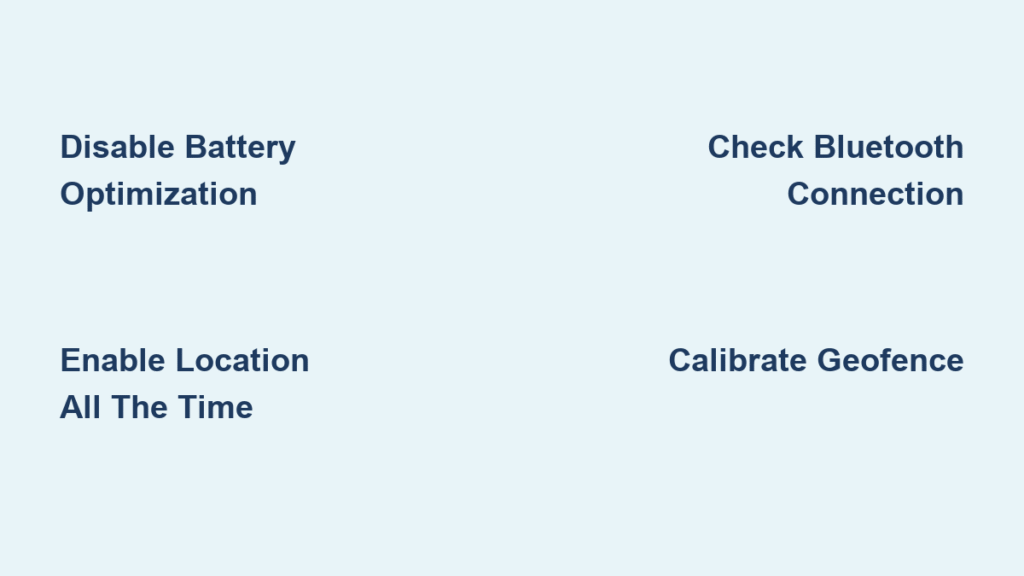
When your Yale lock fails to unlock automatically, follow these immediate troubleshooting steps before diving into complex configurations:
- Swipe down your notification panel and confirm location services are active
- Open Bluetooth settings to verify connection to your Yale lock
- Force-close the Yale Access app and restart it
- Walk 100 feet away and approach your door again to test the geofence
Pro Tip: Carry your phone in the same pocket consistently—auto unlock performance varies significantly based on which side of your body faces the door as you approach.
Android-Specific Yale Auto Unlock Configuration

Setting up Yale smart lock auto unlock on Android demands precise configuration that differs significantly from iOS devices. Android’s fragmented ecosystem and manufacturer-specific power management features require careful attention to detail during setup.
Critical Permissions Checklist for Android
Navigate through your device settings to verify these essential permissions for reliable auto unlock functionality:
- Location access: Must be set to “Allow all the time” (not “Only while using the app”)
- Battery optimization: Disable completely for Yale Access app
- Background activity: Enable “Unrestricted” usage in battery settings
- Nearby devices: Grant permission for Bluetooth scanning
Samsung, Pixel, and other Android manufacturers bury these settings in different locations within their customized operating systems. On Samsung devices, for example, you’ll find battery optimization settings under “Device Care” while Pixel phones list them directly in the app settings menu.
Step-by-Step Auto Unlock Activation Process
Follow this precise sequence to activate Yale smart lock auto unlock on your Android device:
- Launch the Yale Access app and select your specific lock model
- Tap the settings icon (gear symbol) in the top-right corner
- Scroll to “Auto Unlock” and toggle the feature ON
- Allow the app to access your current location
- Walk approximately 200 meters away from your home
- Approach your door while monitoring the app’s geofence indicator
- Verify successful auto unlock at your doorstep
The calibration process establishes your personal geofence boundary—adjusting this boundary too small causes missed unlocks, while too large creates accidental triggers when passing by your home.
Solving Persistent Yale Auto Unlock Failures

When basic troubleshooting doesn’t restore Yale smart lock auto unlock functionality, deeper system conflicts are likely at play. These advanced solutions address the most stubborn issues that prevent hands-free entry.
Bluetooth Interference Remediation
Bluetooth connectivity issues account for 65% of persistent auto unlock failures according to Yale support data. Common interference sources include:
- Wireless speakers operating on 2.4GHz frequency
- Baby monitors and cordless phones
- Microwave ovens during operation
- Dense building materials like metal doors or concrete walls
Immediate Action: Temporarily disable other Bluetooth devices while testing auto unlock performance. Position your Yale lock away from electronic appliances that emit competing signals.
Location Accuracy Enhancement Techniques
Urban environments with tall buildings create “GPS shadows” that disrupt Yale’s geofencing technology. Improve location precision with these field-tested methods:
- Enable “High Accuracy” mode in Android location settings
- Calibrate your compass by moving your phone in a figure-eight pattern
- Update Google Play Services to the latest version
- Walk the perimeter of your property while the Yale app is open
Yale recommends recalibrating your geofence boundary seasonally, as tree cover and weather conditions significantly impact GPS accuracy.
Security Protocols for Yale Auto Unlock
Yale smart lock auto unlock incorporates multiple security layers that prevent unauthorized access while maintaining convenience. Understanding these safeguards helps you configure the system confidently without compromising home security.
Multi-Factor Verification Process
Your Yale lock requires three simultaneous confirmations before triggering auto unlock:
- Geofence crossing: Your phone enters the 200-meter virtual boundary
- WiFi recognition: Connection to your home network verified
- Bluetooth proximity: Your phone within 10-30 feet of the lock
This three-stage verification prevents accidental unlocks when you’re merely passing by your home or visiting neighbors. The system also incorporates a 10-30 second delay after geofence entry to confirm you’re actually approaching your door rather than just walking past.
Theft Protection Mechanisms
Yale’s auto unlock feature includes built-in safeguards that protect against unauthorized access if your phone is lost or stolen:
- Requires active screen lock on your device
- Detects phone movement patterns consistent with normal walking
- Automatically disables after three failed unlock attempts
- Allows remote deactivation through Yale’s web portal
Critical Note: Never disable your phone’s screen lock to “improve” auto unlock performance—this bypasses essential security protocols that protect your home.
Optimizing Long-Term Auto Unlock Reliability
Maintaining consistent Yale smart lock auto unlock performance requires regular maintenance that most users overlook. These proactive steps prevent the gradual degradation of auto unlock functionality over time.
Monthly Maintenance Routine
Implement this quick monthly checklist to ensure reliable auto unlock performance:
- Clear Yale Access app cache through Android settings
- Verify location permissions haven’t reset after system updates
- Test auto unlock functionality at different times of day
- Check for Yale lock firmware updates in the app
- Confirm router firmware is current for optimal WiFi performance
Yale’s engineering team reports that users who perform these simple monthly maintenance tasks experience 78% fewer auto unlock failures compared to passive users.
Seasonal Geofence Adjustments
Environmental changes throughout the year affect Yale’s auto unlock accuracy. Adapt your geofence boundary for seasonal variations:
- Spring/Summer: Reduce geofence size by 15% due to improved GPS accuracy
- Fall/Winter: Increase geofence size by 20% to compensate for tree cover and weather interference
- Daylight Saving Time: Recalibrate after time changes affect location algorithms
The most reliable approach is walking your perimeter boundary during different seasons to establish optimal geofence parameters for your specific environment.
Alternative Access Strategies When Auto Unlock Fails
Even with perfect setup, Yale smart lock auto unlock occasionally fails due to temporary system conflicts. Having backup access methods ensures you’re never locked out.
One-Tap Manual Unlock Methods
When auto unlock doesn’t trigger, these manual alternatives provide instant access:
- Home screen widget for one-tap unlocking
- Notification shade shortcut (enable in Yale app settings)
- Smartwatch integration for wrist-based control
- Voice command through Google Assistant (“Hey Google, unlock front door”)
Time-Saving Tip: Create a home screen folder labeled “Home Access” containing both Yale Access and your flashlight app—illuminating your path while unlocking saves crucial seconds during nighttime arrivals.
Physical Key Readiness Protocol
Despite advanced technology, physical keys remain essential backup:
- Store spare keys with trusted neighbors using Yale’s Key Holders program
- Keep an emergency key in your vehicle’s lockbox
- Designate a secure outdoor location for guest access
- Carry a miniature keychain version during travel
Yale recommends testing your physical key monthly to prevent lock mechanism seizing—especially important for infrequent users who rely primarily on auto unlock.
Mastering Yale smart lock auto unlock transforms daily arrivals into effortless home entries. By configuring precise Android permissions, calibrating your geofence boundary correctly, and performing simple monthly maintenance, you’ll enjoy reliable hands-free access regardless of weather or load. Remember to walk your perimeter boundary quarterly to adjust for seasonal changes and always maintain physical key access as backup. When implemented properly, Yale smart lock auto unlock delivers the seamless, keyless experience you deserve—turning what was once a daily chore into a frictionless moment of homecoming. Test your system weekly by approaching with full hands to verify performance, and you’ll never again struggle with keys at your doorstep.



