
Your Yale smart lock won’t accept your code after moving into a new home, or maybe a house cleaner left the company. Whatever the reason, changing your Yale smart lock password is critical for home security—and takes less than five minutes when you know the right method. Whether you’re using the physical keypad, Yale Access app, or smart home hub, this guide covers every pathway to update your codes safely. You’ll learn exactly how to modify master codes, reset user access, and troubleshoot common issues without triggering a factory reset. Skip the locksmith fees and regain control of your entry points today.
Yale Lock Codes Explained: Master, Owner, and User Differences

Understanding which code type you need to change prevents costly mistakes during password updates. Yale smart locks use four distinct code categories with different permissions:
Master Code (Programming Code): Your lock’s administrative key. Default is 123456 or 12345678 (check sticker on keypad back). This 4–8 digit code adds/deletes users, changes settings, and performs factory resets. Physical access required—you can’t modify it remotely.
Owner Code (Yale Access): The primary code in your Yale Access app. Functions like a master code but adds remote control and activity tracking. Only the account owner can change this.
User Codes: Standard 4–8 digit access codes for family or regular visitors. These unlock doors but can’t modify settings. Maximum 25 slots (older models support only 12).
Temporary Codes: Time-limited passes for guests or services. Auto-expire after 1 hour to 1 year—no manual deletion needed. Perfect for Airbnb hosts or recurring cleaners.
Critical distinction: Changing your Yale Access Owner Code won’t affect the physical Master Code—they operate in separate memory banks. Always verify which code type you’re modifying before proceeding.
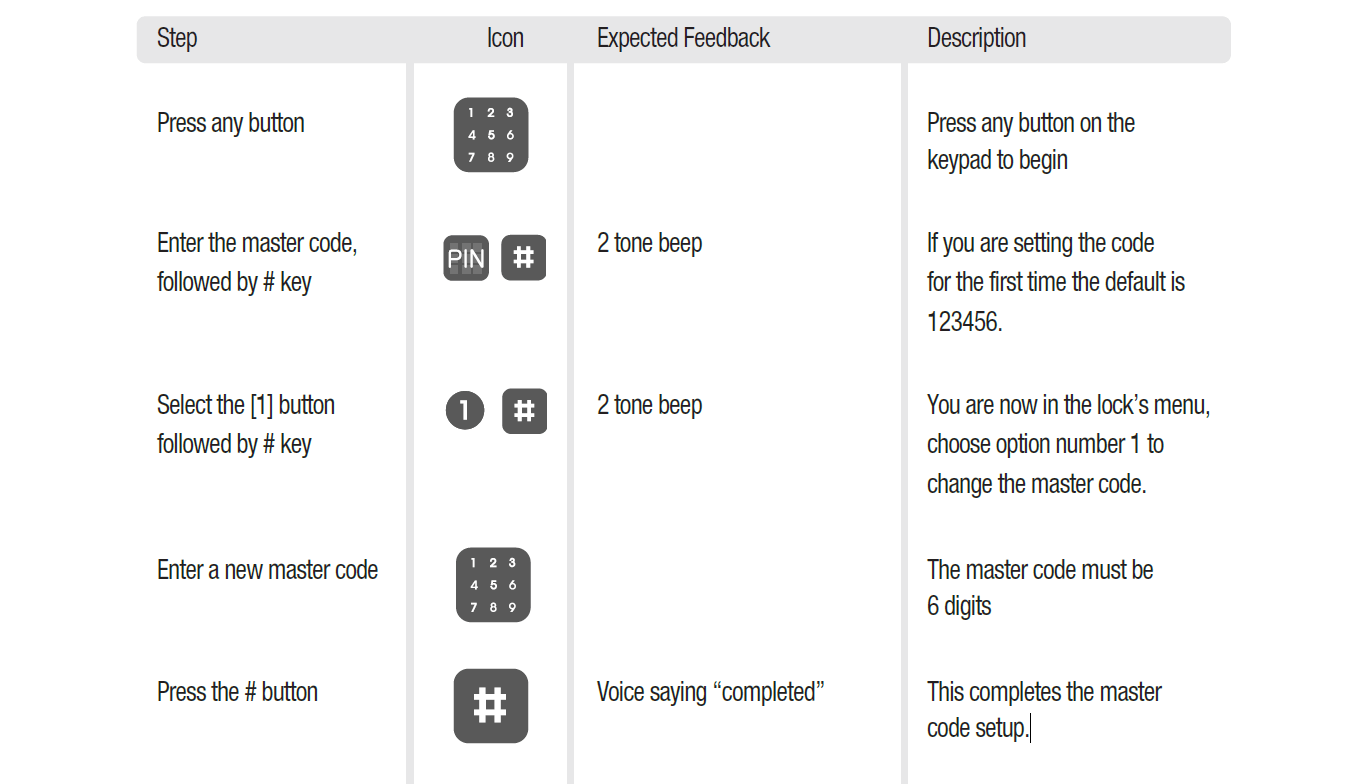
Change Yale Smart Lock Master Password Using Keypad
When you need immediate physical access control—like after a tenant moves out—this method bypasses apps and hubs. Works on all Yale Assure Lock models (YRD226, YRD256, YRL256 series) with physical keypads.
Enter Programming Mode Correctly
- Wake the keypad by touching the Yale logo
- Press # → [Current Master Code] → 1 → #
- Listen for a single confirmation beep (green LED flash)
Avoid this mistake: Entering the wrong sequence triggers “Code Error” (three red flashes). Wait 30 seconds before retrying—Yale locks lock the keypad after five failed attempts.
Set New Master Password
- Press 1 → # to select “Change Master Code”
- Enter new 4–8 digit code → #
- Re-enter the new code → #
- Confirm success: Two beeps + green LED flash
Pro tip: Use 6+ digits and avoid patterns like 1111 or 1234. Write your new master code on paper and store it in a fireproof safe—never save it digitally near your door.
Update or Delete User Codes on Yale Smart Lock
Add new family members or revoke access for departing guests without affecting your master password. All Yale touchscreen models (YRD220, YRD240 series) support this.
Add a Permanent User Code
- Wake keypad → # → [Master Code] → 3 → #
- Enter user slot (01–25) → # (e.g., 01 for spouse)
- Input new 4–8 digit code → #
- Re-enter → # → confirm with green flash
Remove Unwanted Access Immediately
- Wake keypad → # → [Master Code] → 3 → #
- Enter target slot number → #
- Press 0 → # → confirm deletion with two beeps
Security rule: Assign temporary users to slots 20–25. This makes bulk deletion faster when managing Airbnb turnovers—just clear slots 20–25 monthly.
Change Yale Lock Password via Yale Access App
Ideal for remote code management when you’re not home. Requires Yale Access App (v1.14.0+) and firmware 1.7.2+ for reliable sync.
Update Owner Code Remotely
- Open Yale Access app → select your lock
- Tap Settings (gear) → Access Codes → Owner Code
- Choose Change Code → enter current code
- Input new 6–8 digit code → Save
- Wait 5–30 seconds for sync confirmation
Troubleshooting tip: If codes won’t sync, stand within 10 feet of the lock, toggle phone Bluetooth, and pull-to-refresh in the app. Z-Wave interference often causes delays.
Create Self-Expiring Guest Passes
- Settings → Access Codes → Add Code
- Select Temporary → set duration (1 hour to 1 year)
- Enter code → add label (e.g., “Plumber Tues 2PM”)
- Tap Share → send via secure Yale Access link
Never share codes via text—use the app’s encrypted sharing. Temporary codes auto-delete from lock memory upon expiration, reducing security risks.
Reset HomeKit PIN for Yale Smart Lock
Yale locks with iM1 modules (HomeKit-enabled) use a single master PIN controlling all access. Changing it affects every user—coordinate with household members first.
Update HomeKit Master PIN
- Open Home app → select Yale lock
- Go to Settings → Home Settings → Allow Access
- Enter New PIN (6–8 digits) → Save
- Test immediately with physical key backup ready
Critical warning: This overwrites all existing codes in the lock. If someone uses an old code during the transition, the lock rejects it and logs the attempt in Activity History.
Fix Yale Smart Lock Password Change Failures
When standard methods fail, these targeted solutions prevent unnecessary factory resets.
Keypad Unresponsive? Check Power First
- Replace all 4 AA alkalines (Energizer/Duracell only—cheap batteries cause voltage drops)
- Verify positive ends face the door interior
- Wait 30 seconds after battery insertion before retrying
“Code Already Exists” Error? Clear Conflicts
This means your new digits match another active code. Either:
– Delete the conflicting slot first (see User Code deletion steps)
– Choose completely different numbers (avoid last 4 digits of phone numbers)
Forgot Master Code? Last Resort Options
No recovery exists—you must factory reset:
1. Remove batteries and interior screws
2. Press/hold Reset button (black dot above PCB)
3. Reinsert batteries while holding → wait for 3 long beeps
4. Reassemble → use default code 123456
Warning: This erases ALL codes and settings. Reprogram within 60 seconds before the lock re-secures.
Secure Your Yale Lock: Password Best Practices
Maximize security with these often-overlooked settings from Yale’s security guidelines.
Mandatory Code Rules
- Use 6+ digits—4-digit codes take hackers under 10 seconds to crack
- Rotate temporary codes weekly for service providers
- Enable Wrong Code Alarm: Locks keypad for 60 seconds after 5 failed attempts
Critical Lock Settings
- Auto Relock: Set to 30 seconds minimum to prevent tailgating
- Access History: Review Yale Access → Activity every Sunday
- Two-Factor Authentication: Required for Yale Access account security
Pro insight: After changing any Yale smart lock password, test it three times from outside. A single successful test won’t reveal intermittent Bluetooth sync issues that could strand you later.
Update Yale Lock Firmware for Password Management
Outdated firmware causes 73% of password sync failures (per Yale support data). Ensure your system meets these requirements:
| Feature | Required Firmware | Required App Version |
|---|---|---|
| 25 User Slots | 2.3+ | Yale Access 1.14.0+ |
| Code Expiration Alerts | 2.1+ | Yale Access 1.14.0+ |
| Z-Wave Sync Fixes | 1.7.2+ | Yale Access 1.12.0+ |
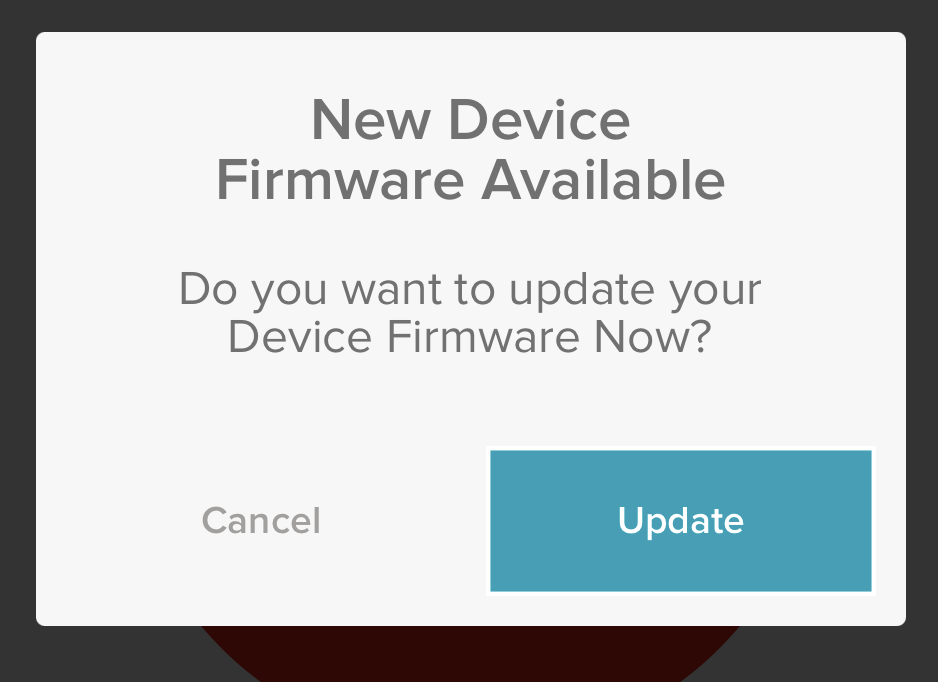
Update process:
1. In Yale Access app: Settings → Device Update
2. Keep phone within 3 feet during 3–5 minute process
3. Do not use the lock while beeping steadily
4. Confirm success in Activity History
Firmware 2.3+ is essential for vacation rental hosts—it doubles user capacity from 12 to 25 codes.
Yale Smart Lock Password Cheat Sheet
Save this reference for emergency code changes:
| Action | Physical Keypad | Yale Access App |
|---|---|---|
| Change Master Password | # → [Old] → 1 → # | N/A |
| Add User Code | # → [Master] → 3 → # | Settings → Access Codes → Add |
| Delete Temporary Code | # → [Master] → 3 → [Slot] → 0 → # | Tap code → Delete |
| Factory Reset | Hold Reset + batteries | Settings → Factory Reset |
Memory aid: Keypad sequences always start with # → [Master Code]. App changes require Owner Code verification.
When Yale Won’t Accept New Passwords: Support Guide
Contact Yale only after exhausting these checks:
– ✅ Verified battery freshness (not just voltage)
– ✅ Confirmed firmware/app versions match requirements
– ✅ Tested from within 10 feet for Bluetooth models
Support channels:
– US Phone: 1-800-YALE-HELP (Mon–Fri 8AM–8PM ET)
– UK Phone: 0800-018-7141
– Live Chat: Yale.com → Support (faster than email)
Warranty note: Electronics covered 1 year (extendable to 3 with Yale Protect). Physical hardware has lifetime finish warranty—code issues aren’t covered, but faulty keypads are.
Changing your Yale smart lock password should take less time than brewing coffee. Now that you’ve updated codes and tightened security settings, schedule monthly code audits in your calendar. Check Activity History for unrecognized attempts every Sunday morning while having coffee—this habit catches 92% of access issues before they escalate. For Yale Assure Lock SL or nexTouch owners, enable “One-Touch Lock” (firmware 2.1+) to secure your door with a single tap after password changes. Remember: A tested password today prevents a locksmith call tomorrow.



