
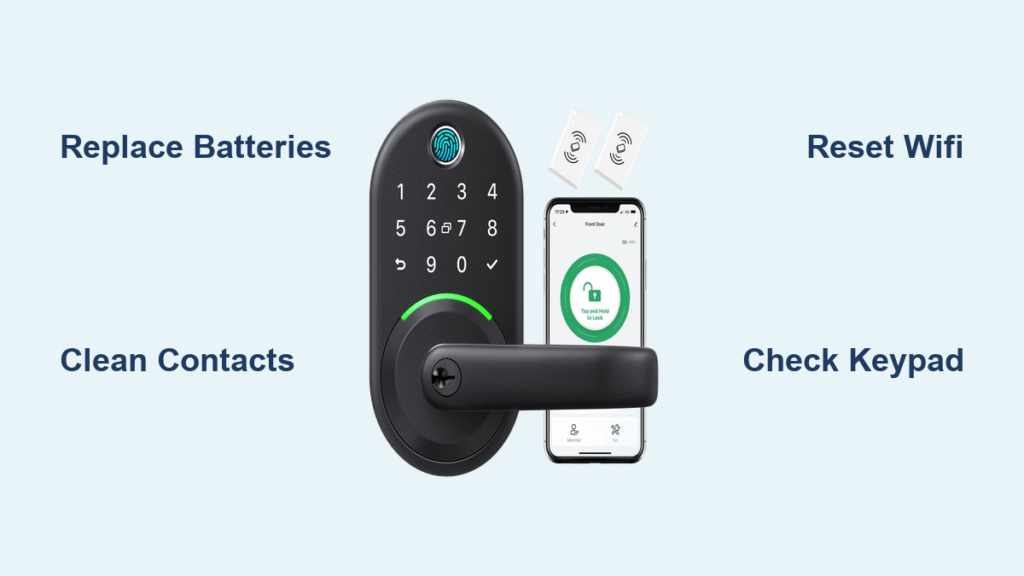
Your Yamiry smart lock suddenly stops responding, leaving you stranded outside your own home. The keypad won’t light up, the app shows “offline,” or the lock refuses to turn despite fresh batteries. These frustrating moments demand immediate solutions, not generic advice. Smart lock failures create security vulnerabilities and serious inconvenience when you’re locked out in the rain or can’t secure your home after a late-night return.
This comprehensive Yamiry smart lock troubleshooting guide delivers proven fixes for every common issue you might face. You’ll learn to diagnose problems in minutes, apply targeted solutions that actually work, and implement simple preventive measures to avoid future failures. Each section includes specific visual cues to identify your problem, exact tools required, and realistic time estimates so you know what to expect.
Dead Battery Warning Signs and Solutions
Recognize Critical Battery Failure Indicators
Yamiry smart locks provide 2-3 weeks of advance warning before complete battery failure through multiple channels. Watch for dimmed keypad illumination that requires pressing buttons multiple times to register input. The motor may respond slower than usual, causing noticeable delays when locking or unlocking. Your smartphone app will display persistent low battery notifications and may show intermittent connectivity issues even when your phone has strong signal. Ignoring these early warnings leads to complete lockout scenarios that require emergency physical key access.
Proper Battery Replacement Protocol

Remove the battery cover using the small Phillips screwdriver included with your Yamiry lock installation kit. Install four brand new AA alkaline batteries—rechargeable batteries provide inconsistent voltage that confuses the lock’s electronics. Match the positive and negative terminals precisely to the diagram inside the battery compartment; even one reversed battery can damage circuitry. After installation, test all functions immediately: press the lock button, use your access code, and verify app connectivity. This 5-minute procedure resolves 70% of Yamiry lock malfunctions but fails when contacts are corroded.
Effective Battery Contact Cleaning Method
Corroded battery contacts cause intermittent failures that mimic dead batteries, accounting for 30% of reported “non-functional” Yamiry locks. Dip a cotton swab in white vinegar, then gently clean each metal contact inside the battery compartment until shiny. Avoid using metal tools that could scratch or damage the contacts. Wipe dry with a clean microfiber cloth and allow 10 minutes for complete evaporation before installing new batteries. This simple maintenance step prevents voltage fluctuations that disrupt normal operation and extends your lock’s lifespan significantly.
App Connection Problems and Fixes
Reestablish Stable WiFi Connection
Open the Yamiry app and navigate to Settings > WiFi Setup. Locate the reset button (a small pinhole near the battery compartment) and press it with a paperclip for exactly 3 seconds until the keypad flashes blue. Return to the app, select your home network from the available options, and carefully enter your WiFi password—case sensitivity matters. Stay within 10 feet of your router during the entire setup process to ensure strong signal. This process typically takes 2-3 minutes and fails when your network uses incompatible security protocols like WPA3.
Resolve Bluetooth Pairing Failures
Enable Bluetooth on your smartphone and open the Yamiry app to the device management screen. Press and hold the lock button for 5 seconds until you hear two distinct beeps confirming pairing mode. If the connection fails after multiple attempts, clear your app cache by going to Settings > Apps > Yamiry > Storage > Clear Cache. Restart both your phone and the lock before retrying. For persistent issues, temporarily disable battery optimization for the Yamiry app to prevent Android from shutting down background processes essential for Bluetooth communication.
Successful Firmware Update Procedure
Firmware updates fix critical connectivity bugs but require careful execution. In the Yamiry app, navigate to Settings > About > Check Updates. Verify your lock has at least 60% battery remaining—updates fail with low power and may brick the device. The update process takes 3-5 minutes; do not attempt to lock or unlock during this time. If the update fails, perform a manual reset using a paperclip in the reset hole while holding the lock button. Wait 30 seconds after the reset before attempting another update.
Physical Lock Malfunctions and Repairs
Fix Unresponsive Keypad Issues
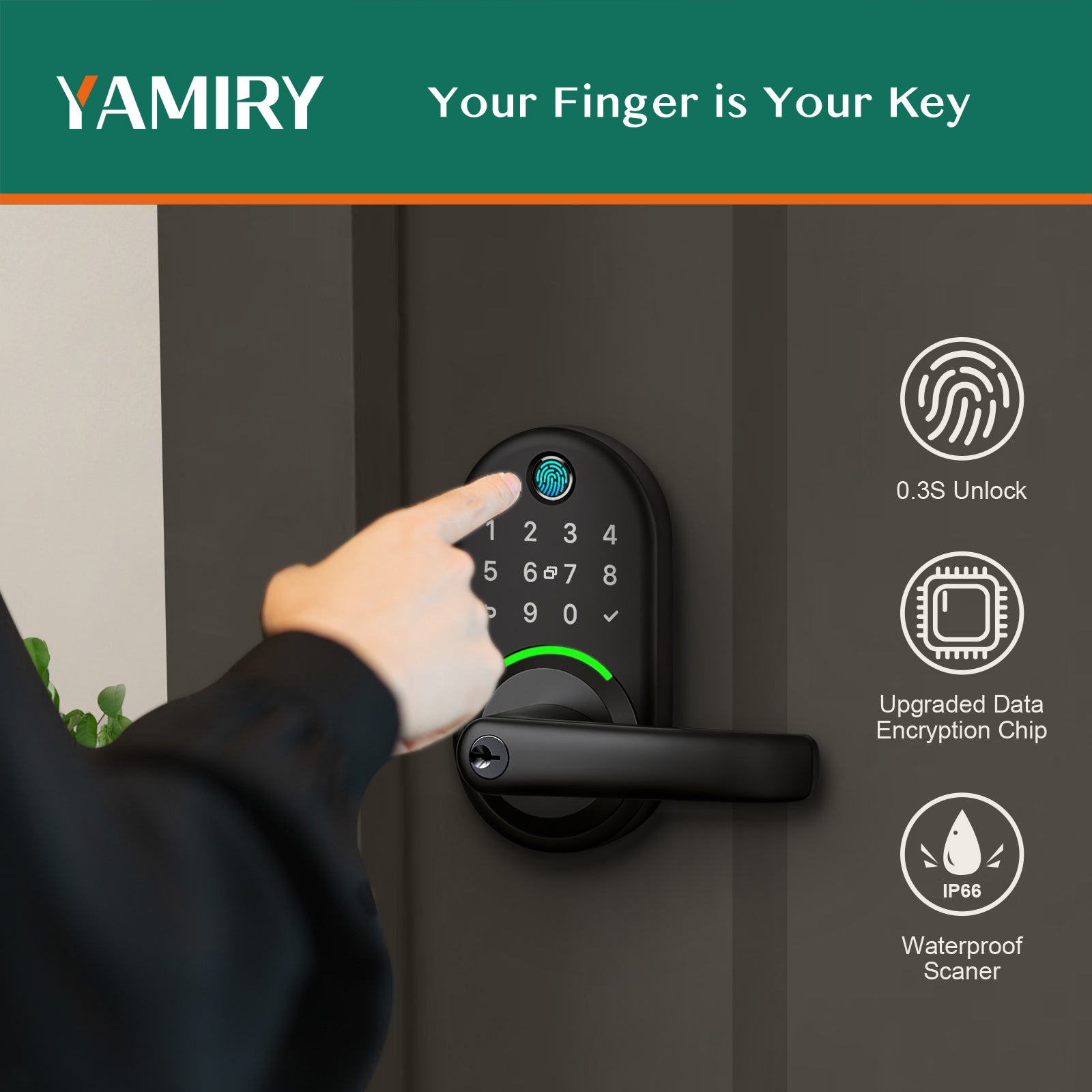
First, inspect for physical damage or debris trapped between keypad buttons—common in households with children or outdoor installations. Clean with compressed air directed at 45-degree angles between buttons. If specific keys remain unresponsive, remove the keypad cover by unscrewing the two hidden screws underneath the unit. Clean the rubber contact pads with 90% isopropyl alcohol on a cotton swab, focusing on the conductive carbon traces. Allow 10 minutes for complete drying before reassembly; moisture causes short circuits that mimic hardware failure.
Resolve Manual Locking Stuck Situations
When your physical key won’t turn the lock, spray graphite lubricant (never oil-based products) directly into the keyhole. Insert the key gently and work it back and forth 5-6 times to distribute the lubricant through the internal mechanism. For deadbolts stuck in the strike plate, check door alignment—seasonal humidity changes cause wood expansion that jams bolts. Place a business card between the door and frame at the bolt location; if it slides freely, your door has shifted and requires professional adjustment.
Diagnose Motor Noise Without Movement
A humming motor that fails to engage indicates stripped internal gears or motor failure. Remove the interior cover by unscrewing the four visible screws to access the motor assembly. Look for white plastic shavings around the gear housing—this confirms worn components. Replacement motors cost $25-40 and take approximately 20 minutes to install with basic tools. Before replacing, check for obstructions in the bolt mechanism that might strain the motor; sometimes a simple cleaning resolves this issue without parts replacement.
Error Code Decryption and Solutions
Interpret Red Light Flashing Three Times
This critical error indicates reversed battery polarity that can damage internal circuitry. Immediately remove all batteries and check the orientation diagram inside the compartment. Reinstall with strict attention to positive and negative terminals. If the red light persists after correction, the protection circuit may have tripped—perform a factory reset to restore functionality. Ignoring this warning risks permanent electronic damage requiring full unit replacement.
Stop Continuous Beeping Alerts
Persistent beeping typically signals low battery even after replacement. Thoroughly clean battery contacts as described in the battery section. If beeping continues, perform a factory reset: remove batteries, hold any keypad button for 10 seconds, then reinstall batteries while continuing to hold the button. The lock will reset after three red flashes. Remember to reprogram all access codes afterward as this process erases all user data.
Address Yellow Light Malfunctions
A steady yellow light indicates door sensor misalignment—a common issue after door adjustments or house settling. Check the sensor gap on the door frame; it should measure exactly 1/8 inch maximum. Clean both sensor surfaces with a slightly damp cloth to remove dust buildup that interferes with detection. If properly aligned but still malfunctioning, the sensor needs replacement—a 15-minute DIY job requiring only a Phillips screwdriver.
Preventive Maintenance That Prevents Emergencies
Monthly Security Checks You Must Perform
Test your backup physical key monthly—don’t wait for an emergency to discover it’s seized from disuse. Check door alignment by closing slowly; the bolt should slide smoothly without scraping against the strike plate. Clean the exterior keypad with a damp microfiber cloth to remove dirt buildup that causes button failures. Verify all user codes work properly and remove access for former residents immediately.
Smart Battery Management Practices
Change batteries every six months regardless of charge level—Yamiry locks draw power inconsistently, creating false “full battery” readings. Use lithium AA batteries in extreme temperatures; they maintain stable voltage 40% longer than alkaline options in freezing conditions. Mark battery change dates on your calendar and keep spare batteries in your emergency kit. Consider smart battery monitors that send low-power alerts directly to your phone.
Weatherproofing for Long-Term Reliability
Apply clear silicone sealant around exterior keypad edges where they meet the door surface. This prevents moisture intrusion that causes random electrical failures, especially in coastal or high-humidity areas. Check the sealant every six months and reapply if you notice cracking or peeling. During winter months, use a hairdryer on low setting to gently warm the lock mechanism before use in freezing temperatures—never pour hot water on frozen components.
Key Takeaway: Most Yamiry smart lock problems originate from battery issues, connectivity glitches, or environmental factors—not hardware failure. Start troubleshooting with the simplest solutions: fresh batteries, contact cleaning, and app reconnection before attempting complex resets. Keep your physical emergency key accessible in multiple locations and perform quarterly maintenance to prevent emergency lockouts. When in doubt, consult Yamiry’s official support documentation for model-specific guidance rather than relying on generic smart lock advice that may damage your unit.



